Dying Hard Drive Data Rescue Order Image the Drive First Copy Files Second
When a drive is dying, the order of operations decides how much data survives. Chkdsk first can be fatal. Booting Windows 'one more time' costs life. Imaging first, then extracting files from the image, is how professionals lose the least.
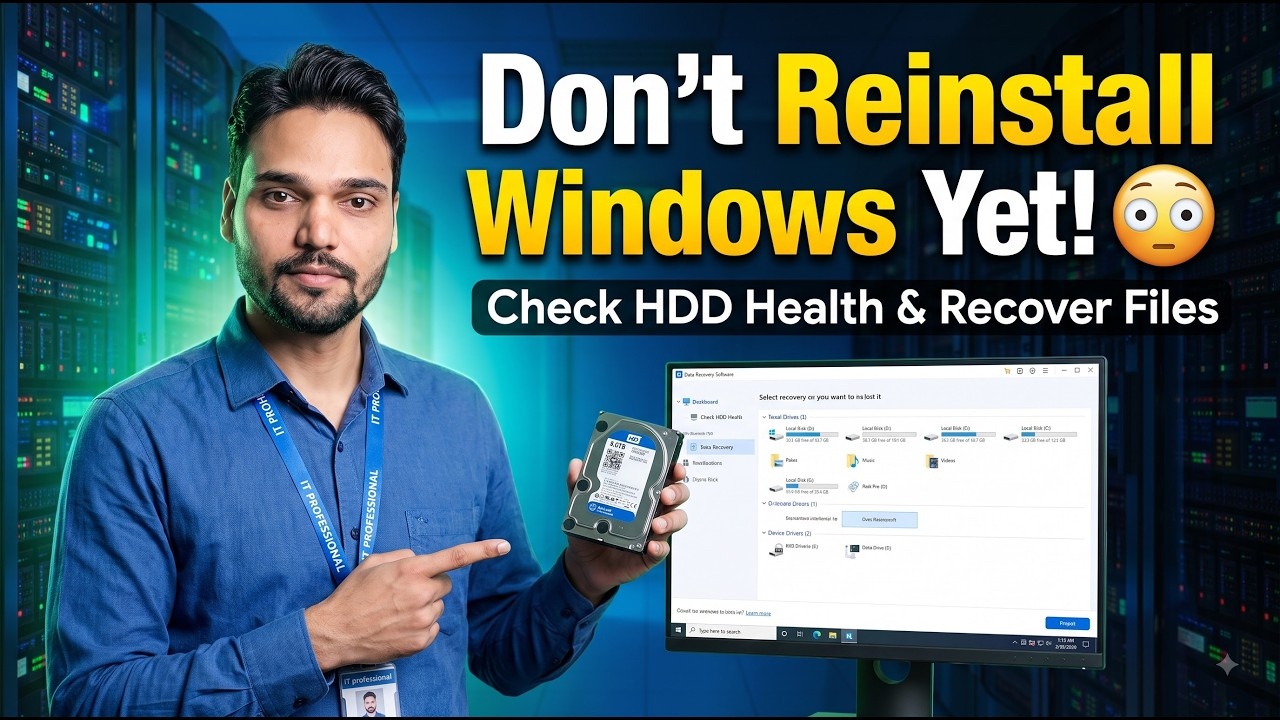
A failing drive has a limited number of reads left in it — nobody knows how many. Every technique on this page exists to spend those reads wisely. The amateur order (boot it, browse it, run repair tools, copy the big folder first) spends them on Windows' own housekeeping and dies halfway. The professional order is different: stabilise, image everything in one gentle pass, then do all the risky picking and sorting on the image — where a failed attempt costs nothing, because the image can be re-read forever.
👆 The order matters more than the tools — imaging first converts a dying, one-chance drive into a safe file you can work on calmly.
Step 1 — Freeze the Situation: Stop All Writes
- If the drive is clicking, grinding or beeping, this page is already too late-stage — power off and treat it as a lab case (see the clicking-noise guide)
- Otherwise: no more normal boots. Windows writes logs, caches, updates and page files constantly, landing fresh writes on a surface that is failing to read
- Absolutely no
chkdsk /forchkdsk /r'to fix it first'. On a dying drive, chkdsk's relocations and hours of surface scanning are among the most destructive things you can run. This is the video's central warning too: data first, repairs never - Do not let Disk Management 'initialise' an undetected drive, and never accept any format prompt. Initialising writes a new partition table over your data's map
Step 2 — Prepare the Operating Theatre
- A destination drive that is healthy and at least as large as the patient — for a full image, equal or bigger than the patient's total capacity, connected and ready
- A bootable USB environment: a WinPE rescue USB or a Linux live USB. You will boot from this, so the patient drive is only ever read, never run
- An imaging tool that tolerates errors: on Linux, GNU ddrescue is the professional standard; on Windows/WinPE, cloning tools that offer 'ignore errors' or sector-by-sector copy with skipping. The defining features: it reads sequentially in one pass, skips unreadable areas quickly instead of retrying for minutes, and keeps a log/map so a second pass can target only the missing parts
- Good cooling and stable power. A rescue imaging pass on a large drive takes hours; an overheating enclosure or a loose USB cable mid-pass wastes the drive's best hours
Step 3 — Image the Whole Drive, Errors Skipped
- Boot the USB environment, confirm both drives are visible, and start the image from patient → destination. Triple-check the direction: imaging the empty drive over the patient destroys everything
- First pass settings: no retries (or minimal), skip bad areas fast, log/map file saved on the destination. The goal of pass one is to harvest everything readable while the drive is at its strongest
- Watch the behaviour, not the clock. Steady progress with occasional skips is good. The drive vanishing, new clicking, or the error rate exploding means stop — what you have imaged already is safely yours
- Optional second pass: retry the skipped areas with a few more attempts, in reverse direction if the tool supports it — a classic ddrescue technique that reads weak areas from the other side. Only while the drive still behaves
- When imaging finishes (or the drive stops cooperating), disconnect the patient and leave it alone. All further work happens on the image
Step 4 — Extract Files From the Image, Calmly
- Mount the image or open it in your recovery/file tool. If the file system is intact, simply copy your folders out — documents, photos, then the rest
- If the partition or file system is damaged, run file-carving/recovery software against the image, never the original. Failed scans and retries now cost nothing
- Verify the important files actually open — a copied file is not a rescued file until it opens. Prioritise checking documents, photos and any business data
- Only now, with data safe, think about the hardware: the old drive is scrap or a warranty claim. It is never trusted again, however well it behaved during imaging
The video above demonstrates this rescue thinking on a real failing drive, including when to stop and what to check before reinstalling anything.
🎥 Watch the Complete Process in the Video
Watch the complete safe recovery process in the video - diagnosis first, then data off the failing drive in the right order.
▶️ Watch Full VideoWhy not just copy my important folders instead of imaging the whole drive?
File-by-file copying makes the drive jump all over its surface - directory reads here, file data there, retries everywhere - which is the hardest workload for a dying mechanism, and every freeze risks the copy dying mid-folder. Sequential imaging reads the surface in one smooth pass, grabbing the important and unimportant alike while the drive is strongest. Afterwards you pick files from the image with zero risk. The exception is a drive failing so fast that minutes matter - then grab the precious folders first.
What is the difference between cloning and imaging, and which do I want?
A clone copies the drive onto another physical drive, which then behaves as the original. An image stores the drive's contents as a file (or set of files) on the destination. For rescue, imaging is safer: the image can be stored alongside other data, copied again, and worked on with recovery tools without needing a dedicated disk. Cloning is fine too if the clone is then treated as read-only evidence - the mistake is booting from the clone and letting Windows write to it before files are extracted.
The imaging tool reports many unreadable sectors. Is the data hopeless?
Not necessarily. Unreadable sectors cluster in damaged areas, while most of a drive's surface usually still reads - which is why the image captures the majority of files intact. Files that lived in the damaged zones may be missing or corrupt, and second passes with retries sometimes recover more of them. Judge success by opening your extracted important files, not by the raw sector count.