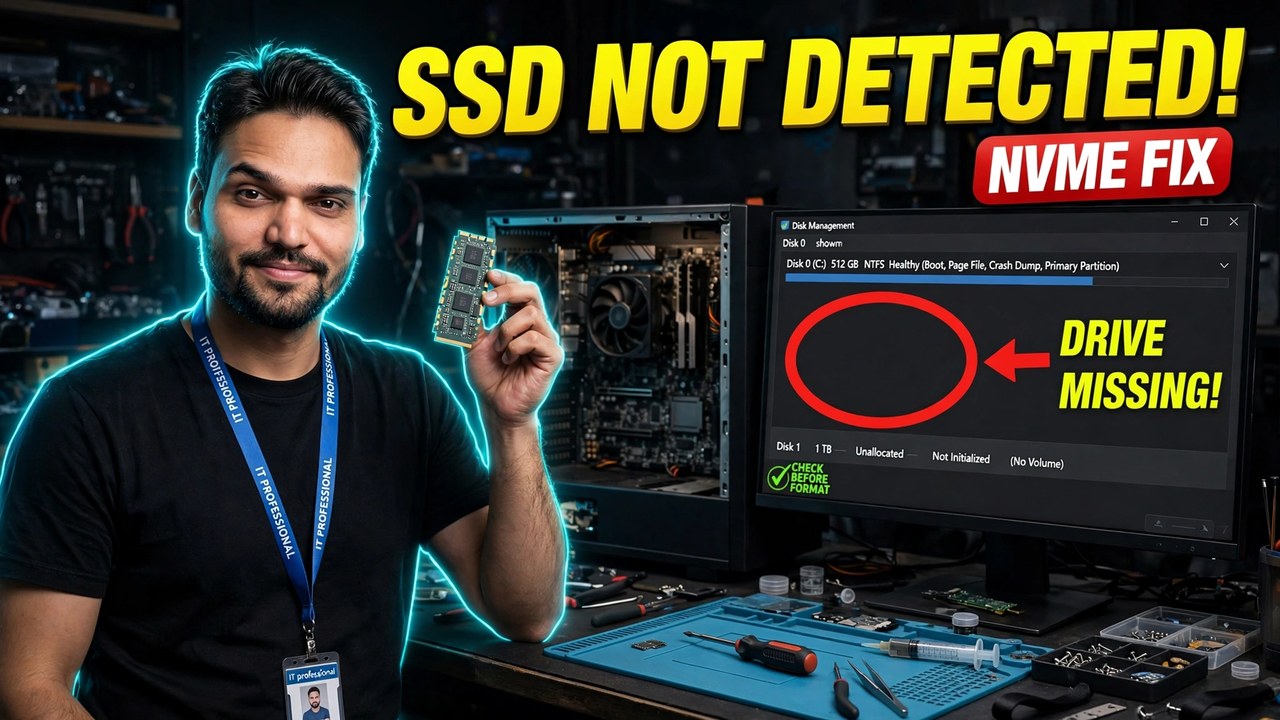
This problem has three very different versions, and confusing them wastes hours. Version 1: the SSD shows in BIOS but not in File Explorer - usually a new, uninitialized disk, and the easiest fix on this page. Version 2: it shows in BIOS and Device Manager but not in Disk Management - Dell documents a specific cause for this: Windows Storage Spaces has claimed the drive into a storage pool. Version 3: it shows nowhere, not even in BIOS - that points to seating, the M.2 slot setting, an Intel VMD / RAID mode problem, or a genuinely failed drive. Kingston's own support guidance starts the same way this guide does: confirm the drive in BIOS first, check that it is seated properly, and only then initialize it inside the operating system.
Disk 0 · 476.94 GB · Online · (C:) NTFS VISIBLE
Disk 1 · Unknown · Not Initialized · 931.51 GB Unallocated NO DRIVE LETTER
X No new drive in File Explorer under This PC
X Or: no Disk 1 row at all - the NVMe drive is missing from Disk Management completely
Check: a brand-new drive showing "Unknown - Not Initialized" here is normal, not faulty. An old drive with your files on it showing the same thing is a warning - read the red box below before touching it.
What Disk Management looks like in the two common cases: a new drive waiting to be initialized, and a drive that is missing completely.
Find Out Where the Drive Disappears
Two minutes of checking tells you which fix applies. Do not skip this and start changing settings at random.
- Press Win + X and open Disk Management. Look carefully at the disk list by capacity. A new drive may be present here as Unknown / Not Initialized even though File Explorer hides it - that is Fix 4.
- Open Device Manager and expand Disk drives and Storage controllers. If the SSD is listed here but not in Disk Management, go to Fix 5 (Storage Spaces).
- Restart the PC and enter BIOS / UEFI setup (usually Del or F2 during startup, check your motherboard or laptop manual). Open the storage / NVMe configuration page and note whether the SSD model and capacity are listed. Kingston's support FAQ uses exactly this test: present in BIOS means the hardware connection is working.
- Write down the result: in BIOS + in Disk Management = Fix 4. In BIOS, not in Windows at all = Fix 3 and Fix 6. Nowhere, not even BIOS = Fix 2, then Fix 7.
Reseat the M.2 Drive and Check the Slot ⭐
An M.2 stick that is a fraction out of its connector, or held at an angle by a loose screw, is one of the most common causes of a drive that is missing everywhere - including BIOS.
- Shut the PC down fully, switch off the power supply and unplug the power cable. On a laptop, shut down and unplug the charger; do not open a laptop if it is under warranty and the maker does not allow it - use their service route instead.
- Open the case, find the M.2 slot, remove the small mounting screw, and slide the SSD out.
- Slide it back in flat, at a shallow angle first, then press it down so the gold contacts are fully inside the connector and no contact pins are visible. Refit the mounting screw - snug, not forced. An over-tightened screw or a missing standoff can hold the stick at the wrong angle.
- Check your motherboard manual for two slot traps: some M.2 slots support SATA M.2 drives only, or NVMe only, not both; and fitting an M.2 drive in some slots disables certain SATA ports or shares PCIe lanes with another slot. If your slot is SATA-only, an NVMe stick will never appear there - move it to an NVMe (PCIe) slot.
- Power on, enter BIOS, and check the storage page again before booting Windows.
Check BIOS: Slot Enabled, CSM, and the VMD / RAID Mode
BIOS settings decide whether Windows is even allowed to see the controller the SSD sits behind. Change one setting at a time, and note the original value before you change it.
- In BIOS, find the M.2 / NVMe configuration and confirm the slot you used is Enabled and, where the board offers a mode choice, set to PCIe / NVMe rather than SATA.
- For a modern NVMe boot or data drive on a UEFI system, CSM (Compatibility Support Module) should normally be Disabled so the board runs in pure UEFI mode. Microsoft Q&A support answers for this exact problem give the same advice, with the warning that if your existing Windows was installed in Legacy / CSM mode, disabling CSM can stop that Windows from booting - so if your current Windows only boots with CSM on, leave CSM alone and fix the other steps first.
- Intel VMD check (important on Intel 11th to 14th generation laptops and PCs): if BIOS has a VMD Controller or storage mode set to RAID / Intel RST, the NVMe drive sits behind the Intel Rapid Storage controller. ASUS's official support article for "Cannot find drives when installing Windows OS" states that on these platforms you must load the Intel Rapid Storage Technology (IRST) driver for Windows to see the drive - download it from your exact laptop or motherboard model's support page (Chipset / storage category), extract it to a USB stick, and use Load driver on the Windows Setup disk-selection screen. ASUS also notes newer platforms using native NVMe with Windows 11 24H2 or later may not need this manual step - follow your own model's page, not a generic one.
- Do not casually flip VMD or RAID mode on a PC that already has Windows installed. Windows was installed with one controller mode and its matching driver; changing the mode afterwards can make Windows fail to boot with an INACCESSIBLE_BOOT_DEVICE error. For an already-installed Windows, the safer route is Fix 6 (install / update the correct storage driver inside Windows) and only change the BIOS mode if your PC maker's support page tells you to for your model.
- If the drive appeared right up until a BIOS update or a BIOS reset, load the BIOS defaults once, then re-check the slot and mode settings above - an update can silently reset the M.2 mode or turn VMD back on.
New Drive Only: Initialize as GPT and Give It a Letter
This is the normal setup for a brand-new SSD, and the fix for the most common version of this problem. Microsoft's initialize guide confirms the default partition style is GPT, and Kingston's official steps for a new drive are the same sequence.
- Press Win + X and open Disk Management. If the Initialize Disk box appears automatically for the new disk, confirm it is the new SSD by its capacity.
- If no box appears, right-click the disk label on the left (shown as Unknown, Not Initialized) and choose Initialize Disk. If the disk shows as Offline, right-click it and choose Online first.
- Select GPT (GUID Partition Table) and click OK. Microsoft notes GPT is the style most modern computers use and is required for drives larger than 2 TB; choose MBR only for an old legacy system.
- Right-click the Unallocated space on the new disk and choose New Simple Volume. Follow the wizard: accept the full size, assign a drive letter, format as NTFS, and finish. The drive now appears in File Explorer.
- If the disk was already visible with partitions but had no letter: do not initialize anything. Right-click the partition, choose Change Drive Letter and Paths, and add a letter. A partition without a letter is hidden from File Explorer but your data on it is untouched.
Check Storage Spaces: the Pool May Have Claimed the Drive
Dell's official support article for this exact symptom - new SSD visible in BIOS and Device Manager but missing from Disk Management - names the cause directly: if Storage Spaces was already set up on the PC, Windows can add the new SSD to the existing storage pool, and a pooled drive is not shown as a normal disk in Disk Management.
- Open the Start menu, search for Storage Spaces and open it. If no pool exists on this PC, this fix does not apply - move to Fix 6.
- Click Change settings, then open Physical drives and look for your new SSD in the pool list.
- Select the SSD and choose Prepare for removal. Keep the PC plugged in and awake until the status changes to Ready to remove - Dell advises setting sleep to Never during this, because removal pauses if the PC sleeps. Note Dell's warning: the pool needs enough free space on its remaining drives to move the data off this drive first.
- Choose Remove > Remove drive, then open Disk Management again - the SSD should now be visible, and a new drive can be set up with Fix 4.
Update the Chipset and Storage Drivers, and the BIOS
Do this when BIOS sees the drive but Windows does not, especially after a Windows update, a BIOS reset, or on an Intel VMD system.
- Open Device Manager, expand Storage controllers, and note what is listed - for example a standard NVMe controller or an Intel RST / VMD controller. In Disk drives, right-click the SSD (if listed) and check for any warning icon.
- Open Device Manager's Action > Scan for hardware changes and wait a minute - this forces Windows to re-detect hardware it missed at boot.
- Go to your laptop or motherboard maker's support page for your exact model and download, in this order: the chipset driver, then the storage / Intel RST (IRST) driver if your model lists one. Install both and restart. Use only your model maker's page - not a random driver-download site, and not a driver meant for a different model.
- If your SSD maker provides a management tool (for example Samsung Magician or Kingston SSD Manager), install it from the maker's own site and check whether it detects the drive and offers a firmware update. Kingston's support guidance uses its SSD Manager firmware check as a troubleshooting step. Apply a firmware update only with the PC on stable power, and never interrupt it.
- Check the same support page for a BIOS / UEFI update that mentions storage, NVMe or compatibility fixes. Update the BIOS only by following the maker's own instructions exactly, on stable power - an interrupted BIOS update can stop the PC booting at all. If no storage-related fix is listed, you do not need to update the BIOS just for this problem.
Test the Drive in Another Slot or PC - and the Dead-Drive Signs
If the drive is still missing everywhere after Fix 1 to Fix 6, isolate it. This test separates a dead SSD from a dead slot, and it is the step support will ask about if you claim warranty.
- If your motherboard has a second M.2 slot, fit the SSD there (power fully off, as in Fix 2) and check BIOS again. Appearing in slot 2 but not slot 1 means the first slot, its setting, or its shared PCIe lanes are the problem - not the SSD.
- Test the SSD in another PC, or in a known-good USB NVMe enclosure. If it appears there, back up anything important on it first, then go back over Fix 3 and Fix 6 on the original PC.
- Signs the drive itself has failed: it is not detected in BIOS in either slot, not detected in a second PC or enclosure, or it appears and disappears from BIOS between restarts. A drive that was working and now behaves like this is a warranty / replacement case - contact the SSD maker's support with the model and serial number.
- If an old drive with data is detected in another system but shows as Not Initialized or Unallocated, stop and back up / recover the data there first. Do not bring it back to the original PC and initialize it - initializing would erase what is left of the partition information.
Software Needed
No paid software is required. Everything above uses built-in Windows tools - Disk Management, Device Manager and Storage Spaces - plus BIOS setup. The only downloads you may need are free and come from official pages only: the chipset and Intel RST storage drivers and any BIOS update from your laptop or motherboard maker's support page for your exact model, and your SSD maker's own management tool (such as Samsung Magician or Kingston SSD Manager) for a firmware check.
More PC Fixes on Technical Anshu
Every week: Windows problems, hidden tools and full setup guides, explained step by step.
Subscribe on YouTubeRelated Video
Related video (not this exact NVMe detection fix): if your drive is detected but you suspect it is failing, this video shows how to check whether it is a Windows problem or a real drive failure: Windows Problem or Hard Drive Failure? Find Out Before You Lose Data
Frequently Asked Questions
Why is my new NVMe SSD not showing up in File Explorer?
A brand-new SSD has no partition and no drive letter, so File Explorer hides it. Open Disk Management: if the disk shows as Unknown and Not Initialized, initialize it as GPT, create a New Simple Volume, format it as NTFS and assign a drive letter. Only do this on a new, empty drive.
My SSD shows in BIOS but not in Windows. What does that mean?
The hardware and slot are working, so the problem is inside Windows: the disk may be uninitialized, offline, without a drive letter, claimed by a Storage Spaces pool, or hidden behind a storage controller driver such as Intel VMD. Work through Disk Management, Storage Spaces and driver checks before suspecting the drive itself.
What is Intel VMD and why does it hide my NVMe SSD?
Intel VMD (Volume Management Device) is a storage controller feature on many Intel 11th to 14th generation systems. When VMD is on, NVMe drives sit behind the Intel RST controller, and Windows Setup or Windows may not see them without the Intel Rapid Storage Technology (IRST) driver. ASUS documents loading that driver during Windows installation for exactly this problem. Changing VMD or RAID mode after Windows is installed can stop Windows booting, so note the original setting before you change anything.
Should I initialize or format an old SSD that disappeared?
No, not as a first step. Microsoft warns that initializing a disk already in use erases the data on it. If the drive previously held files, first try reseating it, checking BIOS settings, bringing it online, assigning a drive letter, updating drivers and testing it in another slot or PC. Initialize and format only a new, empty drive, or a drive whose data you have already backed up.
How do I know if my NVMe SSD is dead?
Strong signs are: the drive is missing from BIOS in two different M.2 slots, missing in a second PC or a known-good USB NVMe enclosure, or it appears and disappears repeatedly. If it is detected nowhere after reseating and slot testing, treat it as a failed drive and contact the SSD maker for warranty support. If BIOS sees it in another system, the original slot, BIOS setting or driver was the problem, not the drive.