Build and Upgrade a PC Step by Step RAM GPU and LAN Explained
A PC upgrade fails long before the screwdriver comes out — it fails at the shopping stage, when the RAM generation, the power supply or the cabinet size was never checked. This guide follows the safe order: list what you have, upgrade RAM, GPU and LAN one part at a time, and verify each step before moving on.
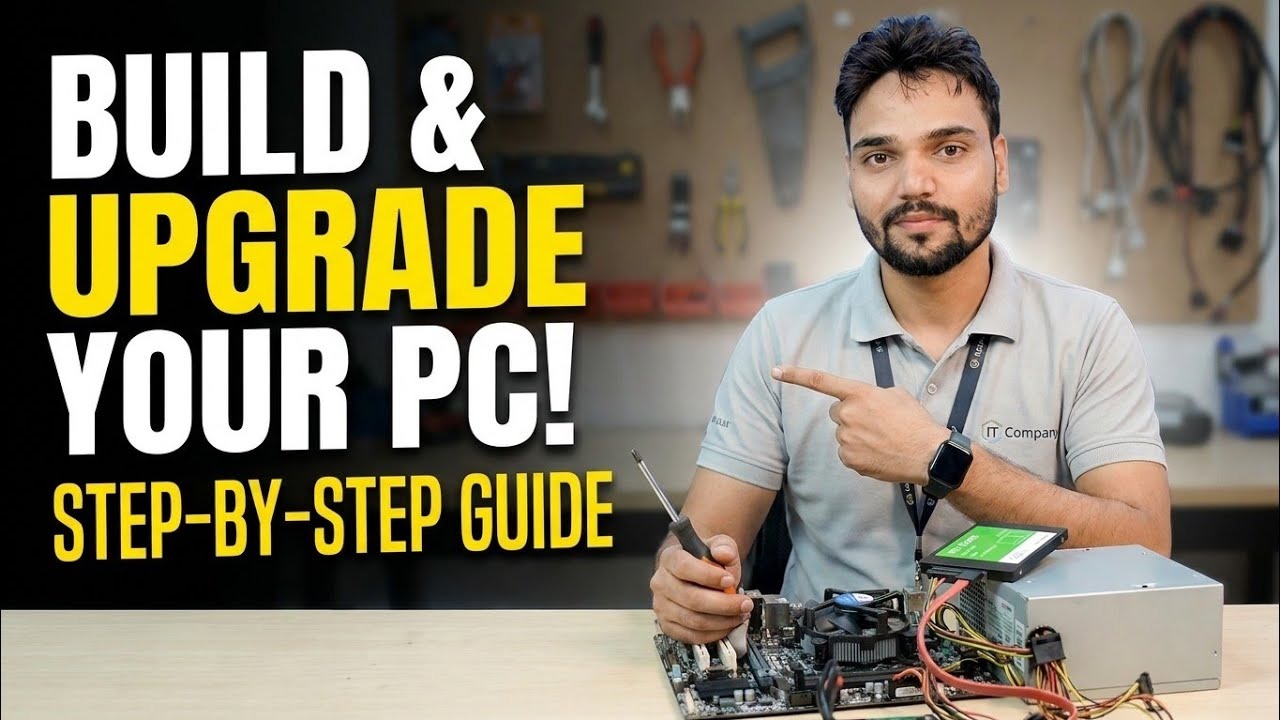
Most people buy the part first and ask questions later. The professionals do the opposite. They write down the exact motherboard, RAM generation, power supply wattage and free slots, and only then spend money. This page walks through the complete upgrade the way the video does it — inventory first, then RAM, then the graphics card, then the LAN card — with the check that proves each part actually worked before you close the cabinet.
Write Down What You Already Have
Every upgrade decision depends on five facts about your current machine. Task Manager (Performance tab) shows the CPU model, total RAM, how many RAM slots are used, and the GPU. For a written inventory, run msinfo32 for the motherboard model, and in PowerShell run Get-CimInstance Win32_PhysicalMemory | Select-Object DeviceLocator, Capacity, Speed to list each RAM stick and its speed. Finally, read the label on the power supply itself — the wattage printed there is the only number that matters for a GPU upgrade, and no software can tell you it.
- CPU model and motherboard model
- RAM generation (DDR3, DDR4 or DDR5), total size, slots used and slots free
- Power supply wattage and which PCIe power cables it has
- Free PCIe slots and rough free space inside the cabinet
- Current network speed — almost all boards today are 1 Gbps
RAM Upgrade — The Generation Decides Everything
RAM is the cheapest real speed-up for an office PC, and also the easiest to buy wrong. DDR3, DDR4 and DDR5 sticks are physically different and cannot be mixed or forced into the wrong slot — the notch position is different on purpose. Your motherboard supports exactly one generation, so match it. If a slot is free, adding a second stick of the same capacity and speed also enables dual-channel mode, which helps integrated graphics noticeably. If all slots are full, you replace — which is why step 1 counted them. Fit sticks in the slot order your motherboard manual specifies (usually the second slot from the CPU first for a single stick), push until both clips click, and confirm the new total in Task Manager before doing anything else.
GPU Upgrade — Power and Space Before Performance
A graphics card has three gates to pass, and raw performance is none of them. Gate one: power. The card maker lists a recommended power supply wattage; your PSU must meet it and must have the PCIe power connectors the card needs (6-pin, 8-pin, or none for low-power cards that run from the slot alone). Adapters that invent missing connectors are a bad idea on a weak PSU. Gate two: space. Measure the length available from the back of the cabinet to the drive cage and compare it with the card length on its spec sheet — dual-fan cards surprise people. Gate three: the slot. The card goes in the top PCIe x16 slot, and the display cable must move to the card — a monitor left plugged into the motherboard will keep using the slow onboard graphics and the new card will look broken.
LAN Upgrade — When One Port Is Not Enough
Onboard Ethernet is 1 Gbps on nearly every board, which is plenty for internet use. A PCIe LAN card earns its place in three situations: you want 2.5 Gbps to a fast NAS or switch, the onboard port has died, or the PC needs two network ports — for example a server PC that talks to one network for users and another for storage or a CCTV system. A x1 PCIe card fits any free PCIe slot, Windows usually loads its driver automatically, and the honest limit is this: a 2.5 Gbps card only runs at 2.5 Gbps if the switch and the device at the other end also support it — otherwise it falls back to 1 Gbps and nothing was gained except the spare port.
Fit One Part at a Time, In This Order
Change one thing, test it, then change the next. That discipline is what turns a failed boot from a mystery into a one-minute diagnosis. The working order used in the video: shut down, switch off the PSU and unplug it; fit the RAM and boot to confirm the new total; shut down again and fit the GPU, move the display cable, boot and install its driver from the maker official site; finally fit the LAN card, connect the cable and check the link speed in Windows. If the PC fails to start after any single step, the cause is the part you just touched — reseat it before blaming anything else.
Verify the Upgrade Actually Worked
Closing the cabinet is the last step, not the first. Verify each part with the tool that can actually see it: RAM total and slot use in Task Manager; the new GPU by name in Device Manager and in Task Manager Performance, with the monitor cable confirmed on the card; the LAN card under Get-NetAdapter in PowerShell, checking the link speed matches what your switch offers. Then run your real workload — the game, the editing timeline, the file copy to the NAS. An upgrade is finished when the work you bought it for feels different, not when the parts are merely detected.
🎥 Watch the Complete Build and Upgrade Video
RAM, GPU and LAN upgrades done live, step by step, with the reasons behind every choice.
▶ Watch Full VideoWhat should I upgrade first, RAM, GPU or storage?
Measure first. If RAM sits near full in Task Manager, more RAM helps most per rupee. If the GPU is at 100 percent in games or editing while the CPU is not, the GPU is the limit. If the PC still boots from a hard disk, an SSD beats both. The video approach is to watch Task Manager during your real work and upgrade whichever part is pinned at its limit.
Can I mix RAM sticks of different sizes or brands?
Usually yes, with honest limits. Capacity can differ (8 GB plus 16 GB gives 24 GB), and brands can differ, but all sticks run at the speed of the slowest stick, and very old or unusual combinations occasionally refuse to boot. Matching capacity and speed in pairs is the safe buy; mixing is the budget buy.
My new graphics card gives no display. What do I check first?
Two checks solve most cases. First, is the monitor cable plugged into the graphics card and not the motherboard port? Second, does the card need a PCIe power cable, and is it fully pushed in? Then reseat the card in its slot and confirm the power supply meets the card maker recommended wattage.