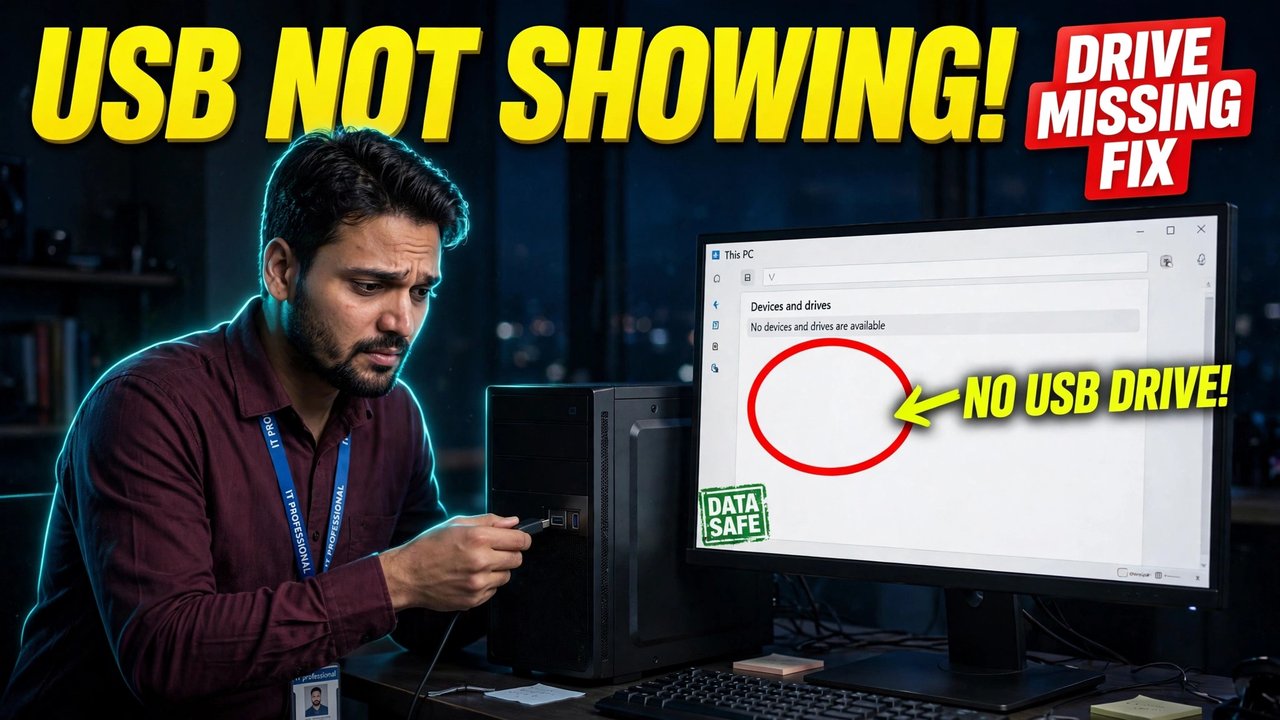
A USB drive can vanish from This PC for several very different reasons: the partition lost its drive letter, the file system shows as RAW, the USB Mass Storage driver is stuck, or Windows keeps putting the port to sleep. Guessing is dangerous here because one wrong click - accepting the format offer - erases data that was perfectly safe. So the steps below start with free hardware checks, move to Disk Management to see what Windows actually detected, and only then change settings. Read the red warning before touching anything if the drive holds important files.
X The USB drive light is blinking and Windows played the device connect sound
X This PC shows only Local Disk (C:) - no USB drive at all
X Disk Management shows: Disk 2 · Removable · 29.30 GB · Online · Healthy (Primary Partition) - but no drive letter in front of it
Check: a disk that appears in Disk Management without a letter is detected correctly. Explorer simply has no path to show it under.
MOST COMMON CAUSE The partition has no drive letter assigned.
The fingerprint of this problem: the drive is alive in Disk Management but invisible in This PC.
First Rule Out the Port, the Cable and the PC
Two minutes of swapping parts separates a hardware fault from a Windows fault, so you never repair the wrong thing.
- Unplug the drive and plug it into a different USB port. On a desktop, use a port on the back panel, directly on the motherboard, instead of a front-panel port or a USB hub.
- For an external hard disk, also try a different USB cable. A cable that charges fine can still fail at data.
- Plug the drive into another PC or laptop. If it appears there with its files, the drive is healthy and the problem is inside your Windows - continue with Fix 2.
- If the drive fails on every computer, with every cable, the drive or its enclosure is faulty. No Windows setting in this guide will fix dead hardware.
Open Disk Management and See What Windows Actually Detected ⭐
Disk Management is the ground truth. It shows every disk Windows can see, including the ones Explorer hides.
- Press Win + X and choose Disk Management. Or press Win + R, type
diskmgmt.mscand press Enter. - Find your USB disk in the bottom half of the window. Identify it by its size and the word Removable - do not rely on the disk number alone.
- Now match your case: Disk listed, partition healthy, but no letter like (E:) - go to Fix 3, this is the easy case. Disk listed, partition shows RAW or the whole disk shows Unallocated - read the red warning below before doing anything. Disk not listed at all - go to Fix 5 and Fix 6.
No Drive Letter? Assign One
This is the fix for the most common case, and it does not touch a single file on the drive.
- In Disk Management, right-click the partition of your USB drive (the blue bar) and choose Change Drive Letter and Paths.
- Click Add, keep the suggested letter or pick a free one, and click OK.
- Open This PC again. The drive appears immediately with its letter and all its files.
- If the letter you want is already taken by another device, choose any other free letter - the letter itself does not matter.
Refresh the USB Mass Storage Driver
When the disk does not appear in Disk Management at all, the driver that speaks to USB storage is often stuck. Removing it forces Windows to install a clean copy.
- Press Win + X and choose Device Manager.
- Expand Universal Serial Bus controllers.
- Right-click USB Mass Storage Device and choose Uninstall device. If asked, confirm. Do not worry - this is a standard, reversible step.
- Unplug the USB drive, wait ten seconds, and plug it back in. Windows detects it fresh and reinstalls the driver automatically.
- Check This PC and Disk Management again.
Turn Off USB Selective Suspend
Selective suspend lets Windows power down USB ports to save energy. On some PCs it cuts power to a healthy drive, which then vanishes or never appears.
- Open Control Panel > Hardware and Sound > Power Options, click Change plan settings next to your active plan, then Change advanced power settings.
- Expand USB settings > USB selective suspend setting and set both On battery and Plugged in to Disabled. Click OK.
- Or run the same change from an admin Command Prompt:
powercfg /SETACVALUEINDEX SCHEME_CURRENT 2a737441-1930-4402-8d77-b2bebba308a3 48e6b7a6-50f5-4782-a5d4-53bb8f07e226 0
powercfg /SETDCVALUEINDEX SCHEME_CURRENT 2a737441-1930-4402-8d77-b2bebba308a3 48e6b7a6-50f5-4782-a5d4-53bb8f07e226 0
powercfg /SETACTIVE SCHEME_CURRENT- Replug the drive and check Disk Management again.
Update Chipset and USB Drivers from Your PC Maker
USB behaviour lives in the chipset driver. An old or generic one can fail with storage devices while keyboards and mice still work.
- Go to the support page of your PC or motherboard maker - Dell, HP, Lenovo, ASUS, MSI, Gigabyte and so on.
- Enter your exact model, choose Windows 11, and download the latest chipset driver and any USB driver listed.
- Install them, restart the PC, and test the drive again.
- Take drivers only from the maker. Third-party driver updater tools bundle junk and often install worse drivers than the ones you already have.
Confirm Detection from the Command Line with diskpart
If Disk Management is unclear, diskpart gives a plain yes or no: does Windows see this disk at all?
- Open Command Prompt and run the commands below one at a time:
diskpart
list disk
exit- In the
list diskoutput, look for a disk with the size of your USB drive. If it is there, Windows detects the hardware and the problem is the letter, the file system or the driver - all covered above. - If no disk of that size appears, the fault is hardware-side: port, cable, enclosure or the drive itself, as tested in Fix 1.
- Stop at list disk. This guide deliberately uses diskpart only to look. Do not experiment with other diskpart commands on a drive that holds data - in particular,
cleanerases the partition table of the selected disk instantly and without a confirmation prompt.
Software Needed
None. Every step above uses tools built into Windows 11: Disk Management, Device Manager, Power Options and diskpart, plus chipset drivers from your PC maker's own website. No third-party USB fixer or driver updater is needed for this problem.
More PC Fixes on Technical Anshu
Every week: Windows problems, hidden tools and full setup guides, explained step by step.
Subscribe on YouTubeRelated Video
Related video (not the fix for this exact problem): it explains how partitions and drive letters work - the background behind Fix 3 above - so if you want to understand what a partition really is before you change one, watch: Disk Partition Explained
Frequently Asked Questions
Why does my USB drive appear in Disk Management but not in This PC?
This PC only shows volumes that have a drive letter. If the disk is detected and its partition is healthy but no letter is assigned, Explorer has no path to display it under. Assigning a letter in Disk Management makes it appear in This PC within seconds, without touching the files on it.
Will assigning a drive letter format or delete my data?
No. A drive letter is only a label Windows uses to reach the volume, like E: or F:. Adding or changing it does not format the disk and does not delete any file. It is one of the safest fixes in this guide.
What does it mean if my drive shows as RAW in Disk Management?
RAW means Windows cannot read the file system on that partition, because it is corrupted, unsupported, or the partition information is damaged. If the drive holds data you need, do not format it when Windows offers to. Try the drive on another PC first, and use the data recovery route if the files still do not appear.
My drive does not appear in Disk Management at all. What should I check?
First test another USB port, another cable for an external hard disk, and another computer. If the drive is invisible everywhere, the drive, its cable or its enclosure has likely failed. If it appears on another computer, the fault is on your PC: the USB Mass Storage driver, USB selective suspend, or old chipset drivers are the usual causes.