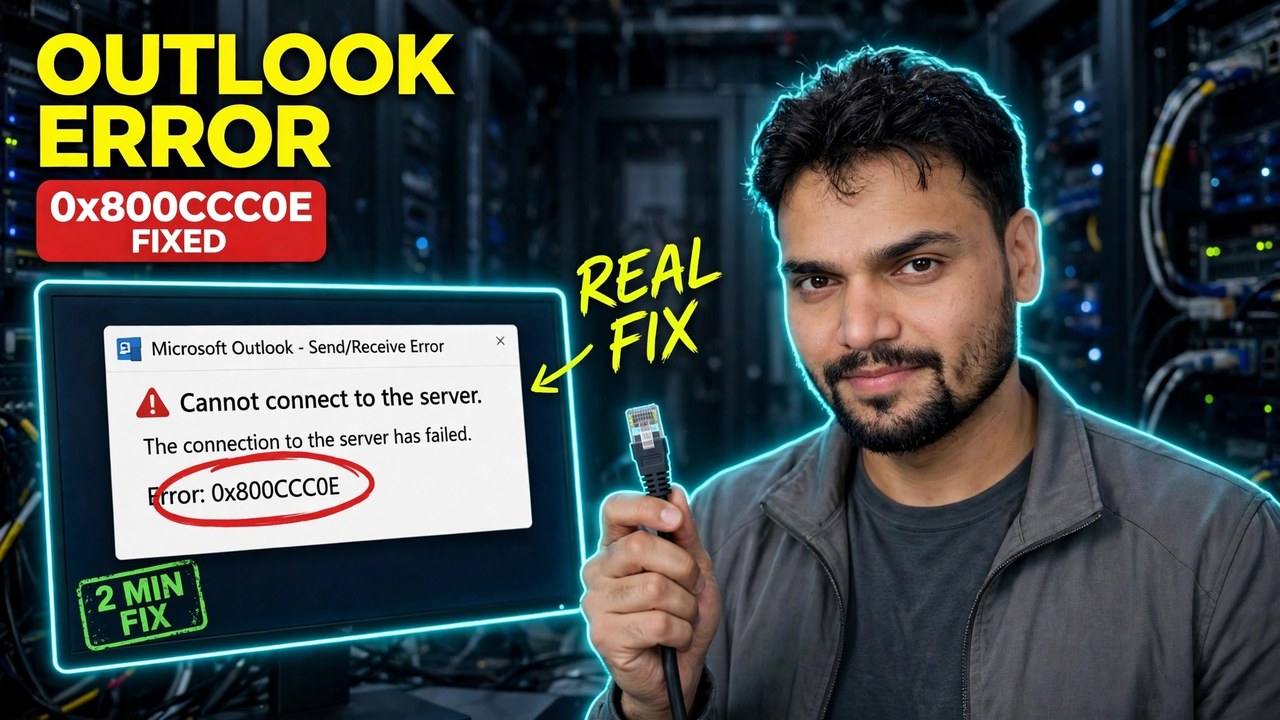
Error 0x800CCC0E means Outlook tried to open a connection to your incoming or outgoing mail server and the connection failed - the full text is usually "Outlook cannot connect to your incoming (POP3) e-mail server" or the same for SMTP, with "The connection to the server was interrupted" on some accounts. The common causes are Work Offline switched on, a mail server outage, wrong port or encryption settings (often changed by an ISP), an antivirus or firewall blocking Outlook, or a damaged profile. Do not keep pressing Send and Receive - work through the checks in order.
X Send and Receive fails within seconds with error 0x800CCC0E
X Webmail for the same account opens fine in the browser
X The error started after changing ISP, router, antivirus or password
X Sending works but receiving fails - or the other way round
0x800CCC0E A connection failure, not a password failure - a wrong password gives a repeating password prompt or a different error, not 0x800CCC0E.
The fingerprint of this problem: Outlook is running normally but cannot open a network connection to the mail server at all.
Turn Off Work Offline and Test the Connection
Outlook has an offline switch that produces exactly this error, and a general internet or server outage looks identical from inside Outlook.
- Look at the Outlook status bar at the bottom: if it says Working Offline or Disconnected, go to the Send / Receive tab and click Work Offline so it is no longer highlighted.
- Open the account's webmail in a browser and sign in. If webmail also fails, the mail server or your password is the problem, not Outlook - wait for the provider or reset the password there first.
- Restart the router, wait 2 minutes, and test one normal website. If the whole internet is down, fix that first - 0x800CCC0E will clear with it.
Check Whether It Is One Account or All Accounts
This split decides whether you are fixing account settings or the PC's connection as a whole.
- If you have more than one account in Outlook and only one fails with 0x800CCC0E, the PC, internet and Outlook are fine - the fault is in that account's settings or its server. Go to Fix 3 for that account only.
- If every account fails at the same time, suspect the shared layer: antivirus email scanning, the firewall, the router, or the ISP blocking mail ports. Go to Fix 4 first.
- If the error names only the outgoing (SMTP) server, sending is blocked but receiving may still work - ISPs commonly block port 25, which Fix 3 corrects.
Correct the Server Port and Encryption Settings
Providers moved almost all accounts to encrypted ports. An account still set to an old plain port is the single most common cause of a sudden 0x800CCC0E.
- Go to File > Account Settings > Account Settings, select the account, and click Change (for POP/IMAP accounts, then More Settings > Advanced).
- Match the provider's current settings. The standard secure values are: IMAP incoming 993 with SSL/TLS, POP3 incoming 995 with SSL/TLS, and SMTP outgoing 587 with STARTTLS (or 465 with SSL/TLS where the provider says so). Server names must match the provider exactly, for example outlook.office365.com or imap.gmail.com.
- On the Outgoing Server tab, tick My outgoing server (SMTP) requires authentication and Use same settings as my incoming mail server unless your provider says otherwise.
- Click through OK and Finish, then press Send / Receive. If the account is Microsoft 365 or Gmail, prefer removing and re-adding the account as an automatic setup instead of hand-editing ports - modern Outlook configures those correctly by itself.
Check Antivirus, Firewall and a Stuck Outbox Message
Security software that scans mail can break the connection it is protecting, and one oversized stuck message can block the whole send queue.
- Look in the Outbox folder. If a message with a very large attachment is stuck there, switch on Work Offline (Send / Receive tab), delete or move that message, then switch Work Offline off again and test.
- Temporarily turn off only the email scanning part of your antivirus (not the whole antivirus) and test Send and Receive. If mail flows, the scanner was blocking it - update or reinstall that antivirus component.
- In Windows Security, open Firewall & network protection > Allow an app through firewall and confirm Outlook (OUTLOOK.EXE) is allowed on Private and Public networks.
- If every account failed (Fix 2), also try the PC on a phone hotspot for one test: if mail works on the hotspot, your router or ISP is blocking the mail ports.
Repair the Account, Then Create a New Profile ⭐
When the settings are provably correct and one account still fails, the stored profile entry is usually damaged.
- Warning first: for a POP account, note the PST location (File > Account Settings > Data Files) before touching the profile - the PST holds the only copy of downloaded mail. Back it up by copying the file while Outlook is closed.
- Try File > Account Settings > Account Settings > select the account > Repair and let Outlook re-test the settings automatically.
- If Repair is greyed out or fails, create a new profile: close Outlook, open Control Panel > Mail > Show Profiles > Add, add the account with automatic setup, and set the new profile as the default.
- Open Outlook on the new profile and test Send and Receive. Keep the old profile until you have seen several days of clean syncing.
Reset the Network Stack if Nothing Connects
Use this only when every account and webmail-over-Outlook fail but the browser works - that pattern points at a damaged Windows network stack.
- Open Terminal (Admin) from the Win + X menu.
- Run
netsh winsock resetand thennetsh int ip reset, pressing Enter after each. - Restart the PC and test Outlook again before changing any account settings.
More PC Fixes on Technical Anshu
Every week: Windows problems, hidden tools and full setup guides, explained step by step.
Subscribe on YouTubeRelated Video
Related video: Outlook Full Setup & Error Fix Guide - this video covers full Outlook setup, profiles and ScanPST. It is NOT the fix for this exact problem - use the steps above for this error; the video is background help for Outlook setup only.
Frequently Asked Questions
What does Outlook error 0x800CCC0E mean?
Error 0x800CCC0E means Outlook could not open a connection to the mail server - the full message is usually Outlook cannot connect to your incoming (POP3) e-mail server, or the same wording for the outgoing SMTP server. It is a connection failure caused by Work Offline being on, a server outage, wrong port or encryption settings, antivirus or firewall blocking, or a damaged profile. It is not a wrong-password error.
What are the correct port settings to fix 0x800CCC0E?
For most providers the secure settings are IMAP incoming port 993 with SSL/TLS, POP3 incoming port 995 with SSL/TLS, and SMTP outgoing port 587 with STARTTLS (some providers use 465 with SSL/TLS). Check them under File, Account Settings, Change, More Settings, Advanced, and tick My outgoing server requires authentication on the Outgoing Server tab. Your provider's own settings page is the final authority for server names.
Why did 0x800CCC0E start suddenly when nothing changed?
The change usually happened outside Outlook: the provider retired an old port, the ISP started blocking a mail port, the antivirus updated its email scanner, or the router firmware changed. That is why the fix order checks webmail and other accounts first - it separates a provider or network change from an Outlook problem before you touch account settings.
Can a stuck email cause error 0x800CCC0E?
Yes. One message with a very large attachment stuck in the Outbox can fail every send attempt and surface as a connection error. Turn on Work Offline from the Send / Receive tab, delete or move the stuck message from the Outbox, turn Work Offline off, and test Send and Receive again.
Should I remove and re-add the account to fix 0x800CCC0E?
Only after checking Work Offline, webmail, the ports and the firewall, and only after noting the PST location for a POP account. For Microsoft 365, Gmail and Outlook.com accounts, removing and re-adding with automatic setup is safe because mail stays on the server. For POP, point the new setup at the existing PST so downloaded mail is not stranded.