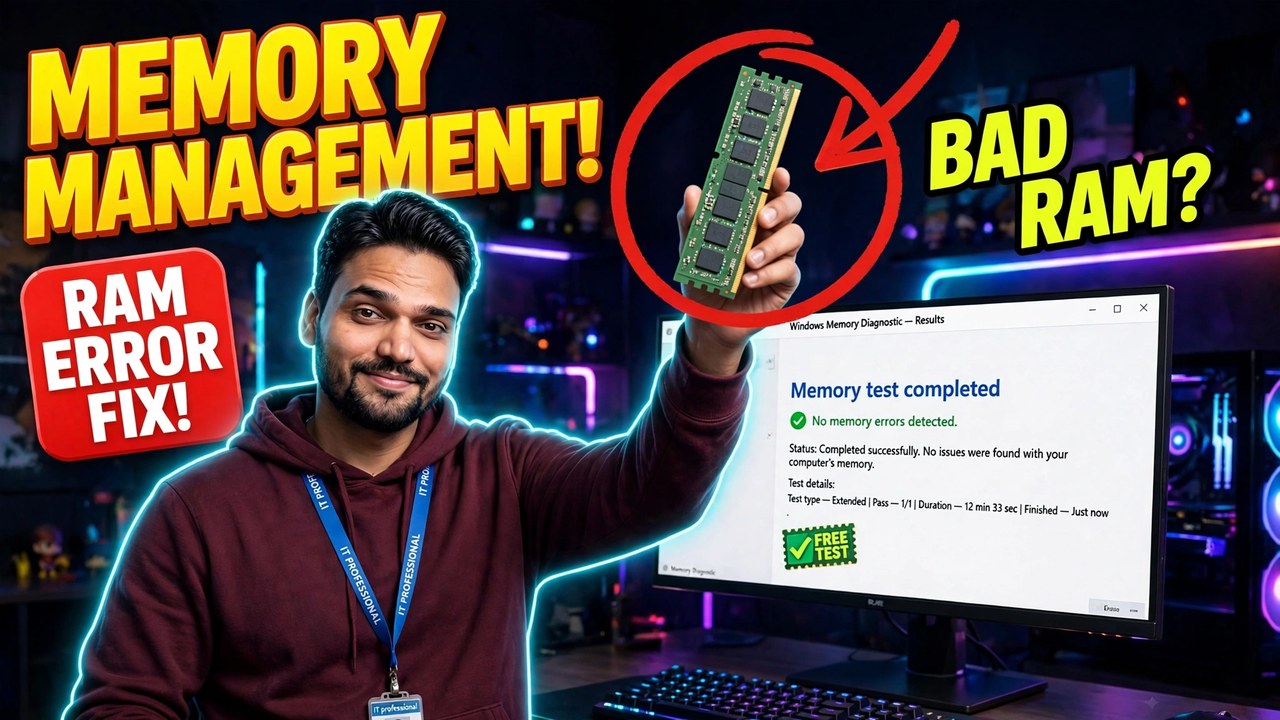
MEMORY_MANAGEMENT is bug check 0x0000001A. It means the Windows memory manager found a serious error in memory - data in RAM was not what it should have been. For this stop code there are three realistic causes, and the whole guide is built around separating them: faulty RAM, an unstable RAM overclock (XMP on Intel, EXPO on AMD), or a driver corrupting memory. Do not start by reinstalling Windows. Turn the overclock off, run a real memory test, and only then look at drivers and system files.
We're just collecting some error info, and then we'll restart for you.
X Crashes often hit under load - gaming, video work, many tabs - or right after a RAM upgrade
X They frequently start after enabling XMP or EXPO, or after adding a new RAM stick
MEMORY_MANAGEMENT Stop code 0x0000001A - the memory manager detected a severe memory error.
The fingerprint of this problem: the MEMORY_MANAGEMENT stop code, often appearing after a RAM change or a memory overclock.
Remove the RAM Overclock - Turn Off XMP or EXPO
An XMP or EXPO profile runs the RAM faster and at tighter timings than the safe default. A profile that is almost stable is the single most common cause of this stop code on a gaming or self-built PC - and it costs nothing to test.
- Restart the PC and enter BIOS or UEFI setup - usually by pressing Del or F2 during startup (check your motherboard or laptop maker's key).
- Find the memory overclock setting: XMP (Extreme Memory Profile) on Intel boards, EXPO on AMD boards. Set it to Disabled or Off, so the RAM runs at its standard JEDEC speed.
- Save and exit (usually F10) and boot Windows normally.
- Use the PC normally for a day, including the workload that used to crash it. If the blue screens stop completely, the profile was unstable on your CPU and RAM combination - you can later try a lower speed step manually, but stock speed is the stable baseline.
- If you never enabled XMP or EXPO, or crashes continue at stock speed, move to the memory test - the RAM itself now needs checking.
Run Windows Memory Diagnostic ⭐
This built-in test is the fastest way to confirm whether Windows itself can find memory errors. It runs before Windows loads, so nothing else interferes with the result.
- Save your work - the PC restarts for this test.
- Press Win + R, type
mdsched.exeand press Enter. - Choose Restart now and check for problems (recommended).
- The PC restarts into the Windows Memory Diagnostic tool and runs the test automatically. The standard mix takes roughly 10 to 30 minutes depending on how much RAM you have. Let it complete both passes.
- When Windows loads again, the result appears as a notification. If you miss it, open Event Viewer > Windows Logs > System and look for the source MemoryDiagnostics-Results.
- Read the result plainly: "hardware problems were detected" means the RAM or a slot has a fault - go to Fix 3 to find which stick. "No errors" does not fully clear the RAM yet - this test is basic, so if crashes continue, still run Fix 3's deeper test before blaming drivers.
Test One Stick at a Time With MemTest86
MemTest86 is the thorough test, and testing sticks one at a time is how you find the faulty stick or slot instead of replacing the whole set on a guess.
- Download MemTest86 from its official site (PassMark) and create its bootable USB using the tool included in the download. This is done on any working PC.
- Shut your PC down, unplug it, and remove all RAM sticks except one. Note which slot that stick is in.
- Boot from the MemTest86 USB and run the full test - let it complete at least the default passes. Even one error means that stick, at that speed, is not stable. Good RAM finishes with zero errors.
- Repeat for each stick, one at a time, in the same slot. Then, if every stick passes alone, test the sticks together, and also test a known-good stick in each slot - a faulty slot produces errors with any stick in it.
- Replace the stick that errors (RAM is normally replaced in matched pairs for dual-channel), or stop using the slot that errors with every stick. If all sticks pass fully at stock speed, the RAM is cleared - go to Fix 4.
Update Chipset and Other Drivers, Roll Back the Recent One
A driver that writes into memory it does not own corrupts RAM contents from the software side, and the memory manager is what catches it later. The chipset driver matters most here because it governs how the CPU talks to memory.
- Go to the support page of your PC or motherboard maker, enter your exact model, and download the latest chipset driver for Windows 11. On AMD systems this is the AMD Chipset Software; on Intel systems it is the maker's chipset INF package.
- Install it, restart, and also update the graphics driver from NVIDIA, AMD or Intel directly - graphics drivers are the other frequent memory corruptors.
- If the crashes started right after a specific driver update, do the opposite for that driver: Device Manager > device > Properties > Driver > Roll Back Driver, then test.
- Change and test one driver at a time. If you update everything at once and the crashes stop, you will not know which driver it was when the next update arrives.
Repair System Files With SFC and DISM
Last, rule out corrupted system files. This is deliberately the final step for this stop code - for MEMORY_MANAGEMENT the memory and drivers come first - but a damaged system file can also mismanage memory, so close the loop.
- Right-click Start and choose Terminal (Admin) or Command Prompt (Admin).
- Run:
DISM /Online /Cleanup-Image /RestoreHealthand let it complete - this repairs the component store SFC copies good files from. - Then run:
sfc /scannowand let the verification reach 100 percent. - If SFC reports it repaired files, restart and test under the workload that used to crash. If files keep coming back corrupted on repeat scans while memory tests are clean, treat that as a sign the drive or RAM is corrupting data as it is written, and re-check Fix 3.
Software Needed
You need two free tools beyond Windows itself: Windows Memory Diagnostic (mdsched.exe) is built into Windows, and MemTest86 from PassMark is free to download and runs from a bootable USB - you will need one spare USB drive to create it. Drivers come only from your PC or motherboard maker and from NVIDIA, AMD or Intel. No paid memory "optimizer" or RAM cleaner helps here - this stop code is about memory correctness, not memory fullness, and those programs cannot test or fix either.
More PC Fixes on Technical Anshu
Every week: Windows problems, hidden tools and full setup guides, explained step by step.
Subscribe on YouTubeRelated Video
Related video (not the fix for this exact problem): a master guide covering PAGE_FAULT, IRQL, MEMORY_MANAGEMENT and other stop errors together, useful for the general BSOD method behind this guide - watch: BSOD Master Guide PAGE_FAULT, IRQL, MEMORY & All Stop Errors Fixed
Frequently Asked Questions
What does MEMORY_MANAGEMENT mean on a blue screen?
It is bug check 0x0000001A. It means the Windows memory manager detected a severe memory error - the data in RAM did not match what should have been there. The usual sources are faulty or unstable RAM, a RAM overclock such as XMP or EXPO that the system cannot hold, or a driver writing into memory it does not own.
Does MEMORY_MANAGEMENT always mean my RAM is dead?
No. RAM running beyond what it can stably do - most often an XMP or EXPO profile - produces the same stop code as a physically faulty stick, and so does a driver corrupting memory. Test at stock speed first: if the errors disappear with XMP or EXPO off and MemTest86 passes, the RAM itself is fine and the profile was the problem.
How long should I run MemTest86?
Run at least the full default set of passes - four passes is the usual standard for a clear result - and test one stick at a time when the combined test shows errors. A single error is already a fail: stable RAM produces zero errors over the whole run. Testing overnight is common for intermittent faults.
Windows Memory Diagnostic said no errors, but the blue screens continue. Why?
The built-in diagnostic is a quick basic test and can miss marginal RAM faults, which is why this guide follows it with MemTest86. If both memory tests are fully clean, look at the driver side next: update the chipset driver, roll back whatever driver changed just before the crashes, and repair system files with SFC and DISM.
Can a graphics driver cause MEMORY_MANAGEMENT?
Yes. Any kernel driver that writes to the wrong memory address can corrupt memory the manager later detects, and graphics and chipset drivers are frequent offenders. That is why, after the memory tests, this guide updates the chipset driver from the PC or motherboard maker and rolls back a driver installed just before the crashes started.