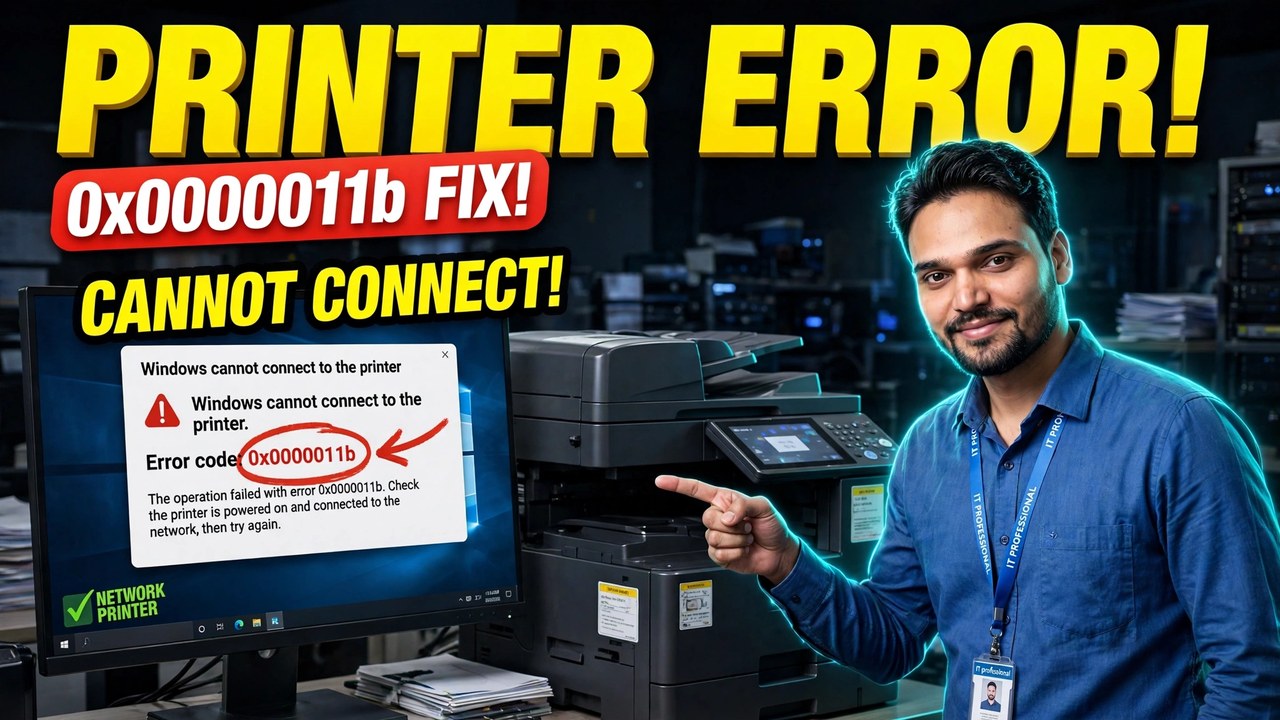
Understand the setup first, because every step depends on it. One PC - call it the host - has the printer attached and shares it on the network. Your PC - the client - is the one showing the error. Security updates raised the RPC authentication level the host demands before it accepts a print connection. When the host and client are on mismatched update levels, the client cannot satisfy that demand and the connection is refused with 0x0000011b. That is why reinstalling the printer driver on the client alone never fixes it, and why Fix 1 - updating both PCs - solves most cases. Keep both PCs in front of you, or have someone at the host, before you start.
Watch the Complete Fix
Watch the complete fix in the video: Fix 0x0000011b Printer Error on Windows 10 and 11 - Quick and Easy Troubleshooting - every step below is shown on screen, in the same order.
Operation failed with error 0x0000011b.
X The printer works normally from the host PC it is shared from
X The error appears on the client PC while adding or reconnecting to the shared printer
X It started after Windows updates - often right after one PC updated and the other did not
0x0000011b A connection error only - this guide is about the shared printer refusing the connection, not about a crashing spooler or a printer that will not print at all.
The fingerprint of this problem: local printing on the host works, only the shared connection from the client fails, with this exact code.
Update BOTH PCs, Then Restart Both ⭐
This is the fix that works most often, because the root cause is a mismatch. Updating only the PC in front of you leaves the mismatch in place.
- On the host PC (the one sharing the printer), open Settings > Windows Update and click Check for updates. Install everything offered, including any cumulative update that is waiting.
- Do exactly the same on the client PC (the one showing 0x0000011b).
- Repeat Check for updates on both PCs until each one reports it is up to date - one round often unlocks a second round.
- Restart both PCs, even if an update did not ask for a restart. The new authentication behaviour only settles after a full restart.
- On the client, try connecting to the shared printer again before changing anything else. If it connects and prints a test page, stop here.
Restart the Print Spooler Service on Both PCs
The Print Spooler service carries every print connection. A stuck spooler on either side can hold the failed connection state even after the updates are aligned.
- On the host PC, press Win + R, type
services.mscand press Enter. - Find Print Spooler in the list, right-click it and choose Restart. If Restart is greyed out, choose Start instead. Confirm its Startup type is Automatic by double-clicking it.
- Repeat the same restart on the client PC.
- Try adding or printing to the shared printer again from the client.
- Note what this step is for: it clears a stuck service state for this connection error. Do not delete spooler folders or driver files for 0x0000011b - that belongs to different printer problems, not this one.
Remove the Failed Printer and Add It Again from the Share
The client keeps the broken connection it created during the failed attempts. Removing it forces a clean negotiation with the host at the new, matching security level.
- On the client, open Settings > Bluetooth & devices > Printers & scanners, click the failed printer and choose Remove.
- Press Win + R and open the host share by typing the host path in the form
\\HOST-PC-NAMEusing the host PC's actual name (find it on the host under Settings > System > About). You can also browse to the host under Network in File Explorer. - If Windows asks for credentials, enter a username and password of an account on the host PC - the host checks its own accounts, not yours. Tick the remember option only on your own PC.
- When the shared printer appears, right-click it and choose Connect, or double-click it, and let Windows install the driver from the host.
- Print a test page: Settings > Bluetooth & devices > Printers & scanners > your printer > Print test page.
Best Workaround: Add the Printer Directly by IP Address
If your printer itself has WiFi or an Ethernet port, you can leave the sharing problem behind completely. A direct IP connection talks to the printer, not to the host PC, so the host's authentication level no longer matters.
- Find the printer's IP address: it is shown on the printer's own network settings screen or printed on its network configuration page - check the printer menu under Network or WiFi settings. It looks like
192.168.1.50. - On the client, open Settings > Bluetooth & devices > Printers & scanners and click Add device.
- Wait for the search, then click Add manually next to "The printer that I want isn't listed".
- Choose Add a printer using an IP address or hostname, keep the device type on autodetect, enter the printer's IP address, and click Next.
- Pick the printer driver if Windows asks (use the model already listed, or the driver from the printer maker's website), finish the wizard, and print a test page.
- Tell everyone using this printer that it now connects directly - the old shared entry can be removed from the client to avoid confusion.
Last Resort on a Trusted Home Network Only: Lower the Host RPC Level
Only if Fixes 1 to 4 fail, and only on a trusted home network, you can tell the host to stop demanding the raised authentication level. Understand the trade-off first: this undoes a security hardening on purpose, so never do it on an office network without IT approval, and reverse it later if you can.
- Back up the registry first - do not skip this. On the host PC, press Win + R, type
regeditand press Enter. In Registry Editor click File > Export, choose All under Export range, save the file somewhere safe, and only then continue. If anything goes wrong you can restore by double-clicking that exported file. - Navigate to
HKEY_LOCAL_MACHINE\SYSTEM\CurrentControlSet\Control\Print - Right-click in the right pane, choose New > DWORD (32-bit) Value, and name it exactly
RpcAuthnLevelPrivacyEnabled - Make sure its value is
0(a new DWORD is 0 by default; double-click it to confirm). - Restart the host PC, then remove and re-add the shared printer on the client as in Fix 3, and print a test page.
- Write down that you made this change. When both PCs can stay fully updated, come back, set the value to
1or delete it, restart the host, and confirm printing still works the secure way.
Software Needed
No extra software is required. The fixes use Windows Update, the Services console (services.msc), Printers & scanners settings and - only for the last-resort step - Registry Editor, all built into Windows on both PCs. The only download worth considering is the printer driver from the printer maker's official website, and only if the direct IP method in Fix 4 asks for a driver Windows does not already have. Do not install third-party "printer fix" tools for an error code that is caused by two PCs being on different update levels.
More PC Fixes on Technical Anshu
Every week: Windows problems, hidden tools and full setup guides, explained step by step.
Subscribe on YouTubeFrequently Asked Questions
What causes printer error 0x0000011b?
Error 0x0000011b appears when you connect to a printer shared from another PC. Security updates raised the RPC authentication level that the PC sharing the printer demands for print connections. When the host PC and the client PC are on mismatched update levels, the client cannot meet that demand and the connection fails with 0x0000011b. Bringing both PCs fully up to date is therefore the first fix.
Do I need to fix the host PC or the PC that cannot print?
Both. The host is the PC the printer is plugged into and shared from; the client is the PC showing the error. Install all Windows updates on both, restart both, and restart the Print Spooler service on both. Fixing only the client while the host stays on an older update level is the most common reason this error keeps coming back.
Is setting RpcAuthnLevelPrivacyEnabled to 0 safe?
It works, but it lowers a security protection that Microsoft deliberately raised, so it is a last resort for a trusted home network only - never on an office network without your IT team's approval. Back up the registry before changing it, apply it only on the host PC, and reverse it (set it back or delete the value) once both PCs can be kept fully updated instead.
Why does adding the printer by IP address fix 0x0000011b?
A printer with its own WiFi or Ethernet connection does not need the shared-printer path at all. Adding it directly by its IP address connects your PC to the printer itself, so the host PC, its share permissions and its RPC authentication level are no longer in the chain. That is why the IP method keeps working even while a shared connection still fails.
The wizard asks for a username and password when I re-add the printer. What do I enter?
Enter a username and password of an account that exists on the host PC - the PC sharing the printer - not your own PC's password unless the same account exists on both. If the host account has no password, Windows may refuse the connection; set a password on the host account or ask the host owner to create a standard account for printing and use those details.