Every route in this guide is a legitimate owner route - the recovery paths Microsoft itself builds into Windows and its account system. Use them only on your own PC, or a PC you are authorized to service. The first step matters most: Windows 11 sign-in can be a Microsoft account (you see an email address under your name) or a local account (just a user name). The two are recovered in completely different places - a Microsoft account password lives with Microsoft and is reset online, while a local account password lives only on this PC and is recovered on this PC. This guide also links the Technical Anshu video at the top, which shows the complete tool-based method step by step for when the standard routes do not apply.
Watch the Complete Fix
Watch the complete fix in the video: Forgot Windows 11 Login Password - Reset Fix - the complete tool-based method is shown step by step on screen.
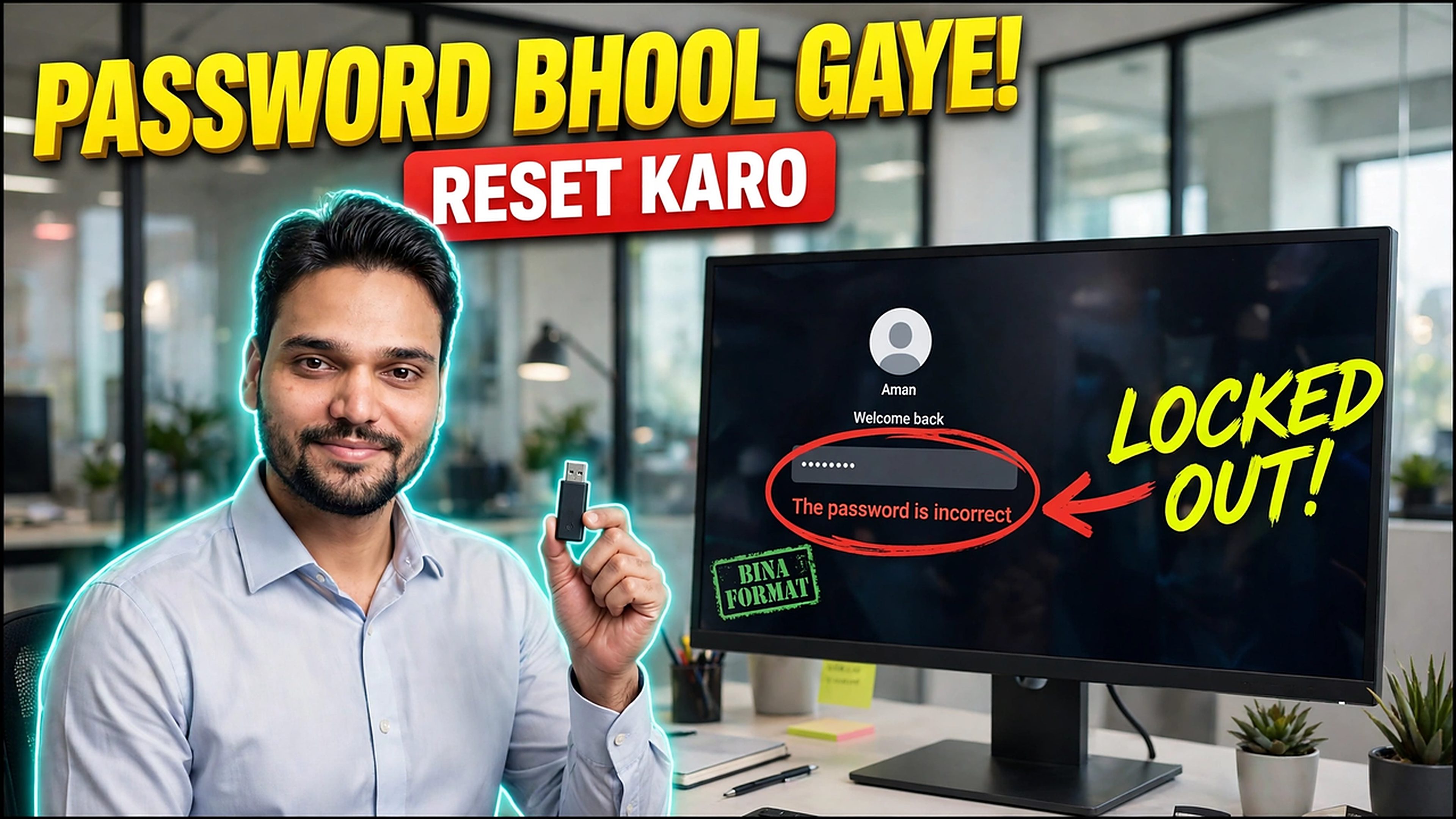
X Your name and photo are shown, but every password you remember is rejected
Check: is there an email address under your name? Yes = Microsoft account, use Fix 2. No, just a user name = local account, use Fix 3
Check: after one wrong attempt on a local account, a Reset password link may appear - that is your security-questions route
LOCKED OUT Do not keep guessing blindly - first identify the account type, then take its one correct route.
The fingerprint of this problem: the PC and files are fine - only the sign-in credential is lost.
Identify the Account Type Before Anything Else
Thirty seconds here saves hours. Every wrong-route attempt below fails silently and wastes time.
- Look at the sign-in screen. An email address shown under your name or photo means a Microsoft account - go to Fix 2.
- Only a user name, with no email, means a local account - go to Fix 3.
- Also check whether you actually used a PIN day to day: click Sign-in options under the password box. If a PIN or fingerprint option is offered and still works, sign in with it - then change the forgotten password calmly from inside Windows (Settings > Accounts > Sign-in options).
- If this PC belongs to a family member or is a PC you service, confirm with the owner which account is theirs before resetting anything.
Microsoft Account: Reset Online, Then Sign In Once Online ⭐
For a Microsoft account, the password is not stored only on this PC - Microsoft can reset it for you after proving you own the account.
- On any other device - your phone is fine - open
account.live.com/password/reset - Enter the account email, and verify your identity with the code Microsoft sends to your recovery email or phone number.
- Set a new password.
- Now connect the locked PC to the internet (plug in a cable, or use the network icon on the sign-in screen to join WiFi) and sign in with the new password. The PC must be online for this first sign-in so it can check the new password with Microsoft - offline, it still only knows the old one.
- Once inside, set a fresh PIN from Settings > Accounts > Sign-in options, so a forgotten password never locks you out this way again.
Local Account: Answer the Security Questions
Windows 11 asks you to choose three security questions when a local account is created. This is exactly the moment they exist for.
- On the sign-in screen, enter any wrong password once and press Enter. A Reset password link appears under the password box.
- Click Reset password. Your security questions are shown one by one.
- Answer them exactly as you set them up - spelling and spacing included.
- Windows immediately asks you to create a new password. Set one, sign in, and this time save it somewhere safe.
- If you never set security questions, or cannot answer them, this route does not exist for your account - continue to Fix 4 and Fix 5.
Use a Password Reset Disk, If You Made One Earlier
A password reset disk only helps if it was created before the password was forgotten - it cannot be made now for an account you cannot sign in to. If you made one, this is the fastest route of all.
- Insert the USB drive that holds the reset key.
- On the sign-in screen, enter a wrong password once so the Reset password link appears, and click it.
- Instead of the security questions, choose Use a password reset disk at the bottom of the wizard.
- The Password Reset Wizard opens. Select the USB drive, click Next, and set a new password and hint.
- Remove the USB, sign in with the new password, and keep the reset disk somewhere safe - anyone holding it can reset this account's password, so treat it like a key.
Sign In With Another Administrator Account on the Same PC
Many family and office PCs have a second account - a parent's, an IT account, or your own older admin account. Any administrator on the machine can reset a local account's password.
- On the sign-in screen, select the other administrator account (bottom-left corner) and sign in with its password or PIN.
- Open Computer Management (right-click Start > Computer Management), go to Local Users and Groups > Users, right-click the locked account and choose Set Password. Read the warning - files protected by the old password (such as EFS-encrypted files and saved credentials) can be lost when an administrator resets a password this way - then set the new password.
- Or use an admin Command Prompt (Terminal (Admin)) and run:
net userto list the accounts, then:net user YourUserName NewPassword- replacing YourUserName and NewPassword with the real values. This command is used here inside a signed-in administrator session, which is the legitimate context for it. - Sign out, and sign in to the recovered account with the new password.
- This works only for local accounts. A Microsoft account's password cannot be changed from another account - use Fix 2 for those.
Software Needed
For the routes above: no software at all for a Microsoft account reset (just any browser), nothing extra for security questions, the USB reset disk only if you created one earlier, and built-in Computer Management or Command Prompt for the second-admin route. The linked Technical Anshu video shows the complete tool-based method step by step for locked-out cases where these standard routes do not apply - watch it before downloading any password tool from an unknown site, and only ever use such tools on your own PC or one you are authorized to service.
More PC Fixes on Technical Anshu
Every week: Windows problems, hidden tools and full setup guides, explained step by step.
Subscribe on YouTubeFrequently Asked Questions
How do I reset a forgotten Windows 11 password for a Microsoft account?
On any other device, open account.live.com/password/reset, verify your identity with the email or phone code Microsoft sends, and set a new password. Then connect the locked PC to the internet and sign in once with the new password - the PC must be online for that first sign-in so it can accept the changed password.
How do I reset a local account password in Windows 11?
On the sign-in screen, enter a wrong password once and a Reset password link appears. Clicking it shows the security questions you chose when the account was created. Answer them correctly and Windows lets you set a new password immediately. If you never set security questions, this route does not exist for that account.
Does Reset this PC with Keep my files remove the forgotten password?
No - Reset this PC is not a password bypass. A cloud or local reinstall with Keep my files reinstalls Windows and keeps personal files, but you still set the PC up again and still need working account credentials to sign in afterwards. It is a last-resort recovery of a usable PC, not a way around a password you do not know.
Can another administrator account change my forgotten password?
Yes. If the same PC has another administrator account that you can sign in to, that administrator can change the locked local account's password from Settings, Computer Management, or an admin Command Prompt with net user. This only works for local accounts - a Microsoft account password can only be changed through Microsoft's online reset.