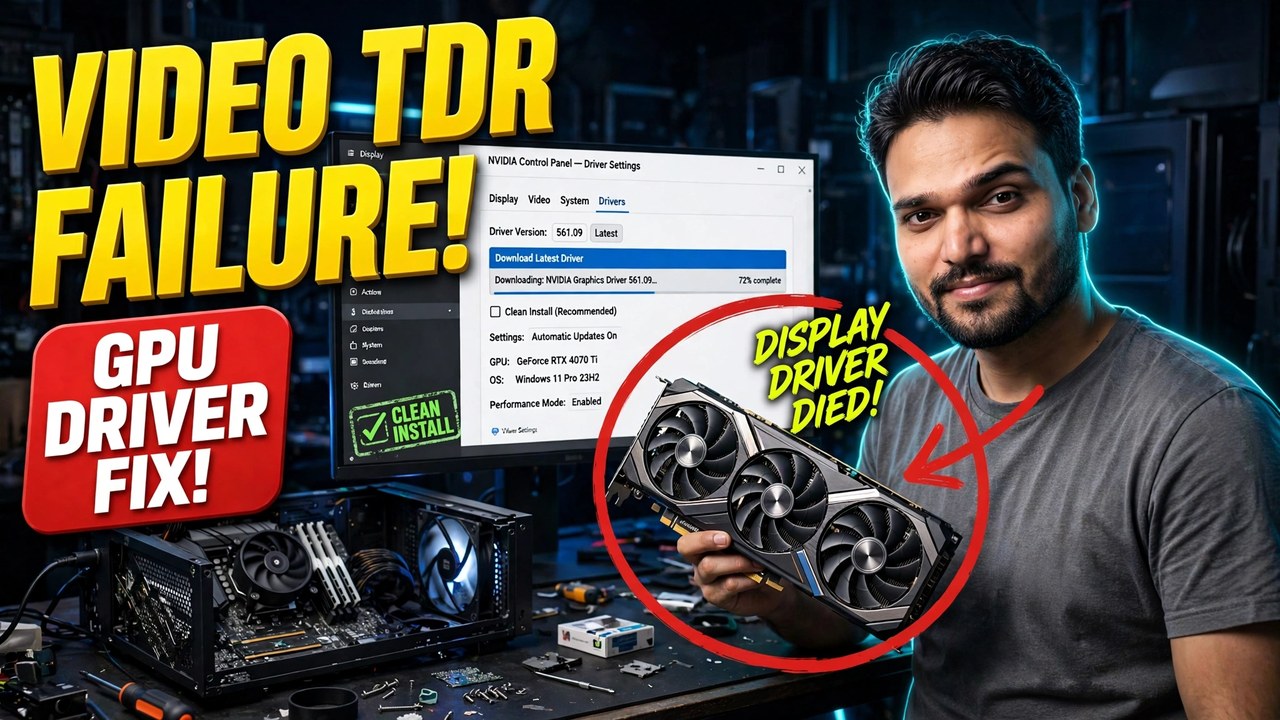
TDR means Timeout Detection and Recovery. Windows watches the graphics card: if the GPU stops responding, Windows waits a short timeout and then tries to reset the graphics driver and recover the desktop. VIDEO_TDR_FAILURE (bug check 0x00000116) means that recovery itself failed, so Windows stopped with a blue screen. The cause sits in one place only: the graphics driver, the GPU overclock or heat on the card, or the card itself. That is why every fix below is graphics-specific - update or roll back the driver, then do a truly clean driver reinstall, then check the card.
We're just collecting some error info, and then we'll restart for you.
X Before the crash: screen freezes, flickers black, or the display driver restarts
X What failed: nvlddmkm.sys / amdkmdag.sys / igdkmd64.sys - the driver file named on your screen is your GPU maker's driver
VIDEO_TDR_FAILURE Stop code 0x00000116 - the graphics driver timed out and Windows could not recover it.
The fingerprint of this problem: a freeze or black flicker first, then VIDEO_TDR_FAILURE naming a graphics driver file.
Update the Graphics Driver From the GPU Maker Directly
Start with the current driver from the source - not from Windows Update and not from a driver updater tool. Note the file named on your blue screen first: it tells you whose driver you need.
- Read the "What failed" line on the blue screen: nvlddmkm.sys = NVIDIA, amdkmdag.sys = AMD, igdkmd64.sys = Intel. On a laptop with both integrated and dedicated graphics, the named file decides - update that GPU's driver.
- Download the latest driver for your exact GPU model and Windows 11 from nvidia.com, amd.com or intel.com only.
- Run the installer. In the NVIDIA installer choose Custom (Advanced) and tick Perform a clean installation; in the AMD installer choose the Factory Reset install type if offered. This clears old settings while updating.
- Restart the PC even if the installer does not ask, then test with the game or workload that used to crash.
- If the crashes only began after the newest driver arrived, a fresh update is the wrong direction - go to Fix 2 instead.
If It Started After a Driver Update, Roll the Driver Back
A brand-new driver version can itself be the faulty one. If your first VIDEO_TDR_FAILURE arrived within a day of a graphics driver update, put the previous working driver back.
- Press Win + X and open Device Manager. Expand Display adapters.
- Right-click your graphics card, choose Properties > Driver tab, and click Roll Back Driver. Pick the reason that the previous version worked better.
- Restart and test. If Roll Back Driver is greyed out, Windows has no previous driver stored - download the previous known-good version from the GPU maker's driver archive page instead and install it after the clean removal in Fix 3.
- Once stable, pause driver updates for that device: do not let the same faulty version reinstall the next day. Note the working driver version number in case you need it again.
Clean Reinstall: Remove the Old Driver With DDU in Safe Mode ⭐
This is the fix that works most often when updating or rolling back is not enough. A normal uninstall leaves driver files and registry entries behind, and a new driver installed over those leftovers inherits the problem. Display Driver Uninstaller (DDU) removes the package completely, in Safe Mode, so the fresh driver starts from zero.
- Before you start: download the fresh driver installer for your GPU from the maker's site and save it where you can find it, and download DDU from its official site. Create a System Restore point (search "Create a restore point") as a safety net.
- Disconnect from the internet - unplug the cable or turn WiFi off. This stops Windows Update from installing its own graphics driver in the middle of your cleanup.
- Boot into Safe Mode: hold Shift and click Restart, then Troubleshoot > Advanced options > Startup Settings > Restart, and press 4 for Safe Mode.
- Run DDU, select your GPU type (NVIDIA, AMD or Intel) on the right, and click Clean and restart. Let it remove the driver and reboot the PC.
- Back in normal Windows, still offline, run the fresh driver installer you downloaded in step 1. Restart once more, then reconnect to the internet.
- Test with the exact game, render or video that used to trigger the crash before declaring it fixed.
Remove Any GPU Overclock and Check Temperatures and Power
An overclocked or overheating GPU stops responding exactly like a bad driver does - and no driver reinstall can fix a card that is timing out for physical reasons.
- If you overclock with MSI Afterburner, the GPU maker's tuning app, or a BIOS mod, reset everything to default - core clock, memory clock, voltage and power limit - and test at stock. A factory-overclocked card can also be tested by lowering the power limit slightly; if that alone stops the crashes, the card is marginal.
- Watch GPU temperature under load with the maker's app or HWMonitor. A card pushing into the high 80s or 90s Celsius and crashing there needs cooling attention: clean dust from the card and case fans, confirm the GPU fans actually spin under load, and improve case airflow.
- On a desktop, shut down, unplug, and reseat the power cables into the graphics card - a loose 6-pin or 8-pin connector is a classic cause of timeouts under load. Reseat the card itself in its PCIe slot while you are there.
- On a laptop, test on the charger with the maker's performance mode on, and clean the vents - a laptop GPU starved of power or air times out the same way.
Repair System Files, Then Separate Driver Fault From a Failing Card
Two closing steps: repair any Windows file damage the repeated crashes may have caused, then run the one test that proves whether the card itself is dying.
- Open Terminal (Admin) and run
DISM /Online /Cleanup-Image /RestoreHealth, thensfc /scannow, in that order, and restart. - If your CPU has integrated graphics, shut down and move the monitor cable from the graphics card to the motherboard display port, then use the PC normally for a day.
- If the crashes stop completely on integrated graphics, with a clean driver already tried, the dedicated card itself is failing - especially if you also see artifacts, colored speckles or flicker before crashes. That card needs repair or replacement, not another driver.
- If crashes continue even on integrated graphics, re-check which driver file the blue screen names - on dual-GPU laptops the integrated Intel driver (igdkmd64.sys) is often the real culprit, and it needs the same DDU clean reinstall from Fix 3.
Software Needed
You need three things, all free: the graphics driver installer from NVIDIA, AMD or Intel for your exact GPU; Display Driver Uninstaller (DDU) from its official site for the clean removal in Fix 3; and optionally HWMonitor or the GPU maker's own app to watch temperatures in Fix 4. DISM and SFC are built into Windows. Do not use a paid driver updater - graphics drivers must come from the GPU maker, and no updater can do the Safe Mode clean install that actually fixes this stop code.
More PC Fixes on Technical Anshu
Every week: Windows problems, hidden tools and full setup guides, explained step by step.
Subscribe on YouTubeRelated Video
Related video (not the fix for this exact problem): it shows the general method to identify any blue screen error and find the driver behind it - the same approach used to read the driver file named in this guide - watch: Blue Screen Error Identify & Fix in Minutes (Real Method)
Frequently Asked Questions
What does VIDEO_TDR_FAILURE mean?
TDR stands for Timeout Detection and Recovery. Windows gives the graphics card a short time limit to answer; if the GPU does not respond in time, Windows tries to reset the graphics driver and recover. VIDEO_TDR_FAILURE (bug check 0x00000116) means that recovery failed, so Windows stopped with a blue screen. It is a graphics driver or graphics hardware timeout, not a general Windows failure.
What does the file name on the blue screen tell me - nvlddmkm.sys, amdkmdag.sys or igdkmd64.sys?
That is the graphics driver file Windows names in the crash. nvlddmkm.sys is the NVIDIA driver, amdkmdag.sys is the AMD driver, and igdkmd64.sys is the Intel graphics driver. The file tells you which GPU and which driver package to update, roll back or clean reinstall - follow the one named on your screen.
Is it safe to use Display Driver Uninstaller (DDU)?
Yes, when it is downloaded from its official source and run in Safe Mode as this guide describes. DDU removes the graphics driver package, its files and its registry entries completely, which a normal uninstall leaves behind. Create a restore point first, disconnect from the internet while you work so Windows Update cannot install a driver mid-cleanup, and install the fresh driver immediately after the restart.
Should I increase the TDR timeout in the registry to stop this crash?
No. Raising the TdrDelay value only makes Windows wait longer before it acts - the screen freezes for longer and then still crashes, because the driver or card is still not responding. It hides the symptom without touching the cause. Fix the driver with a clean reinstall, remove any GPU overclock, and check heat and power instead.
How do I know if my graphics card itself is failing?
Run the PC on integrated graphics if your CPU has them, with the monitor cable moved to the motherboard port. If the crashes stop completely on integrated graphics after a clean driver install for the card, and return only on the card, the card itself is failing - especially if you also see screen artifacts, flicker or crashes under any driver version. That is a hardware replacement case, not another driver.