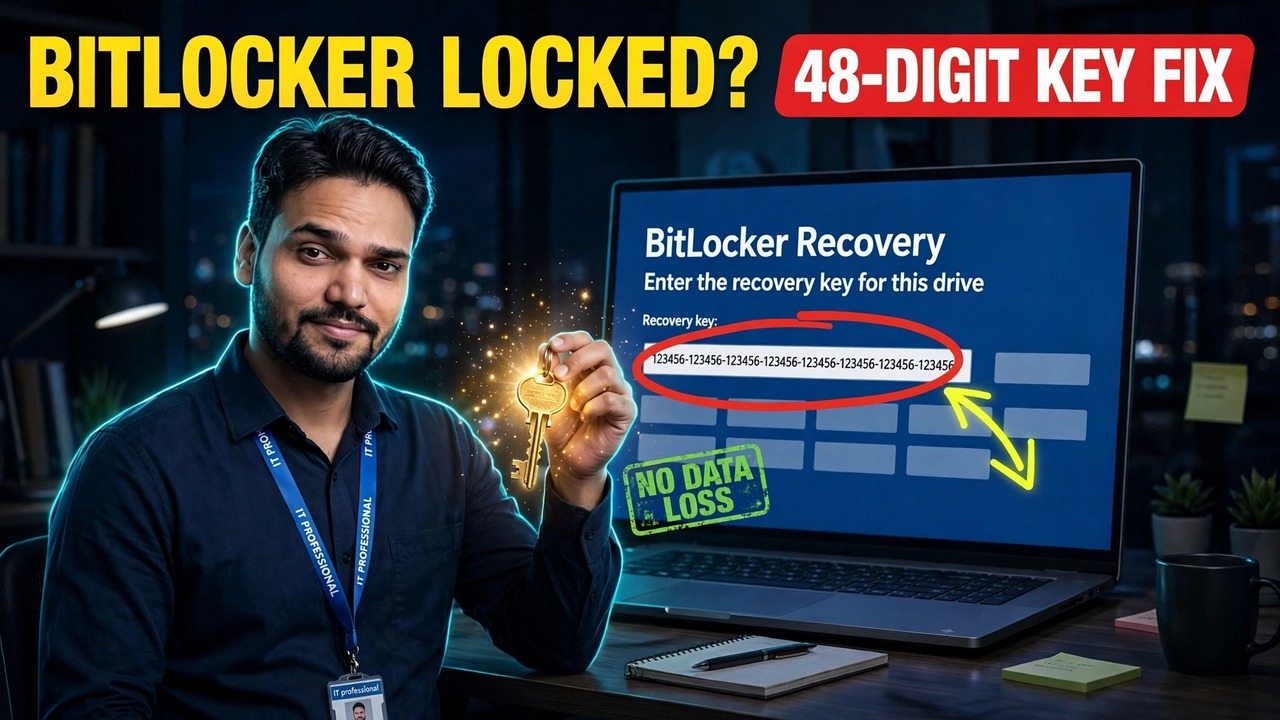
This is one of the most reported Windows 11 scares, and it follows the same pattern every time: the PC worked fine yesterday, then a restart, a BIOS update or a Windows update later it stops at a blue screen before the desktop. The reason is simple - BitLocker is doing its job. At every start, the TPM chip checks that the boot chain has not changed. If a firmware update, a Secure Boot change, a hardware swap or too many wrong PIN attempts changed the measurements, the TPM refuses to release the key and BitLocker asks for the 48-digit recovery key instead. The screen is not an error and it does not mean your data is lost - it means you need the key, and the key is almost always saved in your Microsoft account. Work in order and do not change any BIOS or TPM setting until the key is safely in your hand.
Watch the Complete Fix
Watch the complete fix in the video: BitLocker Locked? How to Find the Recovery Key and Unlock the Drive - every step below is shown on screen, in the same order.
X No desktop, no login box - only a blue screen and a key field
X It appeared right after a Windows update, a BIOS update or a restart
X The screen shows a short Recovery Key ID - that is not the key itself
X Typing the Key ID or your Windows password into the field is rejected
KEY ID The short ID only labels which stored key belongs to this drive. Match that ID at aka.ms/myrecoverykey, then type the 48 digits it points to.
The fingerprint of this problem: a blue screen before Windows starts, asking for a 48-digit recovery key and showing a short Key ID. The fault is a changed boot measurement, not a dead drive.
Find Your Recovery Key by Matching the Key ID ⭐
This is the main step. On a personal PC the key is almost always in the Microsoft account that was signed in when BitLocker was turned on - that is the default on most Windows 10 and 11 home devices.
- Use another device with internet - a phone, a tablet or a second PC. The locked PC cannot open a browser yet.
- Go to
https://aka.ms/myrecoverykeyand sign in with the Microsoft account used on the locked PC. Check that the page address starts withhttps://account.microsoft.com/- type the short link yourself, do not click a random search result or ad for "BitLocker recovery key". - Find the entry whose Key ID matches the ID on your blue screen. Copy its 48-digit recovery key. If you have more than one Microsoft account, check each one - the key lives under the account that was connected when encryption was turned on, and it is often an older account, not the one you use now.
- On a work or school PC, go to
https://aka.ms/aadrecoverykeyinstead, sign in, open Devices, pick your PC and choose View BitLocker Keys. If that page is empty, your organisation holds the key - ask your IT admin, do not keep guessing. - Also check the places people forget: a USB drive the key was saved to at setup, a printed copy in a drawer, or a file saved when BitLocker was first turned on. If someone else set up the PC, the key may be in their account.
- Once you have the 48 digits, save a copy somewhere safe - print it or store it in a password manager - before you type it in. After this is over you will want it for the next firmware update.
Enter the Key Correctly
Most "key not accepted" reports are not a wrong key - they are a wrong field, a bootable USB confusing the boot order, or a keyboard layout problem on the recovery screen.
- First, remove any bootable USB drive or disc from the PC and restart once. A plugged-in bootable USB can cause the prompt by itself, and the screen sometimes clears after one clean restart.
- Type the 48-digit key into the grey box - not the short Key ID, not your Windows password, not your PIN. Dashes between the groups are fine; Windows ignores them.
- If the number keys do not respond on the recovery screen, use the function keys F1-F10 for digits 1-0. On Windows 11 version 24H2 and later, the screen also shows a hint of which Microsoft account holds the key, and pressing Alt opens additional recovery information with an error category and code.
- Press Enter. Windows should boot normally. After a successful unlock, BitLocker resets its TPM measurements to match the current setup, so the prompt usually does not come back on the next restart.
- If the key is accepted but Windows then stops on a blank display, that is a separate display problem - the unlock itself worked.
Stop It Asking on Every Boot
A single prompt after a firmware update is by design. A prompt on every boot means Windows is not resealing the key to the TPM after you unlock it - something in the boot chain keeps changing, or there is no TPM protector at all.
- Once Windows is open, press Win + X, choose Terminal (Admin) and run
manage-bde -status C:. Check the protectors list - if there is no TPM protector, BitLocker has nothing to auto-unlock with and will ask for the key every single time. - Also run
manage-bde -protectors -get C:to see every protector on the drive, and confirm the TPM protector is listed and enabled. - Before your next BIOS or UEFI firmware update, suspend BitLocker first:
manage-bde -protectors -disable C:. Do the update, then re-enable it withmanage-bde -protectors -enable C:. Microsoft's own guidance is to suspend before TPM or UEFI updates so recovery is not triggered. - Check the boot order in BIOS - a USB drive or a second disk set above the Windows drive can change the boot measurements. Put the Windows drive first and remove bootable USBs when you are done with them.
- Restart twice and watch: if the prompt is gone on both restarts, the reseal worked and you are done.
If the Key Is Truly Lost
Be honest about this one: there is no bypass. Microsoft Support cannot retrieve or recreate a lost BitLocker key, and no tool can crack a 48-digit recovery key.
- Go through Fix 1 again slowly - every Microsoft account, the work account page, the USB drive, the printed copy, and the person who set the PC up. Most "lost" keys turn up in an old account.
- If a BIOS or firmware change caused the prompt, undo that exact change - restore the BIOS setting or the boot order you had before. Sometimes the TPM measurements match again and Windows boots without the key.
- If nothing works, the only Microsoft-supported path left is to reset the device from Windows recovery options - and that erases all your files. Treat that as the last resort, after you have accepted the data is gone.
- Never pay for a "BitLocker recovery key generator" or a "BitLocker unlock tool" - they cannot generate your key, and the sites that sell them are after your money or your files. Any tool that claims to bypass BitLocker without the key is a scam.
More PC Fixes on Technical Anshu
Every week: Windows problems, hidden tools and full setup guides, explained step by step.
Subscribe on YouTubeFrequently Asked Questions
Why is Windows 11 suddenly asking for a BitLocker recovery key after an update?
BitLocker asks for the key when the TPM decides the boot environment no longer matches what it recorded. A BIOS or UEFI firmware update, a Secure Boot or TPM setting change, a Windows update that changed boot measurements, a hardware change, or too many wrong PIN attempts can all trigger it. A single prompt after a firmware update is by design - the drive is not damaged and your files are still there. Enter the 48-digit key once and Windows normally reseals to the TPM and boots normally afterwards.
What is the difference between the Recovery Key ID and the recovery key?
The Recovery Key ID is a short identifier shown on the blue screen - it is not the key and typing it into the key field will be rejected. The recovery key itself is a 48-digit number. The Key ID only tells you which stored key belongs to this drive, which matters when one Microsoft account holds keys for several devices. Note the first 8 characters of the Key ID from the screen, then find the entry with that same ID at aka.ms/myrecoverykey.
My Microsoft account shows no BitLocker key. What now?
First check every Microsoft account you have ever used on that PC - the key is saved under the account that was signed in when BitLocker was turned on, and many people find it under an older account. If someone else set up the PC, the key may be in their account. Also check a USB drive or printed copy saved at setup, and on a work PC check aka.ms/aadrecoverykey or ask your IT admin. Microsoft Support cannot retrieve or recreate a lost key for you, so if no copy exists anywhere, the only Microsoft-supported path is to undo the change that caused the prompt or reset the device, which erases your files.
BitLocker asks for the recovery key on every boot. How do I stop it?
A prompt on every boot means Windows is not resealing the key to the TPM after you unlock it. After unlocking once, open an admin Terminal and run manage-bde -status C: to check the TPM protector - if there is no TPM protector, BitLocker has nothing to auto-unlock with and will ask every time. Also remove any bootable USB drive, check the boot order in BIOS, and suspend BitLocker with manage-bde -protectors -disable C: before any BIOS or firmware update, then re-enable it with manage-bde -protectors -enable C: afterwards. Do not clear the TPM to fix this - that makes things worse.
Is this the same problem as the BitLocker option missing on the D drive?
No. This blog is about the blue recovery screen that appears at boot before Windows starts. A missing BitLocker on/off option on a D drive while it shows on C is a different problem - it usually means that drive is still in the middle of decrypting, so Windows keeps the drive busy and hides the option until decryption finishes. Check manage-bde -status D: there: if it says Decryption in Progress, wait for it to reach Fully Decrypted and the option comes back.