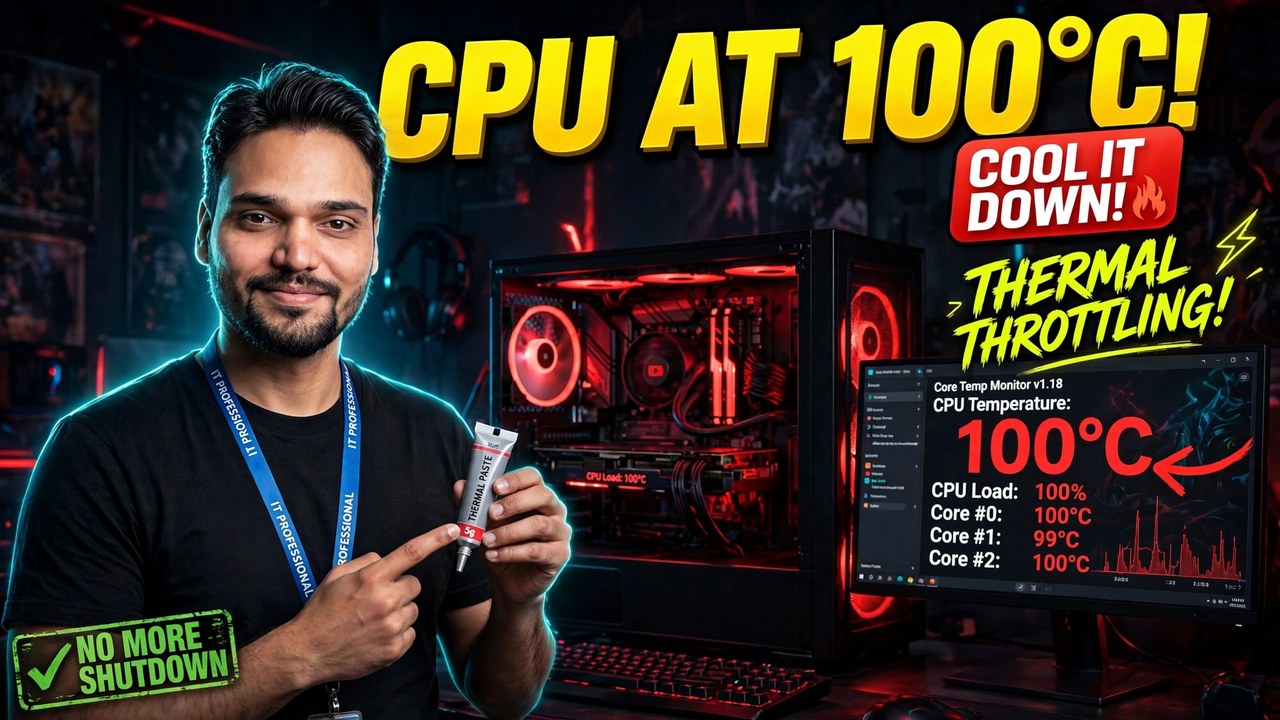
Heat problems have a rhythm that gives them away: the PC is fast when cold and slow when hot. One report behind this guide describes 70C at idle on the desktop; another describes the clock collapsing to 0.40 GHz after 10 to 20 minutes in a game. Both are the same story at different stages - heat going in faster than the cooler can take it out. Intel CPUs throttle at 100C by design, so brief touches of that number under a burst are the protection working; sustained 95 to 100C is not normal and deserves a fix, not acceptance. Work in order: prove the temperature, clean the actual heatsink, prove the fan and pump move, then reseat the cooler with fresh paste - the step that cures most sudden cases.
X HWMonitor showing CPU package Max: 100C under load
X Idle temperature around 70C on the desktop in severe cases
X ThrottleStop showing HOT / PROCHOT in red
X Game FPS collapses after 10 to 20 minutes, then recovers when the PC cools
THERMAL THROTTLING At the limit the CPU cuts its own speed to reduce heat. Performance returns only when temperature falls.
The fingerprint of this problem: high temperature readings, throttling flags in red, and a clock speed that falls the longer the load runs.
Confirm the Temperature With HWMonitor or HWiNFO
Never guess at heat. Measure idle and load temperatures first, so every later step can be judged against real numbers.
- Install HWMonitor or HWiNFO from the maker's official site and open the CPU package temperature reading.
- Record the idle temperature after 10 minutes on the desktop with nothing heavy running. A healthy desktop idles far below the load numbers in the panel above; around 70C at idle is already a fault signal.
- Run your usual game or workload for 15 minutes and record the maximum temperature and the lowest clock speed you observe. Note whether FPS falls as temperature climbs - that pairing proves throttling, not a game bug.
- Use the guideposts from the research: Intel CPUs throttle at 100C by design, a brief touch is the protection working, and sustained 95 to 100C is the problem to fix.
Clean the Heatsink Fins and Fans Directly
Dust is a blanket woven exactly where air needs to pass. Cleaning only the outside of the case leaves that blanket untouched, which is why it so often changes nothing.
- Shut down, unplug, and open the case. Ground yourself by touching a metal part of the case.
- Hold each fan blade still with a finger - compressed air can overspin a free fan - and blow dust out of the heatsink fin stack, the CPU fan, case fans and any radiator, working from inside outward.
- Clean or wash (and fully dry) removable intake filters, and clear dust from front and top vents. This supports the main clean; it does not replace it.
- Close up, run the same 15-minute load from Fix 1, and compare the maximum temperature. Even a partial improvement confirms dust was part of the story.
Check the Cooler Fan and AIO Pump Are Actually Running
A stopped fan or a dead liquid-cooling pump looks identical to a dust problem in Windows, but no cleaning fixes it. Prove movement before you reseat anything.
- With the side panel off, start the PC and watch: the CPU fan should spin continuously, and case fans feeding it should turn under load. Check the CPU fan cable is on the CPU_FAN header.
- Enter BIOS setup and read the fan RPM pages. A fan reading 0 RPM while plugged in is either disconnected, failed, or on the wrong header.
- For an AIO liquid cooler, confirm the pump is running: its RPM should show on the header it is connected to (often CPU_OPT or AIO_PUMP per the cooler manual), one radiator tube should feel slightly warmer than the other, and a failed pump is a replace-the-cooler fault, not a setting.
- Replace any fan that does not spin freely, makes grinding noises, or reads 0 RPM on a known-good header.
Reseat the Cooler and Reapply Thermal Paste ⭐
This is the most common cause of sudden high temperatures, especially high idle temperatures on a PC that used to run cool: poor contact between CPU and cooler, a cooler knocked loose in a move, one corner screw tighter than the rest, or paste that has dried and pumped out. A careful reseat cures it.
- Power off, unplug, and remove the cooler following its manual. Twist gently if the manual allows it; never pry upward hard - dried paste can glue the cooler to the CPU, and on socket types where the CPU can lift with the cooler, a straight pull can damage pins.
- Clean all old paste from the CPU heat spreader and the cooler base with isopropyl alcohol (90 percent or higher) and a lint-free cloth, until both surfaces are bare metal with no residue.
- Check the plastic protective film: if this is a new or recently fitted cooler, confirm the clear film on the cooler base was removed - leaving it on is a famous cause of instant 100C readings.
- Apply a small pea-sized dot of fresh thermal paste in the centre of the CPU (or follow your paste maker's pattern for large heat spreaders). More paste is not better; even pressure spreads a thin layer.
- Refit the cooler tightening screws in a cross pattern, a little at a time, until snug and even. Reconnect the fan to CPU_FAN.
- Repeat the Fix 1 test: idle first, then 15 minutes of load. A successful reseat shows a clear drop at both idle and load.
Improve Case Airflow, Then Suspect the Sensor Last
If the cooler itself is now proven clean, spinning and seated, the remaining question is whether hot air can leave the case at all.
- Run the load test once with the side panel off. A large temperature drop with the panel off proves an airflow problem: hot air is being trapped or recirculated.
- Fix airflow in order: at least one intake and one exhaust fan working, intake filters clean, cables moved out of the main air path, and the PC given clear space around its vents instead of being sealed in a closed desk cabinet.
- If temperatures in monitoring tools look normal yet throttling flags such as PROCHOT still trigger, only then suspect a faulty temperature sensor or a false BD PROCHOT signal, where the CPU is told another component is overheating when it is not. That is a motherboard-level diagnosis - record the evidence and take it to service rather than disabling safety signals yourself.
- Do not undervolt, raise thermal limits or disable throttling as a "fix". Those hide the warning while the heat remains.
Software Needed
You need a hardware monitor: HWMonitor or HWiNFO, both free from their makers' official sites, and ThrottleStop only if you want to view throttling flags such as HOT and PROCHOT as shown in the reports - view them, do not use the tool to disable protections. Materials for Fix 4 are fresh thermal paste and isopropyl alcohol with a lint-free cloth, plus compressed air for Fix 2. No cleaner, booster or fan-curve program substitutes for a seated cooler and a clear heatsink.
More PC Fixes on Technical Anshu
Every week: Windows problems, hidden tools and full setup guides, explained step by step.
Subscribe on YouTubeRelated Video
Related video (not the fix for this exact problem): it shows how to stress-test a PC with OCCT and spot CPU, GPU, RAM and power problems, which is a good way to reproduce and measure the overheating above. Watch: Test Your PC with OCCT - Spot CPU, GPU, RAM and PSU Issues Instantly
Frequently Asked Questions
Is 100C always dangerous for a CPU?
Intel CPUs are designed to throttle at 100C to protect themselves, so a brief touch of 100C under a heavy burst is the protection working, not instant damage. Sustained 95 to 100C during normal gaming, or 70C at idle on the desktop, is not normal and means the cooling path needs the work in this guide.
Why does my CPU drop to 0.40 GHz while gaming?
That very low clock is emergency throttling. When temperature reaches the limit, the CPU cuts speed hard to reduce heat, and FPS collapses with it. Forum reports describe exactly this after 10 to 20 minutes of play, which matches a cooler that cannot remove heat as fast as the game produces it.
How often should thermal paste be replaced?
There is no fixed calendar rule. Paste is replaced whenever the cooler is removed, because the old layer cannot be reused reliably, and it is a prime suspect when temperatures suddenly worsen on a PC that was fine before. If temps are good, do not disturb a working cooler just because the paste is old.
Cleaning the outside of my case did nothing. Why?
The dust that matters sits between the heatsink fins and on the fan blades, where air must pass. A clean intake filter with a clogged heatsink still overheats. Power off, open the case, and clean the heatsink fins and fans directly with compressed air while holding the blades still.
My temperatures are fine but the CPU still throttles. What else can it be?
If a monitoring tool shows throttling flags while temperatures are genuinely low, suspect a faulty temperature sensor or a false BD PROCHOT signal, which tells the CPU that another component is overheating. That is a board-level diagnosis and comes last, only after cooling, fan and pump checks have all passed.