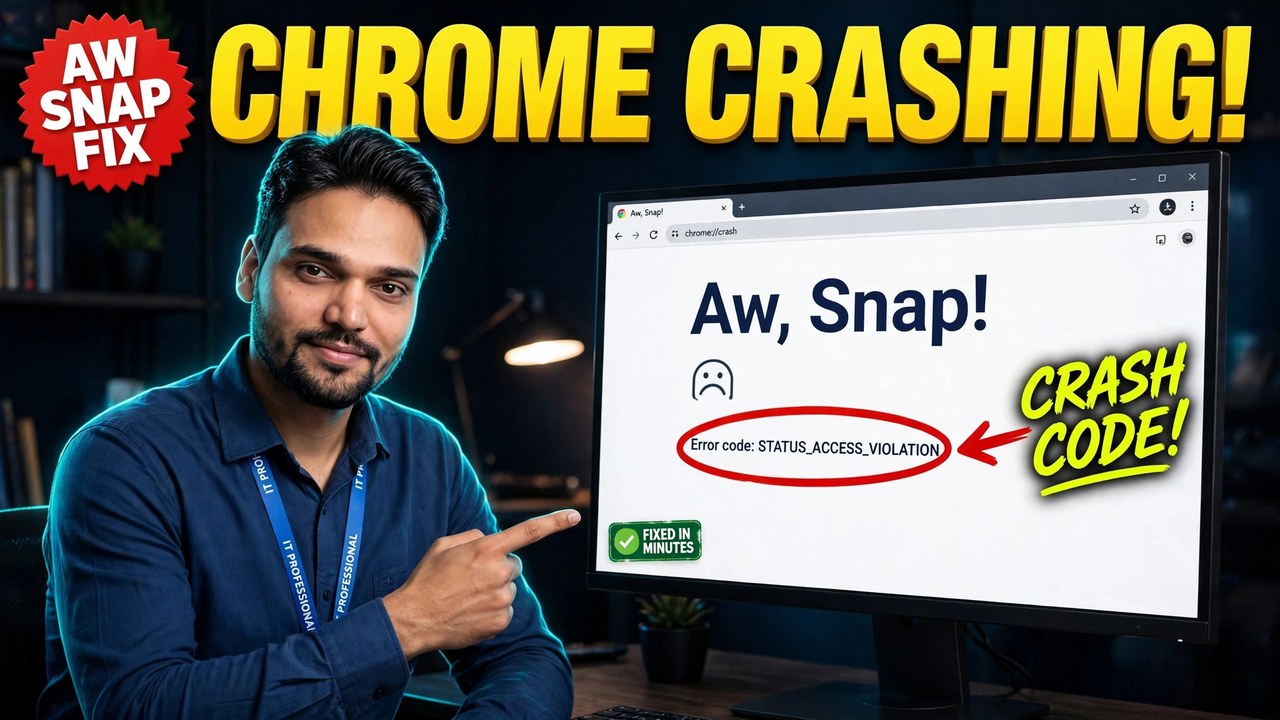
This is one of the most reported Chrome crashes on the Google Chrome Help Community and Chrome support forums. The pattern is consistent: Chrome shows Aw, Snap! Something went wrong while displaying this webpage with Error code: STATUS_ACCESS_VIOLATION, sometimes on one site, sometimes on every site, and sometimes right after a Windows or Chrome update. Google Chrome Help lists the same core order used below for Aw, Snap! and page crash problems: reload, update and restart Chrome, test in Incognito, disable extensions, clear browsing data, check firewall and antivirus, free up memory, and reset Chrome settings. The STATUS_ACCESS_VIOLATION code adds two specific suspects on top of that list - hardware acceleration conflicts and security software, both covered in their own steps below.
Something went wrong while displaying this webpage.
Error code: STATUS_ACCESS_VIOLATION
X The tab crashes again after Reload, sometimes within seconds
X It can hit one heavy site first, then spread to other sites
X Chrome may freeze or close completely if many tabs crash together
Check: note whether it happens on every site or only one site - that decides where to start below
The fingerprint of this problem: the exact words Aw, Snap! together with the code STATUS_ACCESS_VIOLATION on the crashed tab.
Reload, Restart, and Check Whether It Is One Site or Every Site
Do not start changing settings for a single bad page. One minute of checking decides which guide applies.
- Click Reload on the crashed tab, or press Ctrl + R. If the page loads and stays loaded, it was a one-off crash - stop here.
- Open two or three completely different websites in new tabs. If only one site crashes, the problem is likely that site or its cached data - jump to Fix 5 and clear data for that site first.
- If every site crashes with the same code, close Chrome fully and reopen it. In Task Manager (Ctrl + Shift + Esc), end any leftover Chrome processes if Chrome will not close normally, then start it again.
- Close tabs and heavy programs you do not need. Google notes that low free memory itself leads to page crashes, so free RAM before judging the later fixes.
Update Chrome and Restart It Properly
An outdated Chrome build is one of the most common triggers, and it is the cheapest fix on this list. Google lists update and restart as an early step for Aw, Snap! errors.
- Open Chrome and type
chrome://settings/helpin the address bar, then press Enter. - Chrome checks for updates automatically. If an update downloads, wait for it to finish and click Relaunch.
- If it says Chrome is up to date, still close Chrome completely once and reopen it, so a pending update or a stuck process is cleared.
- Use the crashing site again for a few minutes before moving on. Change one thing at a time - if the update fixed it, you are done.
Test in Incognito, Then Disable All Extensions
Incognito runs without your extensions by default, so it is a clean yes-or-no test. Google recommends exactly this order: if Incognito fixes it, disable extensions next.
- Press Ctrl + Shift + N to open an Incognito window and open the site that keeps crashing.
- If the site works in Incognito, an extension is the prime suspect. Close Incognito and type
chrome://extensionsin the address bar. - Turn off every extension using its toggle. Do not remove them yet - testing comes first.
- Restart Chrome and test the site. If the crash is gone, turn extensions back on one at a time, testing after each one. The extension that brings the crash back is the cause - remove it or leave it off.
- If the site still crashes in Incognito, extensions are not the main cause - continue to Fix 4.
Turn Off Hardware Acceleration
Chrome uses your graphics card to render pages. When that path conflicts with the graphics driver, tabs crash with access violation codes - this is a very common fix for this exact error after a Windows or driver update.
- Type
chrome://settings/systemin the address bar and press Enter. - Turn off Use graphics acceleration when available (on older Chrome versions the same switch is labelled Use hardware acceleration when available).
- Click Relaunch when Chrome offers it.
- Test the crashing sites again. If the crashes stop, leave acceleration off - pages still work normally, only heavy 3D and video effects may run slightly less smoothly.
- Optional but sensible: update your graphics driver from Windows Update optional updates or your GPU maker (Intel, NVIDIA or AMD) - an old driver is often why acceleration started crashing in the first place.
Clear Browsing Data, Reset Flags, Then Reset Chrome Settings
Corrupted cache and changed experimental settings survive restarts. Clear them in this order, testing after each part.
- Press Ctrl + Shift + Delete. Set Time range to All time, tick Cookies and other site data and Cached images and files, then click Clear data. You will be signed out of most sites.
- If you ever changed experimental flags, type
chrome://flags, click Reset all at the top, and relaunch Chrome. - Still crashing? Type
chrome://settings/resetand click Restore settings to their original defaults, then Reset settings. - Know what a reset does before you confirm: Google states it restores the startup page, new tab page, search engine and pinned tabs, disables extensions, and clears temporary data like cookies. Your bookmarks, history and saved passwords stay safe.
Check Your Antivirus and Firewall for a Conflict
This step is specific to this error code, not generic advice. In a Google Chrome Community thread about Aw, Snap! crashes after a Windows 11 update, a Google product expert noted that Google had acknowledged AVG, Avast and Norton products causing Chrome to malfunction and show STATUS_ACCESS_VIOLATION, STATUS_BREAKPOINT and STATUS_STACK_BUFFER_OVERRUN errors. Google Chrome Help also lists checking firewall and antivirus software for Aw, Snap! problems.
- First, update your antivirus to its latest version and update its virus definitions, then restart the PC and test Chrome. A fixed antivirus build ends the conflict without weakening protection.
- If it still crashes, pause the antivirus real-time protection for two minutes only and open the crashing site once. This is a test, not a fix.
- If Chrome works with protection paused, the conflict is confirmed: turn protection back on immediately, then check the antivirus settings for web or browser protection features and its exclusion list for Chrome, or move to Windows Security, which is built into Windows and does not have this known conflict.
- Run a full scan once with your antivirus or with Windows Security > Virus and threat protection > Scan options > Full scan, because unwanted software interfering with Chrome produces the same crash pattern.
Never leave antivirus protection disabled to keep Chrome running. If the test in step 2 changes nothing, turn protection back on and move to Fix 7.
Create a Fresh Chrome Profile by Renaming the Old One
If Chrome crashes even with extensions off, acceleration off and a reset done, the user profile itself is likely corrupted. Renaming it forces Chrome to build a clean profile - and renaming keeps your old data safe on disk, unlike deleting it.
- Close Chrome completely. Check Task Manager and end any remaining Chrome processes.
- Press Win + R, paste the line below exactly, and press Enter:
%LOCALAPPDATA%\Google\Chrome\User Data
- Find the folder named Default and rename it to BackupDefault. Do not delete it.
- Open Chrome again. It creates a brand new Default folder and a clean profile automatically.
- Test the crashing sites before signing in or adding anything back. If the crash is gone, the old profile was the problem: sign in to Chrome sync to restore bookmarks and passwords, then re-add extensions one at a time as in Fix 3.
- If the fresh profile still crashes, close Chrome, delete the new Default folder, and rename BackupDefault back to Default to return to your old profile - then use the reinstall in the note below.
Last resort if even a fresh profile crashes: uninstall Chrome from Settings > Apps, restart the PC, and install Chrome again from google.com/chrome. Sign-in sync restores most of your data after a reinstall.
Software Needed
No extra software is required. Every fix above uses Chrome built-in pages - chrome://settings/help, chrome://extensions, chrome://settings/system and chrome://settings/reset - plus File Explorer for the profile rename. The only downloads you may need are Chrome itself from google.com/chrome for a reinstall, a graphics driver from your GPU maker, and updates for your existing antivirus.
More PC Fixes on Technical Anshu
Every week: Windows problems, hidden tools and full setup guides, explained step by step.
Subscribe on YouTubeRelated Video
Related video (not this exact STATUS_ACCESS_VIOLATION fix): a general Chrome problems repair video from the channel, watch: Fix 15 Google Chrome Problems in Just 1 Minute - Custom Repair Script
Frequently Asked Questions
What does STATUS_ACCESS_VIOLATION mean in Google Chrome?
It means a Chrome process tried to access memory it was not allowed to access, so Windows stopped that process and the tab crashed with the Aw, Snap! page. In practice the trigger is usually a bad or conflicting extension, an outdated Chrome build, a graphics acceleration conflict, a corrupted Chrome profile, or security software interfering with Chrome.
Why does the Aw, Snap! crash happen again and again on the same PC?
A one-time crash can be a single bad page. Repeated crashes with the same STATUS_ACCESS_VIOLATION code point to something permanent on the PC: an extension that loads on every page, a corrupted profile, hardware acceleration fighting the graphics driver, or an antivirus product conflicting with Chrome. Work through the fixes in order and change only one thing at a time so you can see which one stops it.
Will resetting Chrome delete my bookmarks and passwords?
No. Google states that a settings reset restores the startup page, new tab page, search engine and pinned tabs to defaults, disables extensions, and clears temporary data such as cookies. Bookmarks, history and saved passwords are not deleted by a reset.
Can antivirus software really cause STATUS_ACCESS_VIOLATION?
Yes. In a Google Chrome Community thread, a Google product expert noted that Google had acknowledged an issue with AVG, Avast and Norton products causing Chrome to malfunction and show STATUS_ACCESS_VIOLATION, STATUS_BREAKPOINT and STATUS_STACK_BUFFER_OVERRUN errors. Update the antivirus first, and only test with its protection paused briefly - never leave protection off.
What should I do if a fresh Chrome profile fixes the crash?
That proves the old profile was corrupted. Keep using the new profile, sign in to Chrome sync to bring back bookmarks and passwords, and re-add extensions one at a time, testing after each one. The old profile folder was only renamed to BackupDefault, not deleted, so your old data stays on disk until you choose to remove it.