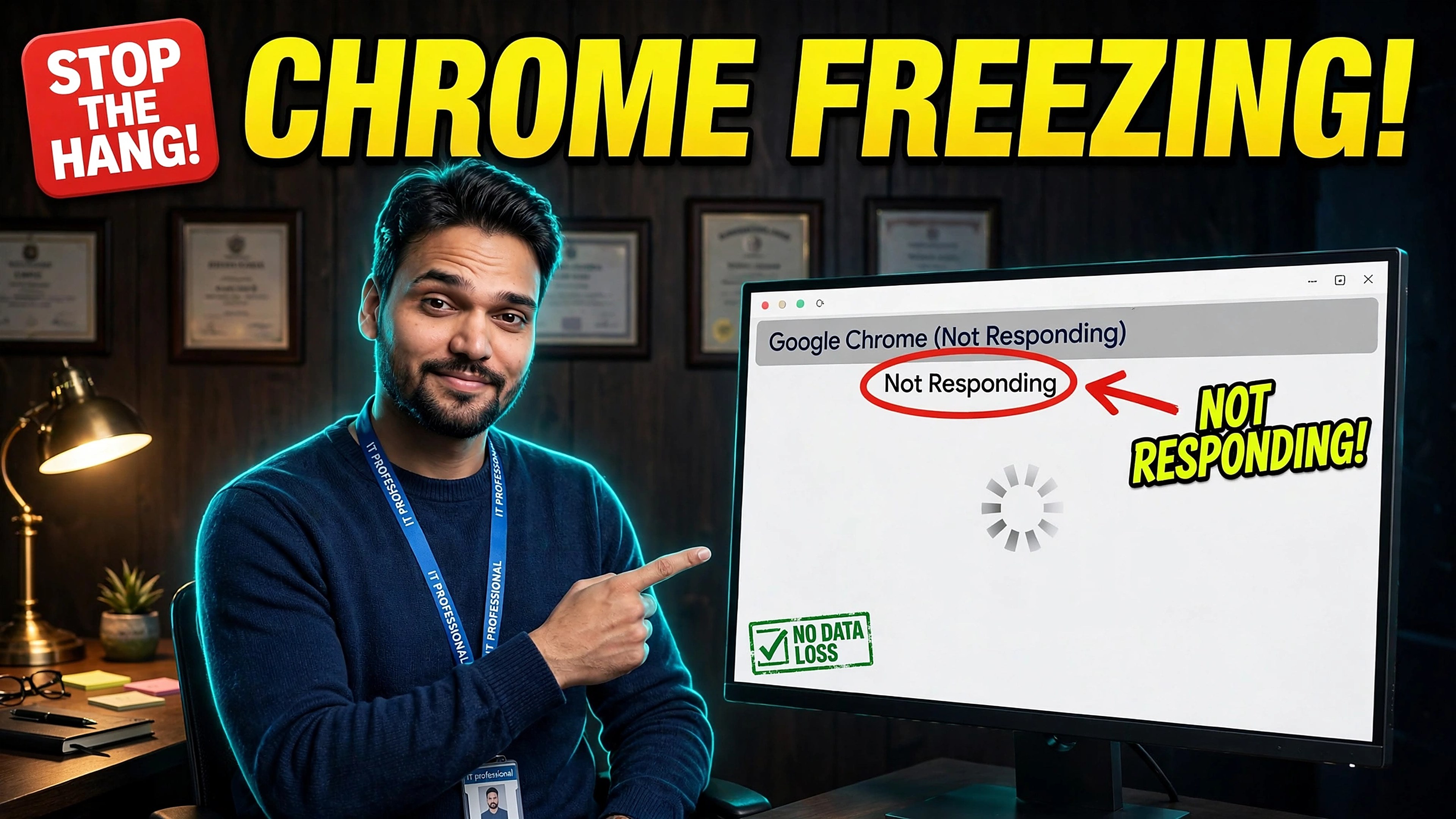
Reports on Reddit r/chrome and Microsoft Q&A describe the same scene: the Chrome window goes grey, the title bar says Not Responding, sometimes for a few seconds, sometimes until the user kills it - and it often starts right after a Windows 11 update. The detail that "the PC itself is fine" is important: Windows is healthy, other apps respond, only Chrome is stuck. That means the freeze lives inside Chrome - a tab or extension burning CPU, the graphics acceleration path stalling on a changed driver, or Windows throttling Chrome with Efficiency mode. End task and reopen is a loop, not a fix. The steps below identify the stall first, then remove its cause in order.
X The whole Chrome window goes grey or faded and ignores clicks
X The freeze lasts seconds - or never recovers and needs an End task
X Other programs on the same PC keep working normally during the freeze
Check: freezes that began right after a Windows 11 update point first at the graphics driver - see Fix 3
NOT RESPONDING Windows adds this to the title bar when Chrome stops answering - the stall is inside Chrome, not in the PC.
The fingerprint of this problem: only Chrome freezes, often since a Windows update, while everything else stays responsive.
End the Runaway Tab in Chrome Task Manager ⭐
Do this during or right after a freeze, before reaching for End task on the whole browser. Chrome Task Manager ranks every tab and extension by CPU, so the process causing the freeze identifies itself.
- Press Shift + Esc to open Chrome Task Manager. If Chrome is frozen solid and it will not open, wait for a responsive moment or restart Chrome and open it immediately - then keep it open while you work.
- Click the CPU column header to sort highest first. A healthy tab idles near zero; the culprit sits at the top consuming constant high CPU - a stuck script, an autoplaying heavy page, or an extension working in every tab.
- Select that process and click End process. Only that tab or extension stops; the rest of Chrome, including your other tabs and any text in them, survives.
- Note the name of what you ended. If the same tab or extension tops the list again later, it is not a one-off - Fix 4 handles extensions properly, and a site that repeatedly pegs CPU should be used in fewer tabs or reported as faulty.
- If no single process stands out and overall CPU is low while Chrome still freezes, the stall is not CPU at all - go straight to Fix 2, the graphics path.
Turn Off Graphics Acceleration and Relaunch
With acceleration on, Chrome hands page drawing to the GPU. When the driver and Chrome fall out - classically right after a driver-changing Windows update - drawing stalls and the whole window shows Not Responding, even though no tab is doing anything heavy.
- Open Settings > System.
- Turn off Use graphics acceleration when available and click Relaunch.
- Use Chrome normally for a real session - the same sites, the same number of tabs. If the freezes are gone, the graphics path was the cause.
- Keep acceleration off if stability matters more than the small smoothness gain, or do Fix 3 and try turning it back on with the proper driver installed.
- If freezes continue with acceleration off, turn it back on and continue - you have ruled out a whole category with one toggle.
Update the GPU Driver From the Manufacturer
This is the top fix when the freezes started after a Windows update: the update installed a generic display driver, and Chrome acceleration depends on the real one. Get it from the GPU maker, not from Windows Update alone.
- Identify your graphics: press Win + X > Device Manager > expand Display adapters and note the name - Intel, AMD or NVIDIA, or a combination on gaming laptops.
- Download the latest driver for that exact adapter and Windows 11 from the manufacturer official site - Intel Download Center, AMD Drivers and Support, or NVIDIA GeForce Drivers. On laptops, the laptop maker support page is also acceptable and sometimes better matched.
- Install it and restart the PC, even if the installer does not insist.
- If the freezes began immediately after a driver update itself, do the opposite test: in Device Manager, open the adapter Properties > Driver tab and use Roll Back Driver if available, then retest.
- Retest Chrome with graphics acceleration back on (Fix 2). A correct driver usually makes acceleration stable again.
Test in Incognito, Then Disable Extensions One by One
Extensions inject code into pages and run constantly. One bad update to an extension can freeze every tab it touches, which looks exactly like Chrome itself freezing.
- Open an Incognito window (Ctrl + Shift + N) and browse the sites that normally freeze. Extensions are off by default in Incognito.
- If Incognito is smooth, open
chrome://extensionsand turn off all extensions. - Re-enable them one at a time, using Chrome normally between each. When the freezing returns, the last extension enabled is the cause - update it, check its settings, or remove it and find an alternative.
- Pay special attention to extensions that run on every page: ad blockers, antivirus browser add-ons, download managers, coupon tools and dark-mode injectors.
- If Incognito freezes the same way, extensions are cleared - move on.
Turn Off Efficiency Mode for Chrome in Task Manager
Windows 11 can throttle Chrome processes with Efficiency mode to save power. A throttled Chrome pauses for 5 to 30 seconds, then recovers as if nothing happened - a pattern users describe as constant short freezes, especially on laptops.
- Press Ctrl + Shift + Esc for Windows Task Manager and find Google Chrome in Processes. A green leaf icon next to a process means Efficiency mode is on for it.
- Expand the Chrome group, right-click the Chrome processes showing the leaf, and click Efficiency mode to toggle it off if it is ticked.
- Also check your power mode: Settings > System > Power and battery - Best power efficiency throttles background apps hardest. Balanced is the right everyday choice on most PCs.
- Use Chrome for a session and watch for the short-pause pattern. If the pauses were throttling, they stop completely once Efficiency mode is off for Chrome.
Clear Cache, Cookies and the GPU Shader Cache
Corrupted cached data can stall page rendering, and a damaged GPU shader cache specifically causes freezes that survive ordinary cache clearing - worth doing once acceleration has been in the picture.
- Open Settings > Privacy and security > Delete browsing data, set the range to All time, tick Cookies and other site data and Cached images and files, and click Delete data. Note: clearing cookies signs you out of websites.
- Fully close Chrome and end any remaining chrome.exe processes in Task Manager.
- Press Win + R, type
%LOCALAPPDATA%\Google\Chrome\User Data, open the folder for your profile (Default for the first profile) and delete the GPUCache folder inside it if present. Chrome rebuilds it cleanly on next launch. - Relaunch Chrome and retest. The first load of media-heavy sites may be a touch slower while caches rebuild - that is normal and temporary.
Update Chrome, Then Reset or Use a New Profile
If freezes survive everything above, the remaining suspects are an outdated Chrome build and a damaged profile. Handle them in this order, because the reset keeps your important data.
- Open
chrome://settings/help, install any pending update and relaunch. Retest before resetting anything. - If freezes continue, open Settings > Reset settings > Restore settings to their original defaults and confirm. Bookmarks, history and saved passwords are kept; extensions are disabled and temporary data is cleared.
- Use the reset Chrome before reinstalling extensions, adding them back one by one as in Fix 4.
- Still freezing? Test a brand-new profile: click your profile icon > Add, create a fresh profile without signing in, and browse the problem sites. If the new profile is smooth, your old profile data is damaged - move to the new profile and sync your data into it. If the new profile also freezes, the cause is system-level: run a full malware scan and check RAM and disk health in Task Manager during a freeze.
Software Needed
No extra software is required. Chrome Task Manager, Incognito, Settings and the reset are built into Chrome; Windows Task Manager and Device Manager are built into Windows 11. The only downloads in this guide are the graphics driver from your GPU or laptop manufacturer official site. Avoid "Chrome speed booster" and registry cleaner programs - they do not repair driver stalls, extension freezes or throttling, and some install the very extensions that cause freezes.
More PC Fixes on Technical Anshu
Every week: Windows problems, hidden tools and full setup guides, explained step by step.
Subscribe on YouTubeRelated Video
Related video (not the fix for this exact problem): it runs through a custom repair script covering 15 common Chrome problems in one pass, which is useful general Chrome maintenance, but it does not target a freezing, Not Responding window specifically - for that, follow the steps above. Watch: Fix 15 Google Chrome Problems in Just 1 Minute Custom Repair Script
Frequently Asked Questions
Why does Chrome say Not Responding while the rest of Windows is fine?
Because the freeze is inside Chrome, not in Windows. One tab or extension can consume all the CPU Chrome is allowed, or the graphics path can stall, and the whole window stops answering while other programs keep working. Chrome Task Manager (Shift+Esc) shows exactly which tab or extension is using the most CPU.
Why did Chrome start freezing after a Windows 11 update?
Updates often replace the graphics driver with a newer generic one, and Chrome hardware acceleration depends on that driver. When the new driver and Chrome disagree, the window freezes or goes grey. Updating the GPU driver from the manufacturer and testing with graphics acceleration off are the two fixes that solve most post-update cases.
What is Efficiency mode and can it freeze Chrome?
Efficiency mode is a Windows 11 Task Manager feature that throttles a process to save power. If it is applied to Chrome processes, the browser can pause for 5 to 30 seconds and then recover, which looks like repeated short freezes. In Task Manager, right-click the Chrome process and make sure Efficiency mode is not enabled for it.
Will resetting Chrome delete my bookmarks and passwords?
No. Resetting Chrome settings restores the startup page, search engine and tab settings to defaults, disables extensions and clears temporary data like cookies. Bookmarks, browsing history and saved passwords are kept. That is why a reset is a safe late step when freezes continue after the simpler fixes.
Chrome freezes only on one website. What should I do?
Treat it as a site-specific problem: test the site in Incognito, disable the extensions that run on that site, and delete that site data in Settings. If the site freezes only in your normal profile and works everywhere else, your saved data or an extension for that site is the cause, not Chrome itself.