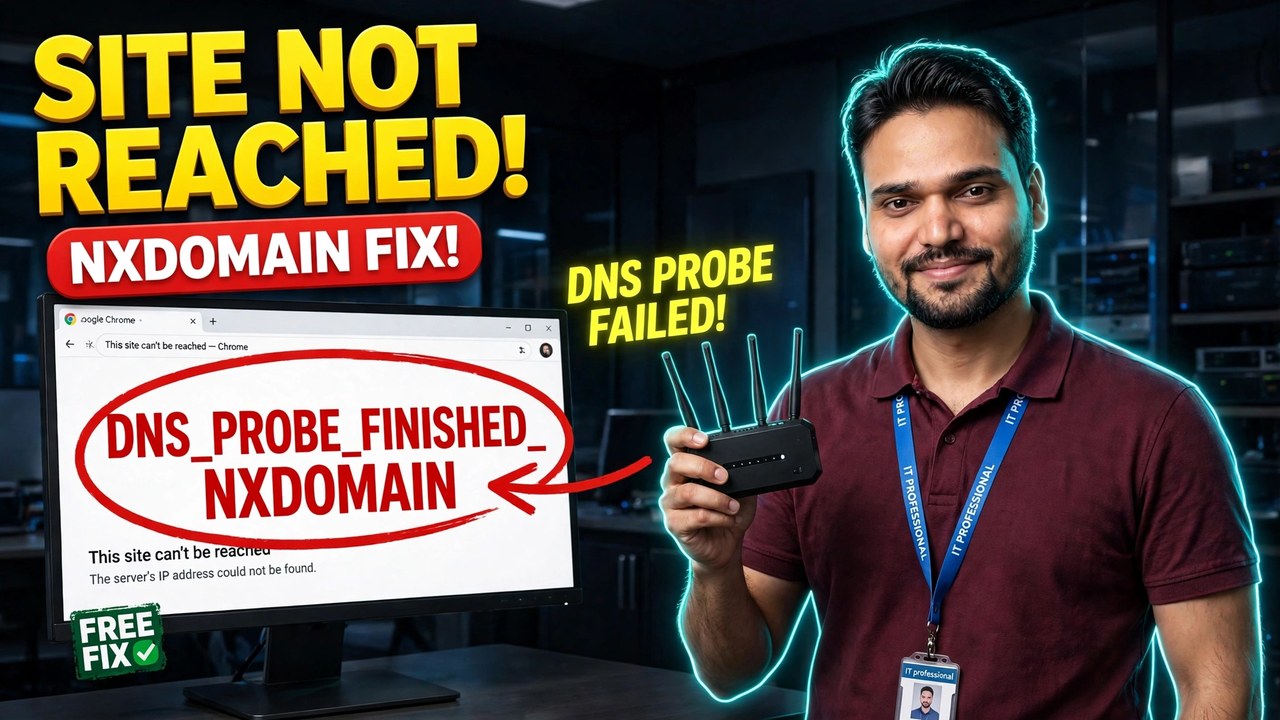
NXDOMAIN is a specific DNS answer. It does not mean the internet is down - it means the resolver Chrome used replied, in effect, there is no such domain. That answer is correct in exactly one common case: the name was typed wrong. In every other case - above all when known sites like your email or a search page also fail - the resolver itself is at fault: a provider DNS server returning bad answers, a router DNS relay that is stuck, or a VPN or proxy intercepting the lookup. The fixes below go in that order: spelling first, then the router, then both DNS caches, then a known-good public resolver, then the network reset as the last step.
X Chrome reports the server IP address could not be found for the site
X The error hits one site only - or every site you open in Chrome
X The same site may open on your phone but not on this PC, or the other way round
DNS_PROBE_FINISHED_NXDOMAIN The DNS probe finished and the answer was NXDOMAIN - domain reported as non-existent.
The fingerprint of this problem: DNS answers quickly, but the answer says the domain does not exist.
Check the Domain Spelling First
A typo is the most common cause of this exact error, and it is the only cause where NXDOMAIN is the honest answer. Check it before you change a single setting.
- Compare the address in the address bar with the correct spelling, character by character. Look for swapped letters, a missing letter, or the wrong ending - .co instead of .com is a classic.
- Do not trust a link you were sent. Type the site's main name by hand into a fresh tab and press Enter.
- Search for the site name in a search engine and click the result from there. If the search result opens the site, your typed address was wrong.
- If the correctly spelled, well-known site still fails, and other known sites fail too, the name is fine and your resolver is wrong. Continue to Fix 2.
Restart the Router Properly
Most home routers run a small DNS relay that forwards and caches lookups for every device in the house. When that relay gets stuck, it can return NXDOMAIN for good domains on every device at once - and no setting on your PC will fix it until the router is restarted.
- Unplug the power cable from the router. If you have a separate modem, unplug that as well.
- Wait a full 30 seconds. This wait matters: it lets the router fully power down and drop its cached state.
- Plug the modem back in first if you have one, wait until its lights settle, then plug the router back in and wait until the internet light is solid.
- Reconnect the PC and test the failing site in Chrome before changing anything else.
Clear the Chrome Host Cache and Flush Socket Pools ⭐
Chrome caches DNS answers inside the browser, including bad ones. A cached NXDOMAIN-style failure can keep a site broken in Chrome long after the network itself is fine, which is why this step fixes so many cases where only Chrome is affected.
- Type
chrome://net-internals/#dnsin the Chrome address bar and press Enter. - Click Clear host cache.
- Open
chrome://net-internals/#socketsand click Flush socket pools, so open connections holding the old answer are closed. - Reload the site with Ctrl + Shift + R.
- If the net-internals page looks different on your Chrome version, the Clear host cache button is still on the DNS section. Closing Chrome completely and reopening it also clears the in-memory part of the cache.
Flush the Windows DNS Cache
Windows keeps a second DNS cache at system level. Clear it as well, otherwise programs keep receiving the stored bad answer even with a clean Chrome cache.
- Click Start, type
cmd, right-click Command Prompt and choose Run as administrator. - Run:
ipconfig /flushdns
- Confirm you see: Successfully flushed the DNS Resolver Cache.
- Restart Chrome and test the site again. If it still fails, the caches were not the source - the resolver itself is answering wrongly, which is Fix 5.
Switch DNS to Google or Cloudflare
This is the decisive test. Google Public DNS and Cloudflare DNS are large, well-maintained resolvers. If the error disappears the moment you use one of them, your previous DNS server was the whole problem.
- Press Win + R, type
ncpa.cpland press Enter. - Right-click your active Wi-Fi or Ethernet connection, choose Properties, select Internet Protocol Version 4 (TCP/IPv4) and click Properties.
- Choose Use the following DNS server addresses. Google: Preferred
8.8.8.8, Alternate8.8.4.4. Cloudflare: Preferred1.1.1.1, Alternate1.0.0.1. - Click OK twice, run
ipconfig /flushdnsonce more, restart Chrome and test several sites, not just one. - You can leave a public resolver in place permanently, or switch back to Obtain DNS server address automatically later if your provider fixes its servers.
Check the Hosts File, Disable VPN and Proxy, Then Reset the Network
If a public resolver did not help, something on the PC itself is interfering with lookups: a hosts file entry, a VPN, a proxy, or a damaged network stack. Work through them in order.
- Check the hosts file: open Notepad as administrator and open the file
C:\Windows\System32\drivers\etc\hosts. Lines that map the failing site name to an address can break it. Remove only lines that name the failing site, save, and retest. Leave the sample comment lines alone. - Disconnect any VPN completely, not just paused, and reload the page. In Chrome, also check for VPN or proxy extensions at
chrome://extensionsand turn them off for the test. - Check the Windows proxy: open Settings > Network and internet > Proxy and turn off Use a proxy server if it is on and you did not set it yourself.
- As the last step, reset the network stack. In an admin Command Prompt, run each command and then restart the PC:
netsh winsock resetnetsh int ip reset
- After the restart, reconnect to Wi-Fi if needed and test Chrome again.
Software Needed
No extra software is required. The fixes use Chrome's net-internals pages, Windows Network Connections, Notepad for the hosts file check, and Command Prompt - all built in. The Google and Cloudflare DNS services are free and need no account or app. Do not install DNS repair or registry cleaner tools for this error: they change these same settings silently and give you no record of what was altered.
More PC Fixes on Technical Anshu
Every week: Windows problems, hidden tools and full setup guides, explained step by step.
Subscribe on YouTubeRelated Video
Related video (not the fix for this exact problem): the video covers the closely related ERR_NAME_NOT_RESOLVED DNS error, where the name lookup fails instead of returning NXDOMAIN, and it shows the same cache-clearing and DNS steps used above - watch: ERR_NAME_NOT_RESOLVED Error Fix Internet Working But Website Not Opening
Frequently Asked Questions
What does DNS_PROBE_FINISHED_NXDOMAIN mean?
Chrome probed DNS for the site name, and the resolver answered NXDOMAIN, which means the domain was reported as non-existent. Either the name really does not exist because of a typo or an expired domain, or your current DNS server is returning wrong answers for names that do exist.
Why does NXDOMAIN appear on every site, not just one?
Real domains cannot all be non-existent at once, so an every-site NXDOMAIN means your resolver is broken: a failing provider DNS server, a stuck router DNS relay, a VPN or proxy intercepting lookups, or a wrong hosts file entry pattern. Restarting the router and switching to Google or Cloudflare DNS are the decisive tests.
What is the difference between NXDOMAIN and ERR_NAME_NOT_RESOLVED?
ERR_NAME_NOT_RESOLVED means the lookup failed and Chrome got no usable answer. DNS_PROBE_FINISHED_NXDOMAIN means the lookup completed and the answer was specifically that the domain does not exist. In practice the fixes overlap heavily: clear both DNS caches and test a known-good public resolver.
Can a VPN or proxy cause DNS_PROBE_FINISHED_NXDOMAIN?
Yes. A VPN pushes your DNS lookups through its own resolver, and a manual proxy can do the same. If that resolver is down, filtered or misconfigured, Chrome receives NXDOMAIN answers for good domains. Disconnect the VPN, turn the proxy off, and reload the page to test.
The error is only on my own website. What should I check?
If visitors on other networks also see NXDOMAIN for your site, the domain registration may have lapsed or the DNS records at your registrar or DNS host are missing or wrong. Check the domain expiry date and confirm the nameserver and A records are still published. A site-side DNS fault can only be fixed by the domain owner.