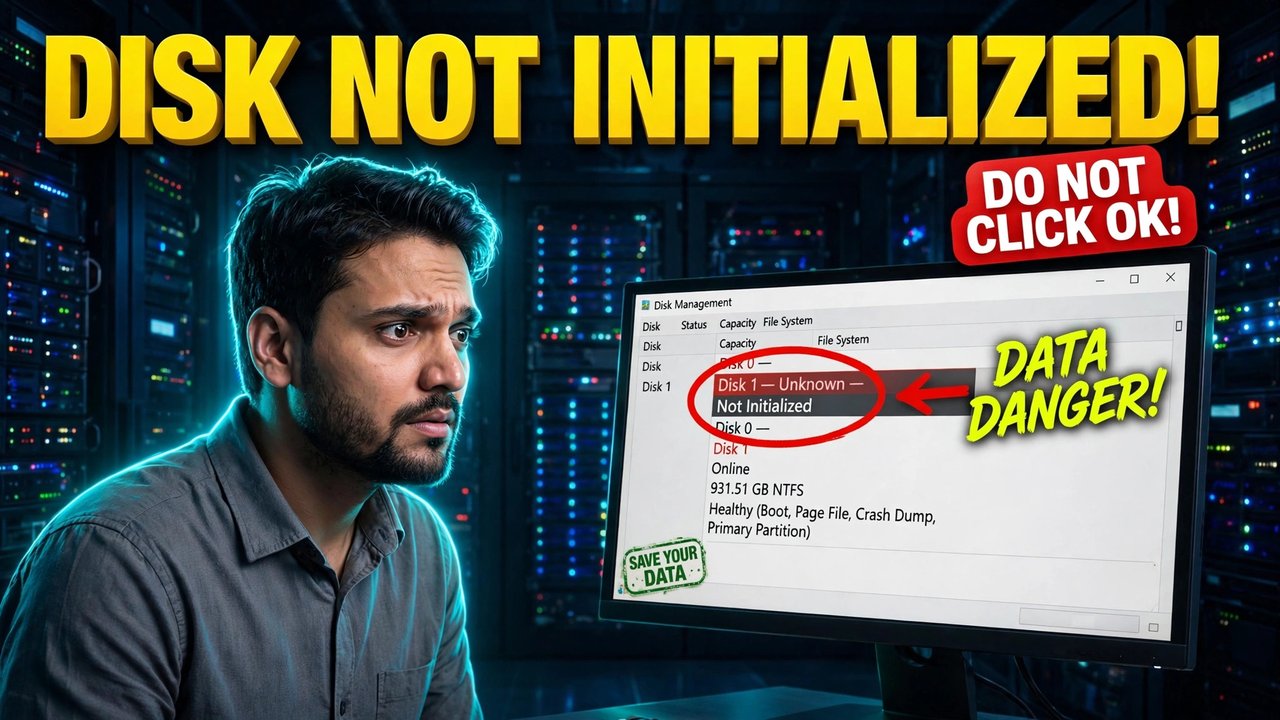
A disk shows Unknown, Not Initialized when Windows can see the hardware but cannot find a readable partition table on it. That happens in three very different situations: a brand-new empty disk that has never been prepared (completely normal), a connection problem - loose cable, failing USB enclosure or weak port - that makes a healthy disk unreadable, and a disk whose MBR or GPT partition information is corrupted or whose electronics are failing. Only the first case should ever be solved by clicking Initialize Disk. Start with the warning below, then work through the checks in order.
X Disk 1 - Unknown - 931.51 GB - Not Initialized - the whole disk shows as Unallocated
X Right-clicking the disk offers one option that looks like the answer: Initialize Disk
X Opening Disk Management may even pop up: "You must initialize a disk before Logical Disk Manager can access it."
Check: on a brand-new empty disk that prompt is normal and safe to accept. On a disk that already held your files, the same prompt is the trap this guide exists to stop.
DO NOT INITIALIZE A disk with data on it - until the connection tests in Fix 1 are done.
The fingerprint of this problem: the disk is visible as hardware, but Windows cannot read any partition table from it.
First Check the Connection, Cable and Enclosure
Do this before any software step, whatever kind of disk it is. A disk that cannot be read properly looks identical to a disk with a damaged partition table.
- Shut down, reseat both ends of the data cable, and try a different cable. For an internal disk, also try a different SATA port on the motherboard and a different power connector.
- For an external disk, connect it directly to a rear USB port - not through a hub or a front-panel port, which often deliver weak power.
- If the disk lives in a USB enclosure or adapter, test the disk in a different enclosure, or connect it directly inside a desktop PC. Failing enclosure bridge chips are a classic cause of a healthy disk reporting Not Initialized, or even reporting the wrong size.
- Try the disk on another computer. If it appears there with all its files, stop: your disk is fine, the fault is your cable, enclosure, port or power - and you must not initialize anything.
Brand-New Empty Disk? Initialize It - This Is the Safe Case
A disk that has just come out of the box has no partition table at all, so Not Initialized is its normal first state. Preparing it is a two-minute job.
- Open Disk Management (press Win + X and choose Disk Management).
- Right-click the disk label on the left (where it says Disk 1, Unknown) and choose Initialize Disk.
- Choose GPT as the partition style and click OK. GPT is the modern standard; the note under this fix explains the one case for MBR.
- The disk now shows as Online with Unallocated space. Right-click the Unallocated area and choose New Simple Volume.
- Follow the wizard: use the full size, assign a drive letter, format as NTFS for an internal Windows disk (exFAT for a disk that must also work on Mac or TV), and finish.
- The disk appears in This PC, ready to use.
Old Disk With Data? Do NOT Initialize - Take the Recovery Route ⭐
If this disk worked before and held files, Not Initialized is a symptom, not a setup step. Treat the disk as a patient, not as blank media.
- Do not initialize, do not format, and stop experimenting. Every write to this disk lowers the chance of getting files back. If the data is critical and irreplaceable, skip the rest of this fix and go straight to step 5.
- Complete the connection tests in Fix 1 first: different cable, direct port, different enclosure, another PC. If the disk opens anywhere, copy the important files off immediately, before anything else - a disk in this state can get worse.
- If the disk stays Not Initialized everywhere, the partition information is damaged. Use data recovery software that can scan a disk read-only without initializing it, and recover files to a different healthy disk - never save recovered files back onto the same failing disk.
- Watch for failing-disk signs while you work: clicking or beeping sounds, the disk repeatedly connecting and disconnecting, or extremely slow reading. Any of these means the hardware is dying, not just the partition table.
- For data you cannot afford to lose - business records, the only copy of family photos - a professional recovery service is the honest recommendation. It costs money, but continued DIY attempts on a physically failing disk are how recoverable data becomes unrecoverable.
- Only after the data is safe (or you have accepted its loss) may you initialize the disk as in Fix 2 to reuse it - and a disk that failed once should never again hold the only copy of anything.
Software Needed
For the connection checks and for preparing a brand-new disk, no software is needed at all - Disk Management is built into Windows. Data recovery software is needed only on the with-data route in Fix 3, and there the one feature that matters is a read-only scan that works without initializing the disk. Whatever tool you choose, install it on a different, healthy drive, never on the disk you are trying to save.
More PC Fixes on Technical Anshu
Every week: Windows problems, hidden tools and full setup guides, explained step by step.
Subscribe on YouTubeRelated Video
Related video (not the fix for this exact problem): it shows how to clone a full disk with Macrium Reflect - the backup habit that means a failing or Not Initialized disk never takes your only copy with it - watch: Clone HDD to SSD Using Macrium Reflect
Frequently Asked Questions
Does initializing a disk erase its data?
Initializing writes a new partition table (MBR or GPT) to the disk. On a brand-new empty disk nothing is lost, because there is nothing on it. On a disk that held files, initialization makes those files inaccessible to Windows and makes later recovery harder and less reliable, so treat it as data loss and do not do it on a disk you care about.
Why does a working disk suddenly show as Unknown, Not Initialized?
The common causes are a loose or failing cable, a dying USB enclosure or adapter whose bridge chip misreports the disk, sudden power loss that damaged the partition information, or the disk electronics themselves starting to fail. That is why connection tests come before any click on Initialize Disk.
Should I choose GPT or MBR when initializing a new disk?
Choose GPT for any modern PC and for any disk larger than 2 TB, because MBR cannot use space beyond 2 TB. Choose MBR only when the disk must work with very old hardware or an old BIOS-only system that cannot read GPT.
The disk shows Not Initialized on my PC but works fine on another PC. What does that mean?
It means the disk itself is probably healthy and the fault is on your side: the cable, the USB port, the enclosure, or insufficient USB power on your machine. Change one of those at a time and the disk usually appears normally, with its files untouched.