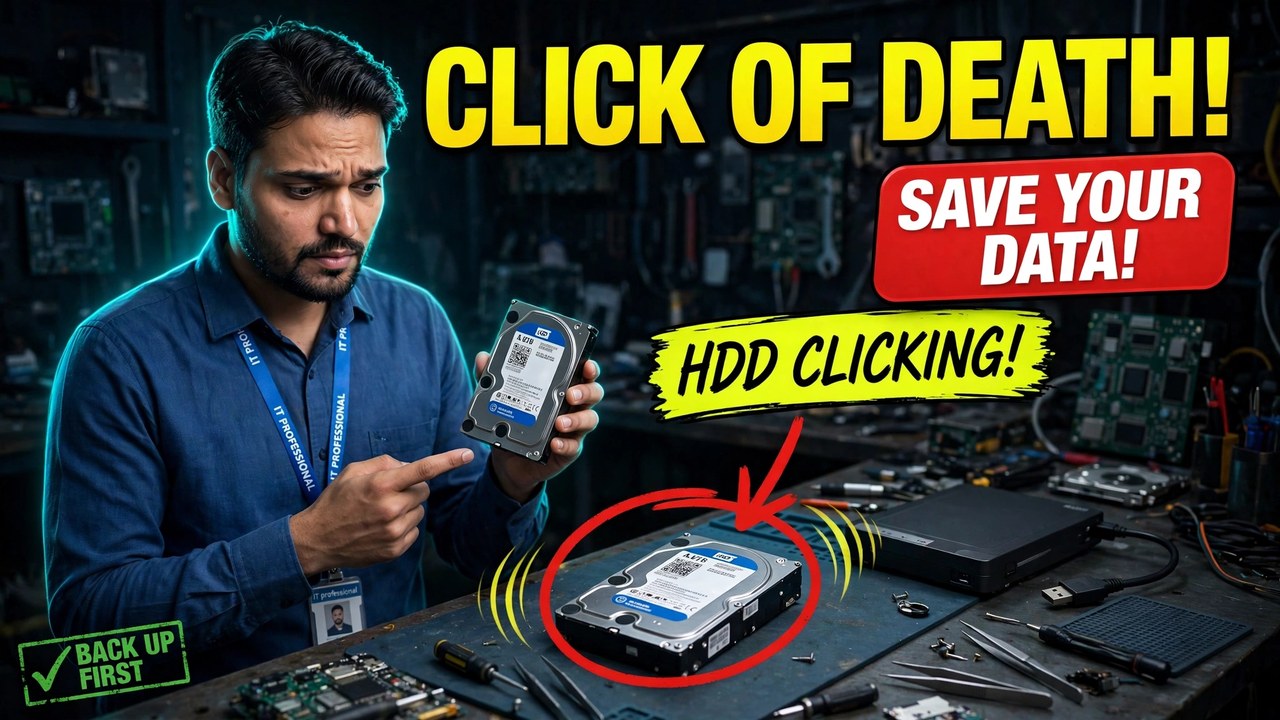
A rhythmic clicking noise from a hard disk drive has a specific mechanical meaning. Inside the drive, the read and write heads fly over the spinning platters and read the data. When the heads are damaged, or cannot read the drive's own startup information, the head arm snaps back to its rest position and tries again - that snap is the click you hear, repeated over and over. Forum reports on Tom's Hardware and recovery specialists such as PITS Data Recovery describe the same pattern every time: new repeated clicking, plus freezing, failed boots, or a drive that has vanished from the BIOS. Because the fault is physical, no Windows setting, scan or repair tool can fix it - and the common instinct to keep rebooting and testing is exactly what destroys the remaining data. This guide is therefore ordered differently from a normal fix guide: stop the damage first, protect the data second, and only then make the replace-or-recover decision.
X A new, rhythmic clicking sound from the drive at startup or during use - not the single soft click of a normal start
X Windows freezes, runs extremely slowly, or fails to boot from this drive
X The drive does not appear in the BIOS setup or in Disk Management at all
X Boot screen message: "No bootable device found" when this is the system drive
CLICK OF DEATH The head assembly is failing to read and resetting, again and again. Treat every extra minute of power as a risk to the data.
The fingerprint of this problem: the clicking is new, rhythmic and repeated, and it arrives together with freezing, a failed boot or a missing drive.
Power the Drive Down Right Now and Stop Retrying ⭐
This is the most important step in the guide, and the only one that can still save your data. A clicking drive gets worse every time it is powered on.
- Shut the PC down now. If Windows is frozen, hold the power button until the machine turns off. Do not wait for a graceful shutdown while the heads keep snapping.
- Unplug the PC, or switch the power supply off, so the drive cannot spin up again by accident. For an external drive, pull its USB and power cables out.
- Understand why this matters: if the heads are damaged, every power-on drags them across the platters again. Platter scratches are permanent - data under a scratch cannot be recovered by anyone, at any price. Recovery professionals consistently report that drives arrive in worse condition because owners kept rebooting to "try once more".
- Do not keep restarting to check whether it "works this time". A clicking drive that boots once more is not healed; it is giving you a warning, and if you ever get that one lucky boot, the only correct action is copying the most important files off first, smallest and most valuable first, without installing or scanning anything.
- Write down what was on the drive before you touch anything else: photos, business documents, project files. That list decides whether Fix 5 is a lab recovery or a simple drive replacement.
Do NOT Run CHKDSK, Scans or Repair Software
Most drive guides tell you to scan and repair. On a clicking drive that advice is harmful, because every one of those tools assumes the hardware is healthy.
- Do not run
chkdsk /rorchkdsk /f. A surface scan forces the failing heads to read and write every sector, including the damaged areas, for hours. On a mechanically dying drive that workload can be the pass that finishes it. - Do not run the drive maker's long diagnostic, a bad-sector "repair" tool, or a free data recovery scan on the clicking drive itself. All of them need sustained reading from damaged hardware.
- Do not let Windows repair attempts run on boot. If Windows offers to check the disk at startup, skip it while the drive is clicking.
- Remember the order that protects data: a drive that is only logically damaged (corrupted file system, deleted files) can be scanned safely. A drive that is physically clicking cannot. The sound is what separates the two cases.
Do NOT Freeze, Tap, Shake or Open the Drive
Old forum myths still circulate for this exact fault. Each one makes recovery harder or impossible, so this guide names them plainly instead of leaving them as tempting experiments.
- Freezer trick: putting the drive in a freezer does not repair a damaged head assembly. When the cold drive comes back into warm air, condensation forms inside and on the platters, adding moisture damage to the mechanical damage. It is not presented here as a fix because it is not one.
- Tapping or shaking: striking the drive can make stuck or damaged heads gouge the platter surface. A fault that a lab could have worked around becomes unrecoverable.
- Opening the drive: hard drives are assembled in cleanroom conditions because even household dust particles are enormous compared with the gap between head and platter. Opening the lid at a desk contaminates the platters and voids any warranty. Head replacement is cleanroom work with donor parts, not a home repair.
- If a tip promises to revive a clicking drive at home in minutes, treat it as a warning sign about the source, not as a shortcut. There is no software or kitchen fix for broken heads.
The One Brief Exception: Check the Cable Once
There is exactly one hardware check worth a single short power-on, because a starved or loose connection can make a healthy drive behave badly. Do it once, briefly, and stop the moment clicking continues.
- With the PC unplugged, open the case (desktop) and check the drive's two cables: the wide SATA data cable to the motherboard and the SATA power cable from the power supply. Reseat both ends firmly, and if a spare SATA data cable and a different power connector are available, swap to them.
- For a 2.5 inch drive in a USB enclosure or dock, try its original cable and a direct rear USB port once - weak USB power can cause repeated spin-up attempts.
- Power on once and listen. If the clicking is gone and the drive is detected normally, the connection was the fault: in that case, copy your important data to a different drive first anyway, then check the drive health properly before trusting it again.
- If the clicking continues with a known-good cable and solid power, stop. The fault is inside the drive. Power down and go to Fix 5 - do not repeat this test.
Decide: Professional Recovery or Straight Replacement
Once the drive is safely off and the cable check is done, there are only two honest outcomes. Choosing between them depends on one question: does the data on this drive matter?
- If the data matters (family photos, business records, work with no backup): send the drive to a professional data recovery lab with a cleanroom. Explain that the drive clicks and that you have powered it down - do not ship it after weeks of home experiments. Good labs assess first and quote before recovery work, and they replace the head assembly with matched donor parts to read the platters once, onto a healthy drive.
- Get the quote before deciding, and compare it honestly with what the data is worth to you. Cleanroom recovery is skilled work and is priced accordingly; for data that exists elsewhere, replacement is the sensible choice.
- If the data does not matter or is fully backed up: replace the drive. A clicking drive is never repaired for reuse - not by software, not by a local shop swapping its circuit board. Fit a new drive (an SSD if the PC supports it), reinstall Windows or restore your backup, and recycle the dead drive.
- If the drive is still under warranty, claim a replacement from the maker for the drive itself - note that warranty covers the hardware, never the data on it, so the recovery decision above still comes first.
- Afterwards, set up the backup whose absence made this stressful: an external drive or cloud copy of the important folders, so the next drive failure is an inconvenience, not an emergency.
Software Needed
Deliberately, no recovery or repair software is recommended for a clicking drive - running software against damaged heads is one of the actions this guide warns against. The tools that belong in this story are for afterwards: the drive maker's official diagnostic (for example SeaTools or WD Dashboard) is the right way to check a healthy replacement drive or a second drive in the same PC, and a normal file backup tool is what protects you next time. If your data matters, the "software" step is skipped entirely and the drive goes to a recovery lab untouched.
More PC Fixes on Technical Anshu
Every week: Windows problems, hidden tools and full setup guides, explained step by step.
Subscribe on YouTubeRelated Video
Related video (not the fix for this exact problem): it shows how to test whether a hard disk is faulty on a drive that still responds - useful for a healthy second drive or a replacement drive, not for scanning a clicking drive - watch: Hard Disk Kharab Hai Ya Nahi? HDD Test Full Method Explained
Frequently Asked Questions
What is the click of death in a hard drive?
It is the sound of the read and write head assembly repeatedly failing to read the drive and snapping back to its rest position to try again. The click-click-pause rhythm means the drive cannot read its own startup information, which is a mechanical failure inside the sealed drive, not a Windows or software error. Every extra power-on risks the damaged heads scratching the platters, so the drive should be powered down and left off.
Can I recover data from a clicking hard drive myself?
In most cases, no. Recovery software needs a drive that still spins up, is detected, and can be read - a clicking drive usually fails all three. Software scans also force the damaged heads to keep working, which can turn a recoverable drive into an unrecoverable one. If the data matters, the drive needs a professional cleanroom recovery lab where the head assembly can be replaced with donor parts. If the data does not matter, replacing the drive is the correct and cheapest answer.
Does putting a clicking hard drive in the freezer fix it?
No. The freezer trick is a myth for this fault. A clicking drive has a physically damaged head assembly, and freezing does not repair it. Condensation forms on the platters when the cold drive meets warm air, which adds moisture damage on top of the mechanical damage. Professional recovery guidance is consistent on this point: do not freeze, tap, shake or open a clicking drive.
Should I run CHKDSK on a clicking hard drive?
No. CHKDSK is a file system repair tool for drives that are mechanically healthy. On a clicking drive it forces long, heavy read and write passes across damaged areas, which stresses the failing heads and can destroy data that a recovery lab could otherwise have read. The same applies to surface scans, bad-sector repair tools and repeated reboot attempts. Power down first, decide whether the data matters, and only then act.
My drive clicked once or twice and then worked normally. Is it failing?
A single soft click during power-up or power-down can be the heads parking normally. The warning sign is a new, repeated, rhythmic clicking during use or at startup, especially together with freezing, very slow file access, the drive vanishing from Disk Management, or Windows failing to boot. If you hear that pattern, treat it seriously: back up everything important to a different drive immediately while the drive still responds, and plan its replacement.