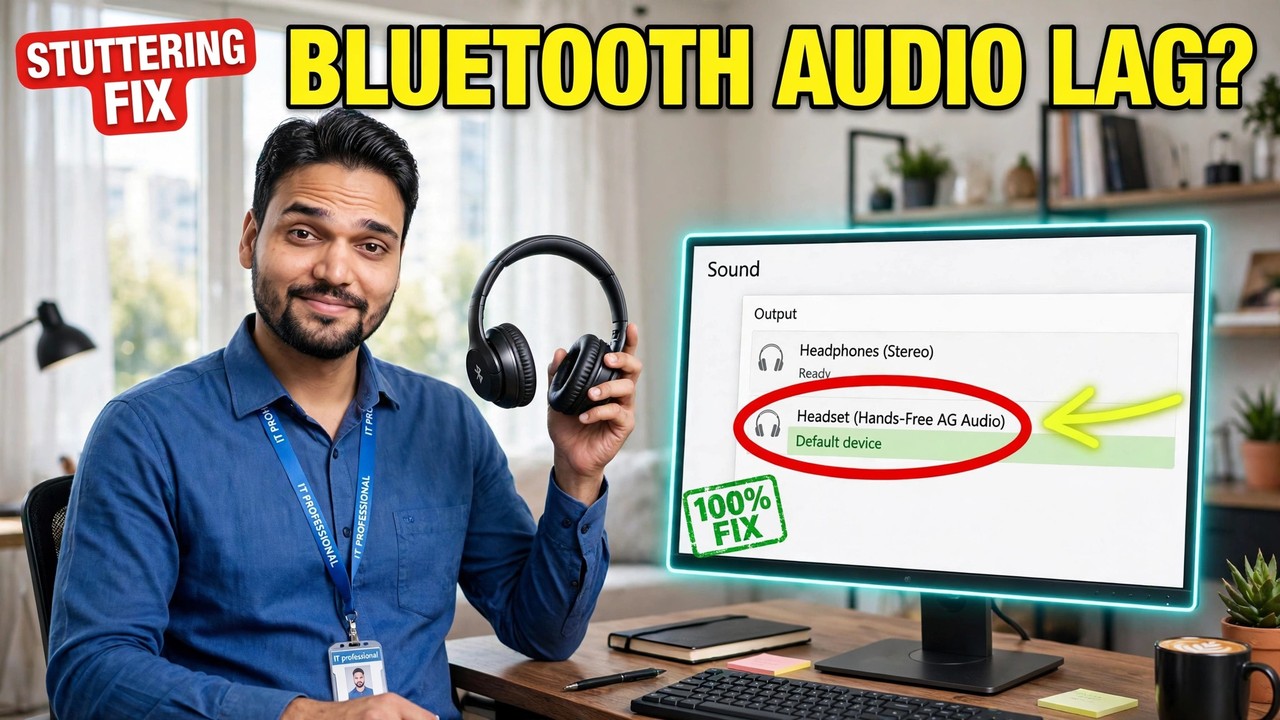
This is one of the most reported Windows 11 audio problems on Reddit, Microsoft Community and tech forums: Bluetooth audio that stutters, drops out for a second, sounds muffled like a phone call, or lags behind the lips in a video. Work through the fixes below in order - most headsets sound smooth again by Fix 3.
Choose where to play sound
✖ Music sounds muffled, like a telephone call - low quality, mono sound
✖ Audio cuts out for a second every few seconds, or lags behind the video
✖ The same headset sounds perfect on your phone
✔ Headset is connected - Bluetooth itself is working
The problem exactly as it appears: Windows has made "Hands-Free AG Audio" the default output instead of the Stereo output - that is the number one cause of stuttering and muffled Bluetooth sound.
Remove the Headset and Pair It Again
Stale pairing data survives normal disconnects and keeps the headset on the wrong profile. Clear it completely.
- Open Settings → Bluetooth & devices → Devices.
- Click the three dots next to your headset and choose Remove device.
- Turn Bluetooth off, wait 10 seconds, turn it back on.
- Put the headset in pairing mode and pair it again from Add device → Bluetooth.
- Play a song and check if the stutter is gone before moving on.
Select the Stereo Output, Not the Hands-Free One (the fix that works most often) ⭐
Every Bluetooth headset shows up twice in Windows: once as Stereo (A2DP - good quality music and video) and once as Hands-Free AG Audio (HFP - low quality mono, meant for calls). The moment any app touches the microphone - Teams, Discord, a browser tab, a game launcher - Windows silently switches to the Hands-Free path, and the sound turns muffled and choppy.
- Open Settings → System → Sound.
- Under Output, select your headset entry that says Stereo - for example "Headphones (Stereo)".
- Close every app that can use the microphone (Teams, Discord, Zoom, game launchers, browser tabs with mic permission) and test the sound again.
- For meetings, keep the Bluetooth headset as the Output but set the Input to your laptop's built-in microphone - that keeps the headset out of hands-free mode.
If the sound turns clear the moment you pick Stereo, you have found the cause. Fix 3 makes it permanent.
Turn Off Hands-Free Telephony
This stops Windows from ever switching your headset to the low-quality call profile while you listen. The trade-off is real: your headset microphone stops working in Windows, so this fix is for listening, not for calls.
- Press Win + R, type
control printersand press Enter. The classic Devices and Printers window opens. - Right-click your headset and choose Properties.
- Open the Services tab and untick Handsfree Telephony.
- Click OK, then disconnect and reconnect the headset.
Audio now streams only through the high-quality stereo profile. If you need the headset mic later, come back here and tick the service on again.
Turn Off Audio Enhancements and Set a Clean Format
Windows audio enhancements add processing that some Bluetooth devices handle badly - they can add 100-300 ms of delay and cause crackling.
- Open Settings → System → Sound, select your Bluetooth output device, and set Audio enhancements to Off.
- On the same page, if a Default format option is available, set it to 16 bit, 48000 Hz.
- If your sound settings do not show these options, open the classic panel instead: press Win + R, type
mmsys.cpl, press Enter, right-click the Bluetooth headphones on the Playback tab → Properties → Enhancements tab → tick Disable all enhancements.
Stop Windows Putting the Bluetooth Adapter to Sleep
Windows frequently drops the internal Bluetooth adapter into a low-power state, and every wake-up drops audio packets - the classic "cuts out every few seconds" symptom.
- Right-click the Start button and select Device Manager.
- Expand Bluetooth, right-click your adapter (for example Intel Wireless Bluetooth or Realtek Bluetooth Adapter) and choose Properties.
- Open the Power Management tab and untick "Allow the computer to turn off this device to save power".
- Click OK and restart the PC.
Update the Bluetooth and Wi-Fi Drivers
Bluetooth and Wi-Fi share the same radio chip and antenna in most laptops, so a bad driver on either side causes stutter. Windows Update often installs a generic Bluetooth driver after an update - that is why this problem so often starts right after an update.
- In Device Manager, note your exact Bluetooth adapter brand and model.
- Download the latest driver from your laptop maker's support site (Dell, Lenovo, HP, ASUS) or from Intel Driver & Support Assistant for Intel adapters. Install it and restart.
- Update the Wi-Fi driver from the same site as well - both radios must be current.
- If the stutter started immediately after a Windows update, try this instead: in Device Manager, right-click the Bluetooth adapter → Properties → Driver → Roll Back Driver.
Cut 2.4 GHz Interference
Bluetooth lives on the crowded 2.4 GHz band, together with your Wi-Fi, your microwave and unshielded USB 3.0 devices. If the stutter gets worse in one room or near the router, interference is the suspect.
- Connect the PC to your router's 5 GHz Wi-Fi network instead of 2.4 GHz - that frees the band Bluetooth uses.
- Move closer to the PC - ideally within 3 metres with nothing solid in between.
- Move USB 3.0 hard drives, hubs and cables away from the PC, or plug them into a port on the other side - unshielded USB 3.0 noise sits right on the 2.4 GHz band.
Restart the Bluetooth and Audio Services
If the sound is still choppy after all the steps above, flush the services that carry Bluetooth audio.
- Press Win + R, type
services.mscand press Enter. - Right-click Bluetooth Audio Gateway Service and choose Restart. If it is stopped, choose Start.
- Do the same for Bluetooth Support Service and Windows Audio.
- Disconnect and reconnect the headset, then test again.
Also check the headset maker's companion app for a firmware update once the connection is stable - old headset firmware is a common hidden cause.
Related Video
This video covers Bluetooth connection and driver problems on Windows - useful background if your headset will not connect at all, though the stutter fix in this guide is a separate issue:
▶ Bluetooth Couldn't Connect? Driver Fix in Windows - Technical Anshu
📺 More PC Fixes on Technical Anshu
Every week: Windows problems, hidden tools and full setup guides, explained step by step.
▶ Subscribe on YouTubeFrequently Asked Questions
Why does my Bluetooth audio stutter only on Windows but works fine on my phone?
Windows gives a Bluetooth headset two separate audio paths: a stereo A2DP path for music and video, and a low-quality mono Hands-Free path for calls. When any app touches the microphone, Windows silently switches the headset to the Hands-Free path, which sounds muffled and stutters. Your phone does not switch profiles the same way, which is why the same headset sounds fine there. Fix 2 and Fix 3 in this guide force Windows back to the stereo path.
Why does Bluetooth audio lag behind the video?
Bluetooth audio always has some delay because the sound is encoded, sent wirelessly and decoded before you hear it. The delay becomes visible when Windows uses the wrong profile, when audio enhancements add extra processing, or when the connection keeps dropping packets. Switching to the Stereo output, turning off audio enhancements and fixing the connection with the steps in this guide brings the delay down to the normal range where lip-sync looks right.
Is it safe to turn off Hands-Free Telephony for my headset?
Yes, it is safe and fully reversible. Turning off Hands-Free Telephony only stops Windows from using the low-quality call profile for that headset. The trade-off is that the headset microphone stops working in Windows, so use this fix when you mainly listen to music and videos. If you need the mic for meetings, use a separate microphone instead, or turn the service back on afterwards.
My Bluetooth audio started stuttering right after a Windows update. What should I do first?
Start with re-pairing the headset (Fix 1) and then update the Bluetooth and Wi-Fi drivers from your laptop or motherboard maker's website (Fix 6). Windows updates often replace the Bluetooth driver with a generic one that mishandles the audio profiles. If the stutter began immediately after an update, rolling the Bluetooth driver back in Device Manager is also worth trying before anything else.