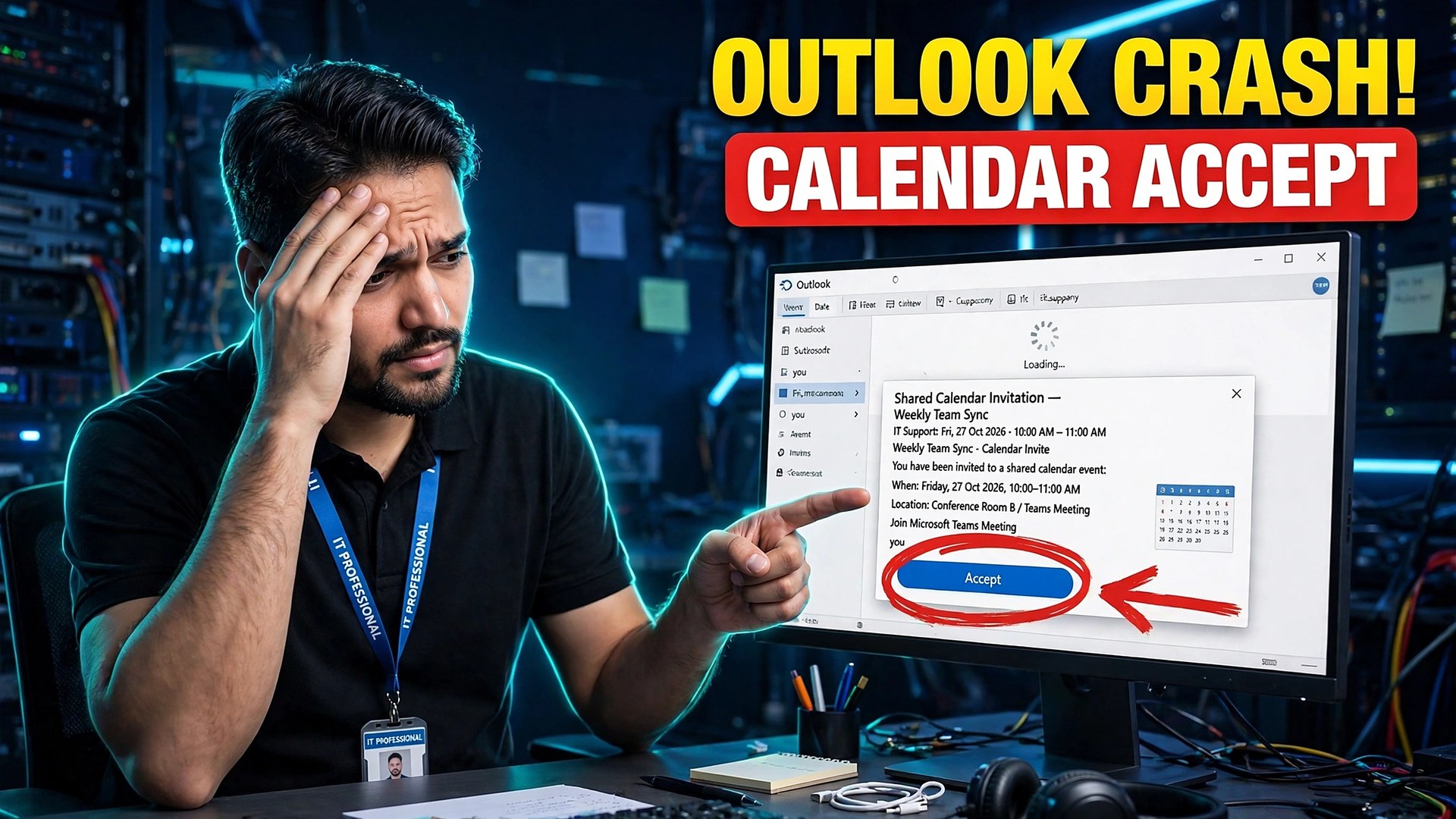
Here is the exact problem: someone shares a calendar with you, the invitation lands in your inbox, you open it in classic Outlook and click Accept - and Outlook closes, crashes or restarts on the spot. The calendar never gets added, and trying again crashes it again. Everything else in Outlook works perfectly. Microsoft lists this on its "Fixes or workarounds for recent issues in classic Outlook for Windows" page as "Classic Outlook for Windows might crash when accepting a Shared Calendar invite" - status Investigating, still unresolved at the end of October 2026, with one official workaround: accept the invite via Outlook on the Web instead. Work through the steps below.
✔ Invitation email opens normally - buttons shown: Accept · View calendar
✖ You click Accept → Outlook closes / crashes instantly
✖ Reopening Outlook and clicking Accept again → crash again, every time
✖ The shared calendar never appears in your calendar list
✔ Mail, your own calendar and everything else in Outlook work fine
The problem exactly as it appears: the crash happens at the exact moment you accept the invitation.
Confirm the Crash Is This Known Issue
Run this quick two-minute confirmation before changing anything:
- The crash happens only at the moment you accept a shared calendar invitation - not when reading mail, opening your own calendar, or sending a meeting invite.
- It is repeatable: reopen Outlook, open the same invitation, click Accept - crash again.
- You are on classic Outlook for Windows with a Microsoft 365 / Exchange account (shared-calendar improvements apply to these accounts).
Why it happens: Microsoft is moving shared calendars in classic Outlook from the old MAPI-based sync to a newer REST-based sync - the "shared calendar improvements" rollout. The invitation-accept path in the desktop client can crash inside that new process. Microsoft has not published a deeper public root cause, which is normal for an issue still in Investigating status - but the important part for you: it is a known Microsoft-side defect, not your PC, not your profile, and not the person who shared the calendar.
Accept the Invitation in Outlook on the Web ⭐
This is Microsoft's official workaround, and it takes about a minute. The web app does not have the crash, and the acceptance registers on your account - so the calendar then syncs into the desktop app by itself:
- Open a browser and go to
outlook.office.comfor a work or school account (oroutlook.comfor a personal Microsoft account). Sign in with the same account that received the invitation. - Open the sharing invitation email in your inbox.
- Click Accept in the invitation. The shared calendar is added to your account - no crash.
- Switch to the Calendar view on the web and confirm the shared calendar is listed and ticked.
- Go back to desktop Outlook, give it a moment to sync (or press Send/Receive → Send/Receive All Folders), and check your calendar list - the shared calendar appears there too.
The Outlook mobile app (iOS/Android) can also accept these invitations without crashing - handy if you are away from a browser. Either way, the rule until Microsoft ships the fix is simple: accept on web or mobile, use on desktop.
Crashed Mid-Accept and Now No Accept Button Anywhere?
Sometimes the failed desktop attempt leaves the invitation in a stuck state: the desktop still crashes or shows nothing to click, and Outlook on the web no longer offers an Accept button either. Recover like this:
- Ask the person who owns the calendar to remove your permission completely (on the web: Calendar → right-click the calendar → Sharing and permissions → remove your name).
- Have them share the calendar again, which generates a fresh invitation.
- This time, accept the new invitation in Outlook on the web first (Fix 2) - do not click Accept in the desktop app.
- Confirm the calendar shows on the web, then let the desktop sync it in.
A fresh share plus a web accept clears the stuck state in the reports of this issue - no profile surgery required.
Desktop Mitigation: Turn Off Shared Calendar Improvements
If invitations arrive often and you cannot keep switching to the web, there is a temporary desktop-side mitigation: switch the account back to the older sync behaviour that does not hit this crash path.
- In classic Outlook, go to File → Account Settings → Account Settings.
- Select your Microsoft 365 / Exchange account and click Change.
- Click More Settings, then open the Advanced tab.
- Untick "Turn on shared calendar improvements", click OK / Apply through the dialogs.
- Restart Outlook and try accepting a test invitation on the desktop.
Treat this strictly as a bridge, and understand the trade-off: shared calendar improvements are the direction Microsoft is moving in (better sync, fewer stale-permission problems), so with them off you are back on the older MAPI behaviour with its own quirks. Re-enable the checkbox once Microsoft marks this issue fixed, otherwise you will be stuck on the legacy path permanently. For most people, Fix 2 alone is enough and this step is optional.
Get the Real Fix When It Ships
The crash itself can only be cured by Microsoft, through a normal Office update. Set yourself up to receive it the moment it lands:
- Keep classic Outlook current: File → Office Account → Update Options → Update Now. Repeat after each monthly update round.
- Watch the status on Microsoft's page "Fixes or workarounds for recent issues in classic Outlook for Windows" - this entry will move from Investigating to Fixed when the cure ships.
- After the fix is announced and your Outlook is updated, test one invitation on the desktop - and if you used Fix 4, turn "Turn on shared calendar improvements" back on and restart Outlook.
Until that day, nothing about this problem requires you to stop using shared calendars - the web accept in Fix 2 keeps everything moving.
📺 More PC Fixes on Technical Anshu
Every week: Windows problems, hidden tools and full setup guides, explained step by step.
▶ Subscribe on YouTubeFrequently Asked Questions
Why does classic Outlook crash only when I accept a shared calendar invitation?
It is a confirmed Microsoft known issue in classic Outlook for Windows, tied to the shared calendar improvements rollout - Microsoft is moving shared calendars from the old MAPI sync to a newer REST-based sync, and the desktop accept path can crash in that process. Mail, your own calendar and everything else keep working; only accepting a sharing invitation triggers the crash. Microsoft lists the issue as Investigating, and it was still unresolved at the end of October 2026.
Is my Outlook profile corrupted?
Almost certainly not. A corrupt profile tends to break many things at once - mail, search, your own calendar. When Outlook works perfectly until the exact moment you click Accept on a shared calendar invitation, you are looking at Microsoft's documented known issue, not local corruption. That is why creating a new profile or reinstalling Office does not cure it - the one-minute workaround is accepting the invitation in Outlook on the web.
How do I accept a shared calendar invitation without the desktop app?
Open a browser, go to outlook.office.com (work or school account) or outlook.com (personal account), and sign in with the same account. Open the sharing invitation email and click Accept there. Outlook on the web does not have the crash, and the accepted calendar syncs back into your desktop Outlook automatically - it appears in your calendar list the next time desktop Outlook refreshes.
Outlook crashed when I clicked Accept on the desktop - now the web shows no invitation. What now?
When a desktop accept attempt dies half-way, the invitation can end up in a stuck state where no client offers an Accept button any more. Ask the person who shared the calendar to remove your permission completely and then share the calendar again, so a fresh invitation is generated. This time, accept the new invitation in Outlook on the web first - do not click Accept in the desktop app.
When will Microsoft fix the crash, and how do I get the fix?
Microsoft has not published a date - the issue is still in Investigating status on its classic Outlook known-issues list. The fix will arrive through a normal Office update when it is ready, so keep classic Outlook current via File → Office Account → Update Options → Update Now. Until then, accept invitations on the web, and if you must accept on the desktop, temporarily turning off Shared Calendar Improvements moves the account back to the older sync behaviour.