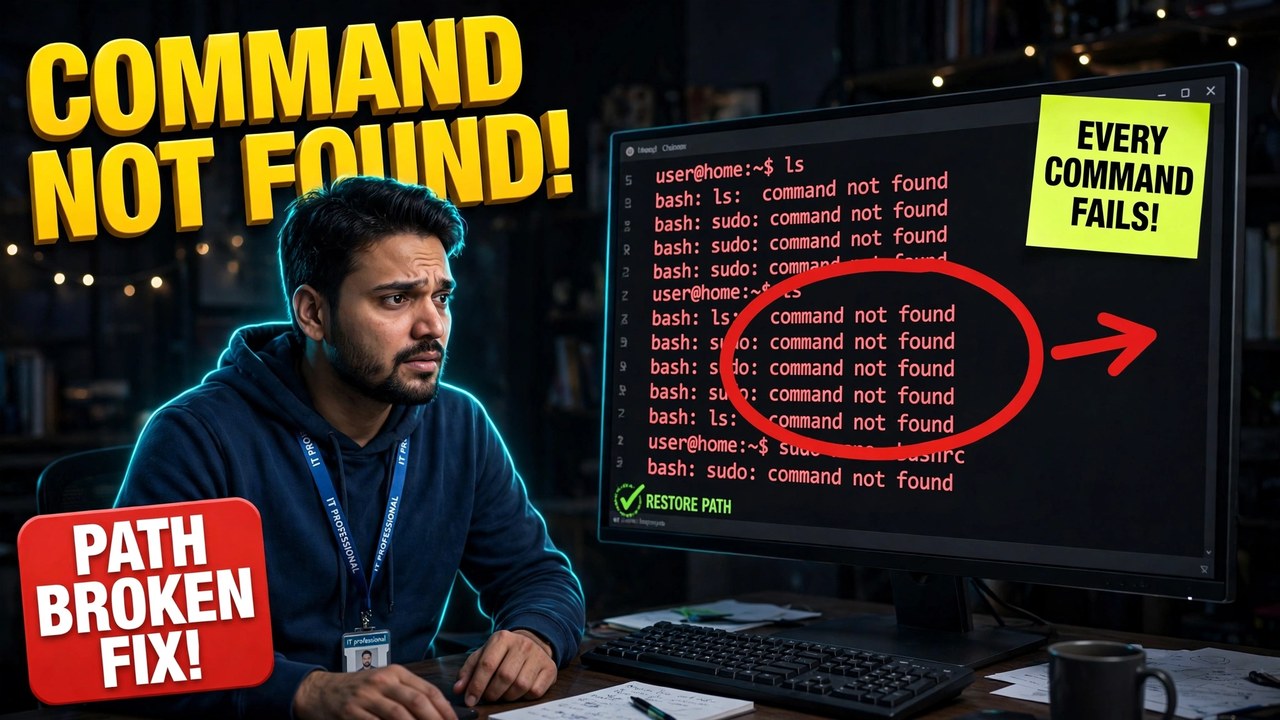
This is one of the most reported self-caused Linux breaks on Unix and Linux Stack Exchange, and the pattern is always the same: a line meant to extend PATH replaced it instead. A line like PATH=/home/user/bin on its own tells the shell to look in only that one folder, so /usr/bin and /bin - where ls, sudo, nano and almost every normal command live - are never searched again. Nothing is deleted and nothing needs reinstalling. You only need to give the current terminal a working PATH, then correct the one bad line in the startup file so new terminals start clean.
X Commands that worked an hour ago - ls, sudo, cp, nano - all fail the same way in a new terminal
X The break started right after editing ~/.bashrc or ~/.profile to add a folder to PATH
PATH BROKEN The shell is only searching the wrong folder list. The programs themselves are untouched.
The fingerprint of this problem: it starts right after a .bashrc or .profile edit, and it hits basic commands, not just one program.
Restore a Working PATH for This Session ⭐
Do this first, in the same broken terminal. It does not edit any file - it only repairs PATH for the terminal that is already open, so your normal commands work again while you fix the real cause in the next steps.
- Type this line exactly and press Enter:
export PATH=/usr/local/sbin:/usr/local/bin:/usr/sbin:/usr/bin:/sbin:/bin - Test it straight away with
lsandwhich ls. The second command should print a normal path such as /usr/bin/ls. - If a tool is still needed before this export has run, call it by its full path - for example
/usr/bin/nano ~/.bashrc. The full path works because it does not rely on PATH at all. - Do not close this terminal until Fix 2 is done. A new terminal reads the still-broken startup file and will be broken again.
Fix the Bad Line in .bashrc and .profile
The permanent fix is in the file you edited. Bash reads ~/.bashrc for interactive terminals, and ~/.profile is read at login and is also where PATH lines are often added. Check both - the bad line only has to exist in one of them.
- Open the first file with
nano ~/.bashrc- PATH is restored now, so the short name works. Use/usr/bin/nano ~/.bashrcif it does not. - Find every line that sets PATH. The broken pattern is a line that assigns PATH without keeping the old value, for example
PATH=/home/$USER/binorexport PATH=/opt/some-folderon its own. - Correct it so the old PATH is kept and your folder is only added. The correct pattern from the verified fix is:
export PATH="$PATH:/home/$USER/bin"- note the $PATH at the start, which is the part that was missing. - Delete or correct any other line that replaced PATH entirely, then save with Ctrl+O, Enter, and exit with Ctrl+X.
- Repeat the same check in
~/.profile. If the same bad line is there, fix it the same way. Zsh users should check~/.zshrcinstead of .bashrc - the same overwrite mistake breaks zsh in the same way.
Check /etc/environment if Every Account Is Affected
If only your own account is broken, the cause is in your home folder files above and this step can be skipped. If every user on the machine gets command not found, the system-wide PATH file may have been edited instead.
- Open the system file with
sudo nano /etc/environmentonce PATH is restored in your session. This file holds a single PATH line for the whole system on Ubuntu and Debian family systems. - A healthy line lists the standard folders, for example
PATH="/usr/local/sbin:/usr/local/bin:/usr/sbin:/usr/bin:/sbin:/bin". If the line here was replaced with a single custom folder, restore the standard folders and only append your custom folder at the end. - Save the file and log out and back in - /etc/environment is read at login, not by terminals that are already open.
- Do not edit other files under /etc to chase this problem. For a single-user break, .bashrc and .profile are the files that matter, and /etc/environment is the only system file worth checking.
Verify in a Brand New Terminal
The fix only counts if a fresh terminal - one that reads the corrected startup files from scratch - works. Testing in the repaired terminal alone proves nothing, because that terminal still holds the temporary export from Fix 1.
- Close all terminal windows completely, then open a new terminal.
- Run
echo $PATHand confirm the list contains /usr/bin and /bin, plus your custom folder at the end if you added one. - Run
which lsandwhich sudo. Both should print a full path instead of returning nothing. - Run a few normal commands, starting with a plain
lsdirectory listing. If listings, file commands and one sudo command all respond normally, the shell is healthy again.
Software Needed
No extra software is needed. Everything in this guide uses tools that are already on the system - the bash shell itself, a text editor such as nano called by its full path when needed, and the built-in echo and which commands for verification. Do not reinstall the distribution or reinstall core packages for this problem: no package is missing, and a reinstall would discard your settings to fix a single text line that takes a minute to correct by hand.
export PATH="$PATH:/new/folder". If a guide or script tells you to set PATH to one folder alone, it is written for a container or a special shell, not for your daily terminal - following it on a normal desktop breaks every basic command in new terminals.
More Linux Fixes on Technical Anshu
Every week: Linux, Windows and server problems, hidden tools and full setup guides, explained step by step.
Subscribe on YouTubeFrequently Asked Questions
Why does ls say command not found when ls is still installed?
Because the shell finds commands by searching the folders listed in PATH, and a broken PATH no longer includes /usr/bin or /bin where ls lives. The program file is still on disk - the shell simply never looks in the folder that contains it. Restoring PATH with the export command in this guide makes the same installed commands work again without reinstalling anything.
Will restarting the PC fix a broken PATH?
No. Restarting does not repair the startup file. Every new login and every new terminal reads ~/.bashrc or ~/.profile again, so the same bad line breaks PATH again after every restart. The restart only helps after you have corrected the line - then a fresh terminal or a fresh login picks up the corrected value.
What is the correct way to add a folder to PATH?
Append to the existing value instead of replacing it. The correct pattern is export PATH="$PATH:/home/$USER/bin" - the $PATH part keeps all the standard system folders, and your folder is added at the end. Put that line in ~/.bashrc for bash terminals, check ~/.profile as well if the line was added there, and open a new terminal to test it.
Sudo also says command not found. How can I edit files as admin?
In the broken session you do not need sudo to fix your own files - ~/.bashrc and ~/.profile belong to your account. First restore PATH for the session with export PATH=/usr/local/sbin:/usr/local/bin:/usr/sbin:/usr/bin:/sbin:/bin, after which sudo works normally again. Before that export, any tool can still be run by its full path, for example /usr/bin/nano ~/.bashrc.
Does this fix work the same on Fedora and Arch, or only on Ubuntu?
Yes, the same fix works on Ubuntu, Debian, Fedora and Arch, because all of them use bash the same way: a PATH line that overwrites instead of appending breaks command lookup, and the export command restores the standard folders for the session. The only difference is the startup file name for other shells - zsh users should check ~/.zshrc instead of ~/.bashrc.