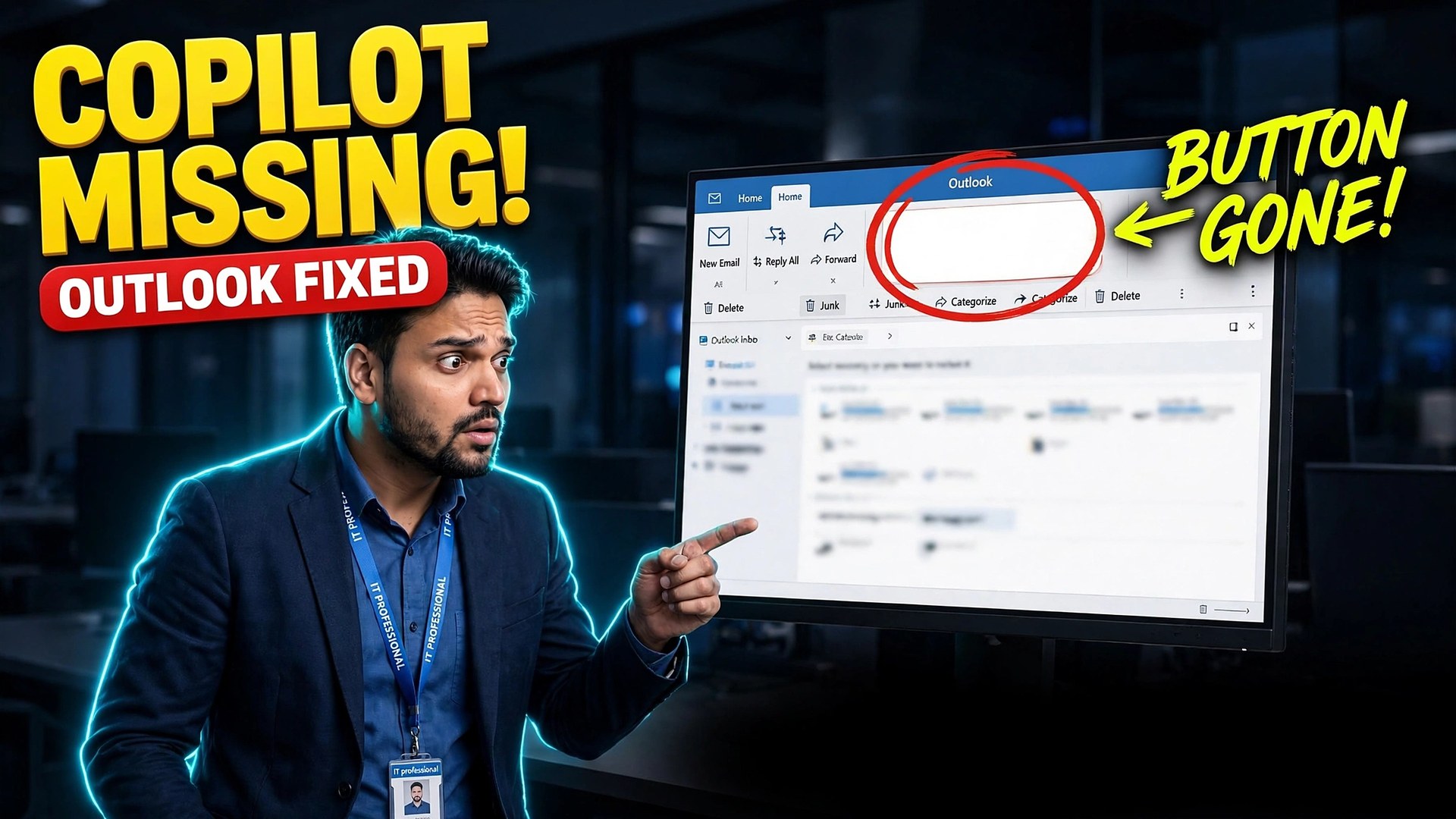
Here is the problem exactly as users reported it: after Outlook quietly updated itself (build 20026.20182 and later), the Copilot button vanished from the Home ribbon and the Copilot icon disappeared from the left app bar. It hit both Copilot Chat (Basic) users and paying Microsoft 365 Copilot (Premium) users. Nothing in the settings had changed, and reinstalling Outlook did not help - because the fault was never in your PC. Microsoft tracked it as a known issue and marked it Fixed between 15 and 19 October 2026. Work through the fixes below in order.
✖ No Copilot button on the Home ribbon
✖ No Copilot icon in the left app bar either
✔ Copilot works normally in Outlook on the web with the same account
✔ Started right after an automatic Outlook update (build 20026.20182+)
✖ Reinstalling Outlook and repairing Office did not bring it back
The problem exactly as it appears: mail works fine, only the Copilot entry points are gone.
Confirm It Is This Bug (and Why It Happens)
Before changing anything, confirm the match - this takes one minute:
- Open Outlook on the web (outlook.office.com) with the same account. If Copilot is present there, your licence and account are healthy - the problem is only the classic app on this PC.
- In classic Outlook, go to File → Office Account and check the build number under About Outlook. Builds from 20026.20182 onward are the ones that showed the bug.
- The button must be missing from both places - the ribbon and the left app bar. (If only the ribbon button is missing, right-click the ribbon → Customize the Ribbon first; that is a different, local setting.)
Why it happens: to decide whether to show Copilot, Outlook reads account information from your local Outlook profile at startup. In the affected builds that read failed, and when Outlook cannot confirm the account, it plays safe and hides the Copilot entry points entirely. The licence was never removed and your data was never touched - the buttons were simply never drawn. That is also why reinstalling Office changed nothing: the bug was in the build itself, and only a fixed build (or Microsoft's service-side change) could restore them.
Update Outlook and Restart (the official fix) ⭐
Microsoft fixed this from their side and delivered it through the normal Office update channel between 15 and 19 October 2026. Most PCs pick it up automatically, but if your button is still missing, force the update now:
- In classic Outlook, click File (top-left).
- Click Office Account in the left column.
- Click Update Options → Update Now.
- Wait until you see "You're up to date" or the update finishes downloading and installing. Do not close Outlook mid-update.
- Now close Outlook completely - also right-click its icon in the system tray (near the clock) and exit if it is still running there. The Copilot buttons are only loaded at startup, so a plain window close is not always enough.
- Reopen Outlook and check the Home ribbon and the left app bar.
For the large majority of users, the buttons are back after this single update-and-clean-restart. If yours are still missing, continue to Fix 3.
Turn On "Show Apps in Outlook" (documented workaround)
If the update is installed and the buttons still do not appear, Microsoft's documented workaround is a display setting that controls the left app bar:
- Click File → Options.
- Open the Advanced tab.
- Scroll to the Outlook panes section and tick "Show Apps in Outlook".
- Click OK, then close Outlook fully and reopen it.
With app display switched on, Outlook rebuilds the left app bar - and the Copilot entry comes back with it once the fixed build is in place.
Check the Account Outlook Is Actually Using
The root cause was Outlook failing to read account information from the profile - so on a stubborn PC, help it: the buttons only appear for the account that holds the Copilot licence.
- Go to File → Office Account and read the address under User Information. It must be the same work or school account that has the Copilot licence.
- If you are signed in with a personal account instead, click Switch account / Sign in and sign in with the licensed account.
- Restart Outlook after the switch and check the ribbon again.
This step matters on shared PCs and on machines where someone signed into Office with a personal Microsoft account for another app - Outlook then draws the interface for the wrong identity, without Copilot.
What NOT to Do
Reports from this incident are full of wasted hours on steps that could never work, because the bug was in Microsoft's build, not in your data:
- Do not delete and recreate your Outlook profile as a first move - it re-downloads your entire mailbox and the bug survives it, because the build is unchanged.
- Do not buy or reassign a Copilot licence - the licence was never the problem; check Outlook on the web (Fix 1) and you will see it working.
- Do not switch to the new Outlook just for this unless you want to - the new Outlook and Outlook on the web were never affected, so they are a fine temporary workaround, but classic Outlook is fixed now and you are entitled to stay on it.
📺 More PC Fixes on Technical Anshu
Every week: Windows problems, hidden tools and full setup guides, explained step by step.
▶ Subscribe on YouTubeFrequently Asked Questions
Why did the Copilot button disappear from my classic Outlook?
It was a Microsoft bug, not something you did. After classic Outlook updated to build 20026.20182 and later, Outlook could not retrieve the account information it needs from your profile, so it hid the Copilot entry points - the ribbon button and the icon in the left app bar. The bug affected both Copilot Chat (Basic) users and Microsoft 365 Copilot (Premium) users. Microsoft marked the issue Fixed between 15 and 19 October 2026.
What is the official fix for the missing Copilot button in Outlook?
Update Outlook and restart it. Go to File, then Office Account, then Update Options, then Update Now, let the update finish completely, close Outlook fully and reopen it. The fix was delivered from Microsoft's side, so once your Outlook build picks it up, the Copilot buttons return on their own. If the button is still missing after updating, turn on Show Apps in Outlook under File, Options, Advanced.
Are the new Outlook and Outlook on the web affected by this bug?
No. Microsoft's own notes and the user reports agree that the new Outlook app and Outlook on the web (OWA) were never affected - their Copilot buttons kept working throughout. Only the classic Outlook desktop app had the problem. That is also a useful test: if Copilot works for you in Outlook on the web but not in classic Outlook, your licence and account are fine and the desktop app is the only thing to fix.
I updated Outlook but the Copilot button is still missing. What now?
First close Outlook completely (check it is gone from the system tray too) and reopen it - the buttons only reload at start. Then check the documented workaround: File, Options, Advanced, and make sure Show Apps in Outlook is enabled, then restart Outlook again. Also confirm you are signed in with the same account that has the Copilot licence, because the buttons are only drawn when Outlook can read that account information from your profile.
Does this mean my Copilot licence expired or was removed?
Almost certainly not. During this bug, licences were untouched - Outlook simply failed to read the account information from the local profile, so it hid the buttons to be safe. A quick proof: open Outlook on the web with the same account. If Copilot appears there, your licence is active and the problem is only the classic Outlook app on that PC, which the update in this guide fixes.