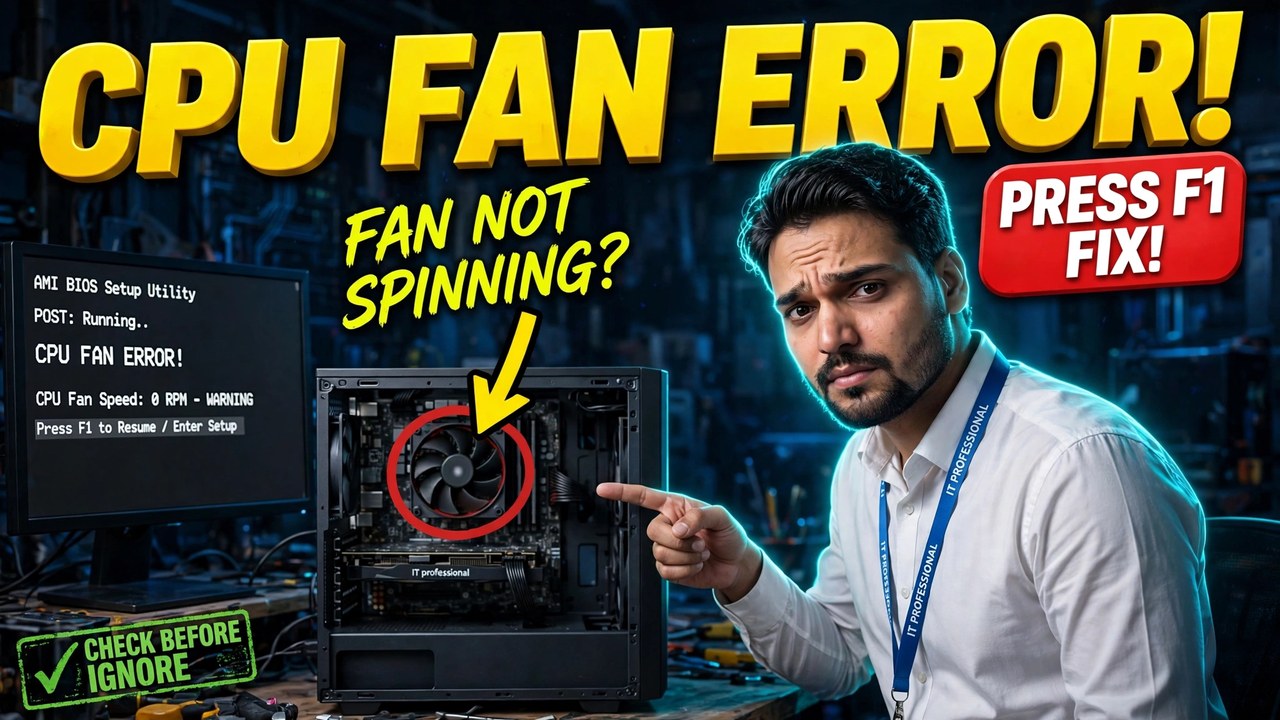
ASUS own documentation is precise about this message: it means the system does not detect a valid fan speed signal from the CPU_FAN header. Note what that does and does not say. It is a detection problem first - the plug on the wrong header after a build or cooler change, a loose connector, a failed speed signal, or a modern fan that idles below the old default threshold. It is not proof that your CPU is already damaged. But it can also mean the fan truly is not spinning, which is why the physical check always comes before any setting change in this guide.
X Boot stops here every time - Windows does not load until F1 is pressed
X Variant wording on some boards: "CPU Fan Speed Error Detected"
Check: ASUS definition - no valid fan speed signal detected on the CPU_FAN header
CHECK THE FAN FIRST Never silence this warning before you have seen the fan spin with your own eyes.
The exact ASUS POST wording. The stop is deliberate: the board wants a human to verify CPU cooling before it boots.
Look First: Is the CPU Fan Actually Spinning?
This is the most important step in the guide, and it takes ten seconds. Everything else depends on the answer.
- Open the case side panel (or look through the window) and switch the PC on. Watch the CPU cooler fan - the fan on the heatsink above the processor, or the radiator fans on a liquid cooler.
- If the fan spins normally, your cooling works and this is a detection or threshold problem - continue to Fix 2.
- If the fan does not spin at all, stutters, or stops after a twitch, stop here. Shut the PC down and do not keep using it by pressing F1 - a CPU with no spinning fan overheats within minutes under load. Go to Fix 2 and Fix 3 to restore the connection, and replace the fan if it stays dead on a known-good connection.
- While you are looking, note anything resting on the blades - a loose cable touching the fan is a simple and common reason it cannot spin.
Check the Plug Is on the CPU_FAN Header ⭐
This is the most common cause after any build, cleaning or cooler change: the fan works perfectly, but it is reporting its speed to a header BIOS is not watching.
- Power off and unplug the PC. Trace the CPU cooler fan cable to the motherboard and read the label printed beside the header it is plugged into.
- It must be on CPU_FAN. The neighbouring headers look identical but are labelled CHA_FAN, SYS_FAN or AIO_PUMP / W_PUMP - if the CPU fan is on any of those, BIOS sees an empty CPU_FAN header and raises exactly this error.
- Move the plug to CPU_FAN, seating it fully with its key aligned. For an AIO liquid cooler, wire the pump and radiator fans exactly as the cooler manual shows - makers differ on which part belongs on CPU_FAN, and the manual wiring is what keeps this error away while the pump runs correctly.
- Power on and check whether the POST stop is gone. If the error remains with the fan spinning on the right header, continue to Fix 3 and Fix 4.
Clean the Fan and Reseat the Connector
Dust and a half-seated plug both interrupt the small speed signal wire, even when the fan still turns.
- Power off and unplug. Blow dust out of the fan blades and heatsink fins with compressed air, holding the fan still with a finger so it does not overspin on the air blast.
- Unplug the fan connector from CPU_FAN, check the pins are straight and clean, and plug it back in firmly until it sits fully down.
- Make sure the fan cable is not pulling sideways on the plug - route it so the connector sits without tension.
- Power on and retest. A fan that now reports correctly needed nothing more than this.
Read the Real RPM in BIOS Monitor
Now measure instead of guessing. BIOS tells you exactly what signal the board is receiving from the fan.
- At the error screen press F1 (or restart and press Del) to enter BIOS setup. Open the Monitor tab (on some ASUS BIOS versions it is under Advanced > Hardware Monitor or the Q-Fan page).
- Read the CPU Fan Speed value in RPM. Compare it with what you saw in Fix 1.
- If BIOS shows a healthy RPM (for example 800 to 2000 RPM) while the error still appears at boot, the fan likely dips below the warning limit only during the first seconds of startup - Fix 5 is your case.
- If BIOS shows 0 RPM or N/A while the fan visibly spins, the speed signal (tach) is not reaching the board: reseat once more, try the fan on another header just to see whether it reports RPM there, and if it never reports anywhere, the fan signal wire or the fan itself has failed - replace the fan.
- Also read the CPU Temperature on the same page. A normal idle temperature with a spinning fan confirms cooling is genuinely working, which Fix 5 depends on.
Only If the Fan Is Proven Spinning: Lower the Low Limit
Use this step only when Fix 1 and Fix 4 have proved the fan spins and cools normally. Many modern fans idle at 200 to 400 RPM, but the ASUS default warning threshold sits around 600 RPM - so a perfectly healthy slow fan trips the error at every boot.
- In BIOS, open Monitor > CPU Fan Speed Low Limit (the exact path varies slightly by board; it is on the same Monitor page where you read the RPM).
- Lower the limit to 300 RPM, or 200 RPM if your fan idles very slowly and its BIOS reading in Fix 4 sits just above that.
- Save and exit with F10 and reboot twice to confirm the POST stop is gone for good.
- Why this is the right fix: the warning stays active. If the fan later slows below even this low limit or stops, the board will warn you again - which is the whole point of the protection.
Last Resort Only: Setting the Monitor to Ignore (Risky)
This is the step the internet jumps to first, and it is deliberately last here. Setting CPU Fan Speed to Ignore switches the protection off completely.
- Consider Ignore only if all of these are true: you have seen the fan spinning, BIOS or Windows shows normal CPU temperatures under load, and Fix 5 did not clear the error - for example with certain water cooling setups where the watched header legitimately carries no fan signal, wired exactly as the cooler manual directs.
- Understand the risk before you set it: with the monitor ignored, nothing will warn you if the fan or pump later fails. The first sign becomes throttling, shutdowns or damage. ASUS marks disabling the related F1 wait as not recommended for the same reason.
- If you do use it, compensate: check temperatures regularly in Windows, glance at the fan whenever the case is open, and re-enable monitoring the moment your cooling setup changes back to a normal CPU_FAN connection.
- Never use Ignore to hide an error on a fan you have not watched spin. That is not a fix - it is removing the alarm from a room you have not checked for fire.
Software Needed
No software is needed for the fix itself - everything happens with your eyes, the fan connector and the BIOS Monitor page. After the fix, a free hardware monitor such as HWMonitor or the ASUS utility for your board is useful for one job only: confirming normal CPU temperatures under load, which is the evidence that makes Fix 5 safe and Fix 6 acceptable. Take any such tool from the maker or its official site only.
More PC Fixes on Technical Anshu
Every week: Windows problems, hidden tools and full setup guides, explained step by step.
Subscribe on YouTubeFrequently Asked Questions
What does CPU Fan Error actually mean on an ASUS board?
As ASUS documents it, the message means the system does not detect a valid fan speed signal from the CPU_FAN header. That is a detection problem first: the fan may be on the wrong header, its connector may be loose, its speed signal wire may have failed, or a modern low-RPM fan may be spinning below the default warning threshold. It does not by itself prove the CPU has overheated.
My CPU fan is spinning but the error still appears. Why?
If the fan visibly spins, check two things. First, that its plug is really on the CPU_FAN header and not a nearby CHA_FAN or pump header. Second, read the CPU Fan Speed in BIOS Monitor: if it shows 0 RPM while spinning, the speed signal is not reaching the board; if it shows a real but low number like 300 RPM, your fan simply idles below the default low limit and Fix 5 applies.
Is it safe to set CPU Fan Speed to Ignore in BIOS?
Only as a last resort, and only after you have verified with your own eyes that the fan spins and that CPU temperatures are normal under load. Ignore switches off the warning that protects your CPU if the fan later fails. ASUS itself marks disabling the F1 wait as not recommended. The safer fix for a slow but healthy fan is lowering the low limit in Fix 5, which keeps the warning active.
I use a liquid cooler (AIO). How should the pump and fan be connected?
Follow your cooler manual exactly, because AIO wiring varies: many models want the pump on the AIO_PUMP or CPU_FAN header running at full speed, and the radiator fans on CPU_FAN or CPU_OPT via the splitter. If the header BIOS is watching has no speed signal on it, you get this error even though the cooler works. Wire it as the manual shows, then confirm RPM readings in BIOS.
The fan does not spin at all. Can I keep using the PC by pressing F1?
No. If the CPU fan is truly stopped, pressing F1 and using the PC leaves the CPU with no active cooling - temperatures climb within minutes under load and the PC will throttle or shut down, with real risk of damage over time. Shut down, fix the connection or replace the fan first, and only boot normally once the fan spins and BIOS reports its speed.