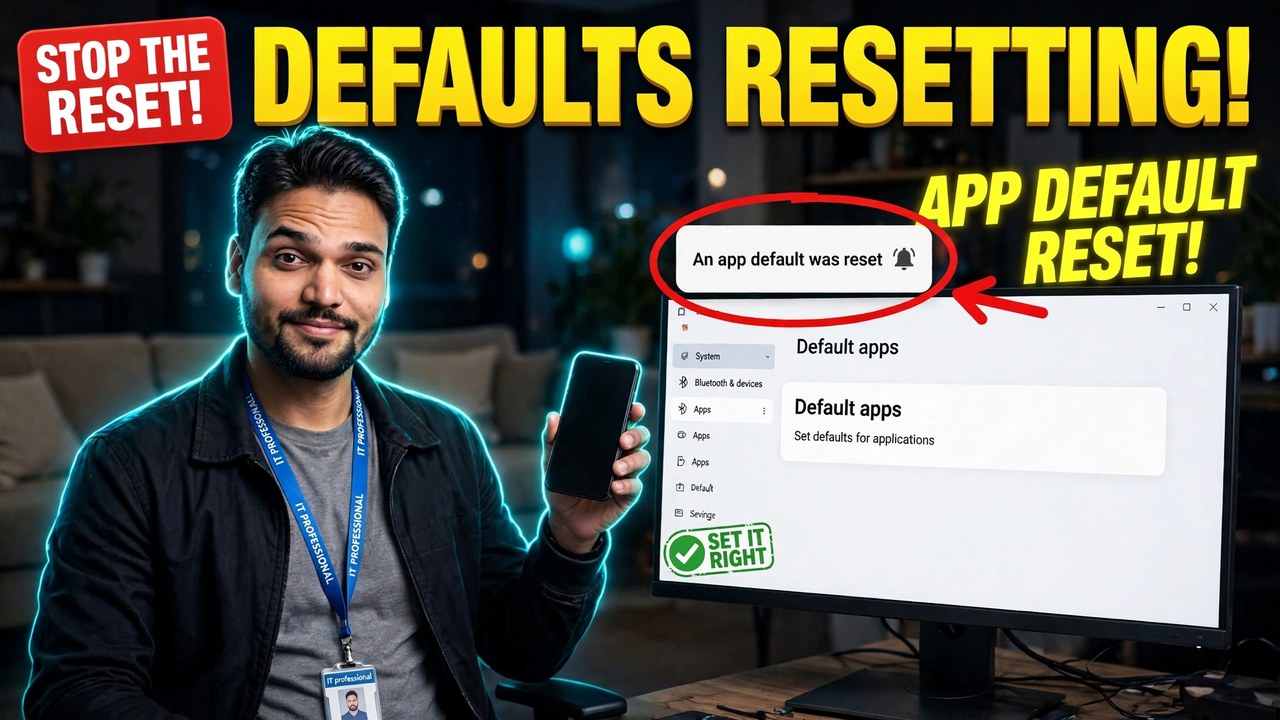
The notification gives the cause away in its own wording: An app caused a problem with the default app setting, so it was reset. Modern Windows protects file and link associations. When a program claims a file type using the old, unsupported method, or its registration on the PC is damaged, Windows cannot trust that association - so it throws the choice away and falls back to the Microsoft default, and tells you with that notification. That is why simply choosing your app again inside the app itself often does not stick. The lasting fix is to set the default inside Windows Settings, where the choice is recorded the supported way, and to repair or reinstall the one app whose registration keeps failing.
X A notification appears: An app default was reset
X Full text: An app caused a problem with the default app setting, so it was reset.
X File types or links you set to your preferred app snap back to a Microsoft default such as Edge
DEFAULT RESET Windows rejected an association it could not trust. Setting the default the supported way, and fixing the app behind it, stops the reset loop.
The fingerprint of this problem: the same default keeps snapping back to a Microsoft app, and the reset notification appears again after you set it.
Set the Default Again the Supported Way in Settings ⭐
This is the fix that works most often, and the detail that matters is where you set the default. A choice made inside Windows Settings is recorded the supported way and is trusted. A choice an app writes for itself, the old way, is exactly what Windows keeps rejecting. Set it in Settings once, completely - including every file and link type under the app - and the reset loop usually ends here.
- Open Settings > Apps > Default apps.
- Find your app in the list (or search for it by name) and click it to open its defaults page.
- Click Set default at the top of the page if it is offered - this assigns the app to the file and link types it is designed to handle in one action.
- Then scroll through the list on that page and check the individual entries: each file type (such as .pdf or .htm) and each link type (such as HTTP and HTTPS) should show your app. Click any entry that still shows a Microsoft app and choose your app for it.
- Test properly: open a file of that type from File Explorer and click a link, and confirm both open in your app. Then restart the PC once and test again - a default set this way survives the restart, which is the real proof the reset has stopped.
Update the App That Keeps Losing Its Default
If one particular app keeps losing its default while others keep theirs, that app's way of registering itself with Windows is out of date or buggy - and app makers fix exactly this in updates. An older version of a browser, PDF reader, or media player may still claim its file types the old unsupported way every time it starts, triggering a fresh reset each time.
- Open the app that keeps losing its default and check for updates inside it (usually under Help, About, or Settings). For a Microsoft Store app, open the Microsoft Store, go to Library, and click Get updates.
- Install the latest version and restart the app.
- Set the app as default again in Settings > Apps > Default apps using Fix 1 - including the individual file and link types, not just the Set default button if entries were missed.
- Use the PC normally for a day and watch whether the An app default was reset notification returns. If it does not, the old version's registration was the cause and you are done.
- If the notification names or clearly follows the same app even on its latest version, that app's registration on this PC is damaged - Fix 3 rebuilds it.
Uninstall and Reinstall the App, Then Reassign Its File Types
A reinstall gives the app a clean registration with Windows: its file and link associations are written fresh, in the current supported format, instead of the damaged entries Windows keeps discarding. This is the right step when exactly one app resets again and again while every other default on the PC stays put.
- Note the app's exact name and version first, and download its installer from the app maker's official website (or keep the Microsoft Store ready) so you can reinstall straight away.
- Open Settings > Apps > Installed apps, find the app, click the ... menu, and choose Uninstall. Restart the PC after it is removed, so its old association entries are fully cleared.
- Install the current version of the app again, open it once, and if it offers to make itself the default, you can accept - but still confirm the result in Settings in the next step, because the Settings record is the one Windows trusts.
- Go to Settings > Apps > Default apps, open your app, click Set default, and check the individual file and link types underneath as in Fix 1.
- Restart once more and open a test file and a test link. If the default holds now, the damaged registration was the cause.
Do Not Hand-Edit File Association Registry Keys
Many old forum tricks for this problem tell you to edit file association keys in the registry, or to run a tool that forces associations by writing them directly. Do not. Windows deliberately treats associations written that way as tampering - it cannot verify them, so it discards them, which is the reset you are trying to stop. Hand-edited keys do not survive; they trigger the very notification in this guide.
- If you previously used a default-app helper tool, a registry script, or a tweak program to force associations, stop using it and undo what it changed if it offers an undo - its writes are a common reason the resets keep coming back.
- Remove any such script from your startup if you added one, so it does not re-apply the unsupported association at every sign-in.
- After removing the tool, set your defaults once more in Settings > Apps > Default apps (Fix 1), so every association on the PC is recorded the supported way.
- From here on, change defaults only in Settings. Apps asking to become the default should take you to that Settings page - that hand-off is the supported pattern in current Windows.
Reset All Default Apps Only If Many Defaults Are Broken
If it is not one app but many defaults that are wrong or resetting, picking through them one by one is the slow road. The Default apps page has a full reset that returns every file and link association to the Microsoft defaults in one action, giving you a clean, consistent base to set your preferred apps from - once, properly, in Settings.
- Open Settings > Apps > Default apps and scroll to the very bottom of the page.
- Next to Reset all default apps, click Reset and confirm. Every association returns to its Microsoft default - no apps are uninstalled and no files are touched.
- Immediately set your preferred apps again while you are on this page: for each app, open it in the list, click Set default, and check its individual file and link types (Fix 1).
- Restart the PC and test your main file types and links. Because every association is now either a Microsoft default or a choice recorded in Settings, there is nothing invalid left for Windows to reset.
- Use this full reset as the last resort it is meant to be: if only one app was resetting, Fixes 1 to 3 fix that app without disturbing every other default you had set.
Software Needed
No extra software is required - and for this problem, extra software is usually the cause rather than the cure. Every fix uses Windows Settings alone: Default apps to set and reset associations, and Installed apps to remove and reinstall the one faulty app (reinstalled only from its maker's official site or the Microsoft Store). Do not use registry editors, association-fixing utilities, or default-app forcing tools here: Windows treats associations written outside Settings as invalid and resets them, so those tools keep the problem alive.
More PC Fixes on Technical Anshu
Every week: Windows problems, hidden tools and full setup guides, explained step by step.
Subscribe on YouTubeFrequently Asked Questions
Why does Windows reset my default app by itself?
Because it found a problem with how that default was recorded. The notification says it in full: An app caused a problem with the default app setting, so it was reset. When a program claims a file type using the old unsupported method, or its registration is damaged, Windows cannot trust the association, discards it, and falls back to the Microsoft default. Setting the default inside Settings, Apps, Default apps records it the supported way, so Windows accepts and keeps it.
Why does the reset keep choosing Microsoft Edge?
Edge is the Microsoft default for web link types such as HTTP and HTTPS and for files like .htm, so when Windows discards an invalid association for links or web pages, Edge is what it falls back to. The same applies to other Microsoft defaults for other types. The fallback itself is normal behaviour - the fault is the invalid association that keeps being discarded, which is what the fixes in this guide repair.
I set the default for PDF files but links still open in Edge. Why?
Because file types and link types are separate entries. Your PDF reader can be the default for the .pdf file type while Edge remains the default for HTTP and HTTPS link types, so a PDF link clicked in a message or document still opens in the browser. Open your app's page in Settings, Apps, Default apps and check every entry in its list - the file types and the link types - and set each one you want it to handle.
Is it safe to edit file associations in the registry to stop the resets?
No - and it does not work. Windows protects file and link associations so that programs cannot hijack them, and associations written directly in the registry the unsupported way are treated as tampering: Windows discards them and shows the An app default was reset notification. That is the exact loop this guide is fixing. The supported place to set defaults is Settings, Apps, Default apps.
Will Reset all default apps delete my apps or files?
No. Reset, at the bottom of Settings, Apps, Default apps, only returns file and link associations to the Microsoft defaults. It does not uninstall any app and does not touch any file. What it does mean is that afterwards you need to set your preferred apps again - browser, PDF reader, photo viewer and so on - which is why this guide treats it as the last resort for when many defaults are broken, not the fix for a single resetting app.