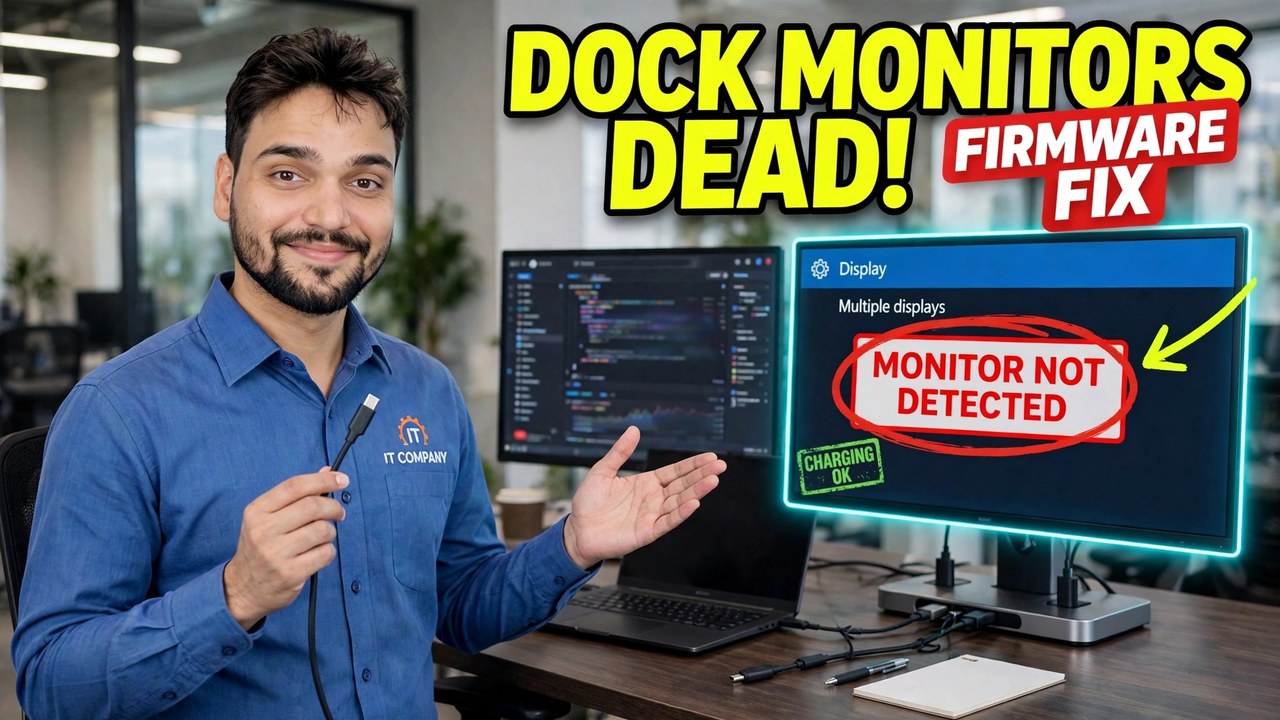
A USB-C dock carries power, USB data and video as three separate functions over one cable - which is why a dock can charge perfectly and run your keyboard while its monitors stay dead. Video needs something charging does not: the laptop's USB-C port must support DisplayPort Alt Mode (or Thunderbolt), the dock and laptop must agree on drivers and firmware, and Windows must be told to use the displays. On Dell, Lenovo and HP docks the other classic causes are a dock that needs a full power-cycle and out-of-date dock firmware. Work in order - Fix 1 is a capability check that no driver can override.
X Laptop charges through the dock and USB keyboard / mouse work
X Both dock monitors are black and missing from Display settings
X A monitor plugged directly into the laptop works fine
X It started after a laptop change, a dock firmware prompt ignored, or a Windows update
NO ALT MODE? Charging and USB working proves only two of the dock's three jobs. Video needs DisplayPort Alt Mode or Thunderbolt on the laptop port itself - not every USB-C port has it.
The fingerprint: two-thirds of the dock works. The missing third - video - has its own requirements and its own failure points.
Confirm the Laptop Port Supports Video - Alt Mode or Thunderbolt
This is the capability gate for the whole problem. If the port has no video function, no driver, firmware or setting can add it.
- Check your laptop's specifications for the exact USB-C port you are using: it must list DisplayPort Alt Mode, 'DP Alt Mode', video output, or Thunderbolt 3 / 4 / USB4. Many laptops have two USB-C ports where only one carries video - try the other port as part of this check.
- Look at the tiny icons printed beside the port: a DisplayPort (D-shaped) logo or a lightning (Thunderbolt) logo means video is supported. A plain USB or battery-only icon usually means charging and data only.
- If the laptop port truly has no video output, the honest options are: use the laptop's HDMI port for one monitor, or use a dock with its own DisplayLink technology (which carries video over plain USB data, with its own driver, at the cost of some performance). A standard Alt Mode dock will never light its monitors from that port.
Power-Cycle the Dock Properly and Reseat in Order
Docks are small computers, and their display controllers hang. A real power-cycle - not just re-plugging the laptop cable - clears the majority of sudden 'monitors gone' cases.
- Disconnect the laptop from the dock. Unplug the dock's own power adapter from the wall, and disconnect the monitors' cables from the dock. Wait a full 60 seconds - dock capacitors hold state longer than people expect.
- Reconnect in this order: dock power adapter first (dock light on), then each monitor cable, then the laptop cable last. Turn each monitor on and confirm it is set to the correct input (HDMI / DisplayPort) the dock cable uses - a monitor sitting on the wrong input imitates a dead dock perfectly.
- Open Settings > System > Display and click Detect if the monitors do not appear on their own. If they return, the dock had simply hung.
Update Dock Firmware and the Dock's Drivers
Dock makers ship firmware updates specifically for 'external monitors not detected' with newer laptops and Windows versions. An ignored firmware prompt is a top cause on Dell, Lenovo and HP docks.
- Go to the dock maker's support page for your exact dock model (for example Dell WD / UD series, Lenovo ThinkPad Universal / Thunderbolt docks, HP USB-C G5) and download the latest firmware update utility and any dock driver package.
- Run the firmware update with the dock connected and powered exactly as the utility instructs - do not unplug the dock or the laptop during a firmware update; an interrupted dock flash can brick the dock. Restart the laptop when it finishes.
- If your dock uses DisplayLink (common on universal docks), also install the current DisplayLink Manager driver from DisplayLink or the dock maker - without it, DisplayLink monitors are invisible to Windows while everything else on the dock works.
Update the Laptop Side - Graphics, Chipset and BIOS
The dock's video link is driven by the laptop's graphics and USB controllers, so the laptop's own updates are half of the dock fix.
- Install, from the laptop maker's support page for your exact model: the chipset / Thunderbolt controller driver, the graphics driver, and - if the maker lists one mentioning USB-C, Thunderbolt or dock fixes - the BIOS update. Install in that order with restarts between.
- In Device Manager, check Universal Serial Bus controllers and any Thunderbolt entry for yellow marks; uninstall a marked controller and restart so Windows reloads it cleanly.
- If the monitors vanished immediately after a Windows update, also check the laptop maker's page for a newer graphics driver than the one Windows Update installed - dock video problems after updates are most often the graphics driver Windows chose.
Set Windows to Use the Displays - Extend, Resolution and One-Monitor Test ⭐ ⭐
With the chain healthy, Windows still has to be told what to do with the screens - and a single bad monitor or cable can take the whole dock display chain down with it.
- Press Win + P and choose Extend. 'PC screen only' is a real and common reason dock monitors stay black while being correctly detected.
- In Settings > System > Display, confirm each monitor appears as a numbered rectangle. For any monitor stuck at an extreme resolution or refresh rate the dock cannot carry, set 1920 x 1080 at 60 Hz as the test standard - dual 4K at high refresh exceeds many docks' bandwidth, especially through a non-Thunderbolt port.
- Test with one monitor only, using a known-good short cable, directly on the dock's primary display output. If one monitor works, add the second with its own known-good cable. A monitor or cable that kills detection when added is the faulty link - replace that cable first; it is the cheapest part and the most frequent liar.
Check Dock Power, Bandwidth Limits and the Honest Ceiling
If everything above passes and monitors still fail, verify the dock is being fed and asked for only what it can actually do.
- Confirm the dock's adapter wattage matches the label on the dock. An underpowered dock typically charges slowly and drops video first under load. If the dock has a power button, make sure it is on - some docks ship powered off.
- Count what you are asking: two high-refresh or 4K monitors plus several USB devices can exceed an older dock's or a non-Thunderbolt laptop port's bandwidth. Test the reduced setup from Fix 5 (one 1080p 60 Hz monitor) - if that is rock solid, your ceiling is bandwidth, and the real fix is a Thunderbolt / USB4 dock matched to the laptop, or lower settings per monitor.
- If even one 1080p monitor on a known-good cable is never detected after firmware, drivers, power-cycle and the Alt Mode check, the dock's display controller has likely failed. Test the dock on another compatible laptop: failure there too confirms the dock - claim its warranty rather than replacing cables further.
More PC Fixes on Technical Anshu
Every week: Windows problems, hidden tools and full setup guides, explained step by step.
Subscribe on YouTubeFrequently Asked Questions
Why does my dock charge my laptop but not detect monitors?
Because charging, USB data and video are three separate functions sharing one cable. Charging needs only USB Power Delivery, and keyboards need only USB data - both can work while the video path is broken. Video additionally requires the laptop port to support DisplayPort Alt Mode or Thunderbolt, a working dock display controller, current firmware and drivers, and Windows set to Extend. The fixes in this guide test each of those in order.
How do I know if my USB-C port supports monitors?
Check the laptop's specification for that port: it must mention DisplayPort Alt Mode, video output, Thunderbolt or USB4. The printed icon beside the port helps too - a DisplayPort or lightning symbol means video; a plain USB symbol usually means data and charging only. If the laptop has two USB-C ports, they often differ, so test both. A port without Alt Mode cannot drive a standard dock's monitors, whatever drivers you install.
What is DisplayLink and do I need its driver?
DisplayLink is a technology used in many universal docks that compresses video and sends it over ordinary USB data, so it works even on ports without Alt Mode. Its trade-off is that it needs the DisplayLink Manager driver installed on the laptop - without that driver, DisplayLink dock monitors are completely invisible while the dock's USB and charging still work. If your dock is DisplayLink-based, installing the current driver from the dock maker is the fix, not an optional extra.
My dock monitors worked yesterday and stopped today. What changed?
The usual overnight causes are: the dock's display controller hung (fixed by the full 60-second power-cycle in Fix 2), a Windows or driver update replaced the graphics or Thunderbolt driver (Fix 4), or a monitor fell back to the wrong input after a power cut (Fix 2's input check). Work in that order - sudden failure after working perfectly is rarely a dead dock, and the power-cycle alone restores most cases.
Can one dock run two 4K monitors from any laptop?
No. Dual 4K needs enough display bandwidth end to end: a Thunderbolt or USB4 port (or a dock and laptop combination the maker rates for dual 4K), at sensible refresh rates, with proper cables. From a plain USB-C Alt Mode port many docks manage dual 4K only at 30 Hz, or one 4K plus one lower display. If your setup fails only at dual 4K but is solid at 1080p (Fix 5's test), you have found a bandwidth ceiling, not a fault - match the dock to the port, or lower one monitor's settings.