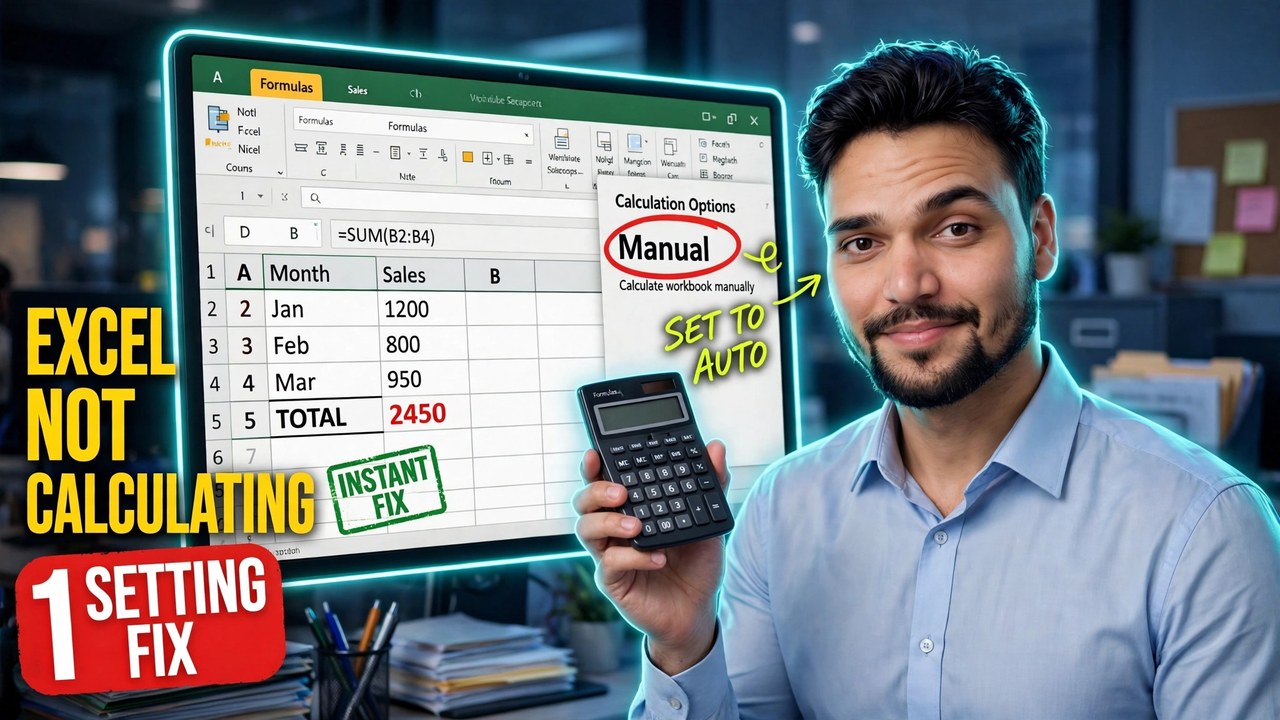
When Excel formulas show stale results until you press F9, the workbook or Excel itself is in Manual calculation mode. Excel opens with the calculation mode of the first workbook opened - so one manual-mode file from a colleague quietly switches your whole session. The other causes that look identical are cells formatted as Text (the formula shows as text or never evaluates), Show Formulas turned on, and a circular reference stopping the calculation chain. Each has a one-minute check below.
X Totals only change after pressing F9 or saving the file
X The status bar shows Calculate on the left side
X A formula cell displays the formula text itself instead of a result
X The problem started after opening a large workbook from someone else
MANUAL CALC Calculation Options is set to Manual - Excel is waiting to be told to calculate, which is a setting, not file damage.
The fingerprint of this problem: the formulas are correct, the results are old - Excel is simply not recalculating on edit.
Set Calculation Options Back to Automatic ⭐
This is the fix in most cases. It lives on the Formulas ribbon, and the same setting also exists in Options - set it in the ribbon so it applies immediately.
- Open the problem workbook. Go to the Formulas tab, click Calculation Options, and select Automatic.
- Edit any input value: the totals should now update instantly. If they do, save the workbook - the mode is stored with Excel's session, not inside most files.
- To stop it coming back, close all other workbooks first and then open your own file first in a fresh Excel session: Excel takes the calculation mode from the first workbook opened.
- If Calculation Options already says Automatic but results are still stale, work through Fixes 2 to 4 - the cause is in the cells, not the mode.
Fix Cells Formatted as Text
A cell formatted as Text can never calculate: a formula typed into it displays as plain text, and a value typed into it is ignored by SUM. This is the classic cause when only one column or one block misbehaves.
- Select the problem cells. On the Home tab, set the format dropdown (it will say Text) to General or Number.
- Formatting alone does not re-enter the value: click into the formula bar of the first cell and press Enter. For a whole column, select it, then use Data > Text to Columns > Finish to force re-entry in one go.
- Numbers imported from CSV or a web page often arrive as text - look for the green triangle in the corner of the cell and use its Convert to Number option.
- Retest with a simple change: type a new value and confirm the total moves without F9.
Turn Off Show Formulas
Show Formulas is a display mode (and an easy keyboard accident) that makes every cell show its formula instead of its result, which looks exactly like calculation has stopped.
- Go to the Formulas tab and check the Show Formulas button in the Formula Auditing group - if it is highlighted, click it to turn it off.
- The keyboard toggle is Ctrl + ` (the key below Esc) - pressing it again also restores results.
- Columns suddenly becoming very wide is a giveaway of this mode, because formulas are longer than their results.
Clear Circular References That Stop Calculation
A circular reference - a formula that refers to its own cell, directly or through a chain - can leave results frozen, and Excel warns about it in the status bar.
- Look at the status bar: if it says Circular References with a cell address, that cell is the start of the loop.
- Go to Formulas > Error Checking > Circular References to jump to each cell in the chain and correct the formula so it no longer includes its own cell.
- If the circular reference is deliberate (some interest and iteration models use one), it only works when File > Options > Formulas > Enable iterative calculation is ticked with sensible maximum iterations - unticked, the chain simply never resolves.
Force a Full Recalculation and Check Workbook Settings
If the mode is Automatic and the cells are clean but results are still old, force one full rebuild and rule out a corrupt session.
- Press Ctrl + Alt + F9 to force a full calculation of all open workbooks (plain F9 calculates changed cells; Shift + F9 calculates only the active sheet).
- Close Excel completely, reopen only this workbook, and retest. A second workbook opened earlier in Manual mode is the usual hidden cause - see Fix 1.
- If only this one file misbehaves on every PC, copy its sheets into a fresh blank workbook (right-click sheet tab > Move or Copy > Create a copy, into a new book) and save under a new name - that leaves a damaged workbook container behind.
More PC Fixes on Technical Anshu
Every week: Windows problems, hidden tools and full setup guides, explained step by step.
Subscribe on YouTubeFrequently Asked Questions
Why are my Excel formulas not updating automatically?
Almost always because Calculation Options is set to Manual. Excel adopts the calculation mode of the first workbook opened in the session, so a manual-mode file from a colleague switches your session too. Set Formulas, Calculation Options to Automatic, and open your own file first in a fresh Excel session. If only some cells refuse, those cells are probably formatted as Text.
How do I turn automatic calculation back on in Excel?
Open the workbook, go to the Formulas tab, click Calculation Options and choose Automatic. The same setting exists under File, Options, Formulas, Calculation options. Edit a value to confirm totals move instantly. Pressing F9 only calculates once - it does not change the mode back to Automatic.
Why does my formula show as text instead of a result?
The cell was formatted as Text before the formula was typed, or Show Formulas mode is on. Set the cell format to General, click in the formula bar and press Enter to re-enter it (or use Data, Text to Columns, Finish for a whole column). If every cell on the sheet shows formulas, turn off Formulas, Show Formulas, or press Ctrl plus the grave accent key.
What does Calculate in the Excel status bar mean?
It means Excel is in Manual calculation mode and has changes waiting to be calculated. Press F9 to calculate once, or set Calculation Options to Automatic so it never waits. If the status bar instead says Circular References with a cell address, a formula refers to its own cell and that loop must be fixed under Formulas, Error Checking, Circular References.
Will switching to Automatic slow down my large workbook?
It can. Manual mode exists for very large models where recalculating on every edit would freeze Excel. If the workbook is yours and normally sized, Automatic is the right setting. If it is a shared heavy model, keep Manual, calculate with F9 when needed, and tell the owner if you changed the setting - the mode follows the session, so your change can affect the next person too.