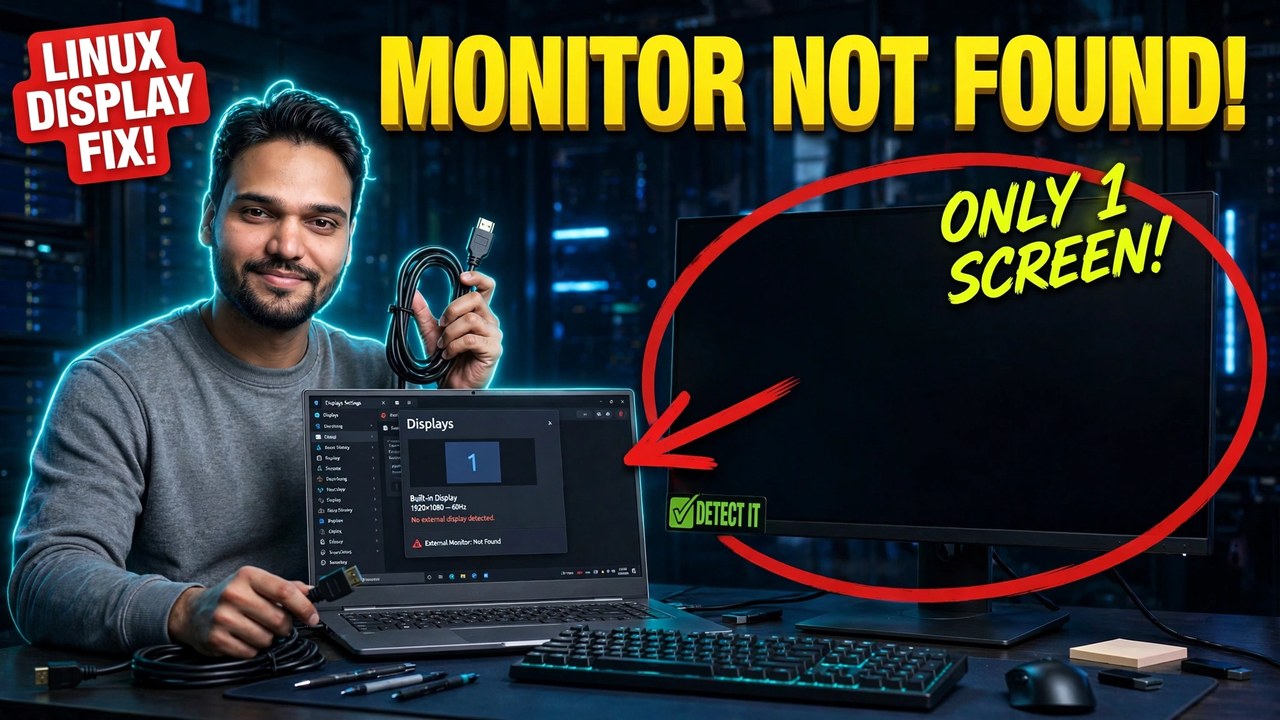
Reports on Ask Ubuntu and Reddit r/linuxquestions repeat one detail that decides the whole fix: the monitor does not appear in Settings > Displays at all. That is different from a monitor that is detected but blank, and different from a second screen with the wrong resolution. A completely undetected monitor on Linux is most often one of two things - a cable, adapter or dock that is not passing the signal, or the GPU that owns the port has no active driver, which is the classic hybrid laptop case where the HDMI port is wired to the NVIDIA GPU while the laptop runs on Intel graphics or the open Nouveau driver. Every step below is Linux-only: cables and ports first, then what the system itself sees, then the driver. Note: this is the Linux guide - Windows second-monitor steps do not apply here.
X Settings > Displays shows only the built-in laptop display - no second screen to enable or arrange
X xrandr lists HDMI-1 as disconnected even with the cable plugged in
X The same monitor and cable work on another machine, or have never been tested elsewhere
NOT DETECTED Undetected is not the same as blank - work through cable, detection, then driver, in that order.
The fingerprint of this problem: the external display is absent from Settings entirely, most often on a hybrid Intel plus NVIDIA laptop.
Rule Out the Cable, Adapter, Dock and Input Source
Start outside the operating system. A Linux driver fix cannot repair a signal that never reaches the laptop, and docks and adapters are the most common silent failure in the chain.
- Test with a direct HDMI cable from laptop to monitor - no dock, no hub, no adapter - even if the dock is your normal setup. A monitor that appears on a direct cable has named the dock as the problem.
- Check the monitor's own input source menu and confirm it is set to the HDMI or USB-C input you actually plugged into. Monitors with several inputs do not always switch automatically.
- Try a different cable if one is available, and a different port on the monitor. Keep the working combination in place for the rest of the guide.
- Only continue to the system checks once the physical chain is a single known-good cable and the correct input - otherwise every later result is unreliable.
See What the System Itself Detects
Now ask Linux directly what display hardware it can see. This step separates a detection problem from a driver problem: a port that is absent entirely cannot be enabled from Settings by any toggle.
- On an Xorg session, run
xrandrin a terminal and read the output list. Note whether your HDMI output appears at all, and whether it says disconnected with the cable plugged in. - Also list the kernel display outputs with
ls /sys/class/drm/. The entries there show which display connectors the kernel itself knows about. - If the HDMI port is absent entirely from these lists, it is a driver problem - the GPU that owns that port is not active. Go straight to Fix 3.
- If the port is present but disconnected on a known-good direct cable, recheck the monitor input from Fix 1 once, then continue to Fix 3 as well - on hybrid laptops this is still most often the inactive NVIDIA GPU.
Install and Activate the NVIDIA Driver on Hybrid Laptops ⭐
This is the fix that works most often on hybrid laptops. The HDMI port is wired to the NVIDIA GPU, so while the system runs without the proprietary NVIDIA driver active, that port stays dead no matter what Settings shows.
- On Ubuntu, install the recommended driver with
sudo ubuntu-drivers autoinstalland let it finish completely. - Set the NVIDIA GPU as the active profile with
sudo prime-select nvidia. - Reboot the laptop. The driver and the PRIME profile only take over the HDMI port from a fresh boot.
- On Fedora hybrid laptops, the equivalent route is to install akmod-nvidia from RPM Fusion and reboot. On Arch, install with
sudo pacman -S nvidiaplus the PRIME setup for your system, then reboot.
Switch Away from Nouveau if the Port Stays Dead
If your hybrid laptop is running the open Nouveau driver, treat that as the likely cause in itself. For NVIDIA-wired HDMI ports, switching to the proprietary driver is usually what makes the port live.
- Check the pattern against your system: hybrid Intel plus NVIDIA laptop, HDMI monitor undetected, and no proprietary NVIDIA driver installed - that combination points at Nouveau.
- Install and activate the proprietary driver exactly as in Fix 3 for your distribution - ubuntu-drivers plus prime-select on Ubuntu, akmod-nvidia on Fedora, the nvidia package on Arch.
- Reboot even if nothing asks you to. A GPU profile change without a reboot leaves the old driver in charge of the ports.
- Do not install several NVIDIA driver versions side by side while testing. One clean driver, one profile selection, one reboot - then judge the result in Fix 5.
Arrange the Display After Reboot (Xorg and Wayland)
Once the driver is active and the machine has rebooted, the monitor should finally be visible to the system. This last step confirms detection and puts the two screens in the right arrangement.
- Open Settings > Displays. The external monitor should now appear alongside the built-in display - select it, enable it if needed, and use Arrange to position it on the correct side.
- On an Xorg session you can confirm with
xrandr: the HDMI output should now show as connected with its resolutions listed, instead of disconnected. - On a Wayland session, use Settings > Displays only - xrandr does not apply on Wayland and cannot enable or arrange Wayland displays.
- Test with the direct cable first, then reconnect your dock if you use one. If the monitor works direct but vanishes through the dock, the dock itself is the remaining fault, now proven by elimination.
Software Needed
No extra software is needed beyond your distribution's own NVIDIA driver route. Ubuntu uses the built-in ubuntu-drivers command and prime-select; Fedora uses the akmod-nvidia package from RPM Fusion; Arch uses the nvidia package installed with pacman, each as described in Fix 3. The xrandr and /sys/class/drm checks are built into a standard Linux install. Do not download NVIDIA drivers from random websites - use your distribution's packaged driver so the kernel module and the PRIME profile stay matched to your system.
More Linux Fixes on Technical Anshu
Every week: Linux, Windows and server problems, hidden tools and full setup guides, explained step by step.
Subscribe on YouTubeFrequently Asked Questions
Why does my HDMI monitor not appear in Displays settings at all?
On hybrid Intel plus NVIDIA laptops, the HDMI port is most often wired to the NVIDIA GPU. If the proprietary NVIDIA driver is not installed or not active - for example while the system runs on Intel graphics or the Nouveau driver - that GPU does not drive its port, so the monitor never appears in Settings. Installing the driver, selecting it with prime-select on Ubuntu, and rebooting is the fix that works most often.
How can I tell if it is a cable problem or a driver problem?
Test in order. First use a direct HDMI cable with no dock or adapter and confirm the monitor input source - if the monitor appears, the removed dock, adapter or cable was the cause. If it still does not appear, run xrandr and ls /sys/class/drm/ - if the HDMI port is absent entirely from what the system sees, it is a driver problem, because Settings cannot enable a port the kernel itself does not list.
What does prime-select nvidia do, and is a reboot really needed?
On Ubuntu hybrid laptops, sudo prime-select nvidia sets the NVIDIA GPU as the active graphics profile, so the ports wired to it - usually HDMI - are driven by the NVIDIA driver. Yes, a reboot is really needed afterwards: the driver and profile only take over the display outputs from a fresh boot. Checking Settings without rebooting will still show the old state and can make a correct fix look failed.
Does xrandr work for external monitors on Wayland?
No. xrandr is an Xorg tool and does not control displays on a Wayland session. On Wayland, detection still depends on the same cable and driver fixes - direct cable test, then the correct NVIDIA driver for hybrid laptops - but enabling and arranging the monitor is done only in Settings, Displays. Use xrandr and the /sys/class/drm listing for diagnosis on Xorg, and Settings as the final step on both session types.
The monitor works with a direct cable but not through my dock. What now?
Then the Linux side is fixed and the dock is the remaining fault, proven by elimination. Keep the direct connection working first, then reconnect the dock with the monitor on the correct input and test again. If the display vanishes only through the dock, the problem is in the dock chain - its cable, its port or the dock itself - not in your Linux drivers, and no further driver change will repair it.