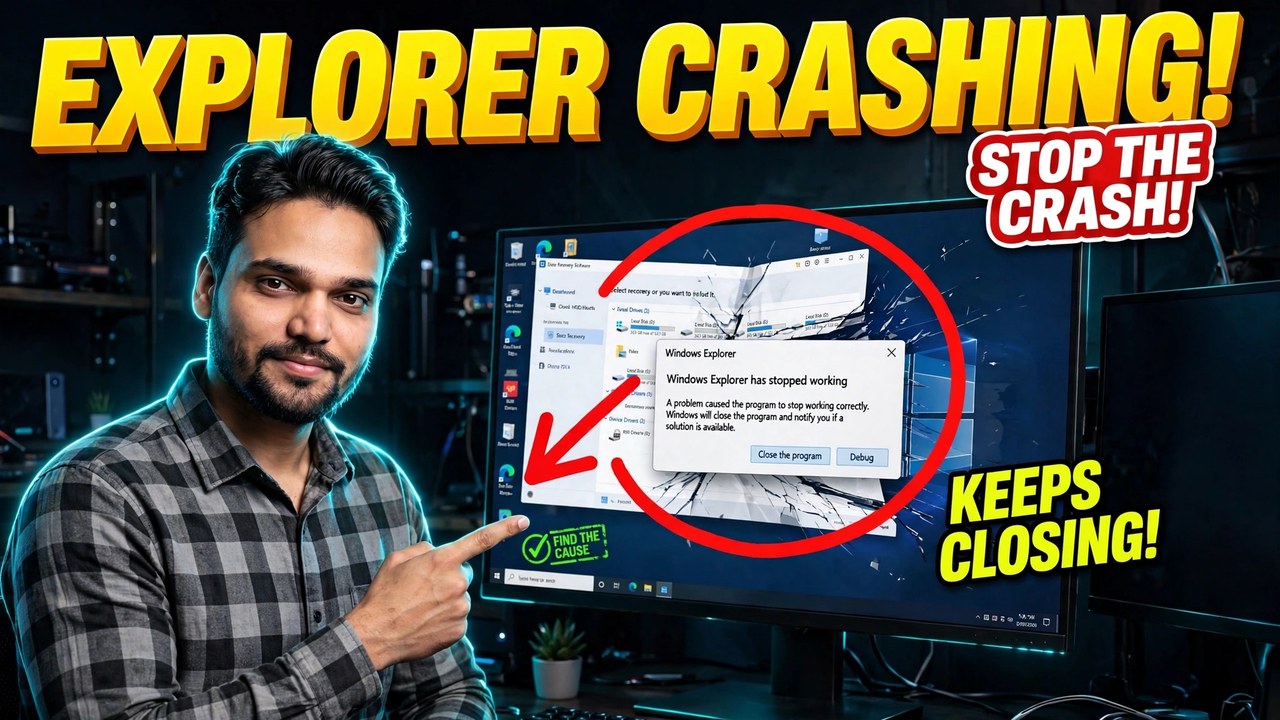
The reports collected by The Windows Club for File Explorer crashing, freezing or stopped working in Windows 11 share a pattern: the crash is triggered by an action - opening a folder, opening Quick Access, or right-clicking. That pattern matters. Explorer loads third-party shell extensions for the right-click menu, thumbnails and preview handlers, and one faulty extension crashes the whole Explorer process every time it loads. The second big cause is a corrupted Quick Access and recent-files history. So the order below is deliberate: clear the history first, read the crash record to name the faulting module, then hunt the extension - instead of reinstalling Windows for what is often a five-minute fix.
X File Explorer closes by itself and the desktop and taskbar flash and reload
X The crash happens on right-click, or the moment a folder or Quick Access opens
X All open Explorer windows are lost every time it happens
Check: Reliability Monitor shows explorer.exe crash events, often naming the same faulting module every time - that name is the biggest clue in this whole guide
The fingerprint of this problem: Explorer restarts itself, and the crash follows one repeatable action like a right-click.
Restart Windows Explorer From Task Manager
Start by proving the state is stuck, not damaged. A clean Explorer restart clears a one-off hang, and if the crash returns on the same action afterwards, you know it is repeatable and worth hunting.
- Press Ctrl + Shift + Esc to open Task Manager.
- Find Windows Explorer on the Processes tab, select it and click Restart task. If Explorer has already crashed and is missing from the list, click Run new task, type
explorer.exeand press Enter. - Open the same folder, or right-click the same kind of file, that caused the last crash.
- If Explorer survives now, it was a one-off hang. If it crashes again on the same action, continue - the next two fixes are aimed at repeatable crashes.
Open Explorer to This PC and Clear Its History ⭐
This is the fix that works most often for crashes on opening Explorer or Quick Access. Explorer opens on Quick Access by default, and a corrupted recent-files or frequent-folders history can crash it before the window even finishes drawing.
- Open File Explorer. If it crashes on opening, open it a different way: press Win + R, type
control foldersand press Enter to go straight to File Explorer Options. - On the General tab, set Open File Explorer to to This PC instead of Quick Access (on Windows 11 it may be labelled Home).
- Under Privacy, untick Show recently used files and Show frequently used folders (Windows 11 wording may show these as recent files and frequent folders options on the same tab).
- Click Clear next to Clear File Explorer history, then click OK.
- Open Explorer several times and browse a few folders. If the crashing stops, the Quick Access history was corrupt. You can turn recent files back on later if you miss them - a fresh history builds from now on.
Read the Crash in Reliability Monitor and Note the Faulting Module
Before disabling anything, read the evidence Windows already recorded. Reliability Monitor logs every Explorer crash with the name of the module that faulted, and that name often identifies the guilty program directly.
- Press Win + R, type
perfmon /reland press Enter. - Click a day marked with a red X, then look under the critical events for Windows Explorer - Stopped working. Double-click the newest one, or click View technical details.
- Find the Faulting module name line. If it is explorer.exe itself or a Windows module like ntdll.dll, the extension loaded into Explorer is still the likely trigger. If it names a DLL you recognise from another program - a cloud drive, an antivirus, a media tool, a compression tool - that program is your prime suspect.
- Write the module name down exactly. You will match it against the extensions in Fix 4, and it stops you disabling things at random.
Disable Non-Microsoft Shell Extensions With ShellExView
Shell extensions are the small add-ons programs install into Explorer for right-click menus, icons and previews. One bad one crashes every Explorer window. ShellExView, a free tool from NirSoft, lists them all and lets you disable only the third-party ones - the safe way to test.
- Download ShellExView from the NirSoft website (nirsoft.net) - the official site only - and run it. It does not need installing.
- Click Options and tick Hide All Microsoft Extensions. Everything left in the list is third-party - these are the only entries this fix touches.
- Select all the remaining extensions (click one, then Ctrl + A) and press F7 or use File > Disable Selected Items. Entries with a disabled state show clearly in the list.
- Restart Explorer (Fix 1) and use the PC normally, including the action that crashed it. If the crashes stop, a disabled extension was the cause.
- Re-enable the extensions in halves: enable half, restart Explorer, test. Keep narrowing the half that brings the crash back until one extension is left. Leave that one disabled and update or uninstall the program it belongs to.
- If Explorer still crashes with every third-party extension disabled, the cause is not an extension - re-enable them all and go to Fix 5.
Rebuild the Icon and Thumbnail Caches and Run SFC
Damaged icon and thumbnail cache databases can crash Explorer in folders full of photos or videos, because Explorer faults while drawing previews. Rebuilding the caches forces clean copies, and SFC checks the Explorer system files themselves.
- Close all Explorer windows. Open Settings > System > Storage > Temporary files, tick Thumbnails and click Remove files. This deletes the thumbnail cache safely; Windows rebuilds it as you browse.
- For a stuck icon cache, open Command Prompt and run
ie4uinit.exe -showafter closing Explorer, then restart the PC. Do not delete cache database files by hand while Explorer is running - Explorer holds them open and partial deletes make the state worse. - Open Terminal (Admin) and run
sfc /scannow. If SFC reports it found corrupt files and repaired them, restart and test Explorer again. - If SFC says it could not fix some files, run
DISM /Online /Cleanup-Image /RestoreHealthfirst, then runsfc /scannowa second time. - If crashes continue even after this, test in a new user account (Settings > Accounts > Other users). Explorer crashing in every account points to a system-wide program from Fix 4; crashing in only one account points to that profile's Explorer settings and history.
Software Needed
One free tool is used in this guide: ShellExView from NirSoft (nirsoft.net), in Fix 4, for disabling third-party shell extensions. Download it only from the official NirSoft site. Everything else is built into Windows 11: Task Manager, File Explorer Options, Reliability Monitor, Storage settings for the thumbnail cache, and SFC and DISM. No registry cleaner or paid Explorer repair tool is needed.
More PC Fixes on Technical Anshu
Every week: Windows problems, hidden tools and full setup guides, explained step by step.
Subscribe on YouTubeFrequently Asked Questions
Why does File Explorer crash only when I right-click?
Because the right-click menu is assembled from shell extensions installed by other programs - cloud drives, antivirus tools, archive tools, media apps. Explorer loads every one of them to build the menu, so one faulty extension crashes Explorer at exactly that moment. Reliability Monitor usually names its DLL, and ShellExView lets you disable it, as shown in Fix 3 and Fix 4.
What is a shell extension and why can it crash Explorer?
A shell extension is a small add-on a program installs into Windows Explorer to add right-click entries, custom icons, thumbnails or preview handlers. Extensions run inside the Explorer process itself, so when one of them faults, the whole Explorer process goes down and restarts - closing every Explorer window with it. That is why the fix is disabling the extension, not repairing Explorer.
Is ShellExView safe to use?
Yes, when downloaded from the official NirSoft site at nirsoft.net. ShellExView does not delete anything - it only enables and disables the extensions you select, and every change is reversible by selecting the entry and enabling it again. In this guide you only touch non-Microsoft extensions, with Hide All Microsoft Extensions turned on, so Windows components are never disabled by mistake.
Clearing Explorer history fixed it. Will my files be deleted?
No. Clearing File Explorer history removes only the lists of recently used files and frequently used folders that Quick Access shows - the shortcuts and history records, not the files themselves. Your documents, photos and folders stay exactly where they were. With Open File Explorer set to This PC, Explorer also stops depending on that history to open, which is why the crashes stop.
Explorer crashes in folders with photos and videos but not elsewhere. Why?
That points at thumbnails and previews, not the folder contents. Explorer generates a preview image for every photo and video, and a damaged thumbnail cache database - or one bad third-party thumbnail handler - faults during that work. Clearing the Thumbnails temporary files in Fix 5 rebuilds the cache, and if one file type still triggers it, its handler is the extension to disable in Fix 4.