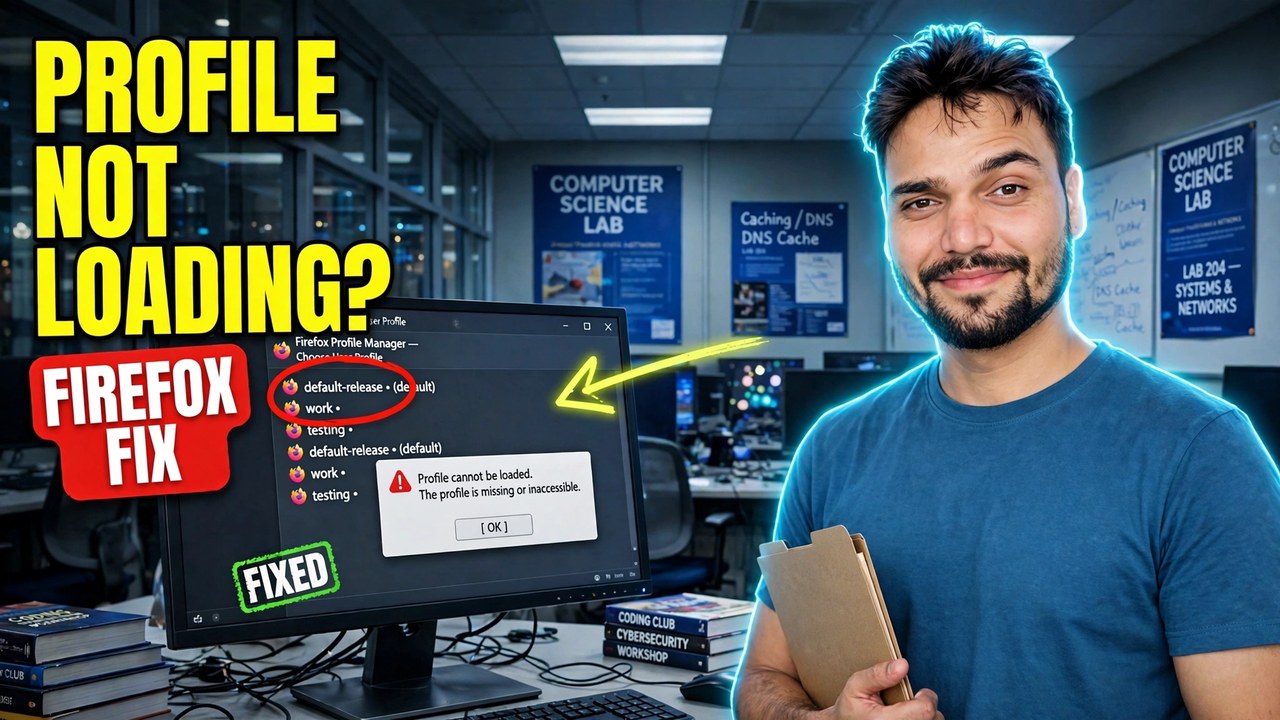
Your Firefox profile is the folder holding your bookmarks, passwords, history, extensions and settings - Firefox itself is just the program that reads it. This error means Firefox started, looked for the profile it was told to use, and could not find it or could not open it. Mozilla Support reports cluster into three causes: the profile folder was moved or deleted, the profiles.ini file that points to it is damaged or points wrong, or the profile is locked by a leftover lock file or blocked by security software. The order below checks the pointer first, then the folder, then creates a clean profile only if the old one truly cannot be recovered.
X Firefox shows only this error box and never opens a window
X The error started after moving folders, a cleanup tool, a new hard drive, or a crash
X Reinstalling Firefox did not help - the same error comes back
X Another Windows user on the same PC can open Firefox without any error
PROFILE NOT LOADED Reinstalling Firefox does not fix this error because the program is fine - the profile it is pointed at is missing, moved, locked or blocked. The fix is in the profile folder and profiles.ini, not in the installer.
The fingerprint of this problem: one error dialog, no window, and reinstalls change nothing - Firefox cannot reach the folder that holds your data.
Open Profile Manager and See What Firefox Sees
Firefox has a built-in Profile Manager that runs even when the normal profile is broken. It shows exactly which profiles Firefox knows about and which one it tries to start with.
- Make sure Firefox is fully closed - press Ctrl + Shift + Esc, and end any firefox.exe process in Task Manager.
- Press Win + R, type
firefox.exe -Pand press Enter. The Profile Manager (Choose User Profile) opens. - If your profile is listed, select it, tick Use the selected profile without asking at startup and click Start Firefox. If it opens, the startup pointer was wrong - you are done.
- If the listed profile still errors, or no profile is listed, note that and continue to Fix 2.
Check the Profile Folder and profiles.ini Exist
Firefox finds profiles through a small file called profiles.ini. If the folder it points to was moved, renamed or deleted - common after cleanup tools or disk changes - Firefox reports exactly this error.
- Press Win + R, type
%APPDATA%\Mozilla\Firefox\and press Enter. You should see profiles.ini and a Profiles folder. - Open the Profiles folder: a real profile is a folder named like
xxxxxxxx.default-releasecontaining files such as places.sqlite (bookmarks and history) and logins.json (passwords). Copy the entire Profiles folder to your desktop now as a backup. - Open profiles.ini in Notepad and check the Path= line matches the actual folder name inside Profiles. If the folder exists under a slightly different name, the pointer is the problem - Fix 3 handles it safely.
- If the Profiles folder is empty or missing entirely, the profile data is gone from this location (check your desktop backup, an old drive, or Windows Previous Versions) - go to Fix 4 to start clean.
Remove a Stuck Lock and Check Folder Access
A crash can leave a lock file that makes Firefox treat the profile as locked or inaccessible, and changed folder permissions after a Windows repair can block access the same way.
- Open your profile folder (from Fix 2). If a file named parent.lock or .parentlock is present while Firefox is fully closed, delete just that lock file.
- Right-click the profile folder, choose Properties > Security and confirm your Windows user has Full control / Modify allowed. If it does not, your Windows profile permissions changed - fix them or move to Fix 4.
- Temporarily check your antivirus quarantine and blocked-apps list: security suites occasionally quarantine a Firefox profile file after an update. Restore anything Firefox-related, then try Firefox again.
Create a New Profile - and Bring Your Data Across ⭐
If the old profile folder is genuinely missing or damaged beyond a pointer fix, a new profile is the reliable route - and it is also the recovery path Mozilla Support recommends. Your old data can often still be copied across from the backup.
- Run
firefox.exe -Pagain, click Create Profile, follow the wizard with a clear name such as NewProfile, then select it and click Start Firefox. Firefox opening at all confirms the program was never the fault. - Close Firefox. From your backed-up old profile folder, copy only the key data files into the new profile folder: places.sqlite (bookmarks/history), logins.json plus key4.db (saved passwords - copy both together), and favicons.sqlite. Do not copy the whole old folder - that can copy the corruption too.
- Open Firefox and confirm bookmarks and passwords are back. Keep the old folder backup until you are sure nothing is missing.
- Alternatively, sign in to a Mozilla account in the new profile - if you had Sync on, bookmarks, passwords and history restore from Sync automatically.
If Profile Manager Itself Will Not Open
When even firefox.exe -P fails, the Firefox installation or the top-level Firefox data folder is damaged. A clean program reinstall plus a fresh data folder settles it - your backup from Fix 2 protects your data.
- Uninstall Firefox from Settings > Apps (this does not delete profile data by itself), restart the PC, and download Firefox fresh from mozilla.org only.
- If the error survives a fresh install, rename the folder
%APPDATA%\Mozilla\Firefoxto Firefox-OLD (do not delete it), then start Firefox - it creates a clean folder and profile. - Restore your key files from Firefox-OLD using the same selective copy as Fix 4, or sign in to Mozilla Sync.
More PC Fixes on Technical Anshu
Every week: Windows problems, hidden tools and full setup guides, explained step by step.
Subscribe on YouTubeFrequently Asked Questions
What does Your Firefox profile cannot be loaded mean?
It means Firefox started but could not find or could not open the profile folder it was set to use. The profile holds your bookmarks, passwords, history and settings. The usual causes are a moved or deleted profile folder, a damaged profiles.ini pointer file, a leftover lock file after a crash, or security software blocking the folder.
Will creating a new Firefox profile delete my bookmarks and passwords?
Creating a new profile does not delete the old one - both stay on disk, and Firefox simply starts with the one you select in Profile Manager. Before changing anything, copy the whole Profiles folder from %APPDATA%/Mozilla/Firefox to your desktop. You can then copy places.sqlite for bookmarks and logins.json plus key4.db for passwords into the new profile, or restore from Mozilla Sync if it was on.
Why did reinstalling Firefox not fix the profile error?
Because reinstalling replaces only the program files, and the program was never the problem. Profiles live separately in your AppData folder and are deliberately kept during reinstalls so your data survives. The error persists until the profile pointer, lock or folder itself is fixed - or a new profile is created with firefox.exe -P.
How do I open Firefox Profile Manager when Firefox will not start?
Close Firefox completely (end firefox.exe in Task Manager), press Win + R, type firefox.exe -P and press Enter. The Choose User Profile window opens before any profile loads, so it works even when your normal profile is broken. From there you can select a different profile or create a new one.
What is parent.lock and is it safe to delete?
parent.lock is a small marker file Firefox creates while a profile is in use, so two copies of Firefox do not write to the same profile at once. If Firefox is fully closed and the file is still there after a crash, deleting just that lock file is safe - Firefox recreates it normally on the next start. Never delete it while Firefox is running.