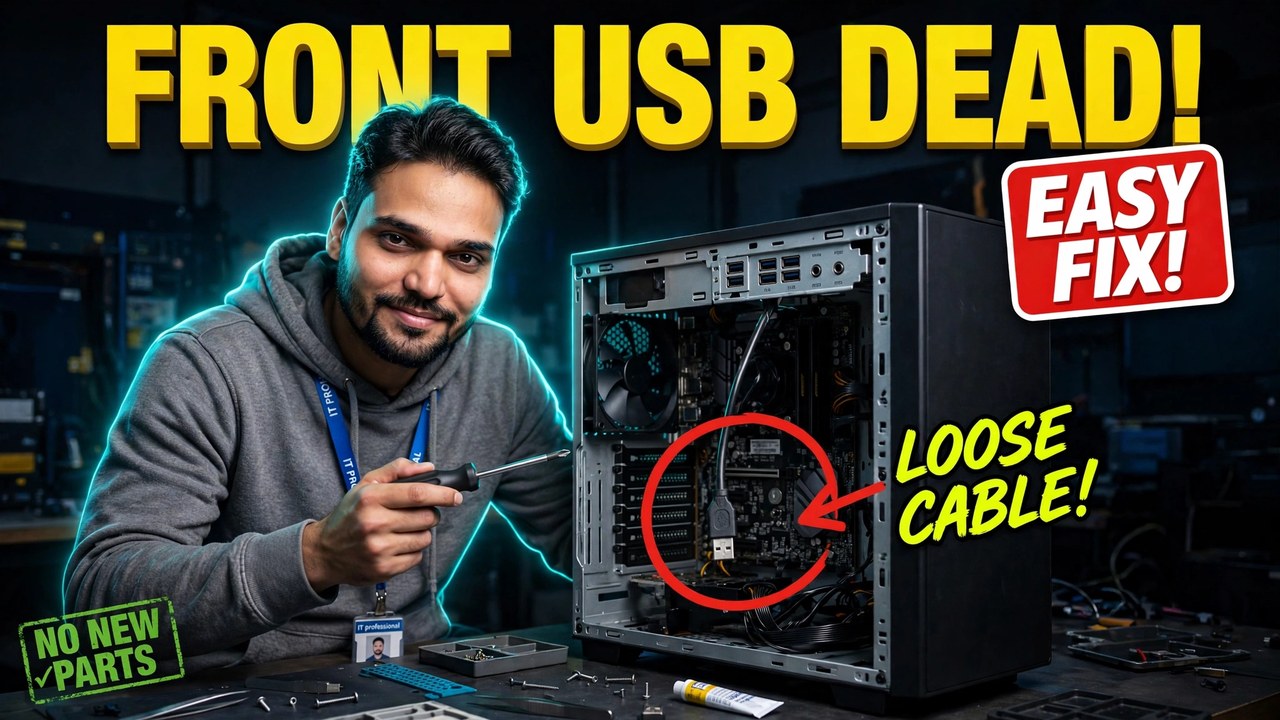
Front and rear USB ports take completely different paths to your motherboard. Rear ports are soldered directly onto the board. Front ports sit on a small board in the case, and a cable carries their signals across the inside of the PC to a header plug on the motherboard. Reports on r/buildapc and Tom's Hardware repeat the same story: rear ports perfect, front ports dead - and the fault is almost never Windows. It is that cable path: a header plug that was never pushed fully home, a plug sitting one row off, a bent pin, or a failed front-panel board. So this guide spends no time on driver reinstalls that cannot fix a loose plug. It proves the split first, reseats the header properly, teaches you to tell the three different front USB connectors apart, and only then considers replacing case hardware.
X Front case ports: device not recognized, keeps disconnecting, or completely dead
X The exact same device, with the same cable, works instantly in a rear motherboard port
X On some builds every front port failed from the first day - on others they worked until the PC was moved or cleaned
Check: if rear works and front does not, the USB controller and drivers are healthy. The fault sits between the front ports and the motherboard.
FRONT ONLY Front-only failure points at the internal header cable, not at Windows, drivers or the device.
The fingerprint of this problem: the failure follows the port location - front dead, rear perfect - with the same device on both.
Prove the Split: Same Device, Rear Port vs Front Ports
Two minutes of methodical testing turns a vague complaint into a confirmed location for the fault. Do not open the case until this is done.
- Pick one simple, known-good device - a pen drive you trust is ideal. Plug it into a rear motherboard port and confirm it opens normally in File Explorer.
- Remove it safely and plug the same pen drive, unchanged, into each front port one by one. Note which ports fail completely, which connect and drop, and which (if any) work.
- Also test a low-power device such as a wired keyboard or mouse in the front ports. A port that runs a keyboard but drops a pen drive is making a weak connection - that detail matters in Fix 4.
- Read the result: all front ports dead, rear perfect means the shared front cable or its header - continue to Fix 2. One front port dead, its neighbour fine points more at that single port on the case board - Fix 5. Front and rear both failing is a different problem (controller, driver or board) and this guide does not cover it.
Reseat the Front USB Header Plug on the Motherboard ⭐
This is the fix that solves most front-port cases, because the stiff front-panel cable works its plug loose, or the plug was left half-seated or one row off during the build. A plug can look connected and still not be.
- Shut the PC down completely, switch the power supply off and unplug it. Press the power button once to drain remaining charge. Open the side panel.
- Follow the cable from the front ports down to the motherboard. For USB 3.x front Type-A ports it is the thick cable ending in a wide 19-pin plug; for USB 2.0 ports it is a thinner cable with a small 9-pin plug. Your motherboard manual's board layout diagram names each header (commonly F_USB or JUSB markings printed beside them).
- Grasp the plug body - never pull by the wires - pull it straight off, and look at both sides: plug pins and the header pins on the board (Fix 4 covers what to check).
- Push the plug back on firmly and squarely until it is fully home along its whole length. The wide 19-pin USB 3.x plug needs noticeably more force than it seems to, and a plug seated at one end only is the classic hidden fault. Give it a gentle wiggle: a seated plug does not rock.
- Check the cable run while you are there: no sharp kink where it bends into the plug, no connector crushed under a drive cage, and enough slack that closing the panel will not tug it.
- Close the case, reconnect power, boot, and repeat the Fix 1 test on every front port.
Match Each Connector to Its Own Header - Never Force One
Many cases bring three different front USB cables to the board, and mixing up their headers - or forcing a plug - is a common build-time cause of dead ports and bent pins. Use the motherboard manual, not guesswork.
- USB 2.0 front ports use the small 9-pin keyed plug: one corner pin position is blocked, so it only fits its header the correct way round. It feeds the USB 2.0 ports on the front panel.
- USB 3.x front Type-A ports use the wide 19-pin plug. It is keyed by a notch on one side. Because it is large and stiff, it is the plug most often found half-seated months later.
- A front USB-C port uses a separate Type-E connector, a small metal-shrouded plug that goes into its own matching socket. It has nothing to do with the other two headers - a dead front USB-C with working front Type-A usually means this one cable was never connected or has come loose.
- If your motherboard lacks a header for one of the case cables (common with front USB-C on older boards), that port simply stays dead until an adapter or a different board provides the header. No setting enables a port with no connection.
- Rule for all three: if a plug does not go on with firm, even pressure, stop and re-check the manual's diagram. Force bends pins, and a bent pin can short or kill the header.
Inspect the Pins, Then Check the BIOS USB Settings
If a careful reseat changed nothing, look closer at the physical connection you just handled, and rule out the one software layer that can switch ports off.
- With power unplugged, remove the header plug again and inspect the header pins on the motherboard with a torch: look for a pin bent flat, leaning against its neighbour, or missing. The 19-pin USB 3.x header pins are thin and bend easily. A slightly bent pin can sometimes be straightened gently with a hollow tube or tweezers and great care; a snapped pin means that header is done - use a different header of the same type if the board has one.
- Inspect the plug and cable ends for cracks, green corrosion or a recessed contact, and the case end of the cable where it meets the front board.
- Reconnect, boot into the BIOS or UEFI setup (usually Del or F2 at startup) and confirm the USB controller is enabled and no per-port disable option is set for the front ports. Menu names differ by board maker, so follow your manual. Save and exit.
- Back in Windows, open Device Manager, expand Universal Serial Bus controllers, and make sure no USB hub or controller entry is disabled (greyed with a down-arrow) or showing a yellow warning. Re-enable a disabled entry and retest. Note this is a completeness check - a driver fault would normally hurt rear ports too, which Fix 1 already ruled out.
If Reseating Fails, the Case Front Panel Is the Fault
When the header is proven good and the ports stay dead, the remaining suspect is the case hardware itself - the small front I/O board, its soldered ports or its cable. That is a parts decision, not another setting.
- Confirm the motherboard header works before blaming the case: if you can borrow or buy inexpensively a drive-bay USB front panel, connect it to the same header. If the bay panel works, the board and header are cleared and the case panel is guilty.
- Check whether the case maker sells a replacement front I/O module for your case model - on many cases it is a small screwed-in board with the cable attached, and swapping it is a ten-minute job with power off.
- If no module is available, the practical workaround is a powered USB hub connected to a rear port and placed on the desk. Powered matters: an unpowered hub at the end of a long run repeats the weak-power behaviour you are escaping.
- Do not keep reseating a plug onto a header with damaged pins, and do not splice or re-pin a front USB cable unless you genuinely know the pinout from the manual - a miswired USB cable can damage devices plugged into it.
- On a brand-new build, raise this with the case seller as a defect while it is still under its return window, with your Fix 1 and header-test results written down.
Software Needed
None. This is a physical connection problem, and every step uses your hands, a torch and the BIOS setup - plus the motherboard manual, which is the one document you genuinely need (download the PDF from the board maker's support page if the paper copy is lost). No driver pack, USB repair utility or registry cleaner can seat a header plug, straighten a pin or revive a dead case board, and none should be installed for this problem.
More PC Fixes on Technical Anshu
Every week: Windows problems, hidden tools and full setup guides, explained step by step.
Subscribe on YouTubeFrequently Asked Questions
Why do my front USB ports not work when the rear ports work fine?
Rear ports are soldered directly to the motherboard, while front ports reach the board through a cable and an internal header plug. That cable path is the weak link: a half-seated or one-row-offset header plug, a bent pin, or a damaged case front-panel board kills the front ports while the controller and the rear ports stay healthy. That is why the first tests prove the front-versus-rear split and the main fix is reseating the correct header plug fully.
What is the difference between the USB 2.0, USB 3.x and USB-C front panel connectors?
They are three different plugs for three different motherboard headers. The USB 2.0 front connector is a small 9-pin keyed plug. The USB 3.x front Type-A connector is a wide 19-pin plug that is stiff and easy to leave half-seated. A front USB-C port uses its own separate Type-E connector. Each plug only fits its matching header, guided by the keying and the motherboard manual - never force one, because bent pins are a common result and can disable the header.
My front ports work for a keyboard but a pen drive keeps disconnecting. Why?
A marginal connection often passes a low-power, low-speed device and fails a device that draws more power or transfers at full speed. A half-seated header, a pin making weak contact, or a long thin case cable can all behave this way. Reseat the header plug fully, test with the same drive that works in a rear port, and if one front port stays flaky while its neighbour works, suspect that port on the case front-panel board rather than Windows.
Can a Windows driver or setting disable only the front USB ports?
Rarely on its own. Drivers and power settings act on the USB controller, which normally serves front and rear ports together, so a pure front-only failure is almost always the cable, header or case board. The settings worth checking are in the BIOS, where a USB controller or individual port option can be disabled, and in Device Manager, where a disabled USB hub entry can be re-enabled. If every port front and rear is dead, that is a different problem - controller, driver or board - not this one.
The header is reseated and the pins look fine, but the front ports are still dead. What now?
At that point the case front-panel board or its cable has failed, which no setting can repair. The practical options are to replace the case front I/O module if the case maker sells it, fit a drive-bay USB panel that connects to a known-good header, or simply use the rear ports with a powered USB hub on the desk. Before buying anything, confirm the motherboard header itself works by testing a known-good front panel or bay panel on it.