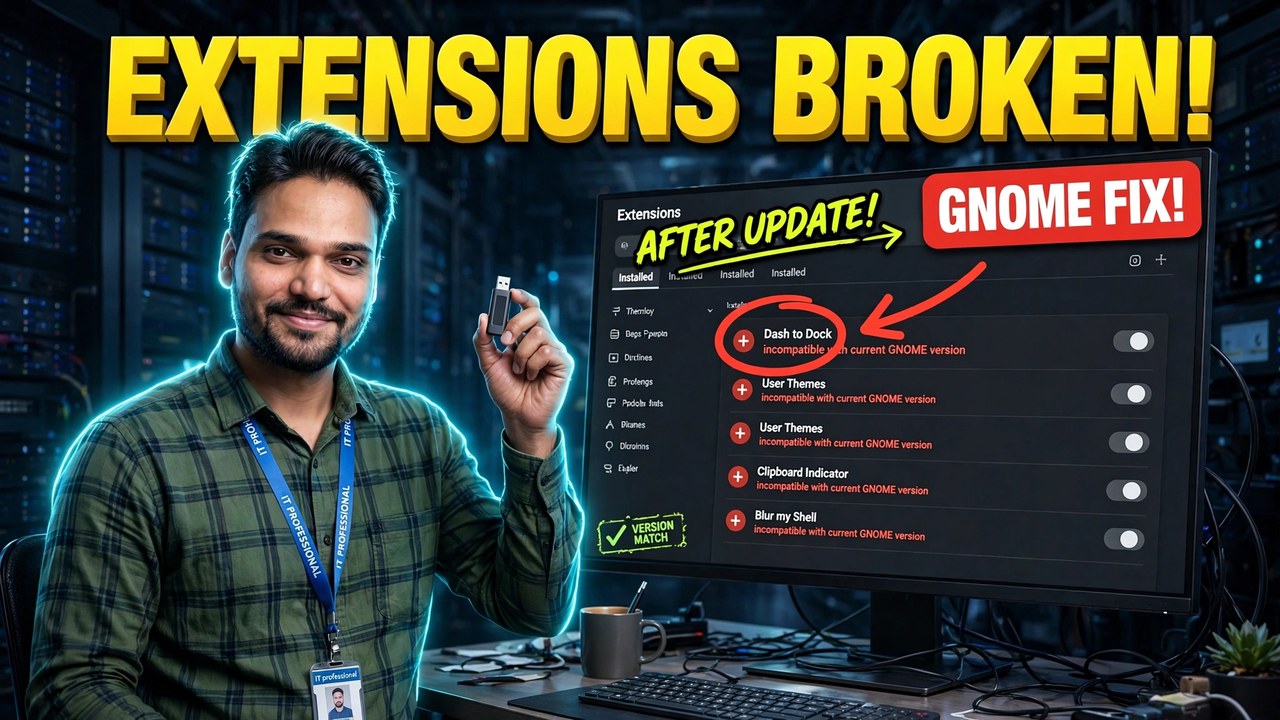
After every major distro upgrade, the same reports appear on Reddit r/gnome and Ask Ubuntu: extensions stopped working after the GNOME upgrade. The cause is version compatibility, and it helps to understand it before changing anything: every GNOME Shell extension declares which Shell versions it supports, and an extension built for the previous Shell version shows an error state - or refuses to enable - on the new one until its author releases an update. So the fix is not reinstalling the desktop. It is updating the extensions first, reloading the Shell, and then isolating any single extension that has not caught up yet. The same steps apply on Ubuntu, Fedora Workstation and Arch running GNOME.
X Extensions app shows one or more extensions with a red error icon
X Extensions that were on before the update are now off or missing from the top bar
X Looking Glass (Alt+F2, then lg) reports the extension is incompatible with the current GNOME version
VERSION This is a Shell version mismatch, not lost files - the extensions are still installed.
The fingerprint of this problem: it starts with the first login after a distro or GNOME upgrade, and it affects shell extensions only.
Confirm the Shell and Extension Version Mismatch
Confirm the mismatch before changing settings. If the Shell moved to a new major version in the update and the extension does not list that version, no toggle will make it load - it needs an update or a replacement.
- Find your current Shell version by running
gnome-shell --versionin a terminal and note the version number. - Open the extension's page at extensions.gnome.org and check which GNOME Shell versions that extension lists as supported. Compare the list with the version from step 1.
- If your Shell version is not in the extension's list, the diagnosis is confirmed: the extension version on your system does not support the new Shell yet.
- If the Shell version is listed as supported but the extension still errors, continue anyway - Fix 2 and Fix 3 clear the stale state left by the upgrade in that case.
Update Extensions First ⭐
This is the fix that resolves most cases. Extension authors publish Shell support through extension updates, so a pending update is often the exact build that adds your new Shell version.
- Open the Extensions app and install any pending extension updates it offers, or open extensions.gnome.org/local in your browser, which lists your installed extensions and their available updates.
- Update all extensions that have an update waiting - not only the one with the error icon, because the upgrade changed the Shell under all of them.
- After updating, try enabling the extension again in the Extensions app.
- If an extension has no update available, leave it off for now and continue to Fix 4. Its author has not released support for your Shell version yet, and forcing it on will not work.
Restart the Shell to Reload Extensions
Updated extensions are not always picked up by a Shell that has been running since before the update. Restarting the Shell - or logging in fresh - forces it to load the updated extension code. The method differs between Xorg and Wayland.
- On an Xorg session: press Alt + F2, type
r, and press Enter. The Shell restarts in place and your open windows stay open. - On a Wayland session: the restart shortcut does not apply. Save your work, log out, and log back in - the new login starts a fresh Shell that loads the updated extensions.
- After the reload, open the Extensions app and check the state of each extension again before changing any toggles.
- If you are not sure which session you are on, the log out and log in route works on both - use it whenever the Alt+F2 route does nothing.
Disable All, Then Enable One by One
If extensions still misbehave after updating and reloading, isolate the faulty one. One still-broken extension can make the whole set look broken, and enabling them one at a time names the exact culprit.
- In the Extensions app, use the master toggle at the top to disable all extensions at once.
- Log out and log back in, so you start from a clean Shell with no extension code loaded.
- Enable one extension, check that the desktop works normally, then enable the next. Repeat until every working extension is back on.
- When enabling one extension brings the error or the breakage back, that is the still-broken one. Leave only that one off until its author releases support for your Shell version, and keep the rest on.
Remove a Permanently Broken Extension
An extension that is no longer maintained will never gain support for the new Shell. Keeping it installed only keeps the error state in your Extensions list, so remove it cleanly and replace it with a maintained alternative.
- Confirm the extension is really finished: no update in the Extensions app or at extensions.gnome.org/local, and your Shell version still not supported on its page.
- Remove its folder from
~/.local/share/gnome-shell/extensions- delete only that extension's own folder, named for that extension, and nothing else in that directory. - Log out and log back in so the Shell drops the removed extension completely.
- Search extensions.gnome.org for a maintained alternative that lists your Shell version as supported, and install that instead.
Software Needed
No extra software is needed beyond what GNOME already provides. This guide uses the Extensions app, the extensions.gnome.org and extensions.gnome.org/local pages in your browser, the built-in gnome-shell --version command, and your file manager or terminal for the extensions folder in the last fix only. Do not install random extension manager tools or force compatibility flags from forum posts - an extension that does not support your Shell version needs its author's update, not a workaround that loads unsupported code into the Shell.
More Linux Fixes on Technical Anshu
Every week: Linux, Windows and server problems, hidden tools and full setup guides, explained step by step.
Subscribe on YouTubeFrequently Asked Questions
Why do extensions break after almost every GNOME update?
Because each GNOME Shell extension declares the Shell versions it supports, and a major update moves the Shell to a new version the installed extension does not list yet. The Extensions app then shows an error state and the Shell refuses to load it. The extension is still installed - it is waiting for its author to release a build that supports the new Shell version, which is why updating extensions is the main fix.
How do I check if my Shell version is the problem?
Run gnome-shell --version in a terminal to get your current Shell version, then open the extension's page at extensions.gnome.org and compare it with the Shell versions that page lists as supported. If your version is not in that list, the mismatch is confirmed and only an extension update or a replacement will fix that extension. Looking Glass, opened with Alt+F2 then lg, states the same incompatibility directly.
Will disabling all extensions delete my settings?
No. The master toggle in the Extensions app only switches extensions off - it does not uninstall them or erase their settings. That is what makes the disable-all-then-enable-one-by-one route safe: you log in clean, turn extensions back on one at a time to find the broken one, and every extension you re-enable comes back with its previous settings intact.
How do I restart GNOME Shell on Wayland?
On Wayland there is no in-place Shell restart like the Xorg route. On Xorg you press Alt+F2, type r and press Enter, and the Shell restarts with your windows open. On Wayland, save your work, log out and log back in instead - the fresh login starts a new Shell that loads the updated extensions. The log out route also works on Xorg if the shortcut does nothing.
An extension has no update for my Shell version. What should I do?
Leave that one extension off and keep the rest on. Check its page at extensions.gnome.org from time to time - authors often add new Shell support within days or weeks of a release. If it stays unsupported and looks unmaintained, remove only its folder from ~/.local/share/gnome-shell/extensions and install a maintained alternative that lists your Shell version as supported.