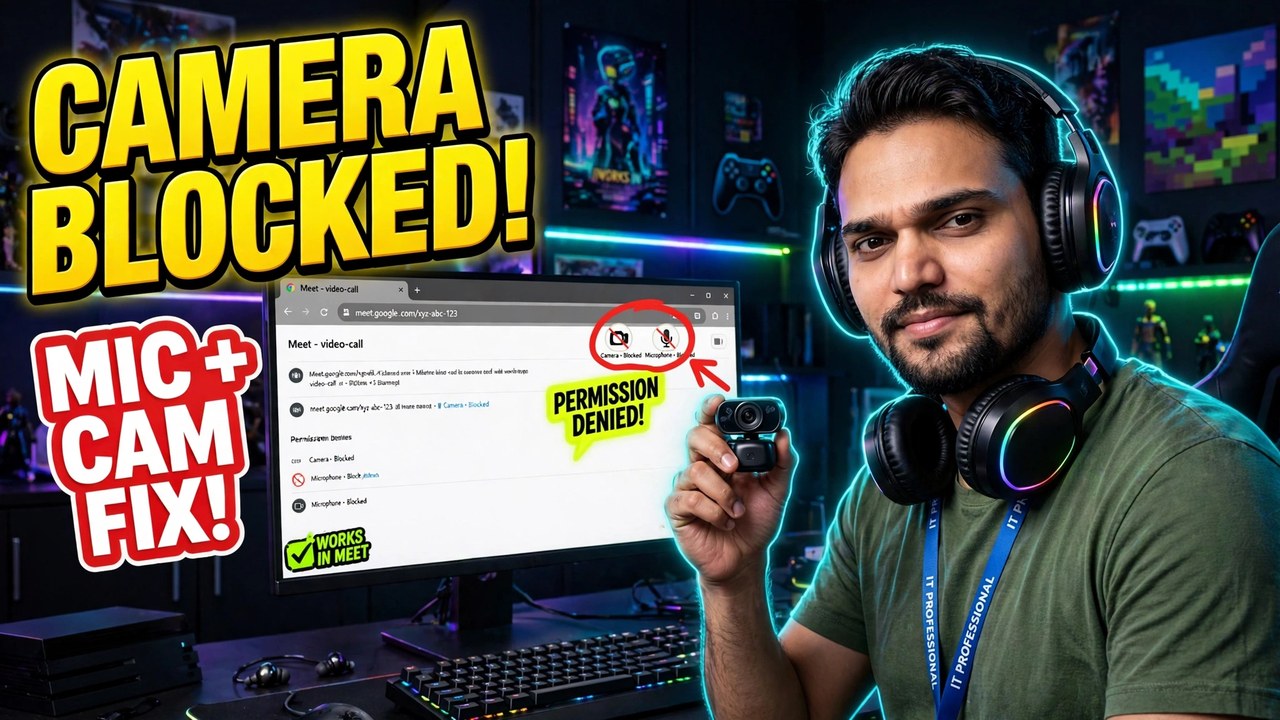
Chrome remembers a camera decision per website. Click Block once on a call site - or have it clicked during a rushed first join - and that site can never use the camera or microphone again until you change the stored setting; it will not simply ask again. There are two more gates behind that one: the site must be loaded over HTTPS, and Windows privacy settings must allow desktop apps like Chrome to use the devices at all. The fixes below go in that order, starting with the ten-second address-bar fix that solves most reports.
X Site settings for the call site show Camera: Block and Microphone: Block
X The call page says the camera or mic is blocked, or shows a black preview
X The same camera works in the Windows Camera app and in other programs
Check: click the tune icon at the left of the address bar - one past click on Block is remembered for this site permanently
BLOCKED BY SITE SETTING Chrome is following your old click, not a hardware fault.
The fingerprint of this problem: the devices work in other apps, and only this one site inside Chrome is blocked.
Allow Camera and Microphone for the Site From the Address Bar ⭐
This is the fix that works most often. One accidental click on Block - often months ago, often on the first visit - is remembered by Chrome for that site forever, and the site can never ask again. Changing it back takes ten seconds.
- Open the video call site (Meet, Zoom web, Teams web or whichever you use) in Chrome.
- Click the tune / settings icon at the left end of the address bar (older Chrome versions show a lock icon in the same place).
- Click Site settings. Find Camera and Microphone and set both to Allow.
- Close the settings tab and reload the call page. The change only applies after a reload. If the site offers a device test, run it and confirm you can see yourself and the mic level moves when you speak.
Remove the Site From Chrome's Blocked List and Pick the Right Device
If the address-bar route does not show the option, or the wrong camera is selected (common on laptops that also have a virtual camera from another app), fix it from Chrome's main site settings.
- Open Settings > Privacy and security > Site settings > Camera.
- At the top, use the dropdown to select the correct camera - your real webcam, not a virtual camera left behind by a streaming or effects app, unless that is the one you intend to use.
- Scroll to the Not allowed to use your camera list, find your call site, click it, and change Camera back to Allow - or delete the site entry so it can ask again.
- Repeat the same steps under Site settings > Microphone: pick the correct microphone in the dropdown and remove the site from the not-allowed list.
- Reload the call page and test again.
Confirm the Site Is Loaded Over HTTPS
Chrome only offers camera and microphone access on secure pages. A call link opened as plain http - from an old bookmark or a typed address - will fail silently or show the devices as blocked even with every permission correct.
- Look at the address bar on the call page. The address must start with
https://and show the secure (lock / tune) icon, not "Not secure". - If it starts with
http://, type the address again withhttps://at the front, or open the service's normal home page and join the meeting from there. - Do not try to force camera access on a not-secure page - there is no Chrome setting that allows it, and a genuine call service always runs over https.
Allow Chrome Camera and Microphone Access in Windows Privacy Settings
Windows has its own privacy gate above Chrome. If Windows blocks camera or microphone access, Chrome can be set perfectly and the call site will still report the device as blocked or missing.
- Open Windows Settings > Privacy & security > Camera. Turn on Camera access and Let apps access your camera.
- Scroll down and make sure Let desktop apps access your camera is on - Chrome is a desktop app, and this is the switch that actually covers it.
- Repeat under Windows Settings > Privacy & security > Microphone: turn on microphone access, app access, and Let desktop apps access your microphone.
- Restart Chrome after changing these switches, then reload the call page and test.
Close Other Apps That Are Holding the Camera
On Windows, one app usually owns the camera at a time. If the Zoom or Teams desktop app, the Windows Camera app, or a recording tool is open in the background, Chrome may get a black picture or a "camera is in use" style failure even though every permission is Allow.
- Close the desktop versions of Teams, Zoom, Skype and any camera or recording app completely - check the system tray near the clock as well, because several of them minimise there instead of closing.
- If you are not sure what is holding the camera, restart the PC and open Chrome and the call site first, before opening anything else.
- Reload the call page and check the preview. If the camera now works, the app you closed was the holder - open it only when you are not in a browser call.
Update Chrome and Test on the Call Site's Own Device Test
Finish by ruling out an old Chrome version and proving the result on a neutral test instead of guessing during a live meeting.
- Open
chrome://settings/help, install any pending update, and relaunch Chrome. - Open your call service's own device settings or test page (for example the pre-join screen in Meet, or the audio and video settings inside the web app) and confirm the correct camera and microphone are selected there too - the site remembers its own device choice separately from Chrome.
- Speak and watch the microphone level, and check the camera preview is the right way up and not black.
- If the camera works on the test page but not in one specific app in Chrome, remove that site's data under Site settings and allow the permissions fresh when it asks again.
Software Needed
No extra software is required. Every fix uses Chrome's site settings and Windows Privacy & security settings, plus your call service's own built-in device test. You do not need a webcam driver pack or a "camera fixer" tool: laptop webcams and USB webcams work with the drivers Windows already has, and if the camera is missing in every app including the Windows Camera app, that is a device or driver problem outside Chrome - check Device Manager under Cameras in that case.
More PC Fixes on Technical Anshu
Every week: Windows problems, hidden tools and full setup guides, explained step by step.
Subscribe on YouTubeFrequently Asked Questions
Why does Chrome say my camera is blocked when it works in other apps?
Because Chrome stores the permission separately for each website. A past click on Block for that one call site is remembered permanently, so the site stays blocked inside Chrome even though the camera itself is healthy. Set Camera and Microphone back to Allow in that site's Site settings and reload the page.
Where exactly do I change the camera permission for one site?
Open the site, click the tune icon at the left of the address bar, open Site settings, and set Camera and Microphone to Allow. You can also go through Settings, Privacy and security, Site settings, Camera or Microphone, remove the site from the not-allowed list, and choose the correct device in the dropdown at the top.
Chrome permissions are on Allow but the camera is still blocked. What else blocks it?
Windows itself. In Windows Settings, Privacy and security, Camera and Microphone, access must be on, including Let desktop apps access your camera and microphone, because Chrome is a desktop app. Also close desktop apps like Teams or Zoom that may be holding the camera, and make sure the call page is loaded over https.
Why does Chrome not offer camera access on some pages at all?
Chrome only allows camera and microphone access on secure pages loaded over https. On a plain http page the permission prompt never appears and the devices stay unavailable. Open the service through its normal https address instead of an old http bookmark.
My microphone is selected but nobody can hear me. What should I check?
Check that the correct microphone is selected in two places: Chrome's Site settings, Microphone dropdown, and the call app's own audio settings, which remember their own choice. Then check the Windows microphone privacy switches, and test on the call service's device test page where you can watch the input level move while you speak.