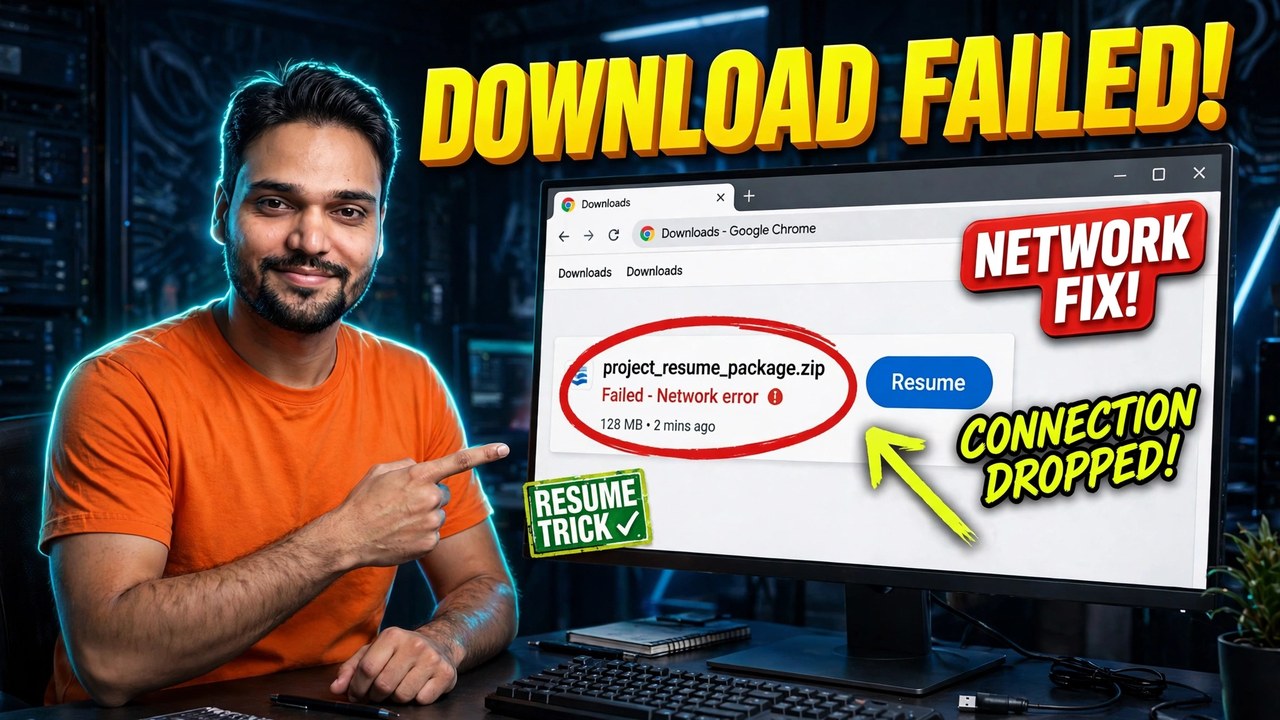
This error does not mean your internet is down. It means one download's connection broke before the file finished - and a large file is exposed for minutes, so even a two-second Wi-Fi drop, a VPN reconnect or a filter timing out long transfers is enough to kill it. That is the pattern in user reports: small files succeed, large files fail partway, on a connection that otherwise works. The fixes below follow that logic. First, try to resume from the data you already downloaded instead of starting over. Then make the connection boring and stable, remove anything sitting in the middle of the transfer, and only restart the download once the cause is gone.
X The download starts normally, then stops partway - most often on large files
X Normal browsing keeps working at the same time, so the internet itself is up
X A partial file with a .crdownload ending may still be sitting in your Downloads folder
NETWORK ERROR The transfer broke mid-download. Resume first if Chrome offers it - then fix what broke it.
The exact wording Chrome shows when a download stops partway, most reported on large files over Wi-Fi.
Resume the Failed Download From chrome://downloads ⭐
Do this before anything else, and do not clear the failed entry. Chrome keeps the partially downloaded data in a .crdownload file, and in many cases it can pick up exactly where it stopped - turning a failed 900 MB download into a short wait instead of a full restart.
- Open the downloads page with Ctrl + J, or go to
chrome://downloads. - Find the failed download. If a Resume button is shown on it, click it and let the download continue from the partial file.
- While it resumes, do not delete the
.crdownloadfile from your Downloads folder and do not remove the entry from the downloads list - either one throws the partial data away. - If Resume works and the file completes, open it and confirm it works, and you may not need the rest of this guide for this file. But if downloads keep failing this way, work through Fixes 3 to 7 anyway - resume treats the symptom, not the drop that caused it.
- If there is no Resume button, go to Fix 2 - the link itself is usually the reason.
Get a Fresh Link From the Original Page
Many download sites do not give you a permanent file address. They generate a temporary link that expires after a short time or a single use - and an expired link cannot be resumed or retried, however many times you click it.
- Go back to the original page where you started the download - the product page, the maker's download page, or the message or account page the link came from.
- Start the download again from there so the site generates a fresh link, rather than retrying the failed entry in Chrome.
- Do not copy a download link from an old email, chat or note and expect it to resume - if it was a temporary link, it died with the first attempt.
- Start the fresh attempt only after Fix 3 if your connection is unstable, so the new link does not expire mid-download for the same reason.
Test on a Stable Connection: Ethernet or a Phone Hotspot
Before changing any Chrome setting, prove whether the connection is the problem. One test download on a different, stable connection answers that in minutes and stops you fixing the wrong thing.
- If you can, connect the PC to the router with an Ethernet cable and retry the download. Wired connections do not suffer the brief signal drops that Wi-Fi has through walls and distance.
- No cable available? Connect the PC to your phone hotspot instead and retry. It uses mobile data, so use it as a test on a smaller file, or watch your data allowance on a large one.
- If the download completes on Ethernet or hotspot: your normal Wi-Fi or network is dropping or filtering long transfers. Move closer to the router, restart the router, and prefer the cable for large downloads.
- If it fails identically on both: the connection is not the cause - continue to Fixes 4 to 7, which cover what sits between Chrome and the network.
- Also keep the PC awake during a long download: a laptop sleeping mid-transfer breaks the connection exactly like a network drop. Plug in the charger for large downloads.
Turn Off VPN and Proxy
A VPN adds an extra hop that can reconnect, change route or time out during a long transfer, and a leftover proxy setting can send downloads through a server that was never meant for them. Both are classic mid-download killers.
- Disconnect your VPN completely - not just pause the app window, but disconnect the tunnel - and quit any VPN browser extension as well.
- Check the Windows proxy: open Settings > Network & internet > Proxy. If Use a proxy server is on and you do not knowingly use one (for example, set by your office), turn it off. Leave Automatically detect settings on.
- On a work or college network the proxy may be required and managed - in that case do not fight it; test the same download on your home connection or hotspot (Fix 3) instead.
- Retry the download with VPN and proxy off. If it completes, your VPN was the break point - try a different VPN server or protocol, or exclude Chrome from the VPN for large downloads if your VPN app supports split tunnelling.
Change the Download Location and Free Up Disk Space
Chrome writes the file as it arrives, so the destination matters the whole way through. A nearly full disk, or a download folder on a drive or network location that drops or denies writes, fails the transfer partway - and Chrome reports it as a network error.
- Check free space on the drive holding your Downloads folder. A download needs at least its own full size free, and a little extra. Free space by deleting old downloads and emptying the Recycle Bin if the drive is tight.
- Open Settings > Downloads (or
chrome://settings/downloads) and look at the Location. If it points to an external drive, a synced folder or a network path, change it to a plain local folder such asC:\Users\YourName\Downloads. - Confirm the folder is writable: download a tiny file and confirm it saves there without complaint.
- Retry the large download to the new local location. If it completes now, the old location - not your internet - was the problem.
Test in Incognito and Disable Download Extensions
Download managers, "download accelerator", security and video downloader extensions insert themselves into every transfer. Any one of them stalling breaks the download in a way that looks exactly like a network failure.
- Open an Incognito window with Ctrl + Shift + N and start the same download there. Incognito runs without extensions by default.
- If the Incognito download completes: an extension is your cause. Go to
chrome://extensions, disable download-related and security extensions, and re-enable them one at a time across test downloads until the failure returns - remove that extension. - If Incognito fails the same way: extensions are cleared. Note that Incognito does not bypass a VPN, proxy or antivirus, so continue to Fix 7.
- Consider removing third-party download managers entirely for Chrome downloads - Chrome's own downloader, with Resume (Fix 1), handles interrupted downloads without an extra layer in the middle.
Pause Antivirus Web Scanning Briefly, Then Update Chrome and Clear Cache
The last layer sitting inside the transfer is your security software. Test it narrowly and briefly - the aim is to identify it, not to browse unprotected.
- In your antivirus or Windows Security settings, briefly pause the web or download scanning feature, or add your Downloads folder as an exclusion, using the option your security app provides. Different apps name this differently - use its own help if you cannot find it.
- Retry the one download immediately. If it completes, your security software was interrupting the transfer: turn scanning straight back on, remove the exclusion if you added one, and update the security software, since an outdated scanner is the usual reason it mishandles transfers.
- Update Chrome at
chrome://settings/helpand relaunch, then clear the cache: Ctrl + Shift + Delete, Time range All time, tick Cached images and files, Delete data. - Restart the PC once before the final attempt - it clears stuck network and scanner states that survive closing Chrome alone - then download the file again from a fresh link (Fix 2) on your stable connection (Fix 3).
Software Needed
No extra software is required. The downloads page, Incognito mode, Chrome Settings and Windows network settings cover every step, and your existing security software provides the scanning test. You do not need a third-party download manager to fix this - in fact, Fix 6 may ask you to remove one. If you regularly download very large files over an unstable connection, the reliable answer is the Ethernet cable from Fix 3, not another program.
More PC Fixes on Technical Anshu
Every week: Windows problems, hidden tools and full setup guides, explained step by step.
Subscribe on YouTubeFrequently Asked Questions
Why do Chrome downloads fail with a network error on large files only?
A large file keeps one connection open for minutes, so anything that briefly interrupts the connection - a Wi-Fi drop, a VPN reconnect, a sleep or power saving event, or a network filter timing out long transfers - kills it. A small file finishes before the interruption happens, which is why browsing and small downloads look perfectly fine while big downloads keep failing.
What is a .crdownload file and should I delete it?
It is the partial file Chrome creates while a download is in progress. As long as the download entry exists in chrome://downloads, Chrome can often resume from that partial data instead of starting again. Do not delete the .crdownload file or remove the entry from the downloads list if you want to resume - once the entry is cleared, the partial data is gone and the download starts from zero.
Why is there no Resume button on my failed download?
Resume only works when the server allows continued downloads and the download link is still valid. Many file hosts use temporary links that expire after a short time or after one use, and those cannot be resumed at all. Go back to the original page, get a fresh download link, and start again - preferably after fixing the connection issue so the new attempt completes.
Can an antivirus cause Failed - Network error?
Yes. Security software that scans web traffic or inspects downloads sits in the middle of the transfer, and if it stalls, restarts or blocks part of the stream, Chrome reports the broken transfer as a network error. Testing with the web scanning paused briefly, or excluding the Downloads folder, tells you if that is your cause - then update the security software rather than leaving scanning off.
The same file fails in Chrome but works in another browser. Why?
Then the network itself is fine and something inside Chrome is breaking the transfer: usually a download manager or security extension, a VPN or proxy setting that only applies to Chrome, or a download folder Chrome cannot write to. Test in an Incognito window first - Incognito disables extensions - and check the download location and free disk space in Settings, Downloads.