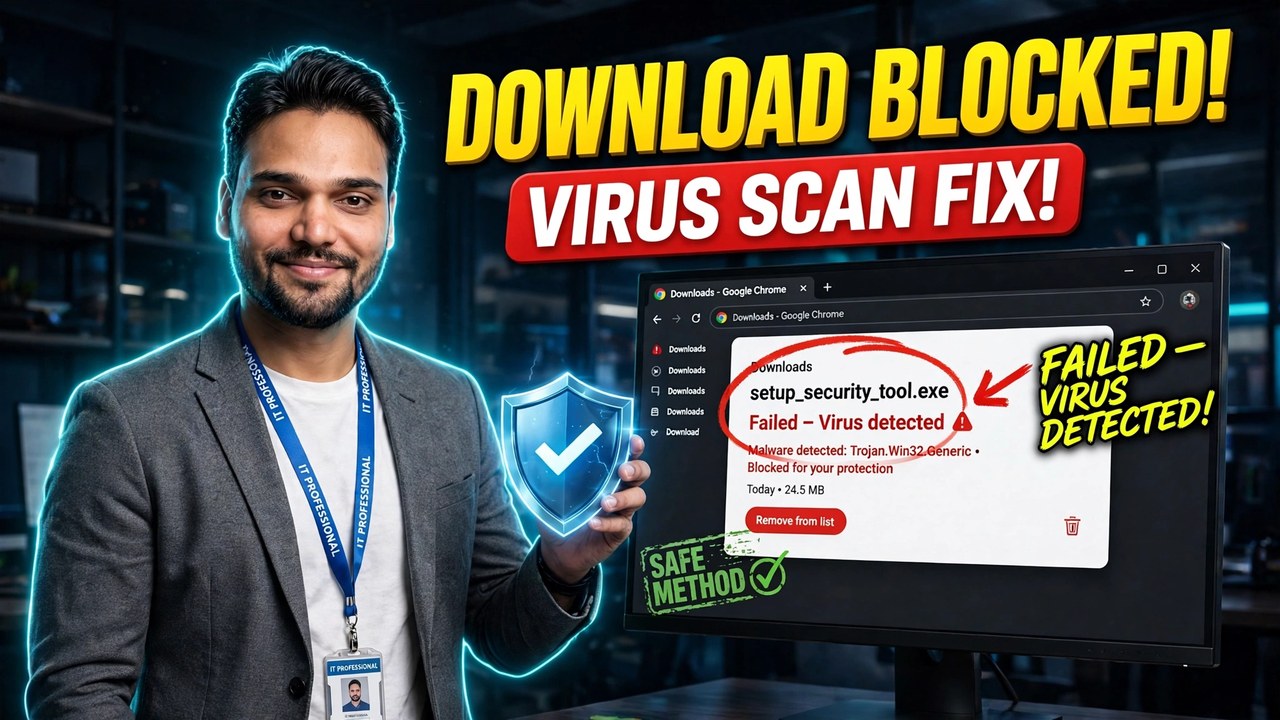
Read this first, because it decides everything else: if the file came from an unknown source, the warning may simply be correct. A file from a random pop-up, a shortened link, a "free download" portal or an unexpected message attachment should not be rescued - delete it and get the same software from its official website instead. The bypass steps in this guide are only for the other case: a file from a legitimate, official source that you can independently verify as clean, which is being stopped as a false positive. On Windows this block usually comes from Windows Security scanning working together with Chrome's Safe Browsing, and new or rarely downloaded files are flagged on low reputation alone. Verify first, then decide.
X The file downloads, then is removed or blocked at the end with this message in the downloads list
X It also happens on files from legitimate sources, including small tools and new installer versions
X On Windows, the detection normally comes from Windows Security together with Chrome Safe Browsing
VIRUS DETECTED Treat this as a question, not an obstacle: is this file actually safe? Fix 1 answers that before anything is bypassed.
The exact wording Chrome shows in the downloads list when a download is stopped as a virus detection.
Verify the File Is Genuinely Safe Before Any Bypass ⭐
This is the safety gate for the whole guide, and it is marked as the most important step deliberately. Two minutes of checking separates a harmless false positive from a real infection. Do not skip it because the file "looks" fine - malicious files are made to look fine.
- Check the source. Did this file come from the software maker's official website, reached by typing the address yourself or from a link on that maker's own page? If it came from a download portal, an ad, a pop-up, a shortened link or someone else's file share, stop here: delete the download and fetch the file from the official source instead. That alone resolves most cases.
- Scan the file or its download address independently. Go to VirusTotal in your browser. You can paste the download URL on its URL tab before downloading, or, if the blocked partial file is still on your PC, upload the file itself on the File tab. Wait for the result across all engines.
- Read the result honestly. If multiple well-known engines detect the file, treat it as malicious - delete it, and do not use any later step in this guide on it. If all engines report it clean and the source is official, you have a verified false positive and can continue.
- Check the file details. Right-click a downloaded installer, open Properties > Digital Signatures: a file signed by the expected maker is a good sign. No signature on a small free tool is common and not proof of danger - but no signature plus a non-official source plus detections means delete it.
Keep the File From Chrome's Download Details - Trusted Files Only
For a file that passed Fix 1 - official source, independently scanned clean - Chrome itself offers the intended way through. No settings need to change for this step.
- Open the downloads list with Ctrl + J, or go to
chrome://downloads. - Find the blocked download and open its Details. Chrome explains the file was blocked and, for cases it allows, offers a Keep or Keep anyway option. The exact wording varies slightly by Chrome version.
- Use Keep only if Fix 1 verified this exact file. If Chrome offers no Keep option at all for the file, that is Chrome treating it as a more serious detection - take that seriously and do not force it with other tools.
- Immediately after keeping it, right-click the file in your Downloads folder and run Scan with Microsoft Defender (Windows Security) before opening or running it. A clean local scan of the actual file on your PC is your final check.
Clear the Cache, Update Chrome and Retest
A stale cached copy of a download page can keep serving an old, flagged version of a file, and an outdated Chrome can carry outdated detection behaviour. One clean pass rules both out.
- Press Ctrl + Shift + Delete, set Time range to All time, tick Cookies and other site data and Cached images and files, and click Delete data.
- Go to
chrome://settings/help, let Chrome check for updates, install any update offered, and relaunch. - Go back to the official download page - freshly, from the maker's site, not from your history - and download the file again.
- If it now completes, scan it locally once (Fix 2, step 4) and you are done. If the same verified file is still blocked, continue to Fix 4.
Disable Security Extensions That Double-Scan Downloads
Antivirus and "download protection" extensions scan every download inside Chrome on top of Windows Security's own scan. Two scanners means two chances to block, and extension detections cannot always be kept or appealed the way Chrome's own can.
- Go to
chrome://extensionsand identify security, antivirus and download-manager extensions. - Turn them off temporarily with their toggles - do not uninstall anything yet.
- Re-download the verified file from the official source. If it completes now, the extension was the second blocker. Decide whether you still want that extension: your PC is already protected by Windows Security, so a duplicate in-browser scanner is optional.
- Turn extensions back on one at a time afterwards, so you know exactly which one blocks downloads if you keep it.
Run a Full Windows Security Scan
This step sounds backwards - scanning when you believe the file is fine - but it matters. Real malware already on a PC can damage files, hijack downloads and trigger repeated detections, and a pattern of "every download is blocked" is one of its signs.
- Open Windows Security > Virus & threat protection > Scan options.
- Choose Full scan and click Scan now. Let it complete - a full scan checks the whole system, not just the Downloads folder.
- Remove or quarantine everything it finds, then restart the PC.
- After the restart, test one download of a well-known file from its official site. If even that is blocked after a clean full scan, the remaining step is Fix 6 - still only for a verified file.
Last Resort for a Verified File: Temporarily Lower Safe Browsing, Then Restore It
Only use this step if every condition is true: the file is from the official source, an independent scan reported it clean in Fix 1, Chrome still blocks it, and the steps above did not help. This lowers a protection for a few minutes for one known file - it is never a permanent setting, and never a way to fetch files you are unsure about.
- Open Settings > Privacy and security > Security. Under Safe Browsing, note your current setting (usually Standard or Enhanced protection).
- Temporarily select No protection (not recommended) and confirm. Chrome itself labels this not recommended - that warning is correct, which is why the next steps happen immediately.
- Download the one verified file. Do not browse other sites and do not download anything else while protection is off.
- Scan the downloaded file locally with Windows Security before opening it.
- Go straight back to the same Security settings page and restore your previous Safe Browsing setting. Leaving protection off afterwards is the one outcome this guide exists to prevent.
Software Needed
No extra software needs to be installed. VirusTotal runs in the browser for the independent check, Windows Security is built into Windows for local scans and the full scan, and Chrome's own download details and Safe Browsing settings cover the rest. Do not install a "download unblocker", a cracked version of the same tool, or a replacement antivirus suggested by a pop-up on the download page - offers like that, on pages like that, are exactly how the real infections behind this warning get in.
More PC Fixes on Technical Anshu
Every week: Windows problems, hidden tools and full setup guides, explained step by step.
Subscribe on YouTubeFrequently Asked Questions
Why does Chrome say Failed - Virus detected on a file I trust?
On Windows, this message usually comes from Windows Security's attachment scanning working together with Chrome, not from Chrome alone. A new, rarely downloaded, unsigned or repacked file can be flagged even when it is legitimate - a false positive. But the same message also stops genuinely malicious files, which is why this guide verifies the file first and only then talks about keeping it.
Is it safe to click Keep or Keep anyway?
Only after you have verified the file: it came from the official source, and an independent scan of the file or its download URL reports it clean. If the file came from an unknown site, a pop-up, a shortened link or a message attachment you were not expecting, do not keep it - in that case the warning is very likely correct and the safe fix is to delete the download and get the software from its official site.
Should I turn off Safe Browsing or my antivirus to finish a download?
Never permanently. The only acceptable version is the narrow one in this guide: for a file you have already verified as safe from its official source, temporarily lower Safe Browsing, download, scan the file locally with Windows Security, and turn protection straight back on. If you are not certain about the file, the correct action is to stop, not to lower protection.
Every download is blocked, even from official sites. What is wrong?
When even known-good files from official sites are blocked, suspect the PC itself: real malware already present can trigger repeated detections, and a security extension that double-scans downloads can block everything twice over. Run a full Windows Security scan, remove security extensions as a test, update Chrome, and clear the cache before assuming each file is at fault.
How can a file be a false positive?
Scanners judge files partly by reputation: how many people have downloaded this exact file before and whether it is digitally signed. A brand new version of a small free tool, an unsigned installer, or a file repacked by a download portal can have almost no reputation, so it gets flagged on suspicion. Downloading the same tool from its maker's official site, where the file is signed and widely downloaded, usually avoids the block entirely.