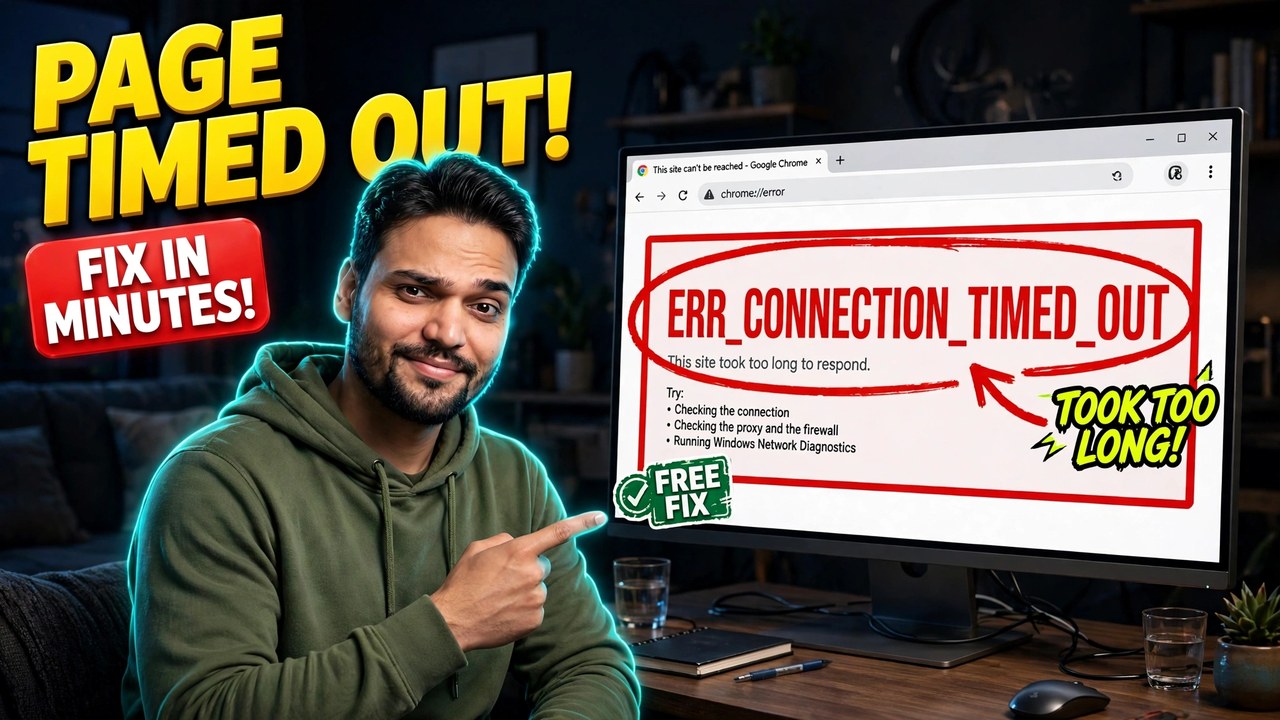
A timeout is different from most Chrome errors. Chrome found the site and knocked on the door - nobody answered in time. That silence can come from the site's server, from your router or connection dropping the traffic, or from software on your own PC - a VPN, a proxy, an extension or an antivirus web shield - sitting in the middle and stalling the reply. Because the causes are so different, the first job is to find the scope: one site or all sites, Chrome only or every browser. The steps below start with that scope check, then remove the middle layers one at a time, and end with the network reset and the Chrome settings reset for the cases where nothing else works.
X The tab spins for a long time before the error appears - it does not fail instantly
X Below the message Chrome suggests: Checking the connection, Checking the proxy and the firewall
X The timeout can hit every site, only secure sites, or only one site
ERR_CONNECTION_TIMED_OUT Chrome waited for the site to respond and the reply never arrived in time.
The fingerprint of this problem: a long wait, then a timeout - the connection was attempted but never completed.
Reload and Test Another Site to Confirm the Scope
Two minutes of testing here saves you from repairing the wrong thing. Note the pattern before you change any setting.
- Reload the failing page once with Ctrl + R. A single overloaded page often answers on the second try.
- Open two other well-known sites in new tabs. Note whether they load or also time out.
- Open the same failing site in another browser on this PC, such as Edge or Firefox. Note whether it loads there.
- Read your pattern: every site, every browser - the connection or router is at fault, Fixes 2 and 7 matter most. Chrome only - the fault is inside Chrome, Fixes 3, 4, 5 and 8 matter most. One site everywhere - that site's server is down and no local fix exists; see the FAQ. Only secure (https) sites - go straight to Fix 6.
Restart the Router, the Modem and the PC
A router that has been running for weeks can start dropping or delaying packets while still looking connected. A clean restart clears that state for the whole network at once.
- Unplug the router and, if separate, the modem. Wait 30 seconds.
- Plug the modem back in first, wait for its lights to settle, then plug in the router and wait until the internet light is solid.
- Restart the PC as well, not just Chrome, so the network adapter and its driver start fresh.
- Test the failing sites again. If the timeouts return within minutes on a freshly restarted router, note it - a router that needs daily restarts is failing hardware, not a Chrome problem.
Clear Cache and Cookies for All Time
A corrupted cache entry can make Chrome retry a broken connection path for one site or many. Clearing it costs you your signed-in sessions and nothing else.
- Press Ctrl + Shift + Delete to open Clear browsing data.
- Set the time range to All time.
- Tick Cookies and other site data and Cached images and files. Leave Passwords unticked.
- Click Delete data, restart Chrome, and test. You will need to sign in to sites again - that is expected after a cookie clear.
Test in Incognito, Then Disable Extensions One by One
Incognito runs Chrome with extensions off and a clean, temporary profile. It is the fastest way to prove whether an extension or your profile is stalling connections.
- Press Ctrl + Shift + N to open an Incognito window and open the failing site there.
- If it loads in Incognito, an extension or profile data is the cause. Go to
chrome://extensionsin a normal window. - Turn all extensions Off, confirm the site loads normally, then turn them back on one by one, testing after each. The extension that brings the timeout back is the culprit - remove it or leave it off. Ad blockers, VPN extensions and security extensions are the most common offenders here.
- If the site also times out in Incognito, extensions are not the cause. Continue to Fix 5.
Turn Off the VPN and Any Proxy
A VPN or proxy adds a full extra hop that every page must travel through. If that hop is overloaded, far away, or down, Chrome times out even though your direct connection is healthy.
- Disconnect your VPN app completely and quit it, then reload the page. Also turn off any VPN or proxy extension in Chrome itself.
- Open Settings > Network and internet > Proxy in Windows.
- If Use a proxy server is on and you did not set it yourself - for example it was left behind by old office software or set by malware - turn it off. Leave Automatically detect settings on.
- On a work PC, do not remove a proxy your IT department set deliberately. Test at home or ask IT instead.
- Reload the failing sites with the VPN and proxy fully off before moving on.
Temporarily Disable Antivirus HTTPS Scanning and Retest ⭐
When only secure sites fail, this is the fix to try first. Many antivirus products intercept https connections to scan inside them. If that scanning component hangs, every secure page stalls until Chrome gives up, while plain http pages still load - a pattern that looks exactly like a broken internet connection but is not.
- Open your antivirus settings and find the web protection feature - it is called HTTPS scanning, SSL scanning, Web Shield or Encrypted connections scan, depending on the product.
- Turn only that feature off temporarily. Do not disable the whole antivirus.
- Reload two or three secure sites in Chrome. If they load immediately, you have found the cause.
- Now do the proper repair instead of leaving protection off: update the antivirus to its latest version, restart the PC, and turn HTTPS scanning back on. If the timeouts return with it on, check the antivirus maker's support pages - a faulty scanning update is a known pattern - or switch the feature off only for the affected banking or work sites if the product allows exceptions.
- If nothing changed with scanning off, turn it straight back on and continue to Fix 7.
Flush DNS and Reset the Network Stack
Damaged Winsock or TCP/IP settings can delay or drop connections in ways that survive browser restarts. This reset rebuilds them to defaults.
- Click Start, type
cmd, right-click Command Prompt and choose Run as administrator. - Run these three commands, one at a time:
ipconfig /flushdnsnetsh winsock resetnetsh int ip reset
- Restart the PC - the resets do not take effect until you do.
- Reconnect to your Wi-Fi network if Windows asks, then test Chrome again.
Reset Chrome Settings to Defaults
If Chrome alone still times out after everything above, reset its settings. This clears the accumulated setting changes, disables extensions and restores defaults, while keeping your bookmarks, history and saved passwords.
- Open Settings > Reset settings, or type
chrome://settings/resetin the address bar. - Click Restore settings to their original defaults and confirm with Reset settings.
- Test the failing sites before re-enabling any extension.
- Re-enable extensions one by one afterwards, testing as you go, so a bad extension does not silently return.
- Also confirm Chrome is current: open Help > About Google Chrome and let it update if it offers one.
Software Needed
No extra software is required. All steps use Chrome itself (Incognito, Extensions, Reset settings), Windows Settings for the proxy check, your existing antivirus settings page, and Command Prompt for the network reset. Do not install connection repair or speed-up tools for a timeout error - they cannot repair a stalled antivirus scanner or a failing router, and they typically add yet another layer sitting between Chrome and the network.
More PC Fixes on Technical Anshu
Every week: Windows problems, hidden tools and full setup guides, explained step by step.
Subscribe on YouTubeFrequently Asked Questions
What does ERR_CONNECTION_TIMED_OUT mean in Chrome?
Chrome tried to connect to the site and waited for an answer, but no answer arrived in time, so Chrome gave up and showed a timeout. The site, the route to it, or something on your PC that inspects traffic - a VPN, proxy or antivirus web shield - failed to respond fast enough.
Why does Chrome time out but another browser works on the same PC?
If another browser opens the same sites on the same connection, the network and the sites are fine and the fault is inside Chrome: an extension stalling requests, a proxy set only in Chrome's path, corrupted cache, or settings that need a reset. The Incognito test and the Chrome settings reset are the steps that prove and fix this case.
Can my antivirus really cause connection timeouts?
Yes. Many antivirus products intercept secure connections to scan them. If that scanning component stalls, secure sites hang until Chrome times out, while plain pages may still load. Temporarily disabling only the HTTPS or web scanning feature and reloading a secure site is the standard test - and the feature should be turned back on or the antivirus updated afterwards.
Only one site times out. Is the problem on my side?
Usually not. If one site times out on your PC, on your phone over mobile data, and for other people, that site's server is down, overloaded or blocking your region or IP range. There is no Chrome setting that fixes a dead server. Wait and try again later, and check the site's own status page if it has one.
Will resetting Chrome settings delete my bookmarks and passwords?
No. Resetting Chrome settings restores the startup page, search engine, pinned tabs and default settings, and it disables extensions, but bookmarks, history and saved passwords are kept. You will need to re-enable the extensions you trust afterwards, one by one.