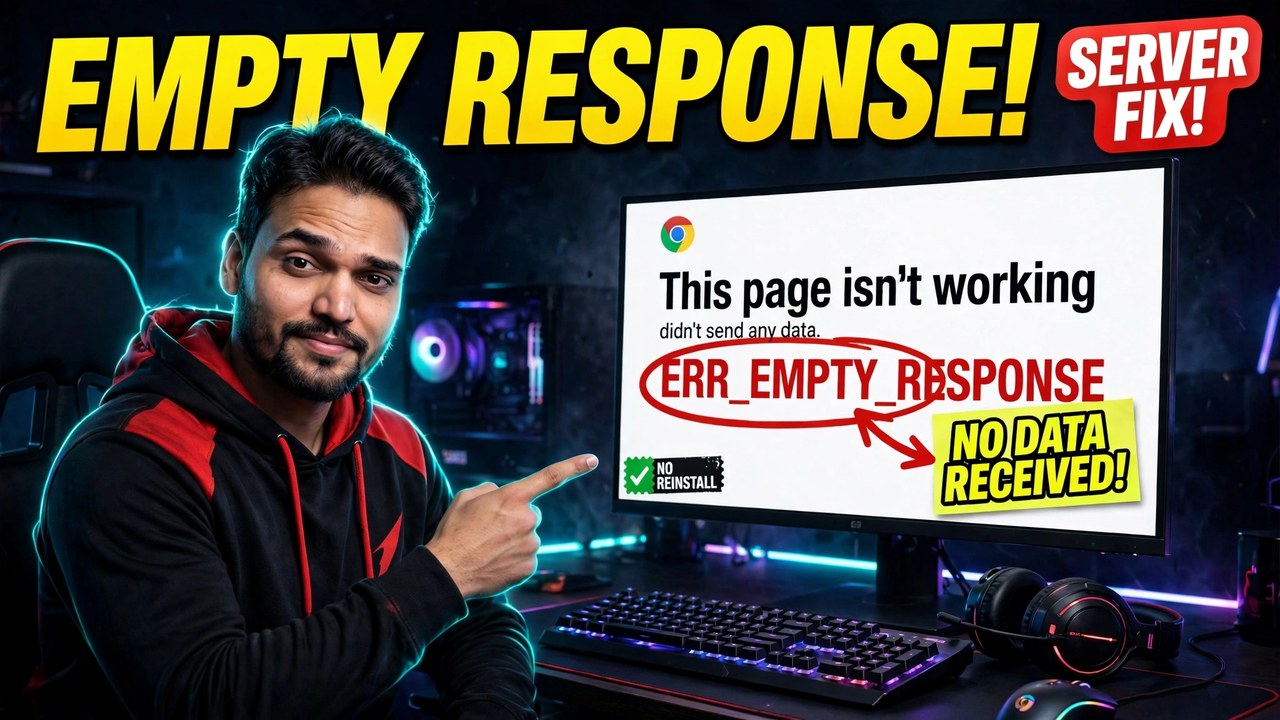
ERR_EMPTY_RESPONSE is reported again and again on Stack Overflow and the Chrome Help Community, on both live websites and localhost development servers. Read the wording carefully, because it tells you a lot: Chrome did reach the server - this is not a DNS failure and not a dead internet connection. The connection opened, and then the other side closed it without sending a single byte of the page. That happens when a server is restarting or overloaded, when a cookie or cached file makes the server drop your request, or when something in the middle - a VPN, a proxy or antivirus HTTPS scanning - cuts the connection. The steps below separate those cases in order, starting with the test that tells you which side the problem is on.
X The page did not load at all - no content, no images, just this error page
X Chrome says the site "didn't send any data"
Check: other websites load normally on the same connection - only this one site fails
ERR_EMPTY_RESPONSE The server closed the connection without sending any data back to Chrome.
The fingerprint of this problem: Chrome reached the server, but the server replied with nothing at all.
Wait a Few Seconds and Reload Once
Start with the simplest true cause: the server was busy or restarting at the exact moment you asked for the page. A restarting server accepts connections and drops them until it is fully up again.
- Wait 10 to 30 seconds, then click Reload or press Ctrl + R. One clean retry is enough to test this - do not keep hammering reload.
- Open two or three other well-known sites. If they all load, your connection is fine and the problem belongs to this one site or to how Chrome talks to it.
- If the site loads on the retry, you are done - it was a temporary server-side drop, not a fault on your PC.
- If every site shows the same error, restart your router first and retest before changing any Chrome setting. A router that is dropping connections produces this error everywhere.
Test in Incognito, Then Delete That One Site Data ⭐
This is the fix that works most often for the single-site case. Incognito runs without your cookies, your cached site data and, by default, your extensions - so it instantly shows whether your saved data for that site is what the server is rejecting.
- Press Ctrl + Shift + N to open an Incognito window and open the failing address there.
- If the page loads in Incognito, go back to a normal window and open Settings > Privacy and security > Site settings > View permissions and data stored across sites.
- Search for the failing site, open its entry and click Delete data. This removes only that site cookies, cache and storage - your other sites stay signed in.
- Reload the site in the normal window. You will need to sign in to that site again, because its cookies were deleted - that is expected.
- If the site also fails in Incognito, the problem is not your saved data. Move to Fix 3 - something between Chrome and the server is cutting the connection.
Turn Off VPN, Proxy and Antivirus HTTPS Scanning
Anything that sits between Chrome and the website can close a connection early. VPN apps, proxy settings, VPN extensions and antivirus web shields are the usual middle layers, and each one is a quick test.
- Disconnect your VPN completely (not just pause the browser extension - close or disconnect the VPN app itself) and reload the page.
- Check the Windows proxy: open Settings > Network and internet > Proxy and turn off Use a proxy server if it is on and you do not use a company proxy. Leave Automatically detect settings on.
- Disable VPN and proxy extensions at
chrome://extensionsas well - an extension proxy keeps working even when the VPN app is closed. - In your antivirus, temporarily turn off HTTPS scanning or the web shield, reload the page once, and turn the protection straight back on after the test, whatever the result.
- If the page loads with one of these off, you found the cutter: update that tool, or leave that one site out of its scanning, instead of browsing unprotected permanently.
Disable the QUIC Flag and Secure DNS as a Test
Chrome can reach sites over QUIC (HTTP/3 over UDP) and can resolve names through Secure DNS. Some routers, firewalls and older servers handle one of these badly and drop the connection instead of falling back - which looks exactly like an empty response.
- Type
chrome://flagsin the address bar, search for QUIC, set Experimental QUIC protocol to Disabled, and click Relaunch. - Then open Settings > Privacy and security > Security, scroll to Use secure DNS and turn it off for this test.
- Reload the failing site. If it loads now, turn Secure DNS back on first and retest - then you know which of the two was responsible.
- If neither change helps, set the QUIC flag back to Default so you do not leave test settings behind, and continue to Fix 5.
Flush the DNS Cache and Reload
A stale DNS entry can point Chrome at an old server address that now accepts the connection and drops it, while the site itself has moved. Flushing forces Windows to look the address up fresh.
- Right-click the Start button and open Terminal (Admin) or Command Prompt (Admin).
- Run:
ipconfig /flushdnsand wait for "Successfully flushed the DNS Resolver Cache." - Fully close Chrome (check no Chrome window is left open), reopen it and load the site again.
- Still failing? Open Help > About Google Chrome and let Chrome update, then restart it once. An old Chrome build is worth ruling out before deeper steps.
Localhost and Site Owners: Check the Server Side
If the failing address is your own local development server, or you run the website, the empty response is generated on the server - no browser setting will fix it for visitors.
- For localhost: if your dev server is HTTPS-only, open the address with
https://and the same port instead ofhttp://. An HTTPS-only server often answers an HTTP request by closing the connection, which Chrome reports as ERR_EMPTY_RESPONSE. - Confirm the dev server is running and note the exact port in its console output - a stopped server and a wrong port both look similar from the browser side.
- For a live site you own: read the server error and crash logs for the time of the failures. Look for a crashing application process, an overloaded worker, or a rule that drops connections without a response - for example an nginx
return 444rule closes the connection with no reply by design. - Fix the server cause and retest from a clean Incognito window, so your own cached data does not confuse the result.
Software Needed
No extra software is required. Every step uses tools already on your PC: Chrome Incognito and Site settings, the chrome://flags page, Windows Settings for the proxy check, and Command Prompt for ipconfig /flushdns. You do not need a DNS changer, a registry cleaner or a browser repair tool for this error - and be careful with any program that promises to fix Chrome errors for a fee; the genuine fixes are the free built-in ones above.
More PC Fixes on Technical Anshu
Every week: Windows problems, hidden tools and full setup guides, explained step by step.
Subscribe on YouTubeFrequently Asked Questions
What does ERR_EMPTY_RESPONSE mean in Chrome?
It means Chrome connected to the server, but the server closed the connection without sending any data back. The page itself never arrived. The cause can be on your PC - a stale cookie, a VPN or an extension cutting the connection - or on the server, for example an overloaded or restarting server.
Why does the site open in Incognito but not in a normal window?
Incognito starts with no cookies, no cached site data and extensions disabled by default. If the site loads there, your normal profile holds something the server rejects - usually old cookies or site data for that one site. Delete that site data in Settings and the normal window will load it again.
Does ERR_EMPTY_RESPONSE mean my internet is down?
No. If other sites load normally, your internet is working. This error is about one connection to one server being closed empty. Test two or three other sites first: if only one site fails, follow the single-site steps in this guide; if every site fails, restart the router and check the connection itself.
I get ERR_EMPTY_RESPONSE only on localhost. How do I fix it?
Check the scheme first. Many local development servers are HTTPS-only, so opening the address with http fails or returns nothing. Open the same address and port with https:// instead. Also confirm the dev server is actually running and listening on the port shown in its console output.
What should a site owner check for ERR_EMPTY_RESPONSE?
Check the server crash and error logs at the time visitors report the error, and look for rules that drop connections without a response - for example an nginx return 444 rule, a firewall rule, or a crashed application process behind a reverse proxy. A server that accepts the connection and then dies will produce exactly this error for every visitor.