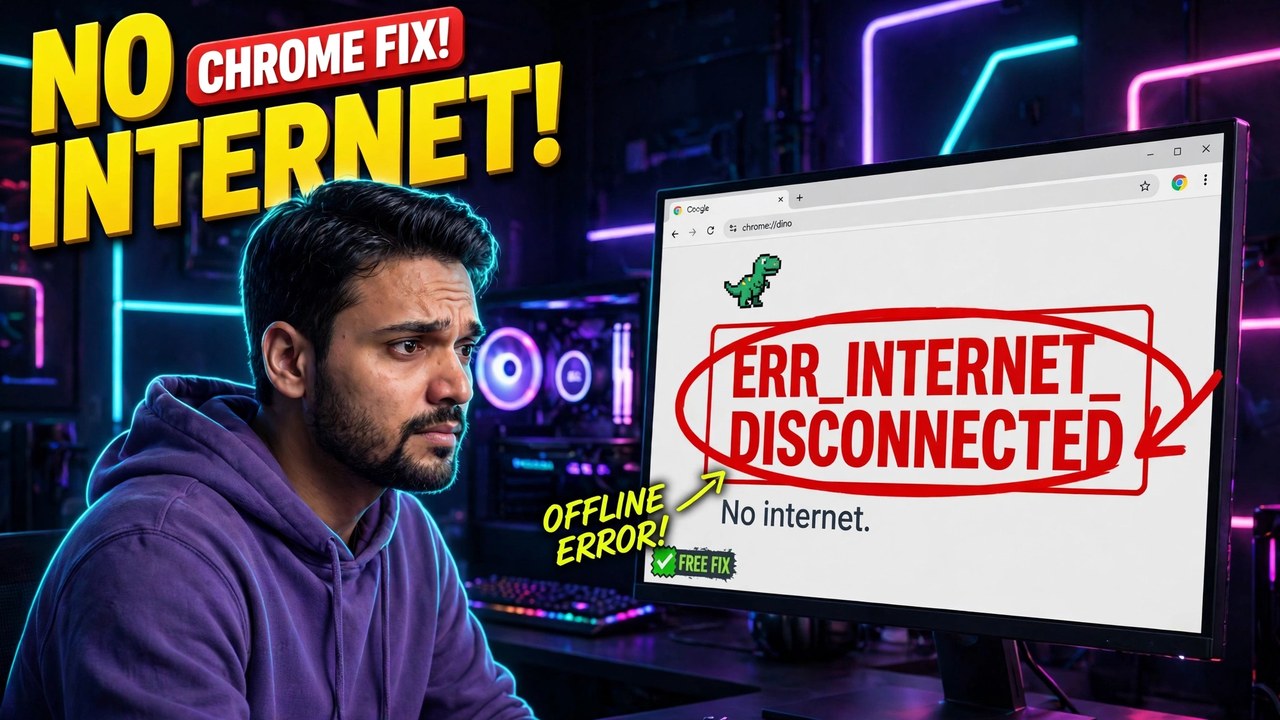
ERR_INTERNET_DISCONNECTED is Chrome's offline verdict: as far as Chrome can tell, there is no internet connection to use. The confusing cases - and they are the majority in the reports - are the ones where the PC looks connected. That is because connected to Wi-Fi is not the same as connected to the internet. The PC can be linked to a router that has lost its own connection, stuck behind an unfinished hotel sign-in page, holding a dead address after a network drop, or - when only Chrome fails - blocked by a proxy or VPN that points nowhere. The steps below follow that exact chain: physical connection first, router restart in the correct order, a clean Wi-Fi reconnect, the captive portal trick, then the Chrome-only causes.
X Chrome shows the offline dinosaur page instead of the website
X Wi-Fi or Ethernet in the taskbar may still show as connected
X The error can start after a brief network drop, after sleep, or on public Wi-Fi before sign-in
ERR_INTERNET_DISCONNECTED Chrome believes there is no working internet connection available.
The fingerprint of this problem: Chrome declares the PC offline, even when Windows claims it is connected.
Confirm the Connection: Wi-Fi, Airplane Mode and the Cable
Start with the physical truth, because every software fix fails if the link itself is down or switched off.
- Click the network icon in the taskbar. Confirm you are connected to your network - and to the right one, not a neighbour's open network or an old hotspot with the same name.
- Check Airplane mode in the same panel and in Settings > Network and internet. If it is on, turn it off. On laptops, also check the physical wireless switch or the Fn wireless key.
- On a wired connection, push the Ethernet cable in at both ends until it clicks, and look for the small link light near the port. Try a different cable if there is no light - cables fail quietly.
- Look at the Windows status wording: Connected, secured is healthy; Connected, no internet or No internet, secured means the link to the router works but the path beyond it does not - go to Fix 2. If another browser works fine right now, skip to Fix 5: your connection is fine and Chrome alone is cut off.
Restart the Modem and Router in Order
Order matters here. The modem must re-establish the line to your provider first; the router then builds the home network on top of it. Restarting them in the wrong order, or too fast, leaves the same broken state in place.
- Unplug the power from both the modem and the router. If it is one combined box, unplug that.
- Wait 30 seconds so both fully power down.
- Plug the modem in first and wait until its lights show the line is up - usually a solid internet or DSL/cable light. This can take two or three minutes.
- Plug the router in second and wait until its internet and Wi-Fi lights are solid.
- On the PC, wait for Wi-Fi to reconnect, then test Chrome. If the router shows no internet light at all after this, the fault is the line or the provider - check with your phone on mobile data whether the provider has an outage, and contact them if the line stays down.
Forget the Wi-Fi Network and Reconnect
A saved Wi-Fi profile can hold a corrupt or outdated configuration, so Windows reconnects happily to a profile that no longer works. Forgetting the network forces a clean negotiation.
- Open Settings > Network and internet > Wi-Fi > Manage known networks.
- Find your network and click Forget. Have the Wi-Fi password ready - you will need it in the next step.
- Click the network icon in the taskbar, select your network, tick Connect automatically, click Connect and enter the password.
- Open Chrome and test. If a laptop keeps failing on this one network after a clean reconnect, test it on your phone hotspot once: working there proves the home network, not the laptop, still has the fault.
On Public Wi-Fi, Open an http Page to Trigger the Sign-In
Hotels, cafes, airports and offices gate the internet behind a sign-in or accept page called a captive portal. Until you finish it, the network shows connected, the portal blocks real traffic, and Chrome reports no internet - which, until sign-in, is effectively true.
- Connect to the public Wi-Fi network.
- In Chrome, open a plain http address, for example
http://neverssl.com- type it exactly, starting with http, not https. - The network should redirect you to its sign-in page. Complete the sign-in, room details or terms acceptance it asks for.
- Reload your real site. It should now load normally.
- Why http works: an https page cannot be redirected to the sign-in page without a certificate error, so Chrome just fails. The plain http page gives the portal something it can redirect. If no sign-in page appears even on http, ask the venue staff whether their portal is up.
Disconnect the VPN and Remove an Unwanted Proxy ⭐
When the connection is healthy and other browsers work, this is the step that fixes Chrome. A dead VPN tunnel or a proxy address that points at a server which no longer exists makes Chrome - and only the traffic routed through it - behave exactly as if there were no internet at all.
- Disconnect your VPN app and quit it fully. Then open
chrome://extensionsand turn off any VPN or proxy extension as well - extensions keep routing even when the app is closed. - Open Settings > Network and internet > Proxy in Windows.
- If Use a proxy server is on and shows an address you do not recognise - commonly left behind by old office software, a removed VPN, or unwanted software - turn it Off.
- Leave Automatically detect settings turned On. That is the normal home setting and lets Windows configure the connection itself.
- Close Chrome completely, reopen it, and test. On a work-managed PC, do not remove a proxy IT set deliberately - show them this symptom instead, since a changed proxy address produces precisely this error.
Flush DNS and Reset the Network Stack
After a real outage or a bad VPN session, the network stack can keep broken settings even though the link is back. This reset rebuilds them, which is also the cure for the case where internet returned for everything except Chrome.
- Click Start, type
cmd, right-click Command Prompt and choose Run as administrator. - Run these commands one at a time:
ipconfig /flushdnsnetsh winsock resetnetsh int ip reset
- Restart the PC. The resets do not apply until after the restart.
- Reconnect to Wi-Fi if asked, then open Chrome and test several sites.
Clear the Chrome Cache and Disable Extensions
Last, clear the browser-side leftovers: stale cached offline pages and extensions that hook into the network layer can keep the error on screen after the real connection is fixed.
- Fully close Chrome first if it is still showing the dinosaur page from before the drop - an old tab keeps showing its failed state until reloaded.
- Press Ctrl + Shift + Delete, set the range to All time, tick Cookies and other site data and Cached images and files, leave Passwords unticked, and click Delete data.
- Open
chrome://extensionsand turn off network-related extensions - VPN, proxy, security and download tools first - then test. Turn the rest back on one by one. - If Chrome now works, re-enable extensions gradually over a day rather than all at once, so you can spot the one that cuts the connection if the error returns.
Software Needed
No extra software is required. Everything in this guide is built into Windows and Chrome: the network settings and proxy page, Wi-Fi management, and Command Prompt for the reset commands. The one website used, the http test page in Fix 4, runs in the browser and installs nothing. Do not install network repair or driver updater tools for an offline error - if the fault is a router, a portal sign-in or a stray proxy setting, no installed program can fix it for you.
More PC Fixes on Technical Anshu
Every week: Windows problems, hidden tools and full setup guides, explained step by step.
Subscribe on YouTubeFrequently Asked Questions
What does ERR_INTERNET_DISCONNECTED mean in Chrome?
It means Chrome believes the PC has no working internet connection at all, so it shows the offline page instead of trying to load the site. Sometimes the connection really is down. Sometimes Windows is connected to Wi-Fi but has no route to the internet, or Chrome alone is cut off by a proxy or a stalled network stack.
Why does Chrome say no internet when Wi-Fi shows connected?
Connected to Wi-Fi only means the PC can talk to the router. It does not prove the router can reach the internet, that the sign-in page for public Wi-Fi was completed, or that the PC got a valid address and gateway. A stuck router, an unfinished captive portal sign-in, or a proxy that points nowhere all produce exactly this picture.
The internet came back but Chrome still shows the dinosaur page. Why?
Chrome can hold on to the offline state for the tab that failed, and pooled connections from before the drop stay broken. Reload the tab, and if that does not help, close Chrome completely and reopen it. If every new tab still claims there is no internet while other browsers work, work through the proxy and network-reset steps in this guide.
What is a captive portal and how do I trigger its sign-in page?
A captive portal is the sign-in or accept-terms page that hotels, cafes, airports and offices show before allowing internet access. Until you complete it, the network looks connected but nothing loads. Opening a plain http site such as http://neverssl.com forces the network to redirect you to that sign-in page, because https pages cannot be redirected in the same way.
Will the network reset delete my Wi-Fi passwords?
The commands in this guide - netsh winsock reset and netsh int ip reset - rebuild the network stack settings but do not delete saved Wi-Fi profiles on their own. You may still be asked to reconnect once after the restart. This is different from the full Network reset button in Windows Settings, which does remove network adapters and saved settings, so use the commands first.