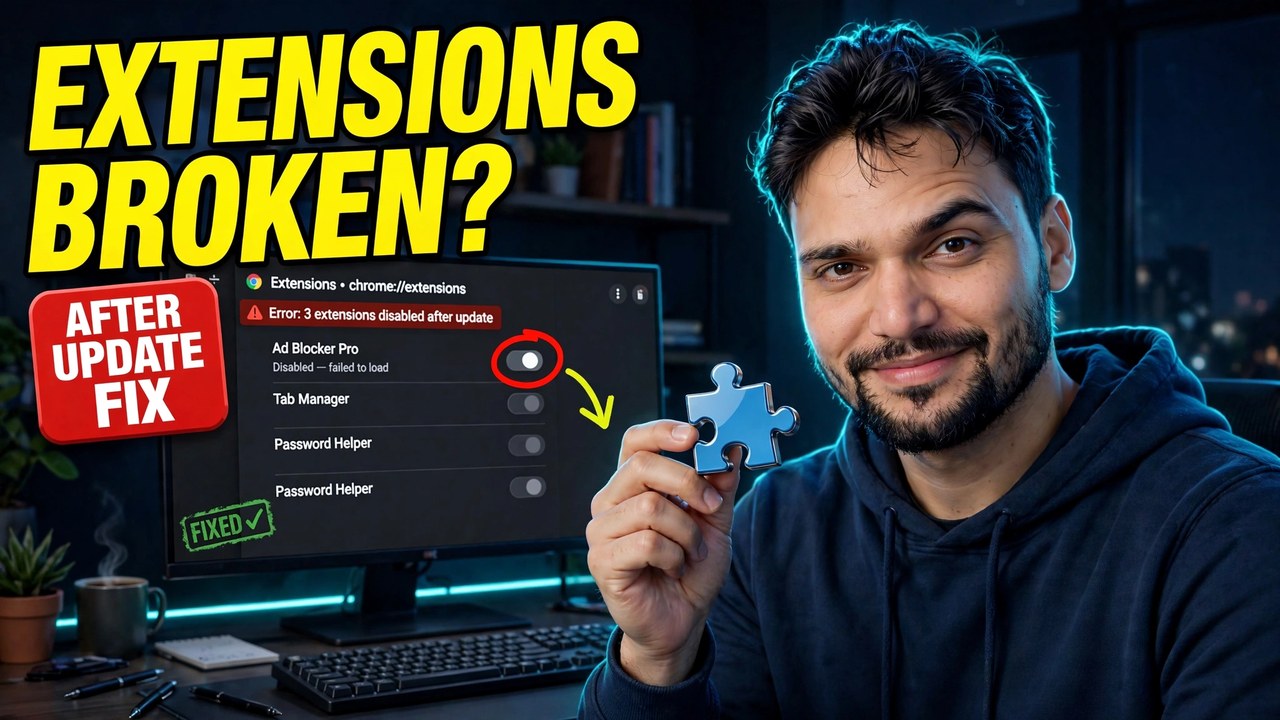
This is one of the most reported Chrome complaints after a version update, and the pattern is almost always the same: Chrome updated itself, and the extensions broke - not the other way round. An update can pause extensions that need new permissions, trip over a corrupt cached file, or leave one extension in a crashed state that blocks the rest. The good news is that the extensions and their data are usually still there. Work in order: restart and re-check Chrome's own update page, toggle the extensions, clear their errors, then test a fresh profile to prove whether your main profile is corrupt. There is no single Google-acknowledged bug or version number behind every case as of 11 November 2026 - match the symptom and work in order.
X Toolbar icons are greyed out, missing, or do nothing when clicked
X chrome://extensions shows an Errors button or a repair warning on one or more extensions
X An extension that worked yesterday now asks for permissions again, or never loads
X Only some extensions broke - others on the same browser still work fine
AFTER UPDATE The update itself is the trigger in most reports. That points to paused permissions, a crashed extension state, or profile corruption - not to the extensions suddenly becoming incompatible all at once.
The fingerprint of this problem: the extensions are still installed and listed, they just do not run - that is a state or profile problem, not a missing extension.
Restart Chrome Fully and Finish Any Pending Update
Chrome sometimes sits half-updated: the new version is downloaded but the browser was never fully restarted, so old and new parts fight each other and extensions pay the price.
- Type
chrome://settings/helpin the address bar. If Chrome says an update is available or a restart is needed, let it finish and click Relaunch. - Close every Chrome window, then press Ctrl + Shift + Esc to open Task Manager and confirm no chrome.exe process is still running. End any leftover Chrome process.
- Open Chrome again and test a broken extension. If it works now, the half-finished update was the cause - stop here.
Toggle Each Broken Extension Off and On
An update can leave an extension in a paused or crashed state. Toggling it forces Chrome to load it fresh, including any new permission it is waiting for you to approve.
- Go to
chrome://extensions. Find a broken extension and switch its toggle off, wait five seconds, then switch it on again. - If Chrome shows a message that the extension needs new permissions, read them and click Allow only if they match what the extension actually does - a simple note tool suddenly asking to read every website is a reason to remove it instead.
- Click Details on the extension and make sure Site access is not set to block the sites you use it on.
- Repeat for each broken extension, then test. If one extension refuses to start at all, leave it off and note it - go to Fix 3.
Clear the Extension Errors and Repair
Chrome records exactly why an extension failed. The Errors view is the fastest way to find the one bad extension that is dragging the others down.
- On
chrome://extensions, turn on Developer mode at the top right. - Click the Errors button on any extension that shows one and read the message. A corrupt file or failed update message means that single extension needs reinstalling - not the whole browser.
- If Chrome offers a Repair button on an extension, click it. Repair reinstalls the extension files without wiping Chrome itself.
- If one extension keeps erroring after repair, click Remove on that one extension only, restart Chrome, and reinstall it fresh from the Chrome Web Store. Test the other extensions before reinstalling it - if everything else works, that extension was the fault.
Clear Cached Files - Not Your Passwords or History
A corrupt cached file from the old version can stop extension pages and popups from loading. Clearing cached images and files is safe; it does not delete saved passwords.
- Press Ctrl + Shift + Delete, set Time range to All time, tick only Cached images and files (and Cookies if you accept signing back into sites), then click Clear data.
- Restart Chrome and test the extensions again.
- If an extension works on some sites but not others, also check
chrome://settings/content- a blocked JavaScript or pop-up setting for one site can look exactly like a dead extension.
Test a New Chrome Profile - This Proves Profile Corruption ⭐
This is the decisive test, and the fix that settles most stubborn cases. If extensions work in a brand-new profile, your main profile is corrupt - no amount of toggling will save it.
- Click your profile picture at the top right of Chrome, choose Add Chrome profile (or Add), and continue without an account - this is only a test profile.
- In the new profile, install one of the broken extensions from the Chrome Web Store and test it on the same website.
- If it works in the new profile, your old profile is corrupt. Move to the new profile properly: sign in with your Google account to sync bookmarks, passwords and extensions, and confirm everything is there before deleting the old profile.
- If extensions are broken in the new profile too, the problem is Chrome itself or something on the PC (antivirus, a system-wide block) - go to Fix 6.
Reset Chrome Settings - Last Step, Keeps Bookmarks and Passwords
Reset restores Chrome's settings to defaults, disables all extensions, and clears temporary data. Google states it does not delete bookmarks, history or saved passwords - but extensions must be switched back on one by one afterwards, which is also how you find a bad one.
- Go to
chrome://settings/resetand click Restore settings to their original defaults, then confirm Reset settings. - After the reset, go to
chrome://extensionsand turn extensions back on one at a time, testing Chrome after each one. The extension that breaks things again is the culprit - leave it removed. - If even a reset Chrome with no extensions misbehaves, uninstall Chrome from Windows Settings, restart the PC, and download a fresh copy from google.com/chrome only.
More PC Fixes on Technical Anshu
Every week: Windows problems, hidden tools and full setup guides, explained step by step.
Subscribe on YouTubeFrequently Asked Questions
Why did my Chrome extensions stop working after an update?
An update can pause an extension that needs new permissions, leave it in a crashed state, or expose corruption in your Chrome profile. In most reports the extensions and their data are still installed - they just do not load. Toggling them on chrome://extensions, clearing their recorded errors, and testing a new profile fixes the large majority of cases.
Will resetting Chrome delete my bookmarks and passwords?
No. Google states that resetting Chrome restores settings to their defaults, disables extensions and clears temporary data, but does not delete bookmarks, browsing history or saved passwords. You will need to turn your extensions back on one by one after a reset, which is also the best way to find the one extension that caused the problem.
One extension works in a new profile but not in my main profile. What should I do?
That result proves your main profile is corrupt. Sign in to the new profile with your Google account so bookmarks, passwords and extensions sync across, check everything important is present, and only then remove the old profile. Do not copy folders between profiles by hand - a copied corrupt file brings the problem with it.
An extension is asking for new permissions after the update. Should I allow it?
Only if the new permissions match what the extension actually does. A screenshot tool asking to capture the page is normal; a simple calculator asking to read and change data on every website is not. If the request does not make sense, remove the extension and find an alternative in the Chrome Web Store instead of allowing it.
Should I reinstall Chrome if extensions still do not work?
Only as the last step, after a new-profile test and a settings reset have both failed. Uninstall Chrome from Windows Settings, restart the PC, and download Chrome again from google.com/chrome only. If a clean install with a clean profile still breaks extensions, check your antivirus - some security suites block extension loading after browser updates until they are updated themselves.