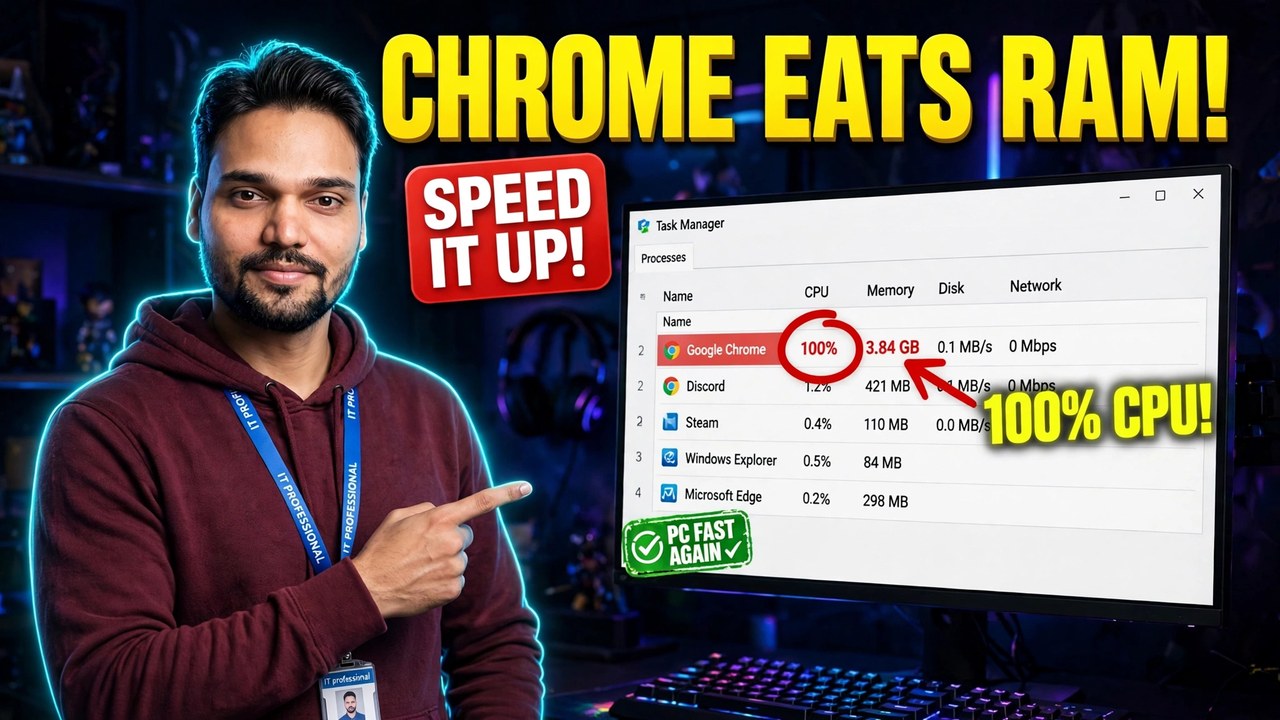
Chrome is a heavy browser by design - every tab and every extension runs as its own process, which is good for stability but means one bad item can drag the whole PC down. The mistake most people make is treating "Chrome" as one problem. It is not: one tab, one extension, or one background setting is almost always the real cause, and Chrome has a built-in tool that names it. Start there, fix only what is guilty, and keep the reset for the rare case where usage stays high with nothing open at all. Note that this guide is about constant high usage and a slow, hot PC - a tab that actually crashes with an Out of Memory message is a different problem with a different fix list.
X Task Manager shows Google Chrome at the top of both the CPU and Memory columns
X Fans run at full speed and the PC feels slow and hot, even with only a few tabs open
X Expanding the Chrome group shows many chrome.exe processes - one per tab and extension
HIGH CPU / RAM One browser, many processes - the fix starts by finding which single process is doing the damage.
What this problem looks like: Chrome pinned to the top of Task Manager while the rest of the PC has plenty of capacity.
Find the Guilty Tab or Extension in Chrome Task Manager ⭐
Windows Task Manager only tells you Chrome as a whole is heavy. Chrome's own Task Manager breaks the same usage down per tab and per extension, which turns guesswork into a one-minute job. This is the step that solves most cases.
- With Chrome open, press Shift + Esc to open Chrome Task Manager. You can also find it under the three-dot menu, More tools > Task Manager.
- Click the CPU column heading to sort by CPU, highest first. Look at the top row: it will be a named tab, an extension, or a Chrome process such as GPU Process.
- Select the guilty tab or extension and click End process. Ending a tab closes just that tab; ending an extension stops it until you re-enable it. Watch Windows Task Manager for a few seconds - if total CPU drops straight away, you have found your cause.
- Click the Memory Footprint column and repeat the check for memory: one tab holding far more memory than all others is often a page with a leak or an endlessly loading script. Reload it or keep it closed.
- If the top item is a page you need, note its name before ending it - you will want to test that same page again after the extension step below.
Disable All Extensions, Then Re-Enable One by One
Extensions run with every page you open, and one badly written or outdated extension can burn CPU on every single tab. Testing with all of them off is the fastest way to prove or clear them.
- Go to
chrome://extensionsand turn off every extension with its toggle. Leave them installed - this is a test, not a cleanup. - Use Chrome normally for a few minutes, including the page that was heavy in Fix 1, and watch CPU in Chrome Task Manager.
- If usage is now normal, turn extensions back on one at a time, using Chrome for a minute after each, until usage jumps again. The last extension you enabled is the culprit.
- Remove the culprit, or check its own settings first - some extensions have an update, a site-access restriction (run only on click), or a lighter alternative. Remove completely any extension you do not recognise.
- Quick check: if usage was still high with every extension off, extensions are not your problem - continue to Fix 3.
Turn On Memory Saver and Energy Saver
Chrome ships with two performance features made for exactly this complaint, and on many PCs both are off or only half set up. Memory Saver attacks the RAM half of the problem; Energy Saver helps on laptops.
- Open Settings > Performance (or go to
chrome://settings/performance). - Turn on Memory Saver. Inactive tabs are put to sleep and their memory is freed, while the tabs themselves stay in the tab strip and reload when clicked.
- Add any site that must never sleep - webmail with unsent drafts, a trading or work dashboard, a form you fill slowly - to the Always keep these sites active list on the same page.
- On a laptop, turn on Energy Saver as well and set it to turn on when the battery is low or unplugged. It limits background activity and visual effects, which also trims CPU spikes on battery power.
- If you keep dozens of tabs open out of habit, close the ones you are done with even with Memory Saver on - sleeping tabs still cost a little, and fifty sleeping tabs add up.
Stop Chrome Running in the Background After It Closes
If CPU usage continues even after you close the Chrome window, Chrome is not really closed. By default it can keep background apps and extensions running, which is why the fans keep spinning on an "empty" desktop.
- Open Settings > System (or
chrome://settings/system). - Turn off Continue running background apps when Google Chrome is closed.
- Close Chrome completely, then open Windows Task Manager and confirm no chrome.exe processes remain.
- Trade-off to know: extensions that notify you in real time, such as some messaging and mail checkers, will only update while Chrome is open after this change. For a PC that runs hot, that is normally the right trade.
Test Graphics Acceleration Both Ways
Graphics acceleration decides whether your GPU or your CPU draws pages and video. The wrong choice for your particular driver can push CPU usage up sharply, so this is a compare-both-ways test, not a setting to blindly switch off.
- In Settings > System, note the current state of Use graphics acceleration when available.
- Change it to the opposite state, click Relaunch when Chrome offers it, and open the same set of pages you normally use - include a video page if you watch video in Chrome.
- Compare CPU in Chrome Task Manager (Shift+Esc) between the two states on the same pages. Keep whichever state is clearly lower.
- If acceleration off is much better, your graphics driver is the underlying issue - update it from the GPU maker's site (Intel, AMD or NVIDIA) and then test acceleration on again.
Clear Browsing Data, Update Chrome and Scan for Malware
A bloated cache, an old Chrome version with a known performance bug, and unwanted software that injects itself into Chrome can all keep usage high no matter what you toggle. Clear all three in one pass.
- Press Ctrl + Shift + Delete, set Time range to All time, tick Cached images and files (cookies optional - clearing them signs you out of sites), and click Delete data.
- Update Chrome: go to
chrome://settings/helpand let it check. Install any update offered and relaunch. - Scan the PC: open Windows Security > Virus & threat protection and run a Full scan from Scan options. Remove anything found and restart.
- Also remove unwanted software Windows Security may miss: check Settings > Apps > Installed apps for toolbars and unknown programs installed around the time the problem started, and uninstall them.
Reset Chrome Settings If Usage Stays High With No Tabs Open
The last resort for this problem is also the most telling test: if Chrome uses heavy CPU with no tabs open and all extensions disabled, a changed setting or a damaged profile is driving it, and a reset is justified.
- Open Settings > Reset settings (or
chrome://settings/reset) and choose Restore settings to their original defaults. - Confirm with Reset settings. This restores the default search engine, homepage, startup pages and pinned tabs, and disables all extensions. It does not delete bookmarks, history or saved passwords.
- Use Chrome for a day before re-enabling extensions, adding back only the ones you need, one at a time.
- If usage is still high after a reset, on a clean scan, with nothing open, the problem is likely outside Chrome - check Windows Task Manager for what else is running, and check the PC's cooling: a dust-blocked fan makes every program look CPU-hungry because the processor slows itself down to control heat.
Software Needed
No extra software is required. Chrome Task Manager, the Performance and System settings, and Windows Security are all built in. Avoid "RAM booster", "browser cleaner" and registry-cleaner programs - they cannot fix a heavy tab or extension, and some of them install the very kind of unwanted software that Fix 6 tells you to scan for. The only download worth making here is a graphics driver, and only from the official Intel, AMD or NVIDIA site.
More PC Fixes on Technical Anshu
Every week: Windows problems, hidden tools and full setup guides, explained step by step.
Subscribe on YouTubeFrequently Asked Questions
Why is Chrome using so much CPU with only a few tabs open?
With only a few tabs open, high CPU almost always comes from one item: a single heavy tab running scripts or video, a misbehaving extension, or Chrome continuing to run background apps after the window is closed. Chrome Task Manager (Shift+Esc) shows CPU per tab and per extension, so you can end the exact process instead of guessing.
Does Memory Saver lose my open tabs?
No. Memory Saver puts inactive tabs to sleep and frees their memory, but the tabs stay open in the tab strip. When you click a sleeping tab it reloads. You can add sites that must never sleep, such as a webmail or a work dashboard, to the Always keep these sites active list in Settings, Performance.
Should I turn graphics acceleration off to reduce CPU usage?
Test it both ways. With graphics acceleration on, the GPU handles video and page rendering, which normally lowers CPU use. But with an old or faulty graphics driver it can do the opposite and spike CPU. Toggle it in Settings, System, relaunch Chrome, and compare the same pages in Chrome Task Manager before deciding which setting to keep.
Why does Chrome still use CPU after I close it?
Chrome can keep background apps and extensions running after the last window closes, for example messaging or sync extensions. Turn off Continue running background apps when Google Chrome is closed in Settings, System, and Chrome will fully exit. Task Manager should then show no chrome.exe processes once you close the window.
When should I reset Chrome settings for high usage?
Reset only after the earlier steps: if usage stays high with no tabs open, with all extensions disabled, and after a malware scan. Reset restores the search engine, homepage, startup pages and pinned tabs to defaults and disables extensions, but it does not delete bookmarks, history or saved passwords.