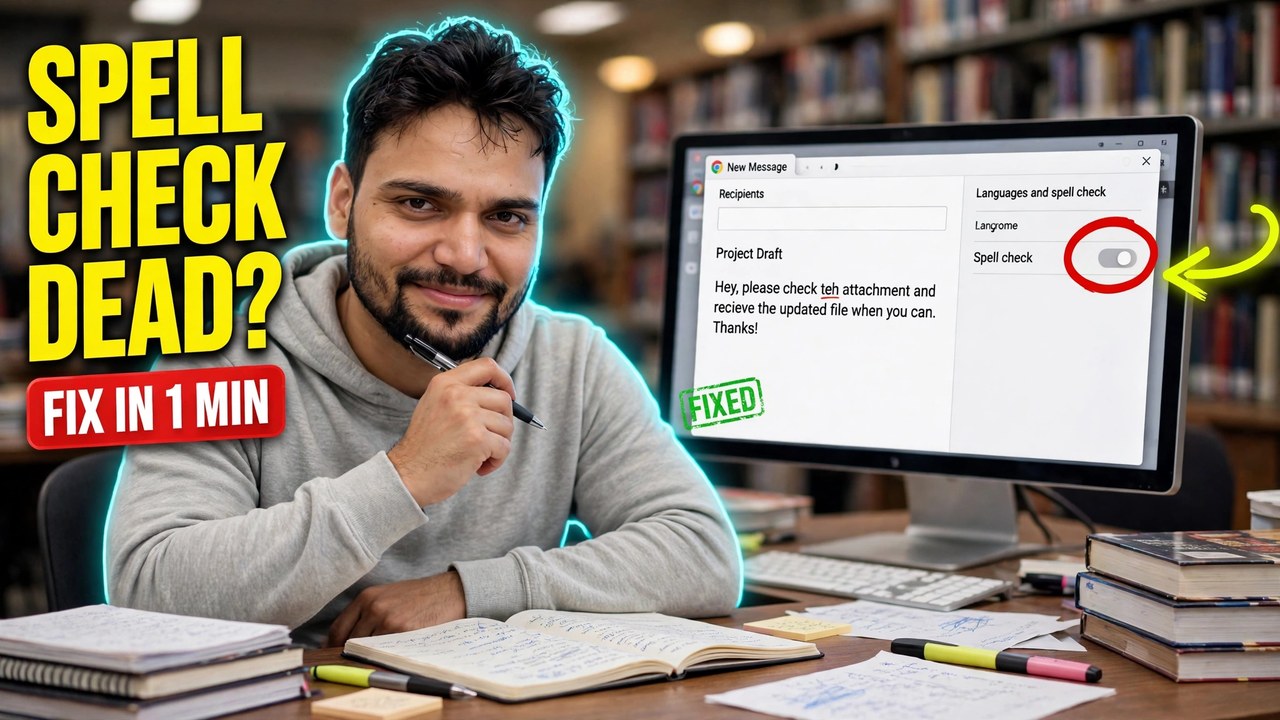
Chrome's spell check has two separate requirements that both have to be right: spell check must be switched on, and a dictionary for the language you are typing in must be present. Miss either one and you get exactly this problem - typing works fine, but no word is ever flagged. The other common traps are quieter: spell check is on for one language but you type in another, the text field itself blocks it, or the profile is damaged. Work in order and test by deliberately typing a wrong word - teh recieve adress - after each fix.
X Wrong words are never underlined in Gmail, forms or comment boxes
X Right-clicking a wrong word shows no spelling suggestions
X Spell check worked before and stopped after an update or settings change
X It works in one language but not the language you actually type in
NO UNDERLINE No underline at all means spell check is off or its dictionary is missing - Chrome cannot flag words in a language it has no dictionary for, even when the main toggle is on.
The fingerprint of this problem: typing is normal, suggestions are gone entirely - a settings or dictionary gap, not a keyboard or website fault.
Turn On Spell Check in Language Settings
The main toggle lives with the language settings, not in the general settings where most people look for it.
- Go to
chrome://settings/languagesand scroll to Spell check. - Turn on Check for spelling errors when you type text on web pages.
- Choose Basic spell check to start (Enhanced spell check sends text to Google for checking - see Fix 3).
- Open a text field, type
teh recieve adressand wait a second - the wrong words should now get a red underline. Right-click an underlined word to see suggestions.
Add Your Language So Its Dictionary Exists ⭐
This is the fix most people miss. Chrome only checks languages in your language list - type mainly in a language that is not listed, and spell check silently does nothing for it.
- On
chrome://settings/languages, click Add languages and add every language you actually type in, for example English (United States), English (United Kingdom) or Hindi. - Under Spell check, open the language list and make sure spell check is switched on for each language you added - Chrome may download the dictionary at this point, so stay online.
- Restart Chrome, then type the test words again in your main language.
- If you type in two languages in the same message, add both - Chrome checks against the dictionaries it has, and a missing one shows up as unchecked words, not as an error message.
Try Enhanced Spell Check, Then Basic Again
Enhanced spell check uses Google's online checker and catches more errors, but it needs you signed in and online, and it sends what you type to Google. Toggling modes also forces Chrome to reload the checker, which clears a stuck state.
- On
chrome://settings/languagesunder Spell check, select Enhanced spell check, restart Chrome and test. - If enhanced mode does not help - or you do not want text sent to Google - switch back to Basic spell check, restart Chrome and test again.
- If neither mode underlines the test words, the fault is deeper than the checker mode - continue to Fix 4.
Rule Out the Website, Extensions and Incognito
Before blaming Chrome's profile, rule out the three outside causes: a site that disables checking, an extension that interferes with text fields, and Incognito mode behaviour.
- Test the same wrong words on a second website (a Gmail draft and a social comment box). If only one site fails, that site disables spell check in its fields - Chrome is fine.
- Go to
chrome://extensionsand temporarily turn off grammar and writing extensions (they often replace Chrome's checker with their own, and a broken one leaves you with neither). Test again. - Spell check settings apply in normal windows; if you mainly browse in Incognito, test in a normal window to compare.
Test a New Profile, Then Reset If Needed
If spell check is on, the dictionary is present, and it still never works anywhere, the Chrome profile itself is the remaining suspect - the new-profile test proves it in two minutes.
- Click your profile picture, choose Add Chrome profile, and continue without an account.
- In the new profile, confirm spell check is on in
chrome://settings/languagesand type the test words. If it works there, your main profile is damaged - sign in to the new profile to sync your data across. - If it fails in the new profile too, go to
chrome://settings/resetin your main profile and Restore settings to their original defaults - this does not delete bookmarks, history or saved passwords. Then re-check the spell check toggle and language list.
More PC Fixes on Technical Anshu
Every week: Windows problems, hidden tools and full setup guides, explained step by step.
Subscribe on YouTubeFrequently Asked Questions
Why is Chrome spell check not underlining wrong words?
Either spell check is switched off in chrome://settings/languages, or Chrome has no dictionary for the language you are typing in. Both must be right: turn on Check for spelling errors when you type text on web pages, and add your typing language so its dictionary downloads. Test with an obviously wrong word like teh or recieve.
Does Chrome spell check work for languages other than English?
Yes, for every language you add in chrome://settings/languages. Chrome downloads a dictionary for each added language and checks your typing against them. If you type in Hindi, Spanish or any other language and never added it, spell check stays silent for that language even though it works for English.
What is the difference between basic and enhanced spell check?
Basic spell check runs on your device using Chrome's downloaded dictionaries. Enhanced spell check sends the text you type to Google for a stronger check with more suggestions - which means it needs an internet connection and shares typed text with Google, so many people keep Basic on for privacy and use Enhanced only if they want the extra accuracy.
Spell check works on some websites but not others. Why?
Some websites turn spell check off inside their own text fields - code editors, secure forms and exam portals do this deliberately, and Chrome respects it. Test in a Gmail draft: if the red underline works there, Chrome is healthy and the silent site is a site choice, not a fault you can fix in settings.
Will resetting Chrome fix spell check, and what do I lose?
A reset can fix spell check when profile settings are damaged, and Google states it does not delete bookmarks, history or saved passwords. It does restore default settings and disable extensions, so afterwards go back to chrome://settings/languages, confirm spell check is on, and confirm your language is still in the list.