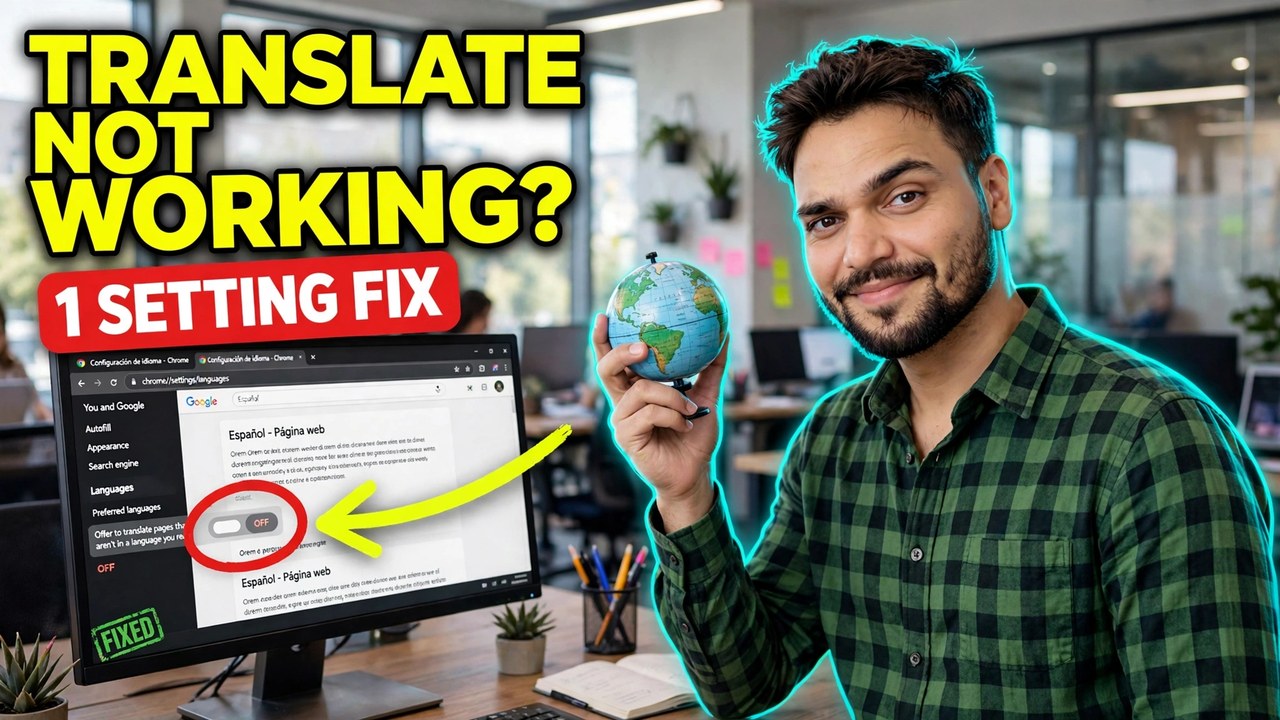
Chrome's translator is built in, free and needs no extension - so when it stops, the cause is almost never a missing tool. In the Chrome Help Community the same handful of causes repeat: the Offer to translate setting is off, the page's language was once set to Never translate, the language is not in Chrome's list at all, or a site setting is blocking it. One more trap: Chrome will not offer to translate a page that is already in a language you read, and pages that mix two languages heavily can also be skipped. Work through the fixes in order and test on a clearly foreign-language page after each one.
X The translate icon never appears in the address bar on foreign pages
X Right-click on the page shows no Translate option
X Translate worked before and stopped after a settings change or an update
X It fails on every foreign site - or only on one specific site
NO OFFER Chrome only offers translation when Offer to translate is on, the language is known, and that site or language is not blocked by an earlier Never translate choice. One blocked entry is enough to silence it.
The fingerprint of this problem: the page is clearly in another language, but Chrome behaves as if translation does not exist - a settings or block-list problem, not a broken translator.
Turn On Offer to Translate in Language Settings
This single toggle is the most common cause. If it is off, Chrome never shows the translate offer on any page, and the right-click option disappears too.
- Go to
chrome://settings/languages. - Under Google Translate, turn on Use Google Translate / Offer to translate pages in this language (the exact label varies slightly by version).
- Also check that your own reading language is set correctly at the top of the same page - Chrome compares the page language against it.
- Open a foreign-language page and look for the translate icon at the right end of the address bar. If it appears, click it and choose your language.
Add the Page Language and Remove Never Translate Blocks
At some point you - or someone using this PC - may have clicked Never translate this site or Never translate this language. That one click blocks the offer permanently until you undo it.
- On
chrome://settings/languages, look for the Never offer to translate these languages / automatically-translate lists and remove the page's language if it is listed there. - Click Add languages and add the language of the pages you visit, so Chrome recognises it properly.
- On the problem site itself: right-click the page and choose Translate if shown, click Options in the translate popup, and make sure Never translate this site is not ticked.
- Reload the page with Ctrl + R and check for the icon again.
Translate Manually and Check the Page Is Really Foreign
Before deeper fixes, rule out the two false alarms: a page Chrome thinks is already in your language, and a page built from images (text inside pictures cannot be translated by any browser).
- Right-click anywhere on the page text. If Translate to your language appears, use it - manual translate works even when the automatic offer is suppressed.
- Try selecting some page text: if you cannot select it, the text is an image and Chrome Translate can never read it - that site is not a Chrome fault.
- Test a second, different foreign site. If translate works there, the first site's coding or language detection is the problem, not your browser.
Clear the Site Settings for the Problem Site
If translate fails on one site only, that site's saved settings are the suspect. Clearing them removes the stored block without touching your other sites.
- Open the problem site, click the tune / lock icon at the left of the address bar, and open Site settings.
- Click Delete data / reset permissions for that site, then reload the page.
- Sign back into the site if needed, then look for the translate offer again.
Update Chrome and Turn Off Conflicting Extensions ⭐
A stuck half-update can break built-in features including Translate, and some privacy or script-blocking extensions suppress the translate popup. This step rules out both - it is the one that fixes the stubborn every-site cases.
- Go to
chrome://settings/help, let Chrome update, and click Relaunch if asked. - Go to
chrome://extensionsand temporarily turn off ad blockers, script blockers and any other translator extension, then test a foreign page. - If translate returns, turn extensions back on one by one to find the blocker, and in that extension's options allow the sites you need translated.
Reset Chrome Settings If Translate Fails Everywhere
If no foreign site ever offers translation after all of the above, Chrome's settings themselves are damaged. A reset restores defaults and does not delete bookmarks, history or saved passwords.
- Go to
chrome://settings/resetand click Restore settings to their original defaults, then confirm. - Go back to
chrome://settings/languagesand confirm Offer to translate is on - the reset turns defaults back on. - Test a foreign-language page one last time. If it still fails in a fresh test profile as well, reinstall Chrome from google.com/chrome.
More PC Fixes on Technical Anshu
Every week: Windows problems, hidden tools and full setup guides, explained step by step.
Subscribe on YouTubeFrequently Asked Questions
Why does Chrome not offer to translate pages anymore?
The usual causes are the Offer to translate toggle being off in chrome://settings/languages, the language or site sitting on a Never translate list from an earlier click, or the page language not being added in Chrome's language settings. Work through those three checks first - they account for most reports in the Chrome Help Community.
Where is the translate icon in new versions of Chrome?
The translate icon appears at the right end of the address bar when Chrome detects a foreign-language page, and the same option lives on the right-click menu as Translate. If neither appears on any foreign page, the Offer to translate setting is off or that language is blocked - check chrome://settings/languages.
Chrome translates some sites but not one specific site. Why?
That site was probably set to Never translate this site, or its saved site settings are blocking the offer. Click the icon at the left of the address bar, open Site settings for that site, delete its saved data, reload, and check the translate popup Options to make sure Never translate this site is unticked.
Can Chrome Translate work on text inside images?
No. Chrome Translate reads the page's text, so words baked into a picture, banner or screenshot cannot be translated by Chrome or any other in-browser translator. If you cannot select the text with your mouse, it is an image - use your phone's camera translation for that content instead.
Does resetting Chrome fix Translate, and what do I lose?
A reset often fixes Translate when settings are damaged, because it restores the language defaults. Google states a reset does not delete bookmarks, history or saved passwords, but it does restore default settings and disable extensions, so check chrome://settings/languages afterwards and turn your extensions back on.