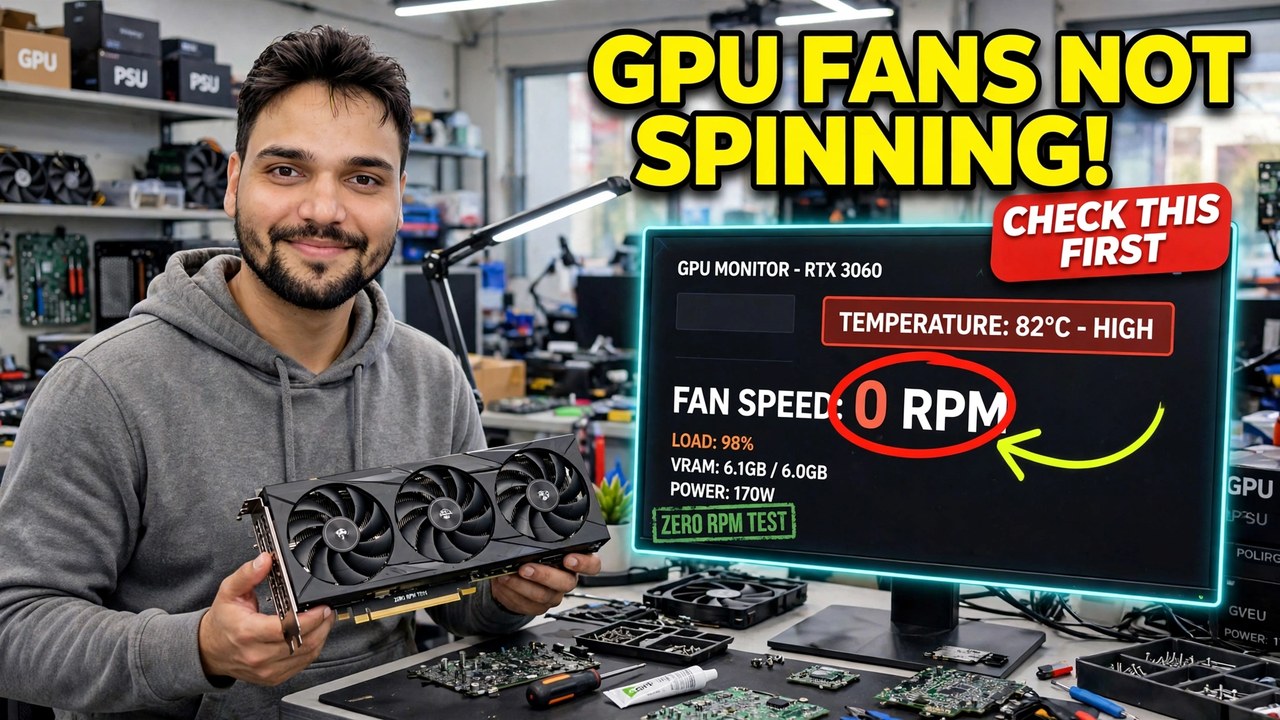
Most graphics cards made in the last several years have a zero-RPM (fan stop) mode: the fans stay off below about 50-60 degrees C because the heatsink alone can cool the card at idle, and they only spin up under load. So fans off on the desktop is normal. Fans off while the card is hot in a game, fans that twitch but never start, or one fan spinning and the other dead - those are real faults. The order below proves which one you have before you change anything: temperature under load first, software second, hardware last.
X Fans are still on the desktop and in menus, but spin up in games - usually normal
X Fans never spin even when the GPU passes 75-80 degrees C in a game - a real fault
X One fan spins and the other does not, or a fan twitches and stops
X GPU temperature climbs and the game stutters or the PC shuts down
CHECK TEMP FIRST Fan behaviour means nothing without the temperature next to it. Below about 55 degrees C, stopped fans are the design. Above 75 degrees C, stopped fans are a problem.
The fingerprint question is never just 'are they spinning?' - it is 'are they spinning when the card is hot?'
Prove It Under Load - The Zero-RPM Test
This one test decides whether you have a problem at all. Do it before changing any setting.
- Install a free monitor such as GPU-Z or HWMonitor and note the GPU temperature and fan RPM on the desktop. Fans at 0 RPM with temperature in the 30-50 degree range is zero-RPM mode working as designed.
- Now run a demanding game or a free benchmark (for example Heaven Benchmark) for 5-10 minutes. On a healthy card the fans start as temperature passes roughly 55-65 degrees C.
- If the fans start under load, there is no fault - stop here. If temperature passes 75-80 degrees C and RPM is still 0, continue to Fix 2.
Check the GPU Power Cables Are Fully Seated
A loose 6-pin / 8-pin (or 12VHPWR) power connector can leave the card running in a limited state with fans never starting properly.
- Power off, unplug, and press each GPU power connector in until its latch clicks. A connector that looks plugged in but sits 1-2 mm out is a common find.
- Use a separate cable run from the power supply for each 8-pin connector where possible, instead of one daisy-chain pigtail on high-power cards, exactly as the card maker recommends.
- Power on and repeat the load test in Fix 1. If fans now behave, the connector was the cause.
Force the Fans On With a Manual Fan Curve ⭐
This test separates software control from a dead fan motor: if the fans spin when commanded, the hardware works and the profile or driver was the problem.
- Open your card maker's utility (MSI Afterburner works on most brands, or AMD Software / your vendor app) and set a manual fan speed of 60-70 percent, then apply.
- If the fans spin up immediately, the fan motors are fine. Set a simple custom curve instead - for example 30 percent from 40 degrees C rising to 80 percent at 75 degrees C - and save it to start with Windows.
- If the fans still do not move at 100 percent manual speed, go to Fix 4, then Fix 5 - this is now likely driver or hardware.
Clean Reinstall the Graphics Driver
A corrupted driver or a leftover profile from another utility can hold the fans at zero. A clean install removes that state.
- Download the latest driver for your exact card from NVIDIA, AMD or Intel directly - never from a driver-download site.
- Uninstall the current driver, restart, then install the new driver and choose its clean / factory reset install option if offered. Also remove any second fan-control utility so only one program controls the fans.
- Repeat the load test and the manual fan test. Fans that work after a clean driver prove the old driver state was the cause.
Inspect the Fans - Dust, Obstruction and One Dead Fan
With software proven good, look at the fans themselves. Power off and unplugged for everything in this step.
- Check for dust mats, a loose cable or a cable tie touching a blade. Spin each fan gently by hand (PC off): it should turn freely with a slight magnetic resistance, not grind, wobble or stop dead.
- If one fan is seized or grinds, that fan needs replacement - replacement GPU fans for the exact card model are sold by the card maker and parts sellers, and changing them is normally a few screws on the shroud.
- If no fan moves at all even at 100 percent manual speed with reseated power cables, suspect the card's fan header or the card itself. If the card is in warranty, stop here and claim warranty instead of opening the shroud.
Protect the Card Until It Is Repaired
If a fan is confirmed dead and a replacement will take days, reduce heat so the card survives the wait.
- Lower the in-game settings and cap the frame rate (for example 60 FPS) so the card is not at full load, and watch temperature in the overlay - keep it under 80 degrees C.
- Increase case airflow: make sure front intake fans run and the case side panel vents are not blocked.
- Do not run benchmarks or long gaming sessions on a card with no working fans. If temperature still passes 85-90 degrees C in light use, stop using the card until the fan is replaced.
More PC Fixes on Technical Anshu
Every week: Windows problems, hidden tools and full setup guides, explained step by step.
Subscribe on YouTubeFrequently Asked Questions
Is it normal for GPU fans to not spin at idle?
Yes, on most modern cards. Zero-RPM or fan-stop mode keeps the fans off until the GPU reaches roughly 50-60 degrees C, because the heatsink alone cools the card at idle and silence is a feature. Fans that are still on the desktop but start under gaming load are working exactly as designed - there is nothing to fix.
At what temperature should GPU fans start spinning?
Most cards start their fans between about 55 and 65 degrees C and ramp up from there. The exact start point is set by the card maker's fan curve and varies by model. Fans still at 0 RPM while the GPU is above 75-80 degrees C under load is not normal on any model - that needs the cable, fan-curve and driver checks in this guide.
Why is only one of my GPU fans spinning?
In zero-RPM mode some cards control fans together, so both should start and stop together under load. If under real load one fan spins and the other never moves, the stopped fan is usually obstructed, has a damaged bearing, or its small connector on the card has come loose. Power off, check for obstruction, and spin it gently by hand - a seized fan needs replacement.
Can I use my PC if the GPU fans are not spinning?
Only if the fans are off because of zero-RPM mode and temperatures stay low - that is normal use. If the fans are truly dead, light desktop use with temperatures under about 60 degrees C is low risk for a short time, but do not game or render until the fans are fixed: an uncooled card will throttle, crash and can be permanently damaged by repeated overheating.
Will a manual fan curve fix GPU fans not spinning?
It fixes the software half of the problem: if the fans spin when you command 60-70 percent manually, the motors are alive and the automatic curve or driver was at fault, so a saved custom curve is a real fix. If the fans do not move even at 100 percent manual speed, no curve can help - the fault is power, the fan motors or the card, and it needs the hardware checks in Fix 5.