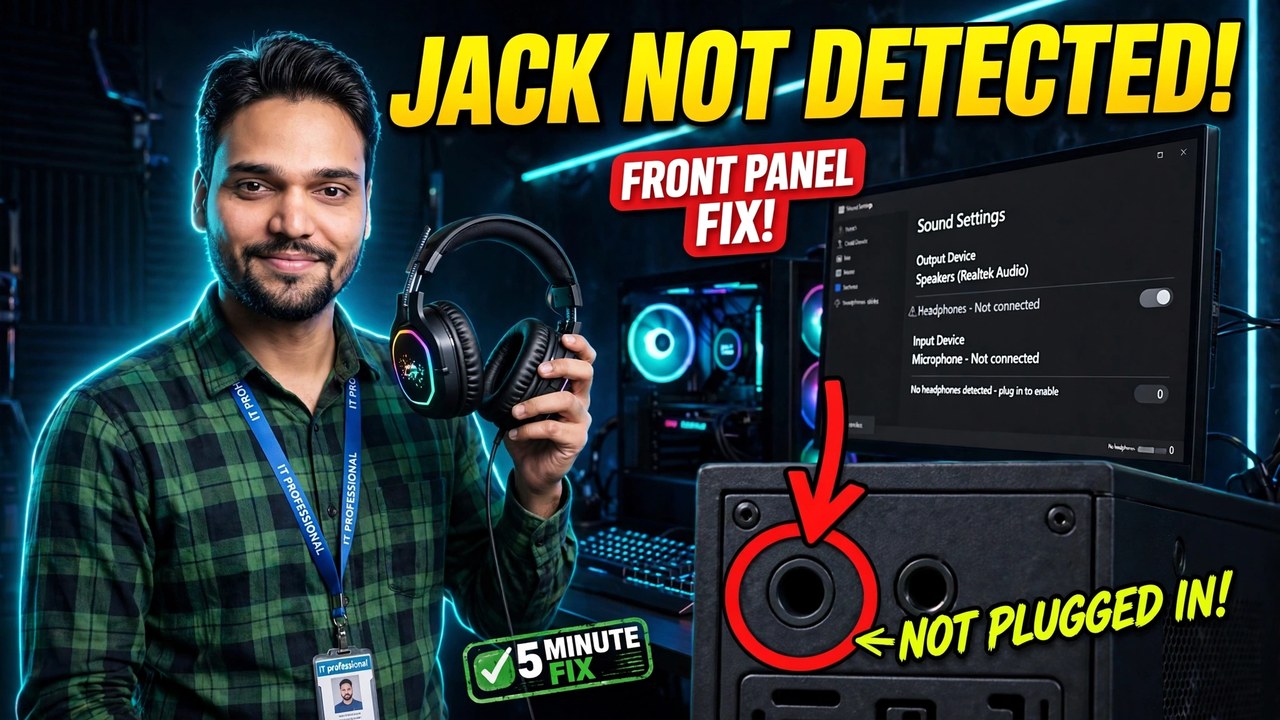
The MSI Global Forum case that anchors this problem - a Z590-A PRO whose front-panel audio header JAUD1 seemed dead - shows why this fault confuses people: everything about the audio works except the front. The reason is structural. Rear jacks are soldered straight onto the motherboard. Front jacks are not: they sit on the case, and reach the motherboard through a case cable labelled HD AUDIO plugged into a small header. So a front-only failure lives in that cable, that header, the jack-detection signal, or the case jack itself - almost never in the audio codec or your headphones. The steps below prove the split, reseat the one cable that matters, test the detection setting both ways, and then give you the honest verdict list if hardware has genuinely failed.
X Realtek Audio Console shows the front panel headphone jack greyed out
X Headphones are shown as "Not plugged in" while physically plugged into the front jack
X The same headphones play sound immediately from the rear green jack
Check: rear working plus front silent means codec, driver and headphones are proven good - the fault is in the front path only
FRONT PATH ONLY Case HD AUDIO cable, motherboard header, jack detection, or the case jack itself.
The fingerprint of this problem: total rear success and total front silence, with the same pair of headphones.
Prove the Split: Same Headphones, Rear vs Front
One minute of testing removes the headphones, the codec and the driver from suspicion, so everything after this is aimed at the right parts.
- Play any sound, plug the headphones into the rear green jack on the motherboard, and confirm you hear it and Windows shows them as the output.
- Move the same headphones to the front jack without changing anything else. Open Settings > System > Sound and the Realtek Audio Console, and watch whether a headphone device appears at all.
- Read the split plainly: rear works, front never detected = the front path only, continue below. If the rear also fails, this is a general audio driver problem, not this guide's problem.
- Push the front plug fully in and give it a slight wiggle while watching the console. A jack that flickers into detection with movement has worn or dirty contacts - note it for Fix 5.
Reseat the HD AUDIO Cable on the Motherboard Header ⭐
This is the fix that solves most front-jack cases. The front panel hangs off one small plug, and that plug works loose during builds, cleaning and cable tidying - or was fitted to the wrong connector from the start.
- Shut the PC down, switch the PSU off and unplug the cord before opening the case.
- Find the case cable labelled HD AUDIO. Follow it to the motherboard front-audio header - a 9-pin header labelled AAFP (ASUS), JAUD1 (MSI) or F_AUDIO (Gigabyte), usually along the bottom edge of the board. Your manual confirms the exact spot.
- Pull the plug straight off and push it firmly back on until it is fully seated. The plug is keyed with one blocked pin: align that blocked hole with the missing pin on the header. It should slide on with even pressure - if it needs force, it is misaligned; stop and re-align.
- Check which plug is connected. Many case cables carry two plugs, HD AUDIO and AC'97. Only the HD AUDIO plug belongs on a modern board - the AC'97 plug gives no jack detection, which produces exactly this symptom.
- Also check the cable run: a cable pinched against a sharp case edge or yanked tight around a drive cage can break internally while looking fine.
- Power up and repeat the front-jack test from Fix 1.
Test the Jack Detection Setting Both Ways
The front jack only becomes active when the board reports "something was plugged in". If that detection signal is the broken part, this setting both diagnoses it and works around it.
- Open Realtek Audio Console (or Realtek HD Audio Manager on older driver packages).
- Open the connector settings - the gear or folder icon near the jack display, depending on your version.
- Find Disable front panel jack detection and change it to the opposite of its current state, then retest the front jack. With detection disabled, the front jack is treated as always present.
- Judge the result: if sound now plays in the front headphones, detection was the fault - the cable sense line, the jack contacts, or the header's detection pin. Leaving the setting disabled is a legitimate permanent workaround.
- While you are in Sound settings, also confirm the front headphone output is not set to zero volume or disabled in Settings > System > Sound > More sound settings once it does appear.
Confirm HD Audio in BIOS and Reinstall the Maker's Audio Driver
Two software-side checks remain, and both take their settings from the motherboard maker, not from generic packages.
- Restart into the BIOS/UEFI setup (usually Del or F2) and find the onboard devices section. Confirm HD Audio Controller (name varies slightly by maker) is Enabled. If it was disabled, the rear jack would normally fail too - but after driver changes and BIOS resets, verify rather than assume.
- In Windows, go to your motherboard maker's support page for your exact board model and download the latest audio driver listed there.
- Install it, restart, and retest the front jack. The maker's driver package includes the matching Realtek console and the correct front-panel configuration for your board; a generic driver from elsewhere often does not.
- If a Windows update recently replaced the audio driver, this reinstall is also the step that puts the maker's version back.
The Hardware Verdict: Case Jack, Front Panel, or Header
If every step above is done and detection still never triggers, the fault is physical and sits in one of three places. Test what you can, then name it honestly.
- If you have access to another case or a spare front-panel module, connect its HD AUDIO plug to your header and test. A working test panel proves your original case jack or front-panel board is faulty - replace that module, which is a cheap case part.
- If a known-good front panel also never detects, suspicion moves to the motherboard header itself. In the MSI forum case behind this guide, after cable and settings were exhausted, the JAUD1 header on the board proved defective.
- Inspect the header pins under good light: a bent or pushed-back pin from a forced plug is sometimes visible and is a warranty matter, not a home repair.
- Practical workarounds while a board fault is sorted out: use the rear jack with an extension cable or splitter, or a small USB audio adapter, which Windows treats as its own sound device and which bypasses the front path completely.
- If the board is under warranty and the header is proven faulty with a known-good panel, claim it - bring your test notes; they are exactly what support will ask you to repeat.
Software Needed
Only the board maker's own audio driver and its Realtek Audio Console, both free from the motherboard maker's support page for your exact model. Everything else is built into Windows (Sound settings) and the BIOS setup. No third-party audio fixer or driver updater is needed - and none of them can reseat a cable, choose the correct HD AUDIO plug, or repair a defective header, which is where this problem actually lives.
More PC Fixes on Technical Anshu
Every week: Windows problems, hidden tools and full setup guides, explained step by step.
Subscribe on YouTubeFrequently Asked Questions
Why do my headphones work in the rear jack but not the front jack?
Because they are different paths. The rear jacks are soldered directly on the motherboard and driven by the audio codec, so rear sound working proves the codec, the driver and your headphones are fine. The front jack reaches the same codec through a separate case cable plugged into the motherboard front-audio header. When the front fails alone, the suspects are that cable and header, the jack detection setting, or the front jack itself - not the whole audio system.
What is the difference between the HD AUDIO and AC97 plugs on the case cable?
Many cases provide two plugs on the front-audio cable: HD AUDIO and AC97. They are for two generations of the front-audio standard, and HD Audio is the one every modern motherboard uses - it supports jack detection, which is how Windows knows headphones were plugged in. If the AC97 plug was connected by mistake, front detection typically never works. Connect the plug labelled HD AUDIO to the header, with the keyed missing pin aligned; never force it.
What does Disable front panel jack detection do in Realtek Audio Console?
Normally the Realtek driver only activates the front jack when the detection signal says something was plugged in. If that detection path is faulty - in the cable, the jack or the header - the driver keeps the jack greyed out even with headphones physically in. Disabling front panel jack detection in the connector settings tells the driver to treat the front jack as always present, which restores sound when detection alone is broken. Test the setting both ways: it is a useful workaround and also a diagnosis.
Where is the front audio header on the motherboard?
It is a 9-pin header, usually along the bottom or rear-bottom edge of the board, labelled AAFP, JAUD1 or F_AUDIO depending on the maker - ASUS uses AAFP, MSI uses JAUD1, Gigabyte uses F_AUDIO. Your motherboard manual has the exact location and pin diagram. The case plug is keyed with one blocked pin so it only fits the correct way round when aligned with the header's missing pin.
Everything is connected correctly and the front jack still never detects. What is left?
After the HD AUDIO cable is reseated on the correct header, jack detection has been tested both ways, HD Audio is enabled in BIOS and the board maker's driver is installed, the remaining suspects are physical: the case front jack itself, the case front-panel board and cable, or the motherboard header. Test with another case front panel if you can. In the MSI forum case this guide is drawn from, the JAUD1 header on the motherboard proved defective. A rear-jack splitter or a USB audio adapter is the practical workaround while a board fault is dealt with under warranty.