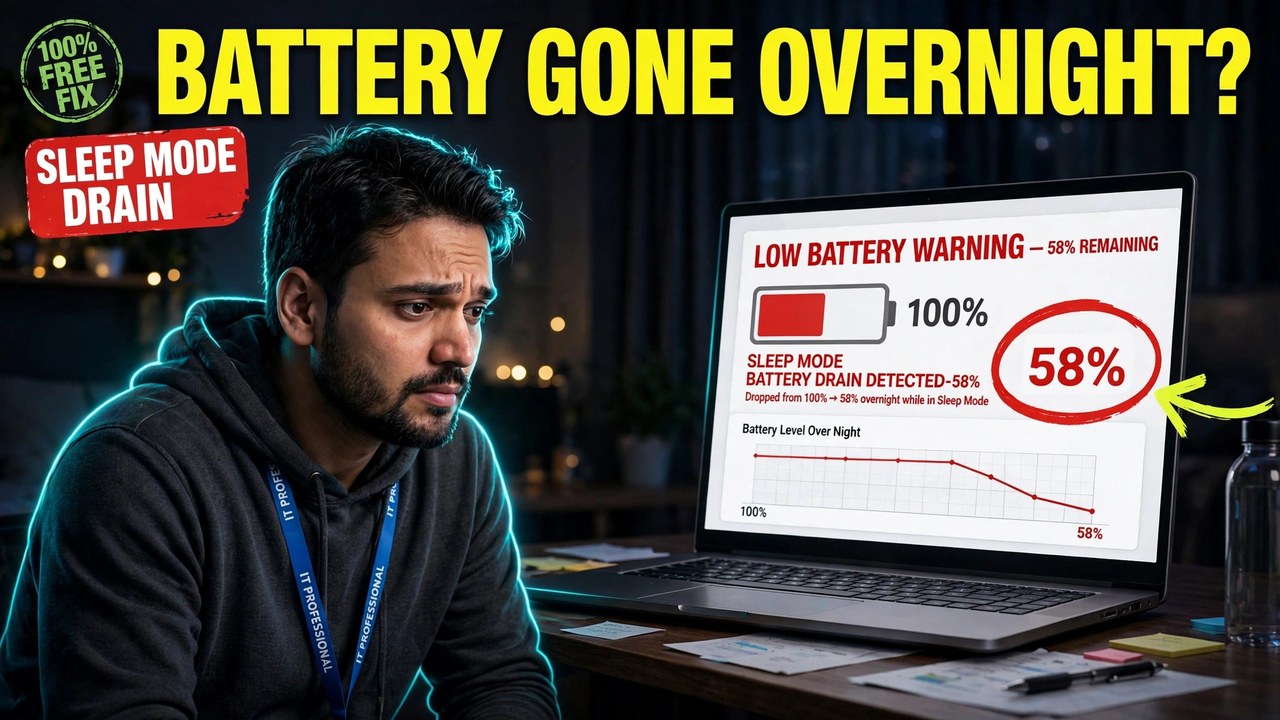
This is a real, recurring complaint on Microsoft Tech Community and Microsoft Q&A. In one Tech Community thread, a user reports that the battery keeps draining fast in sleep mode even after Modern Standby is disabled in the registry and BIOS, and the drain gets worse with a USB device attached during sleep. In a Microsoft Q&A thread, a ThinkPad owner with a brand-new battery keeps finding the laptop fully drained after sleep and hibernation. The pattern in both threads is the same: the laptop is not truly sleeping, or something keeps waking it. The steps below follow the diagnostic order Microsoft support staff use in those threads: prove which sleep state you have, read the sleep report, stop only the proven wake source, and use hibernate where sleep itself is the broken part.
X 11:00 PM - lid closed, battery 100%, laptop in Sleep
X 7:00 AM - lid opened, battery 58%, laptop warm to the touch
X No app was open, no download was running, nothing was plugged in except the charger was unplugged
Check: run powercfg /sleepstudy - it shows the laptop waking again and again instead of staying in its deepest sleep state
NOT NORMAL Healthy sleep loses about 0.5 to 3% per hour. 30 to 50% overnight means something is waking the machine.
The fingerprint of this problem: heavy drain while the laptop is supposed to be asleep, not while you are using it.
First, Confirm Which Sleep Your Laptop Actually Uses
Do not apply S3 fixes to an S0 laptop or the other way round. One command tells you the truth, whatever a BIOS label or registry tweak claims.
- Press Win + X and choose Terminal (Admin) or Command Prompt (Admin).
- Run:
powercfg /a - If the output lists Standby (S0 Low Power Idle) and no Standby (S3), your laptop uses Modern Standby. If it lists Standby (S3), it uses classic sleep.
- Also run:
powercfg /batteryreport- open the generated battery-report.html and compare Design Capacity with Full Charge Capacity. If full charge is close to design (above about 80 percent), your battery is healthy and the drain is a wake problem, not a worn battery. Keep this report for Fix 7.
Read the Sleep Study: the Report That Names the Culprit ⭐
Guessing wastes days. The sleepstudy report logs every sleep session of the last few days and shows exactly what kept the laptop awake.
- In the same admin Command Prompt, run:
powercfg /sleepstudy /duration 3 - Open the generated sleepstudy-report.html in your browser.
- Look for sessions with high drain and check the Top Offenders or wake-source column: a Wi-Fi adapter, a USB device, a Bluetooth dongle or a named app that stayed active during sleep.
- Note the exact name. Fix 4 targets only that device - this is the whole point of the report.
- On a laptop without Modern Standby, the sleepstudy report may not apply. Use
powercfg /systemsleepdiagnosticsandpowercfg /systempowerreportinstead; they cover the same idea for classic sleep machines.
Find What Woke the Laptop Last
Two quick commands confirm the report before you change any setting.
- Run:
powercfg /lastwake- it shows what woke the laptop from its last sleep. - Run:
powercfg /devicequery wake_armed- it lists every device currently allowed to wake the laptop. - If the same device appears in both outputs and in the sleepstudy report, you have a confirmed culprit. If nothing appears, the drain is more likely a firmware or always-on power rail issue - skip to Fix 6.
- Do one test night with every USB device unplugged and compare it with a night with your usual devices attached. Users in the Microsoft threads found the drain clearly worse with a USB device attached, which points straight at the USB device or its driver.
Stop the Proven Wake Source - Only That One
Disable wake for the culprit device only. Disabling wake for everything breaks normal wake from keyboard, mouse or lid.
- Open Device Manager (press Win + X, then choose Device Manager).
- Find the culprit device - for example the Wi-Fi adapter under Network adapters, or a USB Root Hub under Universal Serial Bus controllers.
- Right-click it, open Properties, go to the Power Management tab, and uncheck Allow this device to wake the computer. Click OK.
- Restart the laptop, then test one night of sleep before changing anything else, so you know this step was the one that worked.
Turn Off Wake Timers on Battery
Scheduled tasks and updates can wake the laptop at night even when no device is at fault. Blocking wake timers on battery stops that path.
- In the admin Command Prompt, run:
powercfg /SETDCVALUEINDEX SCHEME_CURRENT SUB_SLEEP RTCWAKE 0 - Or do it in Settings: open Control Panel > Power Options > Change plan settings > Change advanced power settings, expand Sleep > Allow wake timers, and set On battery to Disable. Keep Plugged in as you like it.
- Also set Sleep > Allow hybrid sleep to Off on battery, so a half-sleep state does not hold power overnight.
Use Hibernate for Unattended Hours on a Modern Standby Laptop
This is the reliable workaround when the laptop is locked to Modern Standby. Hibernate saves everything to disk and powers the machine fully off, so nothing can wake it or sip power overnight.
- For tonight, hibernate directly: press Win + R, type
shutdown /h /fand press Enter. The laptop powers off completely and resumes exactly where you left it. - For the long term, open advanced power settings (Fix 5, step 2) and set Sleep > Sleep after > On battery to Never, then set Sleep > Hibernate after > On battery to 30 minutes. Note: on an S0 laptop the Hibernate after timer itself may be ignored, so the direct hibernate command in step 1 remains the sure method.
- Check your PC maker's support page for a BIOS update and for new chipset, USB and graphics drivers, and install them for your exact model. Firmware and driver updates are the actual long-term fix for many Modern Standby drain cases, and several 2025-2026 laptop platforms only behaved after such an update.
- In BIOS, look for Always On USB or Charge in Battery Mode (wording varies by maker) and turn it off. These settings keep a 5V rail powered during sleep and hibernation so a phone can charge from the laptop - and they drain the battery even when nothing is plugged in.
Check Battery Health Before You Spend Money
Only replace a battery when the report proves it is worn. A healthy battery with a wake problem does not need replacing.
- Reopen the battery-report.html from Fix 1 and compare Design Capacity with Full Charge Capacity.
- If full charge is above about 80 percent of design, the battery is fine - the drain is the wake problem above, and a new battery will drain the same way.
- If full charge is well below 80 percent, or the laptop shuts off suddenly at 20 to 30 percent, the cells are worn and a genuine replacement battery for your exact model is the fix.
- If the battery is swollen, the trackpad is lifting, or the case is bulging, stop using the laptop and get the battery replaced by a repair shop at once. Do not puncture, press or try to fix a swollen battery yourself.
Software Needed
No extra software is required. Everything above uses built-in Windows tools: powercfg reports, Device Manager, Power Options and your PC maker's BIOS and driver downloads for your exact model. Do not install a third-party battery saver or driver updater for this problem - they cannot fix a wake source and often add their own background drain.
More PC Fixes on Technical Anshu
Every week: Windows problems, hidden tools and full setup guides, explained step by step.
Subscribe on YouTubeFrequently Asked Questions
How much battery drain in sleep is normal on a Windows 11 laptop?
A healthy laptop in sleep loses only a small amount, roughly 0.5 to 3 percent per hour. Losing 30 to 50 percent overnight, or finding the battery fully empty after a few hours of sleep, is not normal and means the laptop is waking repeatedly or never reaching its deepest low-power state.
What is Modern Standby and why does it drain more battery than old sleep?
Modern Standby, shown as Standby (S0 Low Power Idle) by powercfg, keeps the laptop semi-awake so mail, notifications and updates can sync and it can wake instantly. If a driver, app or device misbehaves, the CPU and radios stay active far more than intended, so the laptop burns power all night while looking asleep. Older S3 sleep powers down much more of the machine.
Why does the Hibernate after timer not work on my laptop?
On a laptop locked to Modern Standby (S0), Windows ignores the Hibernate after timer, because the S0 design assumes the machine stays semi-active instead of moving to hibernate. That is why such a laptop can sit in sleep indefinitely and drain. Using Hibernate directly, with shutdown /h /f or a hibernate shortcut, is the reliable route on those machines.
Should I turn off wake for every device in Device Manager?
No. Disable wake only for the specific device that the sleepstudy report or the lastwake output names as the culprit. Turning wake off for everything can stop the keyboard, mouse or lid from waking the laptop at all, which creates a new problem while hiding the original one.