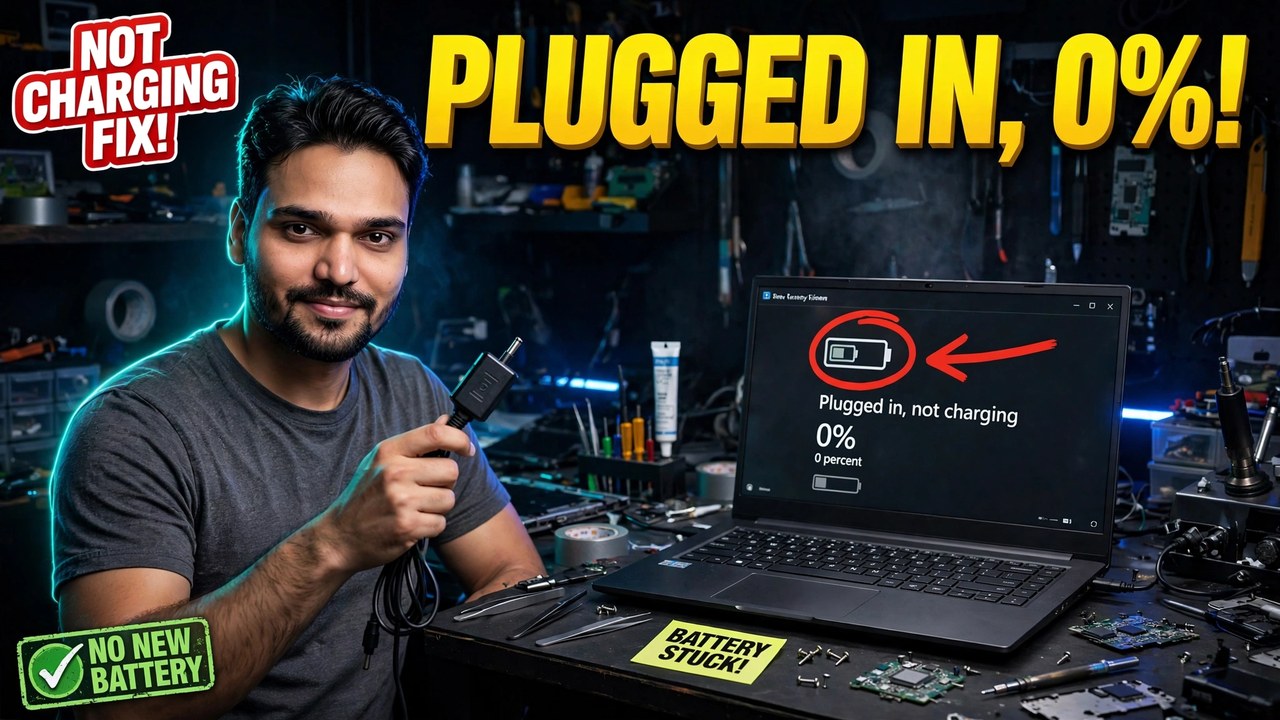
On Microsoft Q&A and the Dell and HP support forums this complaint arrives in two forms: "0% available (plugged in, charging)" with a percentage that never rises, and "Plugged in, not charging" at a fixed level. They are not the same problem. A battery held at 80 percent is often a deliberate battery-care limit. A battery held at 0 percent is a charger, port, driver or dead-cell problem. Work through the steps in order: power and port first, then the driver reset Microsoft itself advises, then the hard reset, and finish with the battery report and maker diagnostics, which give the honest verdict on the battery itself.
X Taskbar battery icon: "0% available (plugged in, charging)" or "Plugged in, not charging"
X Percentage stays fixed forever, or the laptop dies instantly when unplugged
X Laptop itself runs normally while the adapter stays connected
READ THE NUMBER Stuck near 80% is often a charge limit. Stuck at 0% is a fault to diagnose.
The fingerprint of this problem: the laptop works on mains power, but the battery takes no charge at all.
Check the Charger, Outlet and Port First
Charging starts outside Windows. A weak adapter, a damaged cable or a dirty port can run the laptop and still deliver nothing to the battery.
- Use the original adapter with the correct wattage for your exact laptop model. A smaller adapter from another laptop, or a low-wattage USB-C phone charger, may power the machine but not charge it. Check the wattage printed on both adapters if you have been swapping them.
- Plug the adapter directly into a different wall outlet that you know works, without a loose extension strip in between. Check the adapter brick light if it has one, and reseat both ends of its cables.
- Inspect the charging port with the laptop off: look for dust, lint or debris inside and for a bent or loose centre pin on barrel ports. Clear loose debris gently with a wooden or plastic toothpick or compressed air - never a metal pin.
- Wiggle nothing under load to test. Instead, connect firmly and leave it connected. If charging starts and stops when the cable is barely touched, the cable or port is damaged and needs service, not software.
Give a Deeply Discharged Battery Time Before Judging It
A battery that was left flat for weeks can sit at 0 percent for a while before the controller allows a normal charge rate. Declaring it dead in the first two minutes is a common mistake.
- Connect the correct adapter, leave the laptop shut down or idle, and wait 15 to 30 minutes without unplugging it.
- After that time, check the percentage again and the charging light if your model has one.
- If the percentage has started to rise, even slowly, let it charge fully once and then test how long it runs on battery. The battery was deeply discharged, not dead.
- If there is still no movement at all after 30 minutes on the correct adapter, continue to the driver reset - the charging state itself may be stuck.
Reset the Battery Driver in Device Manager
This is the reset Microsoft advises for this exact symptom. Windows talks to the battery through the ACPI control method driver; removing and redetecting it clears a stuck charging state without touching your files.
- Keep the adapter connected. Press Win + X and choose Device Manager.
- Expand Batteries. Right-click Microsoft ACPI-Compliant Control Method Battery and choose Uninstall device. Confirm if asked. Do the same for the AC adapter entry only if your model lists one separately and the first reset does not help.
- Click Action > Scan for hardware changes. The battery entry returns with a fresh driver install. If it does not return immediately, restart the laptop - it is reinstalled during startup.
- Watch the battery icon for a few minutes after the restart. In many forum cases the percentage starts rising on this step alone.
Do a Hard Reset to Clear the Embedded Controller
Charging is managed by a small controller that stays powered even when Windows is off. A hard reset drains it and forces it to start clean, which a normal restart does not do.
- Save your work and shut down the laptop completely - not sleep, not hibernate.
- Unplug the charger and disconnect USB devices. If your battery is removable, take it out as your manual describes.
- Press and hold the power button for 15 to 20 seconds. This drains the remaining charge from the board.
- Refit the battery if you removed it, reconnect the charger, and start the laptop. Check whether charging now begins and the percentage moves within a few minutes.
- On models with a sealed battery there may also be a maker reset pinhole or a BIOS power option - use only the method in your exact model manual, and skip this variation if the manual does not list one.
Check for an OEM Charge Limit Before Calling It a Fault
If your battery stops at a fixed healthy-looking number such as 80 percent and the laptop otherwise works perfectly, check this before any replacement decision.
- Look in your maker control app - for example Lenovo Vantage, Dell Power Manager or MyASUS, depending on your brand - for battery care, conservation mode or a charge limit setting, and note the value set.
- Also check BIOS setup for a battery limit or adaptive charging option, using your model manual for its exact location and wording.
- An 80 percent cap is a deliberate wear-saving feature for laptops that live on a desk plugged in. If you need full capacity for a trip, raise the limit to 100 percent temporarily and confirm the battery then charges past the old stopping point.
- If the battery charges to 100 percent after the limit is lifted, there was never a fault. If it still stops at 0 percent or a low fixed number, the limit was not the cause - go to Fix 6 for the verdict.
Read the Verdict: Battery Report and Maker Diagnostics ⭐
After the free checks, this step tells you in numbers whether the battery can still hold a charge. It is the most reliable step in the guide because it replaces opinion with the battery own recorded capacity.
- Open Command Prompt (search for
cmd), runpowercfg /batteryreportand note the file path it prints, usually battery-report.html in your user folder. Open that file in a browser. - Find the installed battery section and compare Design Capacity with Full Charge Capacity. A healthy older battery keeps a large share of its design capacity. A full charge capacity near zero, or a small fraction of design, means the cells are worn out.
- Also run your maker preboot diagnostics: most Dell, HP and Lenovo laptops offer a diagnostics key at startup (check your manual, commonly F12, Esc or F2 menus) with a battery test that ends in a clear pass or fail and sometimes a failure code. Note the result and code.
- Read the combined verdict: if the percentage never moved in Fixes 1 to 4, full charge capacity is near zero, or preboot diagnostics fail the battery, replace the battery with the exact part for your model. If the battery is internal, have a service centre fit it.
- If the report shows good capacity and diagnostics pass, but charging still does not start on the correct adapter, the fault is more likely the adapter or the charging circuit on the board - test with a known-good original adapter before paying for board repair.
Software Needed
No extra software is required. The guide uses Device Manager, the built-in powercfg /batteryreport command, your maker control app and preboot diagnostics, and drivers or BIOS only from your laptop maker official support page if the diagnostics direct you there. Do not install battery calibration or battery booster utilities from download sites - none of them can restore worn-out cells, and calibration cycles on a failing battery only add wear.
More PC Fixes on Technical Anshu
Every week: Windows problems, hidden tools and full setup guides, explained step by step.
Subscribe on YouTubeFrequently Asked Questions
Why does my laptop say plugged in, not charging at 80 percent?
That is often not a fault at all. Many makers set a battery-care charge limit, commonly 80 percent, in BIOS or in their control app to slow battery wear on a laptop that stays plugged in. Charging stops at the limit on purpose. Check the battery or conservation settings for your model and raise or disable the limit only if you need full capacity for travel.
Is it safe to uninstall the Microsoft ACPI battery driver?
Yes, this is a Microsoft-advised reset step. In Device Manager under Batteries, uninstalling Microsoft ACPI-Compliant Control Method Battery only removes the driver entry; running Scan for hardware changes or restarting reinstalls it automatically. It does not delete files and it often clears a stuck charging state where the percentage never moves.
How do I read the battery report to know if my battery is worn out?
Run powercfg /batteryreport in Command Prompt and open the saved battery-report.html file. Compare Design Capacity with Full Charge Capacity. If full charge capacity has fallen to a small fraction of design capacity, or the report shows the battery holding almost no charge, the battery is worn out. Maker preboot diagnostics give the same verdict with a clear pass or fail.
Can a wrong charger cause plugged in, not charging?
Yes. A lower-wattage or faulty adapter may run the laptop but leave nothing to charge the battery, and some laptops on USB-C charging need a charger that meets their wattage and Power Delivery requirements. Always test with the original correctly rated adapter for your exact model before concluding the battery itself has failed.
My battery is at 0 percent and the laptop dies instantly when unplugged. What does that mean?
If the charger, port, driver reset and hard reset in this guide do not move the percentage after 30 minutes connected, and the battery report shows full charge capacity near zero or maker diagnostics fail the battery, the battery can no longer hold charge. At that point replacement is the fix, using the exact part for your model, fitted by a service centre if the battery is internal.