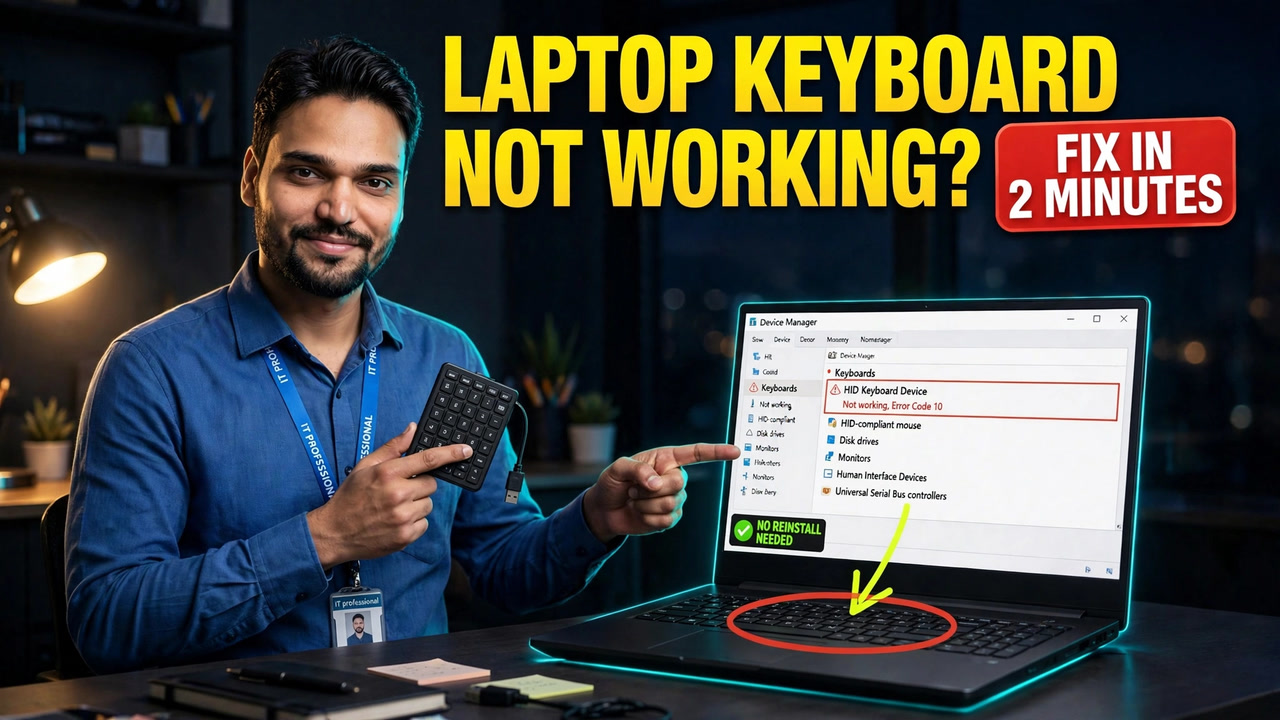
A dead laptop keyboard looks like a hardware failure, but most of the time it is not: Filter Keys silently swallowing keypresses, a keyboard driver damaged or replaced by a Windows update, or Fast Startup holding a bad driver state across restarts. The test that settles it takes one minute - the On-Screen Keyboard. If it types, Windows can still accept typing and the fault is the keyboard or its driver. If the keys are dead even in BIOS / UEFI setup, no driver or setting will fix it - that is hardware. There is no single update or KB number behind this problem as of 11 November 2026 - check the setting first, then the driver, then the hardware. Work in order and you will know exactly which one it is.
X The same keys stay dead in every app - it is not one program misbehaving
X The On-Screen Keyboard types normally, but the physical keys do nothing
X A USB keyboard plugged into the same laptop types fine
X Device Manager shows a yellow warning on "Standard PS/2 Keyboard" or "HID Keyboard Device"
FILTER KEYS Settings > Accessibility > Keyboard > Filter keys is ON - Windows is ignoring brief keypresses. This one setting is the most common silent cause, and it is often switched on by accident (holding the right Shift key for 8 seconds).
The fingerprint of this problem: Windows is fine, the keyboard is silent - the answer is in a setting or the driver, not in the keys themselves.
Restart, Then Check Filter Keys and the Layout
Half of these cases are a setting, not a fault. Filter Keys makes Windows ignore short keypresses, so keys look dead - and it is often turned on by accident.
- Restart the PC from the Start menu (use the mouse or the On-Screen Keyboard). A restart clears a stuck driver state - and on a laptop, hold the power button only if the restart itself is impossible.
- Open Settings > Accessibility > Keyboard and turn Filter keys OFF. Also turn Sticky keys OFF unless you use it on purpose.
- If some keys type the wrong characters, the layout is wrong, not the keyboard: press Win + Space to switch to the right layout (for example US English).
- For a wireless keyboard: put in fresh batteries, move the USB receiver to a different port directly on the PC (no hub), and pair it again from Settings > Bluetooth & devices if it uses Bluetooth.
- If the keys work now, Filter Keys or the layout was the cause - nothing else needs fixing.
Test With the On-Screen Keyboard - This Settles Windows vs Hardware
Microsoft's own first diagnostic is the On-Screen Keyboard: if it types, Windows can still accept input, so the fault is the physical keyboard or its driver - not Windows.
- Press Win + R, type
oskand press Enter. The On-Screen Keyboard opens. - Click the same keys that are dead on the physical keyboard. If they type here, Windows is fine - go to Fix 3 for the driver.
- If the keys are dead on the On-Screen Keyboard too, the problem is deeper than one keyboard - check the layout in Fix 1 again, then go to Fix 5.
- Plug in a USB keyboard if you have one. If it types fine on the same laptop, your laptop's own keyboard or its driver is the fault - the laptop itself is fine.
Uninstall and Reinstall the Keyboard Driver ⭐
This is the main fix when the keyboard stops working after a Windows update. The update replaced or damaged the driver - removing it makes Windows build a clean one again at the next start.
- Right-click Start and choose Device Manager (or press Win + R, type
devmgmt.mscand press Enter). - Expand Keyboards. Right-click your keyboard - usually "HID Keyboard Device" or "Standard PS/2 Keyboard" on a laptop - and choose Update driver > Search automatically for drivers.
- If updating changes nothing, right-click the same entry again and choose Uninstall device, then confirm.
- Restart the PC from the Start menu. Windows reinstalls the keyboard driver automatically during startup - do not unplug anything during this restart.
- If the keyboard broke right after a driver update, roll it back instead: right-click the keyboard > Properties > Driver > Roll Back Driver. If the button is greyed out, no earlier driver is saved - use the uninstall step above.
Install Windows Updates and the Laptop Maker's Driver
A later update often carries the fix for a driver an earlier update broke, and the laptop maker's own keyboard or chipset driver is the one Microsoft's generic driver cannot replace.
- Open Settings > Windows Update and install every pending update, then restart. Also check Advanced options > Optional updates > Driver updates - Microsoft ships keyboard and chipset driver fixes there.
- Go to your laptop maker's own support page (HP, Dell, Lenovo, ASUS, Acer or whichever brand it is), search your exact model number, and download the latest keyboard and chipset drivers. Install them and restart.
- Do not use third-party "driver updater" programs or random driver-download sites - the maker page and Windows Update are the only safe sources.
Test the Keys in BIOS, and Turn Off Fast Startup
This is the test that separates a Windows fault from a hardware fault. BIOS / UEFI runs before Windows loads, so if the keys work there, the hardware is fine and Windows or its driver is the problem.
- Restart the PC and press the BIOS key as it starts (usually F2, Del or F10 - the maker's logo screen says which). Try the arrow keys and Enter inside BIOS setup.
- If the keys work in BIOS, the keyboard hardware is fine - the fault is Windows or its driver. Go back to Fix 3 and Fix 4, and also test in Safe Mode (Settings > System > Recovery > Advanced startup > Restart now > Troubleshoot > Startup Settings) to confirm a third-party program is not blocking the keys.
- If the keys are dead in BIOS too, Windows cannot fix it - the keyboard hardware has failed. Skip Fix 6 and go to the service step below.
- Turn off Fast Startup: open Control Panel > Hardware and Sound > Power Options > Choose what the power buttons do, click "Change settings that are currently unavailable" and uncheck "Turn on fast startup". Fast Startup can hold a bad driver state across restarts - this is a known cause of keyboards that stay dead after an update until Fast Startup is off.
Test the Keyboard on Another PC - Then Decide Repair or Replace
Do this before spending money on a repair or a Windows reinstall. It settles whether the fault travels with the keyboard or stays with the PC.
- For an external keyboard: plug it into a different PC. If it works there, your PC's driver or USB port is the problem - repeat Fix 3 on a different USB port. If it fails on every PC, the keyboard itself has failed.
- For a laptop's built-in keyboard: if a USB keyboard types fine on the laptop but the built-in keys stay dead after Fix 3, Fix 4 and the BIOS test, the built-in keyboard hardware is at fault - usually the ribbon cable or the keyboard itself.
- That is a service-centre job: a loose ribbon cable is a quick fix for a technician, and a replacement keyboard is far cheaper than a new laptop. Keep using the USB keyboard until then - and remember the On-Screen Keyboard (
osk) works anywhere as a stopgap.
More PC Fixes on Technical Anshu
Every week: Windows problems, hidden tools and full setup guides, explained step by step.
Subscribe on YouTubeFrequently Asked Questions
Why did my laptop keyboard stop working after a Windows update?
A Windows update can replace or damage the keyboard driver, so the keys stop reaching Windows even though the hardware is fine. Open Device Manager, expand Keyboards, right-click the keyboard and choose Update driver; if that does not help, choose Uninstall device and restart so Windows reinstalls the driver. If the problem started right after a driver update, use Properties > Driver > Roll Back Driver instead.
Some keys work and some keys do not - is the keyboard dead?
Not necessarily. First check Filter Keys in Settings > Accessibility > Keyboard - when it is on, Windows ignores brief or repeated keypresses, so keys look dead. Then check the keyboard layout with Win + Space, because a wrong layout types the wrong characters. If the same keys stay dead on the On-Screen Keyboard too, and a USB keyboard works fine, the built-in keyboard itself is the fault.
The On-Screen Keyboard types but my physical keyboard does not - what does that mean?
It means Windows itself can still accept typing, so the fault is in the physical keyboard or its driver, not in Windows. Work through the driver reinstall in Fix 3, then test the keys in BIOS or UEFI setup: if they work there, the driver or Windows is at fault; if they are dead there too, the keyboard hardware has failed and needs service.
Should I reinstall Windows to fix a keyboard that does not work?
No - reinstalling Windows is the last step, not the first, and it cannot fix a hardware fault. Only consider it after the driver reinstall, the Windows Update and maker-driver steps, and the BIOS test all point to Windows itself. If the keys are dead in BIOS setup too, no reinstall will bring them back - the keyboard needs repair or replacement.