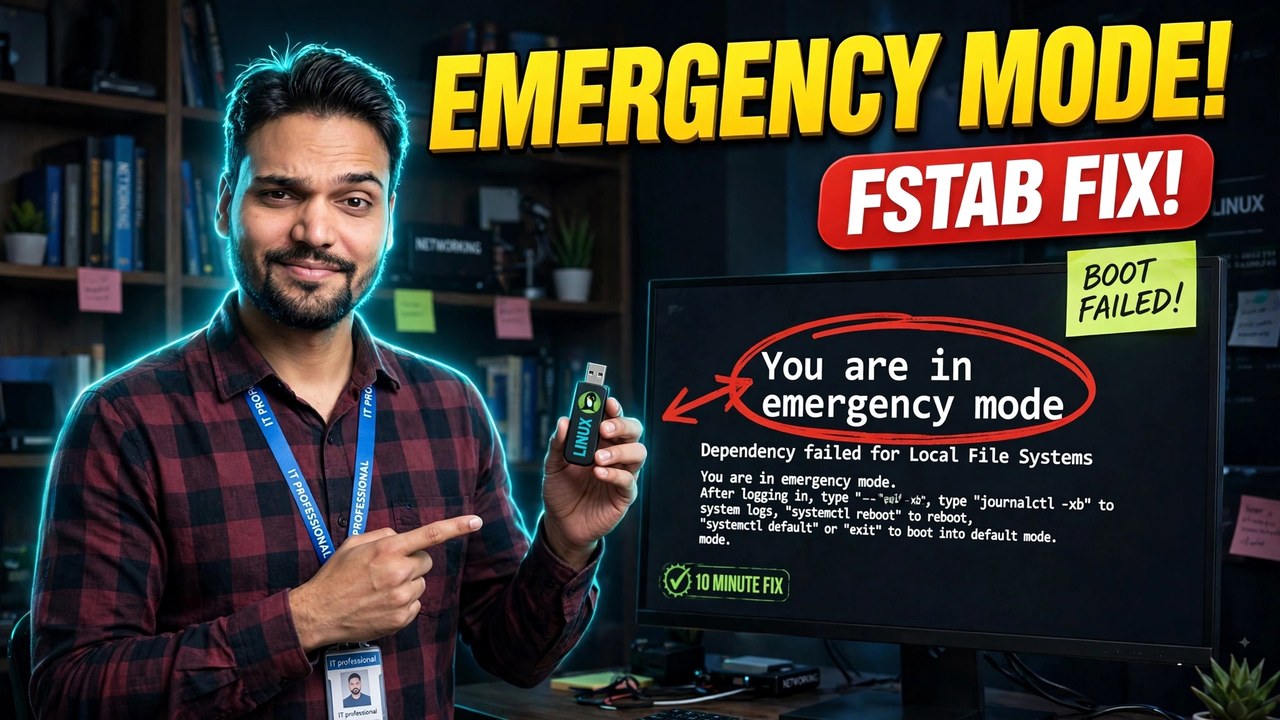
Here is the chain of events. Every line in /etc/fstab is a promise: mount this device, at this place, at every boot. systemd takes those promises seriously. If a line names a UUID that no longer exists - because you replaced a hard disk, deleted a partition, reformatted a drive (which gives it a new UUID), or simply unplugged a USB drive that someone once added to fstab - systemd waits for that device, times out, and refuses to continue into a half-broken system. That refusal is emergency mode. Nothing is wrong with Linux itself. One stale line is holding the whole boot hostage, and this guide removes exactly that line and adds nofail protection so a missing data drive can never do this again. The steps are identical on Ubuntu, Debian, Fedora and Arch, because all of them use systemd.
X Boot pauses for about 90 seconds on a device timeout before showing this screen
X It started after removing a disk, reformatting a partition, or unplugging a drive that used to stay connected
X Pressing Ctrl+D to continue just returns to the same emergency screen
FSTAB One mount entry cannot be fulfilled, so systemd stops the whole boot.
The fingerprint of this problem: the journalctl -xb hint, a device timeout, and Dependency failed for Local File Systems together.
Log In as Root and Read the Journal
Emergency mode is a working root shell, not a dead end. The journal already knows which mount failed - ask it before touching any file.
- At Give root password for maintenance, type your root password and press Enter. What you type does not appear on screen - that is normal. On Ubuntu, if no root password was ever set, use GRUB Advanced options and recovery mode instead, or the Live USB route mentioned in Fix 3.
- Run exactly what the screen suggests:
journalctl -xb - Scroll with the arrow keys and look for the failing unit: lines mentioning Timed out waiting for device, a device path like dev-disk-by-uuid, and Dependency failed for Local File Systems. Note the UUID or device name in those lines - that is your suspect.
- Press Q to leave the journal viewer when you have the name.
Compare blkid With fstab and Find the Stale Line
Now prove which fstab line is stale by comparing what the file claims against what the hardware actually reports today.
- Show the real devices and UUIDs that exist right now:
blkid - Show what fstab expects at boot:
cat /etc/fstab - Compare line by line. A healthy fstab line has a UUID that also appears in the blkid output. The stale line is the one whose UUID appears in fstab but nowhere in blkid - that disk or partition is gone, or was reformatted and now owns a different UUID which blkid shows you.
- Also suspect any line for a USB or external drive that is currently unplugged, even if its UUID is correct.
Remount Writable and Fix the fstab Line ⭐
This is the actual fix. In emergency mode the root filesystem starts read-only, so first remount it writable, then correct the one bad line - comment it out if the disk is gone, or replace its UUID if blkid showed you the new one.
- Remount the root filesystem so you can save changes:
mount -o remount,rw / - Make a backup copy before editing, so any mistake is reversible:
cp /etc/fstab /etc/fstab.bak - Open the file in the editor:
nano /etc/fstab - For a disk that is gone permanently: put a
#at the very start of its line to comment it out. For a disk that was reformatted: replace the old UUID in its line with the new UUID from your blkid output, character for character. Never edit the root (/) line unless its UUID is the wrong one, and never guess a UUID. - Save with Ctrl + O, press Enter, then exit with Ctrl + X. If nano is unavailable in the emergency shell, editing from a Live USB - mount the root partition and edit its etc/fstab with sudo - achieves exactly the same result.
Add nofail to Removable and Secondary Drives
Fix the cause, not just today symptom: any drive that is not required for the system to run should never again be allowed to block the boot.
- In the same fstab file, find entries for USB drives, external disks and secondary data drives - anything that is not root (/), not /home on an internal disk, and not swap.
- Add
nofailto the options field of each such line. The options are the comma-separated list in the fourth column. For example, a line ending indefaults 0 2becomesdefaults,nofail 0 2. - Save the file again. From now on, if that drive is unplugged at boot, systemd mounts everything else and starts the desktop normally; the drive mounts later when it is present, depending on your desktop automount settings.
Test With mount -a, Then Continue the Boot
Never reboot blind after an fstab edit. One command tests every line safely, right now, while you can still fix mistakes.
- Run:
mount -a- this attempts every fstab entry exactly as boot will. No output and no errors means every line is good. - If mount -a prints an error, it names the line that is still wrong. Return to Fix 3, correct that line, and run mount -a again until it is silent.
- When the test is clean, continue into the normal system:
systemctl default- or simply reboot withreboot. The desktop should load normally with no timeout pause. - After logging in, keep the /etc/fstab.bak backup until you have rebooted successfully at least twice.
Software Needed
No downloads are needed for the standard route - journalctl, blkid, mount and nano are part of every systemd Linux install, which is why the same steps work on Ubuntu, Debian, Fedora and Arch. The only optional item is a Live USB of your distro, needed only in the Ubuntu case where no root password exists and recovery mode is not available, so you can mount the disk and edit fstab from outside. Keep that USB in a drawer; it is the universal key for Linux boot repairs.
More Linux Fixes on Technical Anshu
Every week: Windows and Linux problems, hidden tools and full setup guides, explained step by step.
Subscribe on YouTubeFrequently Asked Questions
Why does one bad fstab line stop the whole boot?
At boot, systemd tries to mount every entry in /etc/fstab as part of Local File Systems. If one entry points to a disk that is gone or a UUID that no longer exists, systemd waits, times out, marks Dependency failed for Local File Systems, and drops to emergency mode instead of continuing with a half-mounted system.
What password does emergency mode ask for?
It asks for the root password - Give root password for maintenance. On Ubuntu, root is locked by default, so if you never set a root password the prompt may fail or loop; in that case boot GRUB Advanced options into recovery mode, or use a Live USB to mount the system and edit /etc/fstab from there with sudo.
What does nofail do in fstab?
Adding nofail to a mount entry tells systemd: try to mount this, but boot normally even if the device is missing. It is the correct option for USB drives, external disks and secondary data drives that are not always connected. Never rely on it for the root filesystem itself - root must mount or the system cannot run.
Is commenting out a line the same as deleting it?
For booting, yes - a line starting with # is ignored completely. Commenting is safer than deleting because the original entry stays visible: if the disk comes back later, you remove the # and correct the UUID instead of recreating the line from memory. Delete a line only when you are sure that partition is gone permanently.
Does this fix differ between Ubuntu, Fedora and Arch?
No. All three use systemd and the same /etc/fstab format, so the journalctl -xb, blkid, remount rw, edit fstab, mount -a and systemctl default steps are identical. This is one of the rare Linux fixes with no distro-specific commands at all.