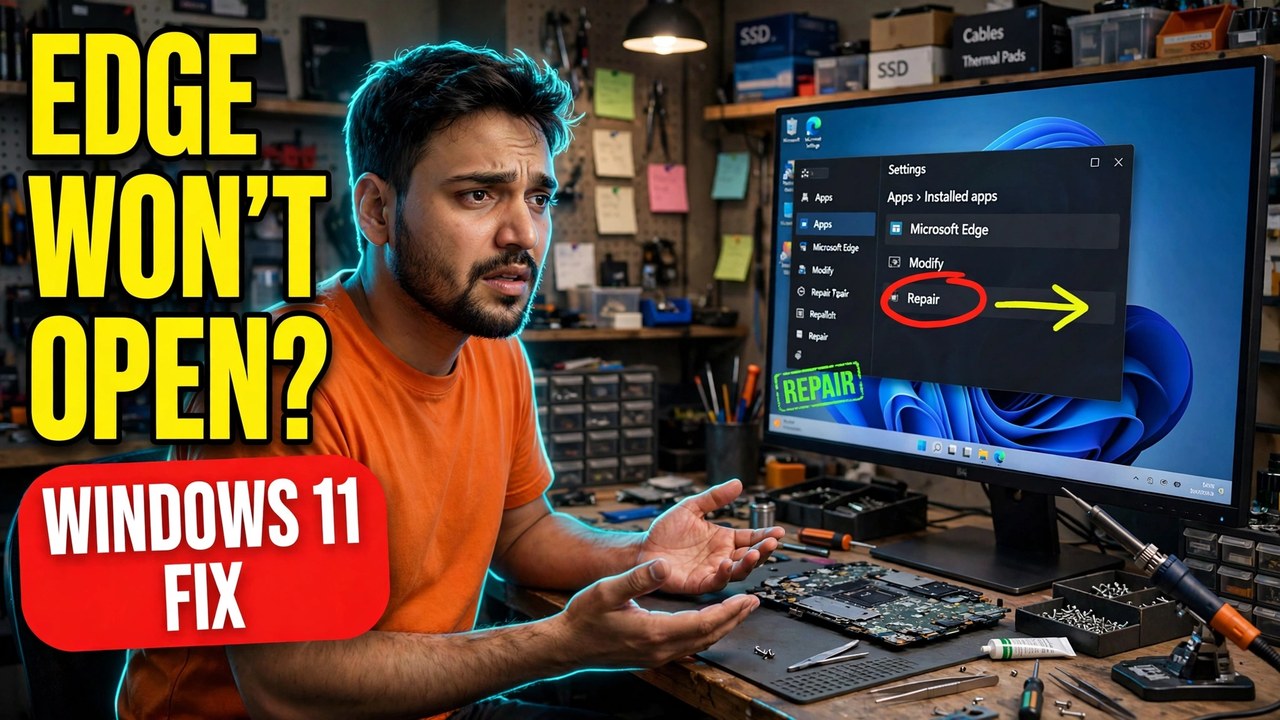
Edge on Windows 11 rarely breaks in the browser code itself. In Microsoft Community reports the causes repeat: Edge processes are stuck running in the background so a new window never appears, the Edge installation was damaged by an interrupted update, or a Windows system file Edge depends on is corrupt. The good news is that Windows ships with a proper Edge Repair option that reinstalls the browser while keeping your data - most people never find it because it lives in Windows Settings, not in Edge. Work in order and try launching Edge after each fix.
X Clicking the Edge icon does nothing, or a window flashes open and closes instantly
X No error message appears - or a brief error about Edge failing to start
X Edge worked yesterday and stopped after a Windows or Edge update
X Task Manager shows msedge.exe processes running even though no window is visible
WILL NOT LAUNCH No window plus background msedge.exe processes is the classic stuck-launch fingerprint. If processes are running but invisible, end them first - Edge thinks it is already open.
The fingerprint of this problem: the browser never becomes visible while its processes may already be running - a stuck launch or a damaged install, not a deleted browser.
Restart the PC and Try Edge Once More
A proper restart clears stuck processes and half-applied updates in one go - do this before any deeper step, and use Restart, not Shut down, so Windows fully reloads.
- Click Start > Power > Restart and let Windows come back up fully.
- Click the Edge icon once and wait a full 10 seconds - a first launch after an update can be slow.
- If Edge opens, let it finish updating, then close and reopen it once to confirm. If it still does not open, go to Fix 2.
End Stuck Edge Processes in Task Manager
If msedge.exe is running with no window, Edge believes it is already open and refuses to show itself. Ending every Edge process forces a clean launch.
- Press Ctrl + Shift + Esc to open Task Manager. Click More details if it is in compact view.
- Find every Microsoft Edge entry, select it and click End task. Repeat until no msedge.exe remains - check under background processes too.
- Wait five seconds, then launch Edge from the Start menu (search Edge) rather than a taskbar or desktop shortcut - this also rules out a broken shortcut.
Repair Edge from Windows Settings - Keeps Your Data ⭐
This is Microsoft's own fix and the one that resolves most will-not-open cases. Repair downloads and reinstalls Edge fresh while keeping your favourites, history, passwords and settings.
- Open Settings > Apps > Installed apps, find Microsoft Edge, click the three dots next to it and choose Modify. (On some builds: Settings > Apps > Apps & features > Microsoft Edge > Modify.)
- Click Repair and follow the prompt - you need an internet connection because Windows downloads a clean copy of Edge.
- When Repair finishes, launch Edge and test. If it opens, sign-in and sync should restore anything missing.
- Note: there is no Uninstall button for Edge on Windows 11 by design - Repair is the supported reinstall route.
Install Windows Updates and Check for a Broken Shortcut
Edge is updated through Windows and its own updater together; a pending or failed Windows update can leave Edge mismatched with the system it runs on.
- Open Settings > Windows Update and click Check for updates. Install everything offered, restart, and test Edge.
- If Edge opens from the Start menu but not from the taskbar, the taskbar shortcut is broken: right-click the taskbar Edge icon, choose Unpin from taskbar, launch Edge from Start, then right-click its running icon and Pin to taskbar again.
- Also temporarily disconnect any VPN - a VPN that blocks Microsoft update servers can leave Edge stuck mid-update.
Run SFC and DISM for Corrupt Windows Files
If Repair completes but Edge still will not launch, a Windows system file Edge depends on may be corrupt. The built-in System File Checker is the supported way to repair those files.
- Press Win + X and choose Terminal (Admin).
- Run this command and wait for it to finish:
sfc /scannow - If SFC reports it could not fix some files, run
DISM /Online /Cleanup-Image /RestoreHealth, wait for it to complete, then runsfc /scannowonce more. - Restart the PC and test Edge.
Test a New Windows User Account
If Edge launches for a different Windows user, your user profile - not Edge - is damaged. This two-minute test stops you reinstalling Windows for a profile problem.
- Go to Settings > Accounts > Other users and add a temporary local user, or use an existing second account.
- Sign in to that account and open Edge. If Edge works there, your main profile has damaged Edge user data.
- Back in your main account, the practical fix is to move to the working profile or reset Windows keeping files only after backing up - do not delete your old profile until documents and browser sync are confirmed safe in the new one.
More PC Fixes on Technical Anshu
Every week: Windows problems, hidden tools and full setup guides, explained step by step.
Subscribe on YouTubeFrequently Asked Questions
Why does Microsoft Edge not open at all on Windows 11?
The most common causes are Edge processes stuck running in the background with no window, an Edge installation damaged by an interrupted update, or a corrupt Windows system file. Ending all msedge.exe processes in Task Manager and then using Repair in Settings > Apps > Installed apps > Microsoft Edge > Modify fixes the majority of cases.
Does repairing Edge delete my favourites and passwords?
No. Microsoft's Edge Repair reinstalls the browser files while keeping your favourites, browsing history, saved passwords and settings. You need an internet connection for Repair because Windows downloads a clean copy of Edge. Staying signed in with sync on is still a sensible safety net before you start.
There is no Uninstall option for Edge. How do I reinstall it?
That is by design on Windows 11 - Edge is built into Windows and cannot be uninstalled like a normal app. Use Modify > Repair in Settings > Apps instead: it performs a clean reinstall of Edge while keeping your data. Avoid third-party Edge uninstaller tools, which break other Windows features that rely on Edge components.
Edge opens from the Start menu but not from the taskbar. What is wrong?
The taskbar shortcut is damaged, not Edge itself. Unpin the taskbar icon, launch Edge from the Start menu, then pin the running Edge icon to the taskbar again. If a desktop shortcut also fails, delete it and create a fresh one from the Start menu list.
Edge still will not open after Repair and SFC. What next?
Test Edge in a new Windows user account. If it works there, your original user profile is damaged and the fix is profile-side, not browser-side. If Edge fails for every user after Repair, install all pending Windows Updates, restart, and run Repair once more - a mismatched Windows build is the remaining common cause.