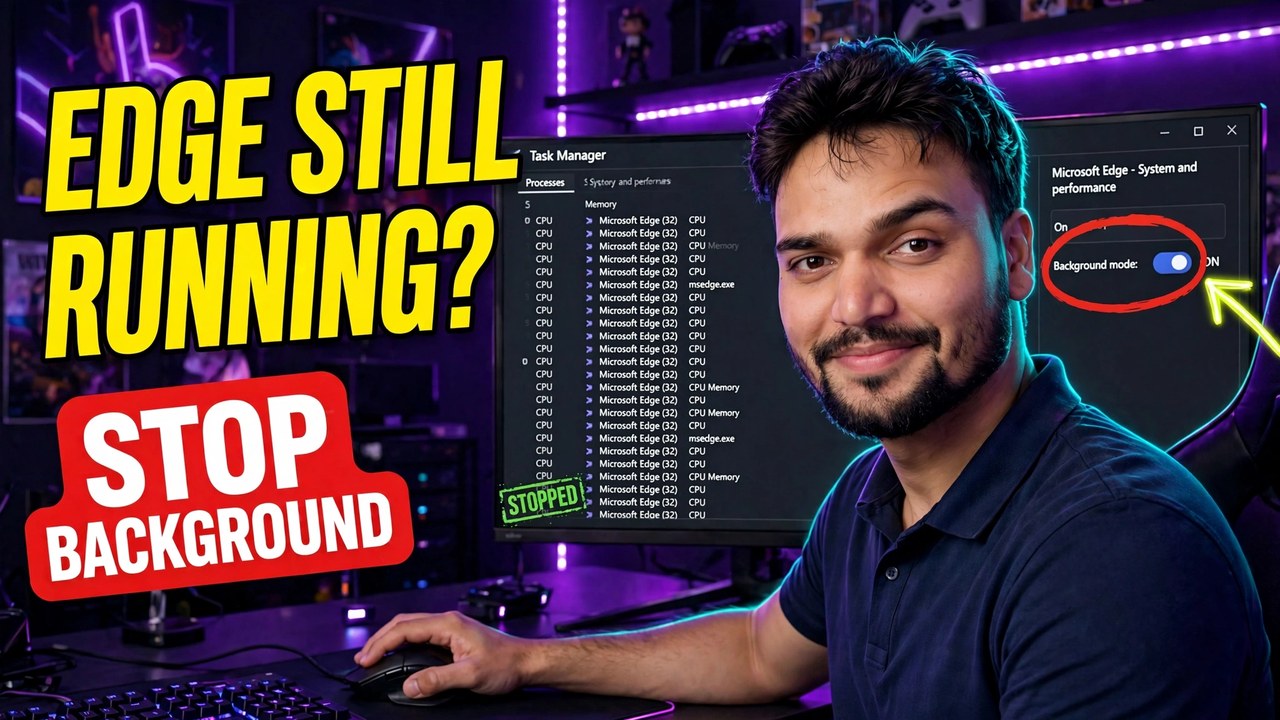
Edge staying in memory after closing is usually not a bug and not malware - it is two features doing exactly what they were designed to do. Continue running background extensions and apps when Microsoft Edge is closed keeps Edge alive for extensions and web apps, and Startup boost pre-loads Edge processes when you sign in to Windows so the first launch feels instant. Both are useful on a strong PC and pure waste on a low-RAM one. The fix is simply to turn them off in Edge's own system settings - plus the Windows startup entry, which is a separate switch people often miss.
X Task Manager shows multiple Microsoft Edge processes after you close every window
X Edge uses memory or CPU in the background while you are doing other work
X Edge processes are already running right after you sign in, before you open Edge
X Closing and reopening Edge feels instant - because it never really closed
STILL RUNNING Background mode and Startup boost are both on by default for many installs. Together they mean Edge processes exist before you open Edge and after you close it - by design, until you switch them off.
The fingerprint of this problem: the windows are gone but the processes are not - a settings behaviour with a settings fix, not a hanging browser.
Turn Off Background Mode in Edge System Settings ⭐
This is the main switch. It is the setting that keeps Edge processes alive after the last window closes, mainly so extensions and installed web apps can keep running.
- Open Edge and go to
edge://settings/system- the System and performance page. - Turn OFF the option Continue running background extensions and apps when Microsoft Edge is closed.
- Close Edge completely, wait 30 seconds, then open Task Manager (Ctrl + Shift + Esc) and check: the msedge.exe processes should now disappear a few seconds after closing.
- If processes remain, Startup boost (Fix 2) is also keeping Edge loaded - do that next.
Turn Off Startup Boost
Startup boost loads Edge processes as soon as you sign in to Windows, before you ever click Edge. With it on, Task Manager shows Edge running from the moment the desktop appears.
- On the same page,
edge://settings/system, turn OFF Startup boost. - Restart the PC, sign in, wait a minute without opening Edge, and check Task Manager - Edge should not appear at all now.
- If Edge is still pre-loading, a Windows startup entry is also present - clear it in Fix 3.
Disable Microsoft Edge in Windows Startup Apps
Separate from Edge's own settings, Windows can launch Edge (or its background stub) at sign-in. This is the switch people miss when the in-Edge toggles do not fully stop it.
- Open Settings > Apps > Startup and turn Microsoft Edge OFF if it is listed.
- Also check Task Manager's Startup apps tab for any Edge entry and disable it there.
- Restart and verify in Task Manager before opening Edge: no msedge.exe should be present.
Check Which Extensions Needed Background Mode
Background mode exists for a reason: some extensions and installed web apps (mail notifiers, chat apps, password tools) use it to show notifications while Edge is closed. Know what you are giving up so nothing important silently stops.
- Go to
edge://extensionsand note any extension you rely on for notifications while Edge is closed. - If you need one of them, you can turn background mode back on later - the trade-off is your choice, not a fault.
- For everything else, leave background mode off: normal browsing, favourites and passwords are completely unaffected.
If Edge Reopens Itself or Processes Never Die
If Edge windows reopen on their own - not just processes lingering - a different setting is involved: Edge restoring itself at Windows sign-in, or a stuck update loop.
- Go to
edge://settings/onStartupand confirm it is not set to reopen in a way you did not choose; set Open a new tab to test clean behaviour. - Close Edge, end any remaining msedge.exe in Task Manager once, then run Settings > Windows Update and install pending updates - a half-applied Edge update can loop its background processes. Restart and re-check.
- If processes still survive with background mode and Startup boost both off, repair Edge: Settings > Apps > Installed apps > Microsoft Edge > Modify > Repair - Repair keeps your data.
More PC Fixes on Technical Anshu
Every week: Windows problems, hidden tools and full setup guides, explained step by step.
Subscribe on YouTubeFrequently Asked Questions
Why does Edge keep running after I close it?
Because background mode is on: Edge keeps its processes alive after the last window closes so extensions and installed web apps can keep working and show notifications. Turn off Continue running background extensions and apps when Microsoft Edge is closed on edge://settings/system and Edge will fully exit when you close it.
What is Startup boost in Edge, and should I turn it off?
Startup boost pre-loads Edge processes when you sign in to Windows so the first Edge launch feels faster. It costs memory the whole session for a saving of a second or two at launch. On a low-RAM PC, or if you rarely use Edge, turn it off on edge://settings/system - browsing itself is unaffected.
Will turning off background mode break my extensions or passwords?
No. Extensions still work normally while Edge is open, and favourites, history and saved passwords are untouched. The only difference is that extensions and web apps stop running - and stop showing notifications - the moment you close Edge, instead of staying alive in the background.
Edge processes are running before I even open Edge. Is that a virus?
Almost certainly not - that is Startup boost plus, on some PCs, a Windows startup entry for Edge. Both are Microsoft features, not malware. Turn off Startup boost in Edge settings and Microsoft Edge in Settings > Apps > Startup, restart, and confirm Task Manager is clean before you open Edge.
I turned both settings off but msedge.exe still appears. What now?
First confirm you waited - processes can take a few seconds to exit after closing. Then check Settings > Apps > Startup for an Edge entry, install pending Windows updates, and if it still persists, use Edge Repair from Settings > Apps > Installed apps > Microsoft Edge > Modify > Repair, which reinstalls Edge while keeping your data.