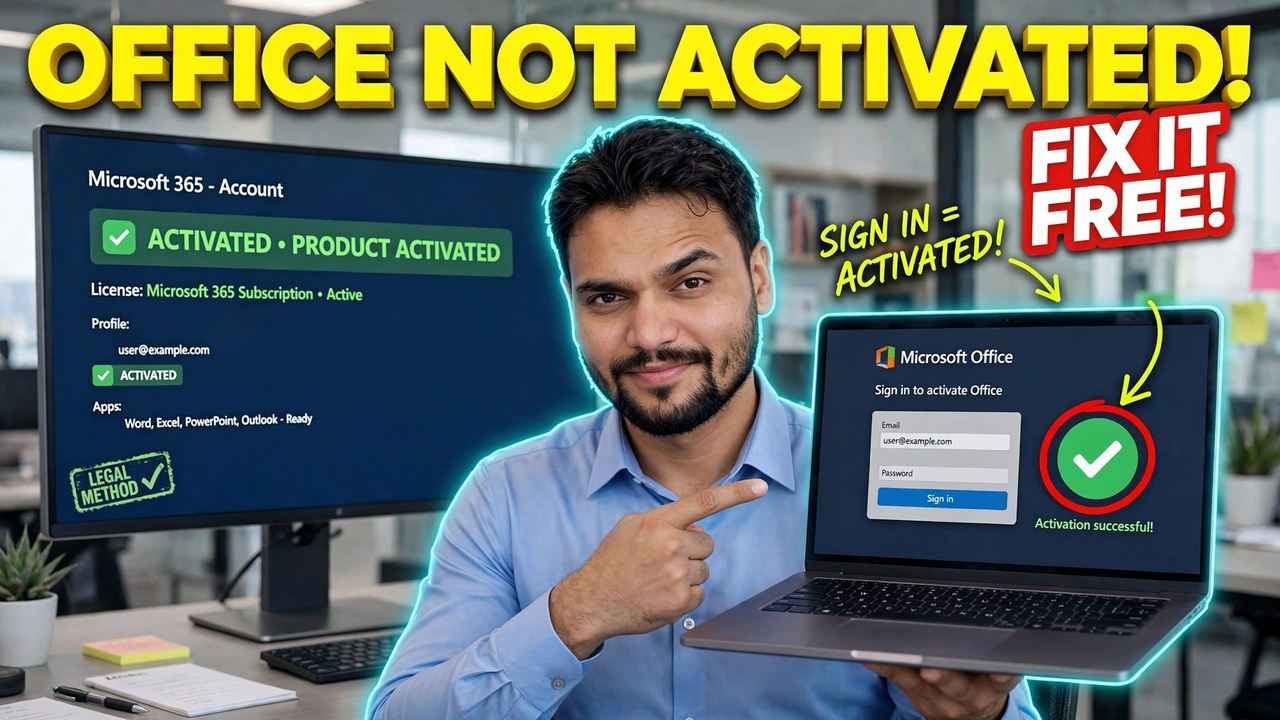
The Unlicensed Product banner appears when Office cannot find a valid licence for the account and installation on that PC. The genuine causes are: signed in with a different Microsoft account than the one that bought Microsoft 365, an expired subscription, two Office versions or an old licence left on the PC conflicting with the current one, a wrong system date or a proxy/VPN blocking activation, or a damaged installation. Every fix below is an official Microsoft route - sign-in, the activation troubleshooter, the licence tool OSPP that ships with Office, and repair. If a PC never had a licence, the honest answer at the end is how to get one.
X A red or yellow banner says Unlicensed Product in Word, Excel and Outlook together
X Some features are disabled and a sign-in or activation prompt keeps returning
X It started after renewing Microsoft 365, changing the Microsoft account, or installing a second Office version
X File, Account shows a different email address than the one used to buy Office
UNLICENSED Office cannot match this installation to a valid licence - the account, the stored licence, or the activation connection is wrong, in that order of likelihood.
The fingerprint of this problem: all Office apps show the banner at once, because activation is shared across the whole Office installation.
Sign In with the Account That Owns the Licence
Office activates against the signed-in account. A family member's account, an old work account, or a second personal account is the most common cause of this banner on a paid subscription.
- Open Word and go to File > Account. Read the email under User Information and the product information shown on the same page.
- If the email is not the one that bought the subscription, click Sign out, close all Office apps, reopen Word and Sign in with the correct account.
- In a browser, open account.microsoft.com/services signed in with that same account and confirm the Microsoft 365 or Office subscription is listed and not expired. If it is expired, renew it there - no PC-side fix activates an expired subscription.
- Back in Word, File > Account should now show the subscription product name without the Unlicensed Product banner. Restart the PC once if the banner lingers after a correct sign-in.
Run Microsoft's Activation Troubleshooter and Check Date and Connection
Microsoft's Support and Recovery Assistant and the built-in checks fix the standard activation blocks: wrong clock, blocked connection, and stuck activation state.
- Confirm the PC clock is right: Settings > Time & language > Date & time - turn on Set time automatically. A wrong date makes licence validation fail.
- Disconnect any VPN and check Settings > Network & internet > Proxy: turn off a manual proxy you do not need. Activation must reach Microsoft's licensing servers directly.
- Download and run the Microsoft Support and Recovery Assistant (SaRA) from Microsoft's own site and choose the Office activation scenario - it checks the account, licences and services and applies the standard fixes.
- Open any Office app afterwards and check File > Account again.
Remove Conflicting Old Licences with OSPP ⭐
When a PC has carried an old Office, a trial, or a previous employer's volume licence, Office may keep validating the dead licence. Microsoft's own OSPP tool, installed with Office, lists and removes stored licences.
- First check for duplicate installs: in Settings > Apps > Installed apps, look for two Office entries (for example an old Office trial plus Microsoft 365). Uninstall the one you do not use, then restart.
- Open Command Prompt (Admin) and go to the Office folder:
cd "C:\Program Files\Microsoft Office\Office16"(for 32-bit Office on 64-bit Windows the path isC:\Program Files (x86)\Microsoft Office\Office16). - List the licences Office can see:
cscript ospp.vbs /dstatus. Note the last 5 characters of each product key shown, and which entries say unlicensed or grace-period expired. - Remove a stale licence entry with
cscript ospp.vbs /unpkey:XXXXX, replacing XXXXX with the last 5 characters of the old licence only - never remove the entry that matches your current subscription. - Close and reopen Word, confirm you are signed in with the licensed account (Fix 1), and let Office activate online. Volume-licence PCs managed by an organisation activate against the organisation's KMS host - if the /dstatus output shows a KMS client on a work PC, report it to your IT admin instead of removing entries.
Repair Office If Activation Still Fails
With the right account signed in and clean licences, a still-failing activation points at the installation itself.
- Go to Settings > Apps > Installed apps > Microsoft 365 / Office > Modify and run Quick Repair, then test.
- If the banner remains, run Online Repair on a good connection - it reinstalls Office program files; your documents and settings stay in place.
- As a final legitimate route, uninstall Office completely, restart, and reinstall it from office.com signed in with the licensed account - a clean install takes its licence from that account at first sign-in.
If There Is No Licence - The Honest Options
If no account owns a subscription and no product key exists for this PC, no setting will activate Office, and any tool promising otherwise is a crack.
- Buy or renew Microsoft 365 or a one-time Office Home licence from Microsoft or an authorised seller, sign in with that account, and activation completes by itself.
- Check whether you already own a licence you forgot: a laptop bundle, an employer or college Microsoft 365 account (many include desktop Office free), or a family member's Microsoft 365 Family plan with a free seat to share.
- While deciding, the free Office for the web at office.com and the free alternatives cover basic work legally - with your own files, no activator needed.
More PC Fixes on Technical Anshu
Every week: Windows problems, hidden tools and full setup guides, explained step by step.
Subscribe on YouTubeFrequently Asked Questions
Why does Office say Unlicensed Product when I have paid for Microsoft 365?
Usually Office is signed in with a different Microsoft account than the one that bought the subscription, or an old licence entry is being checked first. Open Word, File, Account and compare the signed-in email with the account that shows the subscription at account.microsoft.com/services. Sign in with the correct account, and if two licences are stored on the PC, remove the stale one with cscript ospp.vbs /unpkey as described in Fix 3.
How do I check which licences Office has stored on my PC?
Use the tool Microsoft installs with Office. Open Command Prompt as administrator, go to the Office16 folder (cd "C:\Program Files\Microsoft Office\Office16"), and run cscript ospp.vbs /dstatus. It lists every licence Office can see with its status and the last 5 characters of each key - which is what you use with /unpkey to remove a conflicting old entry.
What is OSPP and is it safe to use?
OSPP.VBS is Microsoft's own Office Software Protection Platform script, installed with every volume and retail Office. IT administrators use it to inspect and manage licences (/dstatus, /unpkey, /act). It is not a crack: it cannot create a licence, it only manages the licences genuinely present and activates them against Microsoft or your organisation's KMS host.
Can a wrong date or a VPN cause Product Activation Failed?
Yes. Licence validation checks certificates against the system clock, so a wrong date fails it - turn on Set time automatically in Settings. A VPN or manual proxy can also block the licensing servers. Disconnect the VPN, remove an unneeded proxy under Settings, Network and internet, Proxy, and try activating again before deeper fixes.
Are cheap Office keys and KMS activators a safe way to fix this?
No. Activator tools and grey-market keys are unlicensed, frequently bundled with malware, and they de-activate again after updates - and they put a work PC in breach of its organisation's licensing. The legitimate fixes are signing in with the account that owns the subscription, renewing it, removing a conflicting stored licence with OSPP, repairing Office, or buying a real licence, including free employer or college Microsoft 365 seats many people already have.