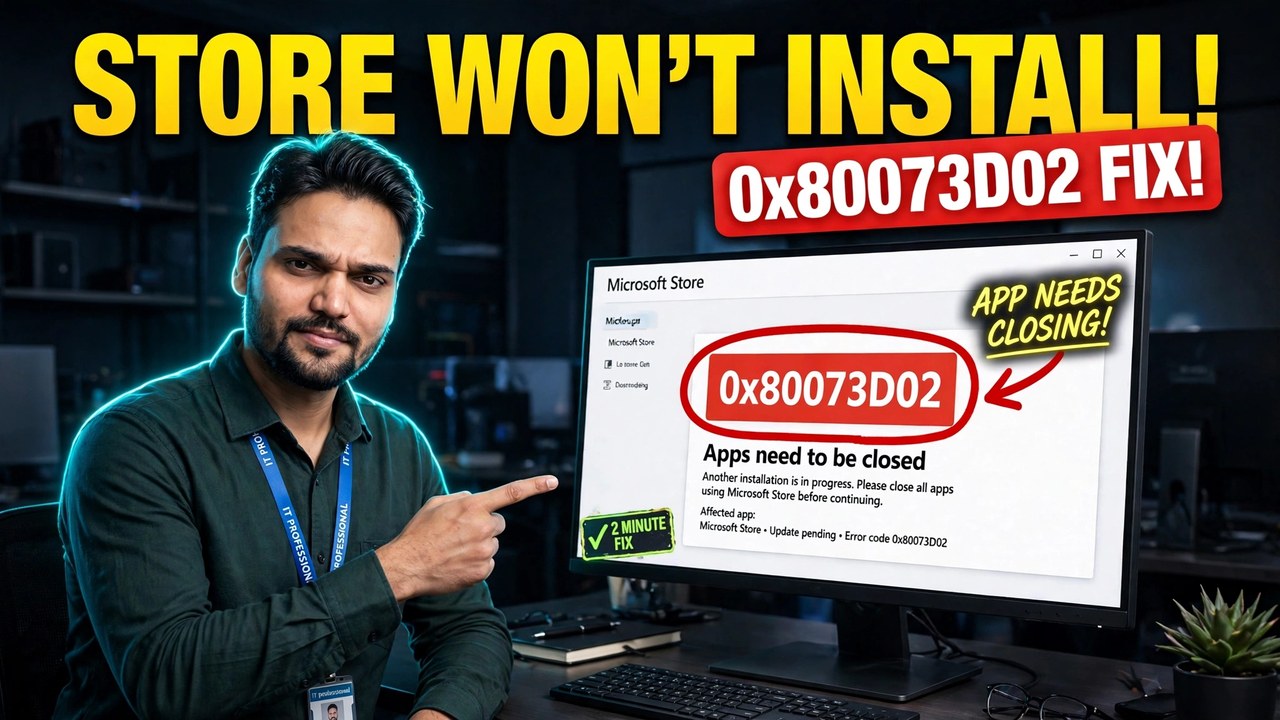
Error 0x80073D02 has a plain meaning in Microsoft documentation: the package could not be installed because resources it modifies are currently in use. The Store message then names the apps that need to be closed. The reported case on Microsoft Q&A, an update to MicrosoftWindows.CrossDevice failing the same way, follows this exact pattern - the component being updated is active, so the new package cannot be written over it. Do not start by reinstalling Windows or deleting Store folders. Start by fully closing the named app, then work through the Store cache, the Store repair options and, only if needed, re-registering the Store package.
X The package could not be installed because resources it modifies are currently in use.
X Error code shown under the failed app: 0x80073D02
X The same app update fails again every time you click Retry
Check: the app named in the message still appears in Task Manager under Processes or Background processes, even though its window is closed
The fingerprint of this problem: one app update fails with 0x80073D02 while other Store apps update normally.
Close the Named App Completely and End It in Task Manager ⭐
This is the fix that works most often, because the error is literally telling you the cause. Closing the window is not always enough - many apps keep a background process, a tray icon or a helper service running after the window disappears.
- Read the Store message carefully and note the exact app name it lists. Close that app normally first, and also close it from the system tray near the clock if it has a tray icon - right-click the icon and choose Exit or Quit if it offers one.
- Press Ctrl + Shift + Esc to open Task Manager. On the Processes tab, look for the named app under both Apps and Background processes.
- Select every entry for that app and click End task. If the app is a suite with several helpers, end all of its entries, not just the main window process.
- Also close Microsoft Store itself, then reopen the Store, go to Library and click Get updates or retry the failed app update.
- If the update now installs, the cause is confirmed: the app was holding its own files open. Get into the habit of fully exiting that app before updating it.
Restart the PC and Retry Before Opening That App
A restart guarantees no leftover process, service or locked file from the previous session survives. The order matters: retry the update before you open the problem app again.
- Save your work and choose Start > Power > Restart. Use Restart, not Shut down - on Windows 11 a shutdown can keep part of the previous session with Fast Startup, while Restart is a clean start.
- After signing back in, do not open the app that failed. Open Microsoft Store first.
- Go to Library, click Get updates, and let the failed app install before launching anything else.
- If it installs cleanly now, a background process or a locked file from the old session was the whole problem, and no deeper repair is needed.
Clear the Microsoft Store Cache With wsreset.exe
If no app is running and the error still appears, the Store cache itself can be holding a stale install state. Microsoft provides wsreset.exe for exactly this - it clears the Store cache without deleting installed apps or your account.
- Press Win + R, type
wsreset.exeand press Enter. - A blank Command Prompt window opens. Wait - after about ten seconds it closes by itself and Microsoft Store opens automatically. Do not close the blank window early.
- In the Store, go to Library > Get updates and retry the app that failed with 0x80073D02.
- wsreset does not remove your apps, your sign-in or your purchases. It only clears the local Store cache, so it is safe to run more than once.
Repair, Then Reset, Microsoft Store in Settings
Windows 11 gives every Store app, including the Store itself, two repair levels in Settings. Repair keeps the app data; Reset clears it. Always try Repair first.
- Open Settings > Apps > Installed apps. Find Microsoft Store in the list, click the three dots next to it and choose Advanced options.
- Scroll to the Reset section and click Repair. Wait for the tick to appear, then open the Store and retry the update.
- If the error returns, go back to the same page and click Reset, then confirm. The Store app data is cleared and the Store opens like a first run - you may need to sign in again, but your installed apps and purchases stay untouched.
- Retry the failed update once more before moving to the last fix.
Re-register the Microsoft Store Package in PowerShell
If the Store itself is damaged - it crashes, shows blank pages, or every update fails the same way - re-registering its package with Windows fixes the registration without reinstalling Windows.
- Right-click Start and choose Terminal (Admin) or Windows PowerShell (Admin), and approve the prompt.
- Run this command exactly as written:
Get-AppxPackage -AllUsers Microsoft.WindowsStore | Foreach {Add-AppxPackage -DisableDevelopmentMode -Register "$($_.InstallLocation)\AppXManifest.xml"} - Wait for the command to finish with no red errors, then restart the PC.
- Open Microsoft Store, go to Library and retry the failed update. If a single app still reports 0x80073D02 after a clean restart, uninstall and reinstall that one app from the Store instead of repairing the Store again.
Software Needed
No extra software is needed and nothing needs to be downloaded. Every step uses tools built into Windows 11: Task Manager, Microsoft Store, the Run box with wsreset.exe, Settings and Windows PowerShell. Do not download Store reinstall scripts or registry cleaners from random sites - a damaged Store is fixed by the Repair, Reset and re-register steps above, all of which are Microsoft-supported routes.
More PC Fixes on Technical Anshu
Every week: Windows problems, hidden tools and full setup guides, explained step by step.
Subscribe on YouTubeFrequently Asked Questions
What does Microsoft Store error 0x80073D02 mean?
It means the package could not be installed because resources it modifies are currently in use. In plain words, the app being installed or updated, or one of its background processes, is still running, so Windows cannot replace its files. Fully closing the named app and ending it in Task Manager is the fix that works most often.
The app looks closed. Why does the Store still say it needs to be closed?
Because closing the window does not always stop the app. Many apps keep running in the system tray or as a background process after the window closes. Open Task Manager with Ctrl + Shift + Esc, find the named app under Processes and Background processes, and click End task on every entry for it, then retry the update.
Is wsreset.exe safe to run?
Yes. wsreset.exe is a Microsoft tool built into Windows that clears the Microsoft Store cache. It does not delete installed apps, your Microsoft account or your purchases. A blank window opens for about ten seconds, closes on its own, and the Store opens automatically afterwards.
What is the difference between Repair and Reset for Microsoft Store?
Repair tries to fix the Store app while keeping its data, so you stay signed in. Reset clears the Store app data and returns it to a first-run state, so you may need to sign in again. Installed apps and purchases are not removed by either option. Always try Repair first and use Reset only if Repair does not fix the error.
How do I re-register Microsoft Store if Reset does not help?
Open Terminal (Admin) or Windows PowerShell (Admin) and run the Get-AppxPackage command for Microsoft.WindowsStore with Add-AppxPackage -DisableDevelopmentMode -Register pointing at its AppXManifest.xml file, as shown in Fix 5. This re-registers the existing Store package with Windows without reinstalling Windows or removing your apps.