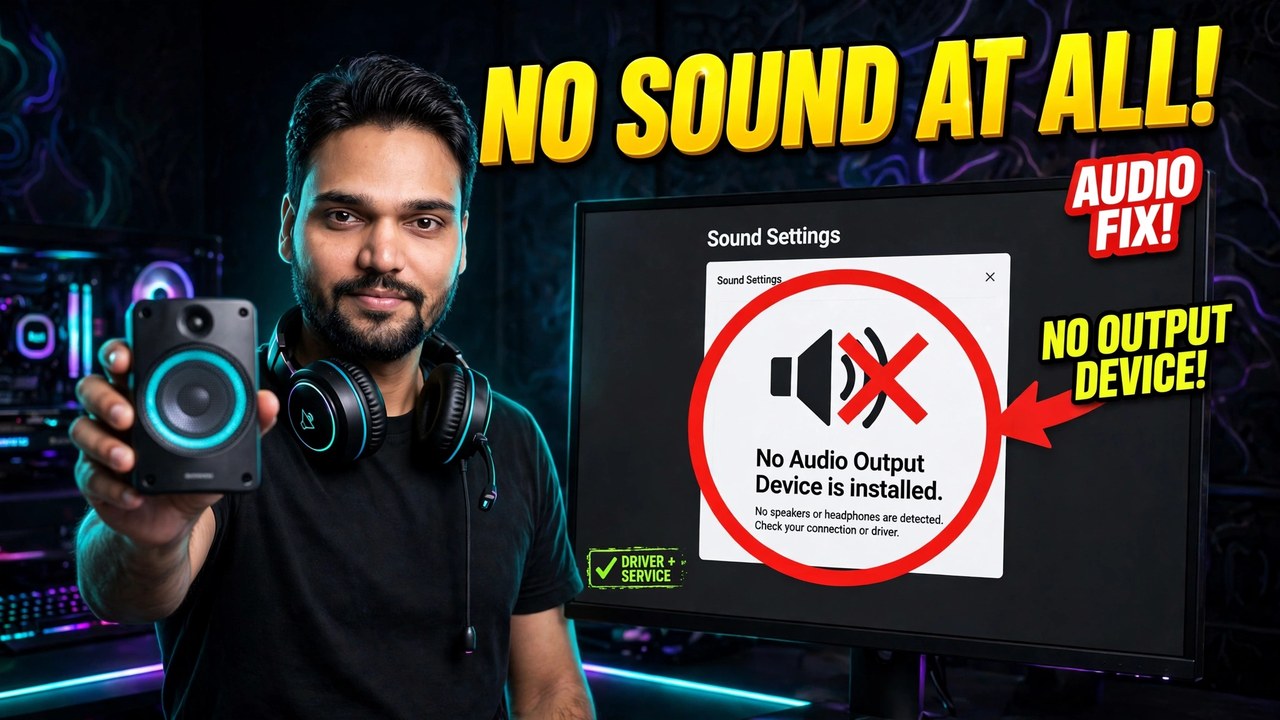
This problem is specific: it is the red X on the speaker icon with the exact message No audio output device is installed. That message means Windows currently has no enabled playback device at all - the speaker or headphone output is disabled, its driver is damaged, most often right after a Windows update, or the Windows Audio services are not running, so no device can be offered in the first place. Note this is a different fault from a USB audio device failing with Code 10 after an update - that is a device error on one USB device; here Windows reports that no output device exists at all. The steps below follow that logic: show the device if it is hidden, wake the services, then repair the driver.
X The speaker icon in the taskbar shows a red X
X Hovering or clicking it shows: No audio output device is installed
X Settings > System > Sound shows no output device to choose
Check: in the classic Playback tab, the speaker is often sitting there marked Disabled - present, but switched off, which is why Windows reports no device at all
The fingerprint of this problem: a red X on the speaker icon, and an empty output list in Sound settings.
Show Disabled Devices and Enable Your Speaker or Headphones
Do this first, because it is the fastest possible win. A device that has been disabled - by an update, by another program, or by an accidental click - disappears from the modern Sound page completely, but it is still listed in the classic sound panel, greyed out and waiting to be enabled.
- Open Settings > System > Sound. If the Output section shows no device, scroll down and click More sound settings. The classic Sound window opens.
- Open the Playback tab. Right-click an empty area of the list and tick Show Disabled Devices and Show Disconnected Devices.
- If your Speakers or Headphones now appear greyed out, right-click them and choose Enable. Then right-click again and choose Set as Default Device.
- Click OK, then play any sound - a video or the Test button on that same Playback tab with the device selected (right-click > Test).
- If your device does not appear even with disabled devices shown, Windows is not detecting it at all right now: continue with the services in Fix 3 after the quick troubleshooter in Fix 2, then the driver in Fix 4.
Run the Audio Troubleshooter
The built-in audio troubleshooter checks the services, the default device and the driver state in one pass, and it fixes the simple cases - a stopped service or no default device set - on its own. It takes two minutes, so run it before the manual steps.
- Open Settings > System > Troubleshoot > Other troubleshooters.
- Find Audio (labelled Playing Audio in some builds) and click Run.
- Follow the prompts. If it asks which device you want to troubleshoot, choose your speakers or headphones. Apply any fix it offers, then test sound.
- Note what it reports even if it cannot fix the problem - a message that a service is not running sends you to Fix 3, and a message that no device was found sends you to Fix 4 and Fix 5.
Set Windows Audio and Windows Audio Endpoint Builder to Automatic and Restart Both ⭐
This is the fix that works most often when the device has vanished completely. All sound on Windows flows through two services: Windows Audio Endpoint Builder detects and builds the list of audio devices, and Windows Audio plays through them. If Endpoint Builder is stopped, Windows has no device list at all - which is exactly the no output device message.
- Press Win + R, type
services.mscand press Enter. - Find Windows Audio Endpoint Builder and double-click it. Set Startup type to Automatic, then click Start if it is stopped, or Stop and then Start to restart it. Click OK.
- Do exactly the same for Windows Audio: Startup type Automatic, and Start or restart it. Restart Endpoint Builder first and Windows Audio second - Windows Audio depends on Endpoint Builder, so that is the order Windows itself uses.
- Close Services and look at the speaker icon. In many cases the red X clears within seconds of the services restarting, because the device list has been rebuilt.
- Play a test sound from Settings > System > Sound. If the icon is fixed but your device is still not listed, the services are fine and the driver is next.
Reinstall the Audio Device in Device Manager, or Roll Back Its Driver
If the device is enabled and the services are running but there is still no output device, the driver is damaged - the classic leftover of a Windows update that replaced a working audio driver with a broken one. Removing the device forces a clean driver install, and Roll Back returns the previous driver when an update caused it.
- Press Win + X and choose Device Manager. Expand Sound, video and game controllers.
- If your audio device is listed (Realtek Audio, High Definition Audio Device, or your maker's name), right-click it and choose Uninstall device. If a checkbox offers to delete the driver software, leave it unticked for this first attempt, then click Uninstall.
- Restart the PC. Windows detects the audio hardware during startup and reinstalls the driver automatically. Test sound as soon as you sign in.
- Alternative if sound broke immediately after a driver or Windows update: instead of uninstalling, right-click the device, choose Properties > Driver tab and click Roll Back Driver if the button is available, then restart. This restores the driver version that worked before the update.
- If Sound, video and game controllers is missing entirely, or shows the device with a yellow warning, the driver install itself is failing - go to Fix 5 and install the maker's driver manually.
Install the Audio Driver From Your PC or Motherboard Maker
When the generic Windows driver does not restore sound, the correct driver is the one from the maker of your PC, laptop or motherboard. Audio chips are customised by the maker, and the maker's package includes the control components the generic driver lacks.
- Find your exact model: press Win + R, type
msinfo32and note the System Model (laptop or prebuilt PC) or BaseBoard Product (self-built PC - that is your motherboard model). - Open the official support site of that maker - HP, Dell, Lenovo, ASUS, Acer, MSI, Gigabyte and so on - search your exact model, and download the audio driver for Windows 11. Take drivers only from the maker, never from driver-download sites.
- Install the driver and restart the PC when asked, even if the installer does not insist.
- After the restart, open Settings > System > Sound and confirm your speakers or headphones are now listed under Output and selected. Play a test sound.
- On a desktop, also confirm the speakers or headphones are plugged into the correct jack and powered on, and try the rear motherboard jack instead of the front panel jack once - a dead front panel connection looks exactly like a missing device while Windows is actually healthy.
Software Needed
No extra software is required for Fixes 1 to 4 - they use Settings, the classic Sound panel, Services, Troubleshooter and Device Manager, all built into Windows 11. The only download in this guide is the audio driver for your exact model from your PC, laptop or motherboard maker's official support page in Fix 5. Avoid third-party driver updater programs: for audio they commonly install a generic driver, which is the same class of driver that causes this problem after updates.
More PC Fixes on Technical Anshu
Every week: Windows problems, hidden tools and full setup guides, explained step by step.
Subscribe on YouTubeFrequently Asked Questions
Why does Windows say No audio output device is installed when my speakers are plugged in?
Because that message is about what Windows can see, not about what is plugged in. If the playback device is disabled, it is hidden from the output list; if the Windows Audio Endpoint Builder service is stopped, Windows has no device list at all; and if the driver is damaged after an update, the device cannot be offered. Enabling the device, restarting the two audio services and repairing the driver cover all three causes.
Where is my speaker in Sound settings? The output list is empty.
Disabled devices are hidden by default in the modern Sound page. Open Settings > System > Sound, click More sound settings, open the Playback tab, right-click the empty list and tick Show Disabled Devices and Show Disconnected Devices. A greyed-out Speakers entry appearing there means your device was only disabled - right-click it, choose Enable, and set it as the Default Device.
What do Windows Audio and Windows Audio Endpoint Builder do?
Endpoint Builder detects your audio hardware and builds the list of playback and recording devices; Windows Audio then plays and records sound through that list. Both must be set to Automatic and running. If Endpoint Builder is stopped, no device can appear anywhere in Windows, which produces the exact No audio output device is installed message.
Sound broke right after a Windows update. Should I uninstall the driver or roll it back?
Roll Back Driver is the cleaner first choice when it is available, because it restores the exact driver version that worked before the update: Device Manager, right-click the audio device, Properties, Driver tab, Roll Back Driver, then restart. If Roll Back is greyed out, uninstall the device in Device Manager without deleting the driver software and restart, so Windows reinstalls the driver cleanly.
The generic driver did not help. Which driver should I install?
The audio driver from your PC, laptop or motherboard maker's official support page, for your exact model and Windows 11. Makers customise the audio chip and its control software, so their package succeeds where the generic High Definition Audio driver does not. Find your model with msinfo32, download only from the maker, install it and restart before testing sound.